Showing posts with label REST. Show all posts

Sunday, October 13, 2019

Beware: Open Project Online resource in 'Edit Resource' blocks the automated modification of that item

The Project Online ResourcePool can be automated managed, e.g. to update a (Custom)Field of an EnterpriseResource. Something that I became aware of is that the automated modification is blocked in case the resource is opened in 'Edit Resource' of the Project Online Web Application (PWA). Apparent PWA applies defensive locking, and already immediate locks the resource through checkout when opening it in the form, and not delayed / just-in-time at the moment of possible save. The automation is blocked both when doing the modification via ProjectServer REST service, as when via the ProjectServer.Client CSOM library.
Open a PO resource in the ‘Edit Form’
(<pwa-url>/_layouts/15/PWA/Admin/AddModifyUser.aspx )
Automation code-snippet to modify EnterpriseResource via REST service
 $body = "{ 'Name':'Test Name', 'Group':'Test Group' }";
 Patch-ReSTRequest $pwaUrl "ProjectServer/EnterpriseResources('$resourceId')" $body
Combination of 'Edit form' + automation execution results in error
{
  "error":
    {
       "code":"10101, Microsoft.ProjectServer.PJClientCallableException",
       "message":
           {
              "lang":"en-US",
              "value":"PJClientCallableException: CICOAlreadyCheckedOutToYou"
           }
    }
}

Sunday, September 16, 2018

Digest Authenticated API should obey to CORS

On securing access to a service API, Digest Authentication delivers stronger security as Basic Authentication. In case the service API is invoked from JavaScript code via XMLHttpRequest, that client application must explicitly self obey to the Digest Authentication handschake. A convenient library to use for that is digestAuthRequest.js (although I had to tweak it a bit to get it working, for availability of CryptoJS within the library, and to apply only the 'path' part of the URL in generating the digest token). But also the API itself must obey to standards: thus the Digest Authentication protocol, but in addition also to the CORS protocol in case of cross domain usage. Otherwise modern browsers will refuse to read the authentication challenge returned by the API in the first step of the authentication handshake:
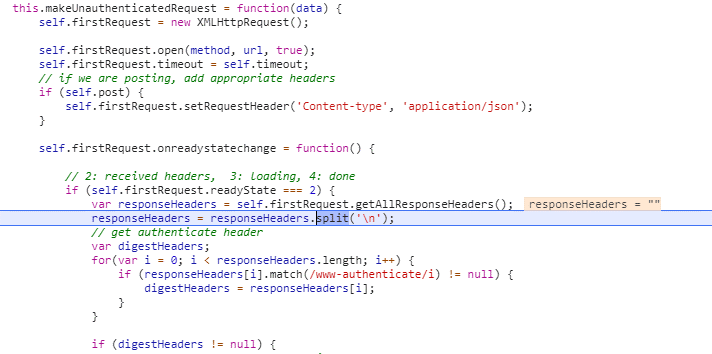
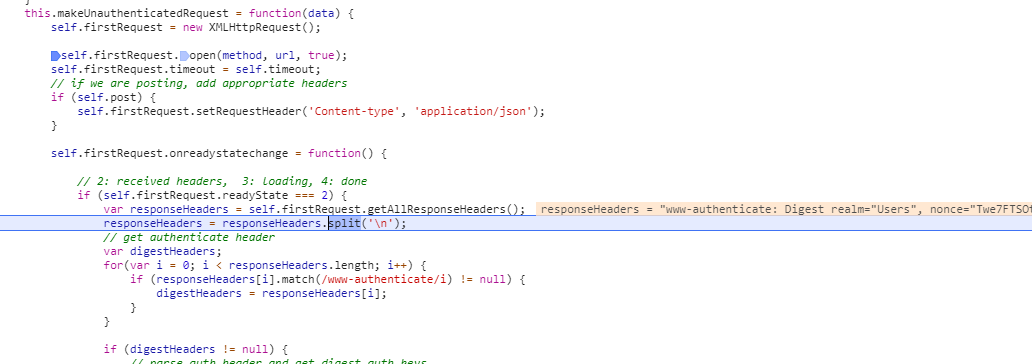
The rootcause is that XMLHttpRequest::getResponseHeader() method in its default mode can only access simple response headers, any of: Cache-Control, Content-Language, Content-Type, Expires, Last-Modified, and Pragma (see Using CORS). In this set, the WWW-Authenticate header is missing. So if you want to enable JavaScript clients of your API to successful Digest Authentication and use your API, you have to include that response header name in the value of 'Access-Control-Expose-Headers' response header.
Without properly returned 'Access-Control-Expose-Headers by API, digestAuthRequest fails to access the required WWW-Authenticate header in case invoked from cross-domain JavaScript based client:
With properly returned 'Access-Control-Expose-Headers by API, digestAuthRequest succeeds to access the required WWW-Authentication header in case invoked from cross-domain JavaScript based client:

Wednesday, August 22, 2018

Resolve from conflict between 'Content-Approval' and SharePoint Workflow

Business usage scenario: content management capability to work on draft of data items first, and on peer approval publish copy of the data item into another list.
The business power user recognized self the richness of SharePoint building blocks to realize the scenario:
  1. Generic list with 'Content Approval' and 'Versioning' configured;
  2. SharePoint Designer Workflow on ItemChange; in which the approval status of item is checked, and on condition of 'Approved' create a copy of the item in the 'publish' location.
In theory this setup should function correct. However in (akward) SharePoint practice it does not:
  • The execution of the workflow triggered on ItemChange, results itself that the reached workflow stage is administrated as 'metadata' in the item on which the workflow is triggered.
  • And although the actual content of the item remains unchanged, the standard 'Content Approval' handling treats this as change towards the stage in which the data item was approved; and automatically resets the approval state to 'Pending';
  • When in the workflow the 'Approval Status' field is retrieved, it is therefore already reset to 'Pending'.
Thus not only the publication process fails due this reset of the condition value, but also the data item itself is reset; as if no 'Approval/Reject' decision was made by the peer reviewer. This is beyond confusing, also frustrating; and does not help in adoption of SharePoint as underlying business platform.
The business user consulted me for help. I quickly learned that the experienced behavior is a known issue in the combination of 'Content Approval' and SharePoint Designer Workflow. A functional error which cannot be prevented, that is when utilizing the out-of-the-box building blocks 'Content Approval' plus Workflow. A possible way-out is then to 'build' a custom 'Content Approval'. But that I consider a non-desired and weak approach. The OOTB Content Approval is available to use - for business users via configuration -, so that should be respected and acknowledged.
As prevention upfront is thus not possible, I switched to an approach in which to mitigate afterwards. In the triggered workflow, retrieve the 'approval status' of the previous version of the current item, and use that for the condition evaluation. If 'approved', then publish the item; and in addition also from the workflow execution restore the approved state in the item. The beauty here is that also in this mitigation the richness of the SharePoint platform can be utilized: SharePoint REST Api to retrieve previous version of data item, and standard SPD workflow actions to call Http Web Service plus set the approval status of data item.

Sunday, April 15, 2018

Peculiarity with SharePoint Online Active Authentication

To invoke SharePoint Online REST services from automated client that is running outside SharePoint context itself, you have 2 options for authentication:
  1. Via OAuth 2.0; this requires to administer an SharePoint Add-In as endpoint (see post Access SharePoint Online using Postman for an outline of this approach)
  2. Via SAML2.0; against the STS of your tenant
The steps for the SAML2.0 approach are excellent outlined in post SharePoint Online Active Authentication; no need for me to repeat that here. However, a peculiarity I observed is that the handling is not only very picky on the correct messaging formats for respectively getting the 'SAML:assertion' from your STS [step 2], and next the 'wsse:BinarySecurityToken' [step 3]; but it is also very picky on the exact url with which to request the SPOIDCRLToken cookie [step 4]. I created a code snippet in Javascript standalone 'application', and although followed all steps; I ran eventually in an HTTP 401 Unauthorized. While executing via the PowerShell from above post I did get the cookie returned; so definitely working. Comparing the code very closely I identified the troublemaker: the call to <tenant>/idcrl.svc must be with ending backslash: <tenant>/idcrl.svc/. Without that, the call returns 401; with the ending backslash, the SharePoint Online Active Authentication also successful works from a.o. external Javascript (e.g. SAPUI5) application context.

Tuesday, November 7, 2017

Retrieve data from a large list via REST

The infamous ´5000´ listview threshold, we all have encountered that limit at least once in utilizing SharePoint as data backend. This time I was consulted by a business user that utilized SharePoint´s data management capabilities for storage of above 135,000 listitems. Wrt storage this amount is not an issue, but for retrieving it can be due the listview threshold. The advised approach to deal with that is via indexed columns, and tabbed/indexed views. That is for retrieving + viewing the big amount of listitems in the standard SharePoint UI. But what about requesting the data via SharePoint REST service? The REST protocol promises to support a similar navigation/tabbed experience via $top and $skip parameters. However, here SharePoint (2010) demonstrates to be not a fully compliant REST citizen. The $top parameters works fine on indexed large list, but usage of $skip results in an HTTP 500; and in ULS the error "Throttled:Big list slow query. List item query elapsed time: 0 milliseconds" is logged.
Also here it turns out that the '5000 threshold' is such a common encountered SharePoint issue. Internet search within a few hits leads to the helpful Stackoverflow resource: SharePoint 2010 REST top, skip fails on large list:
$skip query option is not supported, but $top is. Workaround, use a mix of $orderby on ID, $filter on ID and $top x items, and loop
Pseudo-code to loop through the entire big SharePoint List:
var nextId = 0;
WHILE TRUE DO
    var getData = $.getJson(“<site-collection url>/_vti_bin/listdata.svc/LargeList"
          + "?$select=Id,Name&$top=1000&&orderby=id&$filter=Id gt " + nextId);
    if (getData is not empty) {
        nextId = getData(last)[id];
    } else {
        break;
    }
END DO

Sunday, March 26, 2017

SharePoint integration endpoints for a SAPUI5-based PeopleFinder

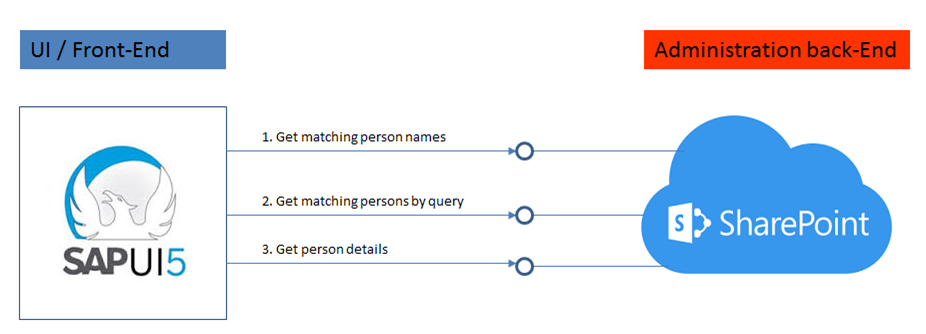
SAPUI5 is a suitable framework to build responsive-design UIs that renders to the available screen estate of diverse device types: smartphone, tablet, and desktop. It is therefore a fit to deliver an alternative UI to SharePoint's PeopleFinder functionality, in case the out-of-the-box SharePoint UI (that is, with potentially the rendering still made company specific via customized Search Display Templates) for whatever reason does not qualify as sufficient fit. The basic requirement of a SAPUI5 mobile application is that it can consume data and functionality via OData REST services. The SharePoint platform supports such an architecture via the standard SharePoint REST services:
The integration surface for a peoplefinder functionality comprises 3 main elements:
  1. To interactive present people suggestions to user while typing in characters of the people name ==> Get names list of matched users on search input
  2. Get detailed list of matched users on search input
  3. Get details for selected user
1. Get names list of matched users on search input

Best:
SharePoint end-point 
https://<SharePoint root-url>/_api/search/query?querytext='preferredname:Jones*'''&selectproperties='PreferredName'&sourceid='B09A7990-05EA-4AF9-81EF-EDFAB16C4E31'&rowlimit=10

Alternative is to search in User Information List:
SharePoint end-point 
https://<SharePoint root-url>/_vti_bin/listdata.svc/UserInformationList?$filter=((ContentType eq 'Person') and (substringof('Jones',LastName)))&$orderby=Name

but this has some disadvantages:
  • Incomplete qua users: user is only added to UserInformationList on first visit to SharePoint site; users not visited yet, are not included
  • Overcomplete: UserInformationList is never cleaned up, former colleagues remain in the list
  • Incomplete qua search: UserInformation does not contain a full name field
2. Get detailed list of matched users on search input

Search in full content / all crawled people data fields:
SharePoint end-point https://
<SharePoint root-url>/_api/search/query?querytext='Mobile*'&selectproperties='FirstName,LastName'&sourceid='B09A7990-05EA-4AF9-81EF-EDFAB16C4E31'&rowlimit=10

Search in identified property-field(s) only:
SharePoint end-point https://
<SharePoint root-url>/_api/search/query?querytext='department:Mobile*'&selectproperties='FirstName,LastName'&sourceid='B09A7990-05EA-4AF9-81EF-EDFAB16C4E31'&rowlimit=10
3. Get details for selected user

Get all public properties:
SharePoint end-point https://
<SharePoint root-url>/_api/SP.UserProfiles.PeopleManager/GetPropertiesFor(accountName=@v)?@v='<uname of user>'

Get one single identified user profile property only:
SharePoint end-point 
https://<SharePoint root-url>/_api/SP.UserProfiles.PeopleManager/GetUserProfilePropertyFor(accountName=@v,propertyName='AboutMe')?@v='<uname of user>'

Monday, August 1, 2016

Augment the Org Chart with additional information

The SharePoint Organization Browser (Org Chart) is a convenient out-of-the-box functionality to display the organogram on user basis. The information of this typically comes from the HR system, and is propagated to SharePoint User Profiles. In our company we work with a lot of externals. All of them are also administrated in our HR system, and thus also provisioned to the User Profiles. Which is what we want. Only thing that our managers miss, is that in the Org Chart no visual distinction is made between internal and external subordinates. We have this information available in the User Profile in a custom property. But the Org Chart only displays the full names of the colleagues visualized in the organogram chart.
In the ‘old days’ we simple would have built a custom Org Chart, using server-side code. But in the current times, this is strongly advised against. We have an architecture guiding principle that all application customizations and extensions must be future-proof. Modifying or rebuilding something that a platform delivers out-of-the-box does not qualify for us as future-proof. The platform vendor might replace the current component by a complete different setup in the future, of which we would then miss out. In this particular scenario there is another reason to not replace the out-of-the-box delivered by a custom developed. The Organization Browser webpart is standard included on user profile page Person.aspx. To change that we would need to replace the inclusion of the webpart by an own. Note that for Person.aspx publishing page (= SharePoint content) it is possible to do this, on premise and also online, e.g. via SharePoint Designer. However, what online is not possible is to deploy a server-side webpart. Implication is that the future-proof custom Org Chart must be redeveloped fully from scratch (no reuse / extension possible of the standard Org Chart webpart), either via 100% clientside script, or as (Azure deployable) provider-hosted Add-In.
As said, Person.aspx can be modified in both on prem as online. Better sustainable approach is therefore to extend on the out-of-the-box functionality with the requested customization. Inject a reference to an own JavaScript file, and in that file include a method to extend the displayed names of a colleague’s subordinates with information on whether internal or external. We have this information as user profile property, and this can in clientside context be retrieved via the UserProfile REST service.
Dynamic extend the Organisation Browser rendering with additional User Profile information
enrichOrgChartWithExternalOrg = function() { jQuery("#ReportingHierarchy").find("TR.ms-orgme").next().find("TD.ms-orgname > a").each(function(index) { var anchor = this; var href=jQuery(anchor).attr("href"); var accountName = unescape(href.substr(href.indexOf("accountname=") + "accountname=".length)); jQuery.ajax({ url: _spPageContextInfo.webAbsoluteUrl + "/_api/SP.UserProfiles.PeopleManager/GetUserProfilePropertyFor(accountName=@v,propertyName='ExternalOrganization')?@v='" + accountName + "'", contentType: "application/json;odata=verbose", headers: { "accept": "application/json;odata=verbose" }, success:function(data){ if (data.d.GetUserProfilePropertyFor.length != 0) { var extCompName = data.d.GetUserProfilePropertyFor.substr(0, data.d.GetUserProfilePropertyFor.indexOf(" - ")); var augmentedSubordinateName = jQuery(anchor).html() + " (" + extCompName + ")"; jQuery(anchor).html(augmentedSubordinateName); } } }); }); };
Standard Organisation Browser display extended with additional User Profile information
Note, the above code retrieves the extra user profile property per subordinate in a loop-control, each iteration includes a request-reply to the UserProfile REST service. To reduce the network latency impact from the client to SharePoint and back, one would want to avoid the loop and request all in one http request. The REST protocol supports this via $batch (Get UserProfile Properties with REST API Batching. And SharePoint Online and SharePoint 2016 are a good REST citizens, but SharePoint 2013 on premise is not: $batch is not supported. (Make batch requests with the REST APIs).

Thursday, February 18, 2016

Directly open attachment from XsltListView UI

A business department composed a knowledge system as SharePoint-enabled Business App. The knowledge items are structured information about defects, with aspects as system, impact, fix available, owner. At a conceptual level, the correct SharePoint information architecture to administrate this is as list items. Some, not all, of the knowledge items can have associated documents. Important to realize is that the document(s) accompanying a knowledge item is/are secondary level information, it is not the main entity. So it is a valid decision to not set up as SharePoint document library.
However, on document level a library has convenient user experience. You click on the title of a document item, and it opens up: in browser or in native client, dependent on library settings and type of the document item. Our business requested the same convenient user experience for those knowledge items that have an associated document as attachment. Direct open from list, avoid the cumbersome usage path to first open the item and from the item dialog open the attachment in case present for the item.
A javascript approach can be applied to modify/extend the native XsltListViewWebPart behavior to deliver on the above. It relies on a combination of dynamic javascript overloading, SharePoint REST service, and SharePoint OWA viewers. Below the code snippet.
var EnrichKnownIssuesView = window.EnrichKnownIssuesView || {}; EnrichKnownIssuesView.UI = function () { function OverloadEditLink() { EditLink2 = function(target,nr) { var href = $(target).attr('href'); var idStart = href.substr(href.indexOf("&ID=") + 4); var id = idStart.substr(0, idStart.indexOf("&")); var siteUrl = window.location.href.substr(0, window.location.href.indexOf("/default.aspx")); if (siteUrl.length > 0) { var getAttachmentsUrl = siteUrl + "/_vti_bin/ListData.svc/KnownIssuesList(" + id + ") ?$expand=Attachments&$select=Id,Attachments"; $.getJSON(getAttachmentsUrl, function (data) { if ( data.d.Attachments != null && data.d.Attachments.results != null && data.d.Attachments.results.length > 0 ) { for (var i = 0; i < data.d.Attachments.results.length; i++) { var attachmentsUrl = siteUrl + "/Lists/Known Issues List/Attachments/" + data.d.Id + "/" + data.d.Attachments.results[i].Name; /* For some files, open in Office Web Applications results in error "Service not available". To prevent that the user then will not be able to view the document, configure the web-address of native document as source --> it will then open in native client. */ var fileName = data.d.Attachments.results[i].Name.toLowerCase(); if (fileName.endsWith(".docx") || fileName.endsWith(".doc")) { attachmentsUrl = siteUrl + "/_layouts/WordViewer.aspx?id=" + encodeURI(attachmentsUrl) + "&Source=" + encodeURI(attachmentsUrl) + "&DefaultItemOpen=1"; } else if (fileName.endsWith(".xlsx") || fileName.endsWith(".xls")) { attachmentsUrl = siteUrl + "/_layouts/xlviewer.aspx?id=" + encodeURI(attachmentsUrl) + "&Source=" + encodeURI(attachmentsUrl) + "&DefaultItemOpen=1"; } else if (fileName.endsWith(".pptx") || fileName.endsWith(".ppt")) { attachmentsUrl = siteUrl + "/_layouts/PowerPoint.aspx?PowerPointView=ReadingView&PresentationId=" + encodeURI(attachmentsUrl) + "&Source=" + encodeURI(attachmentsUrl) + "&DefaultItemOpen=1"; } window.open(attachmentsUrl, '_blank'); } } }); } }; } var ModuleInit = (function() { ExecuteOrDelayUntilScriptLoaded(OverloadEditLink, "inplview.js"); })(); }();
Special attention in the above for the usage of the 'Source' querystring parameter. During testing of the overloaded EditLink2 function, I occassional encountered an error in which OWA reports an error:
Opening the document in native Office client does succeed. I could have resorted to just always let the document open in native Office, but honestly I dislike that. With the OWA usage model, there is no need to download the document to the client system (consider Information Rights Management and Data Loss Protection), nor a need to have MS Office installed on the specific client device. To give that completely up, just for the rare occurence of a document on which OWA opening fails is a pitty. Instead I apply a 2-step approach: I let the Business App first try to open the Office document in OWA, which in most of the cases succeeds. In the rare case this fails, after the user clicks 'away' the above error message, the browser next 'returns' to the url specified in the 'Source' querystring parameter thus opening the document in the native Office client. Via this 2-steps approach, it is assured that the user can view the document: preferable in the browser, or in the rare problem situation in the native Office client. Simple and pragmatic.

Sunday, April 27, 2014

HowTo send JSON data from WCF service with special characters

The manner to return special characters within the JSON response of a (SharePoint-based) WCF REST service, consists of 3 essential elements:
  1. Define the method response as System.IO.Stream;
  2. Set the charset of the JSON response to 'ISO-8859-1';
  3. Apply UniCode encoding to the JSON response string.
Code example
[ServiceContract(Namespace = "...")] public interface IRESTService { [WebInvoke(Method = "GET", UriTemplate = "/RESTMethod?$parameter1={parameter1}&...", RequestFormat = WebMessageFormat.Json, ResponseFormat = WebMessageFormat.Json, BodyStyle = WebMessageBodyStyle.Bare)] System.IO.Stream RESTMethod(string parameter1, ...); } [AspNetCompatibilityRequirements(RequirementsMode = AspNetCompatibilityRequirementsMode.Required)] public class RESTService : IRESTService { public Stream RESTMethod(string parameter1, …) { OutgoingWebResponseContext context = WebOperationContext.Current.OutgoingResponse; context.ContentType = "application/json; charset=ISO-8859-1"; string jsonData = ...; return new MemoryStream(UnicodeEncoding.Default.GetBytes(jsonData)); } }

Saturday, January 4, 2014

Augment GWPAM AddIn project to consume JSON dataformat

GWPAM consumption of efficient JSON format only possible when Gateway service supports OData V3
Standard the GWPAM generated AddIns consume the Gateway REST OData service via the AtomPub dataformat, and not via the more data-efficient JSON format. The reason is that the used .Net WCF Data Services Client library is not capable of consuming JSON dataformat. Because I prefer to consume REST services via the mobile-friendly JSON dataformat, I set out to augment a default generated GWPAM Outlook AddIn project to consume via OData JSON. As the service consumption is within .Net code, this is mostly a Microsoft.Net tail. However, as it turns out that to be even able to consume JSON in the Microsoft WCF client library, an important prerequisite is imposed on the consumed REST service; it also extends to there.

JSON consumption via WCF Data Services Client Library

Initially, WCF Data Services Client library only supported consumption of REST services via AtomPub dataformat. As of release 5.1 it is also possible to consume JSON, but with the limitation that the JSON format must be OData V3. Prerequisite for the consumed service is thus that it must be able to provide its data in OData JSON V3 dataformat. For the older OData versions (V1, V2), it is not [yet] possible to consume JSON in WCF Data Services Client library.

Steps to augment to GWPAM project to consume JSON dataformat

First prepare your project to be able to handle the JSON consumption:
  1. Install the latest WCF Data Services Client Library, at present this is 5.6.0. Installation is done via NuGet Package Manager, and must be applied to each GWPAM project in which you want to consume via JSON dataformat. The effect per project is that reference ‘Microsoft.Data.Services.Client’, version 5.6.0 is added; and that the (via GWPAM project template) already existing references ‘Microsoft.Data.EDM’, ‘Microsoft.Data.OData’, ‘System.Spatial’ are also upgraded to version 5.6.0.
  2. If present, remove the reference ‘System.Data.Services.Client’ from the GWPAM project(s). Note: Visual Studio 2010 default installs with that older WCF Data Services Client library.
  3. Install WCF Data Services 5.3.0 RTM Tools Installer in Visual Studio; also via NuGet.
Next setup the consuming code to consume the REST service via OData. That is, if the service supports it
  1. Validate that the consumed service is able to return data in the required JSON dataformat, OData V3. Query for this the $metadata of the service, and validate that it contains “m:MaxDataServiceVersion='3.0'”
  2. Generate an EDMModel for the service, via ‘Add Service Reference’ (iso ‘Add SAP Service Reference’). Open the generated service proxy, and change the accessibility of ‘GeneratedEdmModel’ to public
  3. Edit the earlier generated SAP data services client code to consume the service via JSON dataformat
    1. In the constructor, set to initialize for ‘System.Data.Services.Common.DataServiceProtocolVersion.V3’
    2. Set the Format to link to the generated EDM Model: this.Format.LoadServiceModel = GeneratedEdmModel.GetInstance;
    3. Set the Format to useJson: serviceContext.Format.UseJson()
    4. Copy the implementation + usage of methods ‘ResolveTypeFromName’ and ‘ResolveNameFromType’ from the generated service proxy in step 5. Modify the code to correspond to the full name of the SAP service proxy.
    1. Query the consumed REST service for JSON format; either via querystring param ‘$format=JSON’, or via Http Request Header ‘accept
      = application/json’

That's it

And that’s it. Now the GWPAM based Office AddIn is able to consume the REST Service via the more efficient JSON dataformat. Note that for the consumption itself it does not even has to a Gateway REST Service; it is also possible to consume REST services from other webservice platforms. But the GWPAM project templates and code generated are focussed on standard SAP NetWeaver Gateway services + data models; WFService as one evident example.

Tuesday, July 2, 2013

HowTo secure enable anonymous access of SharePoint external facing website

SharePoint can be used to provision public facing websites, accessible for the anonymous audience. Naturally it is then required that the contents (publishing pages, images, stylesheets) on the SharePoint website are anonymous accessible. In SharePoint 2007 the only option was to completely open up the SharePoint site collection, including all of its contents. Starting with SharePoint 2010 you have more fine-grained options. You can still open up the entire SharePoint context, which is the easy approach. Or you can decide to explicitly determine which of the content in the SharePoint site collection is anonymous accessible.

Enable Anonymous Access on site-collection level

As said, this is the easy, and as result also the most common applied approach. Basically you have to set one switch (ok, it takes some more, you can find the steps outlined here), and you're good to go.
What you must realize is that with this approach, basically all your content is anonymous accessible. Not only the publishing pages, but all SharePoint lists and libraries in the site collection are open for data retrieval from outside your domain. The data can be retrieved via the "old" Lists.asmx service (e.g. using CodePlex SPServices.js within jQuery context; or by invoking Lists.asmx from a .NET console application), or via ListData.svc. Whether this is a concrete problem depends: if the lists and libraries do not contain any sensitive data, what's the harm? But if they do, then you do not want that data to be retrievable outside your control.
Noteworthy: This is the applied approach when you host your public facing website in SharePoint Online / Office 365.

Enable Anonymous Access explicitly only for the required SharePoint artefacts

As can be seen from the picture, you also have the option to enable anonymous access on 'Lists and Libraries' level. If you select that option, default still all your SharePoint content is prohibited for anonymous access. You have to explicitly enable per List / Library if their contents must be anonymous accessible. In practice this means that for public facing websites, you must enable Anonymous Access on the Pages library in each Publishing Site in the site collection. But also on the Style Library, so that .css and .js resources are accessible. If you display images stored in a PictureLibrary on website pages, then you must also enable that library. Same for documents. In case you need to display on a page data from a List that is deliberate not enabled, you can still do. But you will have to wrap the data retrieval in an ElevatedPrivilege context; and thus requires custom code.
So this approach implies much more work as simple enable on 'Total website'. And also you'll have an extra maintenance responsibility: when the website is augmented with another Publishing Site, you have to [remember to] enable the Pages library in that site also explicitly for Anonymous Access.
Sounds like a drag? Well, the [very] good side is that you are in explicit control of which content you allow for anonymous access. And the default mode is Not Accessible, which is a security best practice.

Lock _vti_bin usage

There is a third option. Go the easy route of enabling Anonymous Access for total website; and avoid uncontrolled data retrieval via the SharePoint webservices by disable on DNS level the usage of '_vti_bin'. This approach has however some drawbacks. You cannot use SharePoint Designer anymore to open the site. And you can no longer use the SharePoint REST services in anonymous context. In the current time of Rich HTML5 Apps, it is becoming de-facto reference architecture to connect the front-end to your data and logic via REST services. So this poses a real limitation. Which in my book should not be taken too lightly.