Showing posts with label Yammer. Show all posts

Friday, October 16, 2020

Tip: how-to self-produce without external encoder into MS Stream Live Event

Webcast production for a Microsoft Stream Live Event is default tied to external encoder. Teams Live Event supports this also, but defaults to simple self-production via Teams App itself. In that case, the live event is not distributed via Stream; nor is the event recording stored within MS Stream. Instead Teams uses its internal Azure Media Services based streaming, and stores the recording somewhere for period of max 180 days after the event is over. Yammer Live Events takes a middle road, or the best of 2 worlds. It supports the same 2 production approaches as Teams - external encoder or via Teams. However, the difference is here within the Teams production handling. Even although produced as a simple Teams Live Event, under the hood this does use Microsoft Stream for the webcast distribution and processing, and after the live event is stopped for the storage of the recording for on-demand watch.
This opens multiple advantages
  • It allows to use the simplicity of Teams production for a webcast, and still embed the video on an event portal (typical hosted via SharePoint Online);
  • It prevent the need for and availability of external encoder (e.g. Wirecast-S, TeraDeck, OBS Studio, ...);
  • Corporations that have employed Ramp Multicast+ as eCDN solution to optimize and control the webcast traffic of Stream on the corporate network, can employ this also for webcasts produced via Teams
Way to apply this approach is by:
  1. Schedule your webcast as a Yammer Live Event;
  2. Produce your webcast as a Teams Live Event;
  3. Consume / watch the webcast as a Stream Live Event.
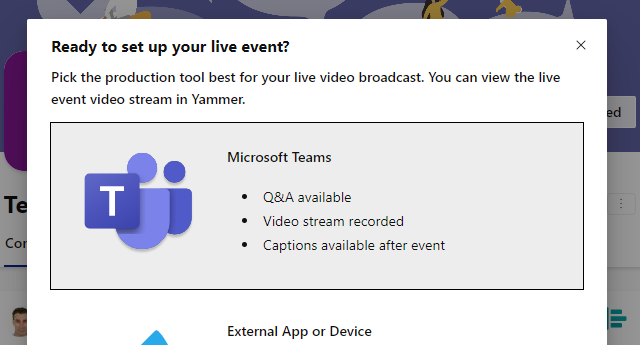
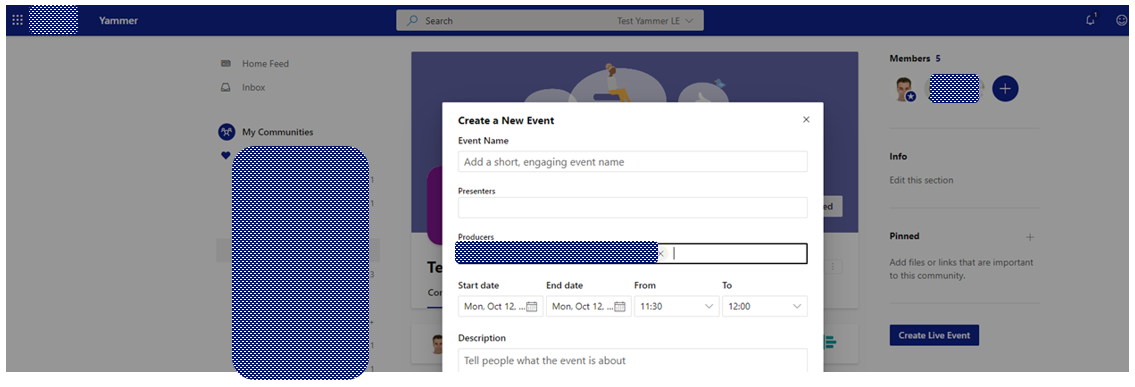
Step 1: Schedule as Yammer Live Event
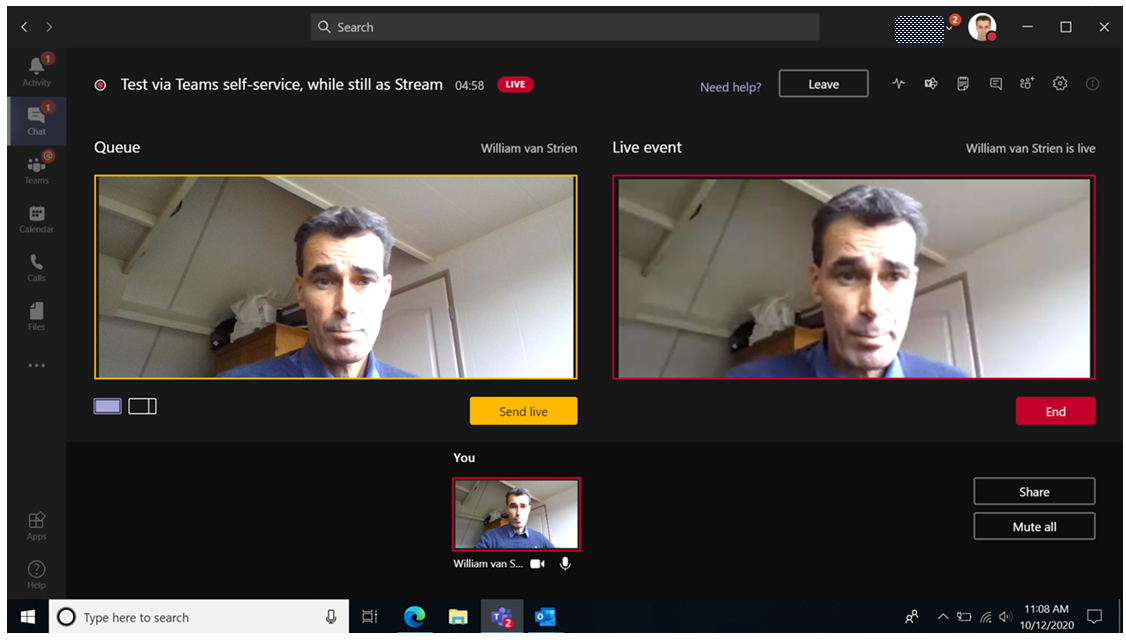
Step 2: Produce as MS Teams Live Event
Step 3: Consume as MS Stream Live Event, e.g. embedded on SharePoint Online page
Yammer channel determines who is allowed to watch the live event
Something to be aware in case you would apply this approach, is that Yammer then controls who is allowed to watch the live webcast. Namely the members of the Yammer channel in which the Live Event is scheduled. So you must then make sure that all the accounts that are invited as webcast audience, are invited to the 'owning' Yammer channel. It is not possible to extend via Stream portal the permissions of the scheduled Yammer (= Stream) Live Event. After the event ended, then the video recording is 'released' for video management actions through Stream portal.

Sunday, May 31, 2020

How-To include an external as presenter in Yammer Live Event

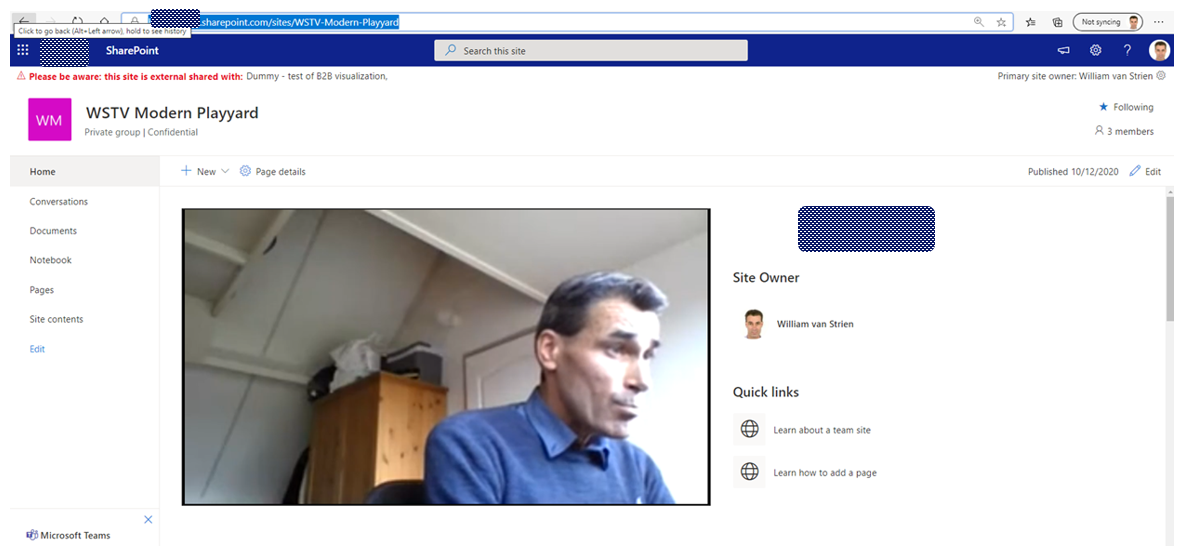
After I earlier this week did the pleasant discovery that and how-to an external can be involved as presenter in a Teams Live Event, I decided to test whether same is possible within Yammer Live Event production. That could work, as Yammer Live Event production can be via Teams. The short report out: Yes, also this proofs possible!
The enabling preconditions (external known as Azure AD B2B guest in organizing Teams, and switched in Teams App to the organizing tenant) and steps are comparable with involving an external in Teams Live Event presentation, although few significant differences:
  1. In the organizing tenant, schedule in producer / organizer role within Yammer a new Live Event. Crucial also here is to select that the production will be done 'via Teams', not 'via External app or device'. In this step in Yammer UI, do not try to invite the external as presenter as that fails: Yammer does not allow the external to be resolved (unless you have enabled external access of the Yammer channel itself)
  2. In Yammer of the organizing tenant, navigate to the scheduled Live Event and click on "Produce (Open in Teams)". After the Yammer Live Event is opened in Teams App, click 'Join now'.
  3. Crucial step: in the internal Teams meeting of the Live Event, click on the button 'Show participants'. And in the Teams meeting context, invite the external person via his/her external guest identity;
  4. Under the preconditions that the external person is active in Teams, and switched there to the organizing tenant, (s)he receives a request notification to join in the internal Teams meeting of the Yammer Live Event
  5. The invited external accepts the invite to join this active Teams Meeting, and can then share content + video in the meeting context of the Yammer Live Event;
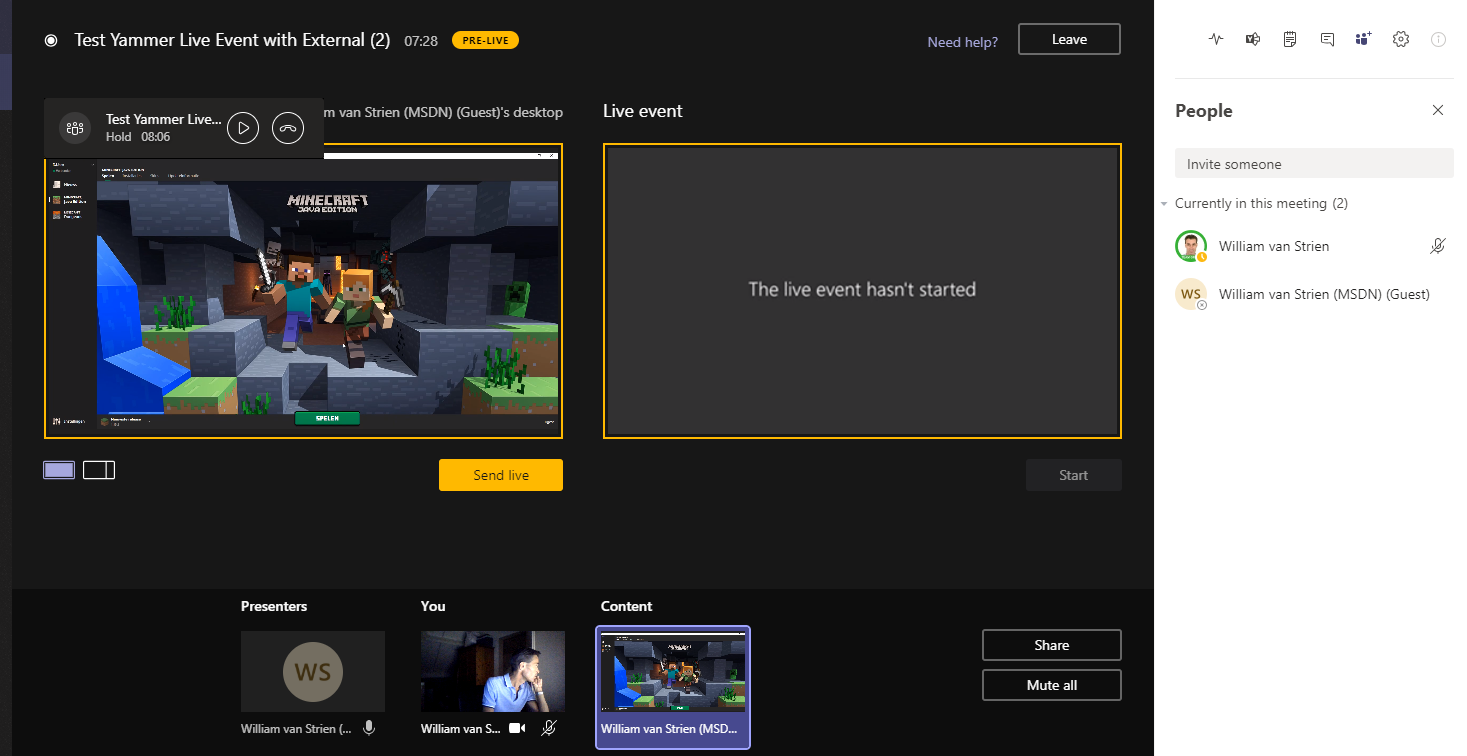
  6. The Yammer Live Event producer waits in the Teams Live Event production room until the external person has joined, and shares content in the internal meeting of the Live Event. When visible, the producer is in control to select content and/or video of this external presenter in the queue;
  7. The producer pushes from the queue to live, and starts the Live Event;
  8. The audience of the Yammer Live Event see the content and/or video of the external presenter;
  9. And audience on-the-go can watch the external presenter in the Yammer Mobile App;

Sunday, April 7, 2019

Options considered for extending Stream Live Events with live chat/questions capability

With the recent GA of Stream Live Events, Microsoft delivers a low-entry option to easily setup company-internal webcasts. All you need in addition are on the webcast producing side: 1) recording equipment - camera + audio, and 2) an encoder solution to transmit the recording inputs into the Live Events endpoint. The camera + audio options vary from the onboard webcam + microphone of a laptop, USB-based externals, upto high-end studio-quality equipment. For Stream Live Events handling the sophistication on the producing input side does not make a difference, the inputted RTMP(S) signal is from input endpoint processed the same. Whether an organization also needs some additionals on the consumption side depends on the audience side plus the internal network capacity. Watching a Live Event instantiates an individual / unicast stream per event viewer. Under assumption that the company network is sufficient scaled for nowaday cloud solutions usage, it is feasile to simultanuous watch a 'LIVE' Stream event per network location upto a maximum of few hundreds. In case of bigger audience, Microsoft states that it is needed to reduce the network load via a video distribution approach through a SDN/eSDN solution.
In its first released version, Stream Live Events capabilities are focussed on the core streaming + playing aspects. Business demands on a webcast typical go beyond that. The biggest additional demand is for interaction between the webcast audience and the presenter. Thus a chat window in which individual attendees can submit their questions, and that the presenter can follow + respond on. It is on the roadmap of Stream Live Events to deliver this (note: Stream recent delivered 'quizzes/ polls' capability, but this is targetted at inserting in already recorded videos for a.o. training purposes; not for dynamic interaction with live streaming), but not out-of-the-box delivered nowadays. However, with Office 365 as underlying platform you have as event developer a feature-rich toolbox at hand in which you can deliver yourself a webcast experience in which viewers have the live stream and chatbox combined, via no-code or low-code approaches. The hosting platform of such landingspage is naturally SharePoint Online....; as every created Stream Group is effectively an Office 365 Group, it has an own SharePoint Modern Team Site provisioned. The persons authorized to this site is the same audience that are permitted to join the scheduled Live Event. Create in this site a new page to function as the webcast entrance, and select the '2:1 columns' layout. In the left column embed the Stream Live Event instance - one gets this from Stream via 'Share' and then pick the 'Embed' option. With this setup, all left is to extend with chatbox / questions input control. There you have multiple options. One is to utilize the rich capabilities of Yammer, and embed a Yammer channel on the page. This gives you immediate a 'chat-like' experience, in which one can enter questions, semi-live follow the inputs / chats of others, respond on inputs of others. This immediate visibility of all the responses of ones peers may be unwanted, e.g. due potential sensitivity. In that case an alternative setup is to capture the inputs in a SharePoint list in the site, and only grant the webcast facilitators the authorization to view all received inputs. The webcast attendees submit their questions and feedback via an input form embedded on the SharePoint page. For this on sublevel again multiple alternatives are available. You can embed the out-of-the-box NewForm of the list; customize the NewForm via PowerApps; a MS Forms instance that via MS Flow sends the input to SharePoint List; or build a custom control via SPFx or even as a chatbot via Azure Bot Service. Of these options all except for the latter 2 are no/low-code 'mash-up' compositions, that deliver on the needed job. The decision-weighing between them is mostly on the user-experience and branding, see screen impressions of the various options.