Showing posts with label Azure AD B2B. Show all posts

Monday, December 23, 2024

How-to join as B2B guest a Teams meeting with ‘bypass lobby’

The lobby function in Teams gives some control over who joins a meeting, and when to allow entrance. This capability is convenient to prevent unknown people join your meeting. For known persons, it can be preferred to have ‘an open door’ policy. This can be configured via Teams policies, including for Entra ID B2B guests as known + trusted identities. However, to actual bypass the lobby, does require some ‘trickery’ on the guest side. The trick is to make sure you are indeed in a ‘known’ state in the inviting tenant; as “Unverified” you will still need to wait and enter via the lobby.
Teams Policy to allow B2B guests to bypass lobby
Join meeting in external organizing tenat still routes to lobby
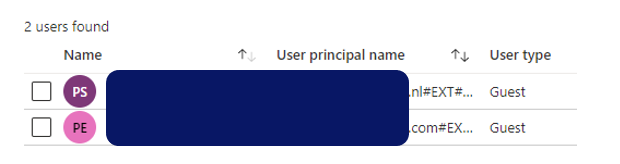
Inspecting the situation from the inviting side gives indication on why the B2B guest is not automatic allowed in: the identity is not 'verified' as known:
2 ways to direct join as Entra ID B2B guest, bypassing lobby
Approach 1 is to explicit self change to the organizing tenant, before joining the meeting:
The 2nd approach is the most simple and seamless, direct join the meeting from the notification popup that the meeting is started in external tenant:
Both approaches result that on moment of joining the Teams Meeting, in the context of organizing tenant the joiner is verified as a known B2B guest, and therefore allowed to direct enter - bypassing the lobby:

Sunday, March 20, 2022

How-to Join as external attendee an access-controlled Teams Live Event without explicit Teams Guest Access

MS Teams Live Event is current the only service in the Microsoft 365 landscape that enables audience outside the own organization. Teams Live Event supports both full public (anonymous) Live Events without any access control, as well as Live Events with the permission mode 'People and Groups'. In the last mode, also externals can on named base be allowed by applying the Azure AD B2B guest concept. Besides that (1) the external must be known in the identity system of the tenant in which the Teams Live Event is produced, another requirement (2) is that the external must switch in Teams first to that tenant aka 'Organization' before allowed to join the Teams Live Event.
For reference, below the prerequisites to enable external to attend a Teams Live Event in your tenant.
On Organizing part
  • For each external that needs to be granted access, provision an Azure AD B2B guest account
  • Schedule in Teams a Live Event, with permission type: People and Groups
  • Authorize all the externals via their provisioned Azure AD B2B guest account for access to that Teams Live Event
  • Share the attendee link with the invited externals
Per external
  • Redeem the provisioned Azure AD B2B guest account
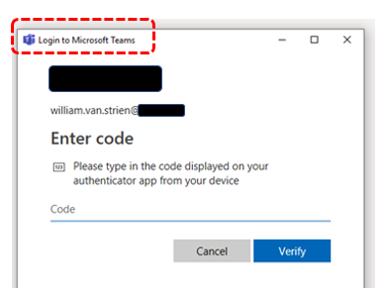
  • Enroll for Azure MFA via MS Authenticator App; against the organizing tenant
  • In Teams context; first explicit switch to ‘<organizing> tenant’ ⇒ without this, Teams displays message that you are prohibited to access
  • Then click the attendee link ⇒ and the external will be allowed to access
Externals that are authorized via Teams Guest Access concept in any arbitrary team in the organizing tenant, can do this 'tenant-switch' direct in the Teams App and web application, via so-called 'tenant-switcher':
For externals that are not within any team, there is no reason for the Teams App and web application to list that tenant as organization within the 'tenant-switcher'. The easy way out is then to just add all the authorized externals to 'a' team in the organizing tenant. But for multiple reasons this is not always a preferred / good approach. For one, it doesn't "feel right" to add persons to a team with its full set of capabilities, only because they are invited to participate in a temporary digital event. Also as all members of a team instance can 'see' all the other members, and then contact each other; via teams chat, or via the discovered email addresses. For privacy and compliance reasons the event organization might not want this, or even not be allowed to do. Another reason has to do with timing aspect: in the Teams operational model it takes unpredictable yet significant time (can take up to 36 hours) after adding an external to a team instance, before the external sees the effect of this in the 'tenant-switcher' of the own local Teams App.
Luckily there is an alternative approach in which the externals can do the 'tenant-switch'. Namely by visiting in the browser the link "https://teams.microsoft.com/?tenantId=<organizing tenant-id>". The external must then sign-in via his/her Azure AD B2B guest account, and typical also answer on multi-factor authentication challenge (imposed by the organizing / inviting tenant), and if both successful the external is then allowed in the Teams context of the event organization. For the externals that are not member of any team, Teams will display the message "You’re currently not part of any teams…".
And now from this context in Teams, the external can join via the attendee link the Teams Live Event. Be aware that this approach only works from the browser via Teams web application, the external can not watch the live event in the Teams App. But on user experience that makes no difference; Teams App and Teams web application have same behavior wrt Teams Live Event.
Update:It is also possible to achieve both via one single link: making the attendee link of the Teams Live Event tenant-switch enabled. The trick is to insert "/_?tenantId=<organizing tenant-id>" immediate after "https://teams.microsoft.com" and before the "/l/meetup-join/..." part. On navigating to this link, the browser (1) first switches in Teams Web Application to the referred tenant, and (2) next from that context it joins the Teams Live Event in that same tenant.

Sunday, May 30, 2021

Prevent that Azure AD B2B guests are blocked due expired MFA

Azure AD B2B can also be used to authorized identified externals to digital events that your organization hosts, via Teams Live Event or via any streaming platform that is access-control protected via Azure AD. To increase security, enterprise organizations typical employ Multi-Factor Authentication via MS Authenticator App. A problem can be that re-visiting guests have their MFA status expired, but are unaware of that. And then face issue at the moment they want to join the digital event.
To prevent this, better to explicit reset the MFA status before the event. But you should not do this blind for all invited guests, as there are likely also guests that still have and use an active MFA status; e.g. for regular external collaboration with your organization. The trick here is to inspect the latest logon of the guest, and in case this was longer ago then you can safely assume the person is not an heavy guest-user, and for safety sake reset the MFA.
Azure AD does not direct reveal 'last logon' information, but you can utilize that access is granted via OAuth2.0 tokens: Azure AD stores per account 'RefreshTokensValidFromDateTime'; and this value can be interpreted as the datetime of 'last logon' (source: How to find Stale(ish) Azure B2B Guest Accounts)

Monday, December 28, 2020

In the dungeons of Azure AD B2B: prevented that external can have multiple active guest accounts on alternative email addresses

A charm of Azure AD B2B is that the responsibility for guests account management is federated to the external context of invited person. But with this charm inevitable also comes lesser direct control, as within the inviting tenant you have no insight on the federated account in the external Azure Active Directory. I wrote already on a negative effect that can result from this: properties of external Azure AD account might block creation of guest account.
Recent I experienced a peculiar variant of this issue. An external was successful invited, and able to redeem the provisioned guest account and use that to access resources in the inviting tenant. At a later moment, the same external was reinvited via New-AzureADMSInvitation cmdlet on an alternative email address as identity. This was also successful and resulted in a second guest account provisioned in the inviting tenant. But when trying to resend the redeem invitation from Azure Portal, this failed as the new guest account on deeper level is referring to the same federated external identity as the original provisioned guest account. Thus although it looked in the inviting tenant that the 2 guest accounts were isolated from each other, in the reality of the actual identity source of the invited external the 2 alternative emails are administrated as proxy addresses within the same external Azure AD account.
I consider it as correct behavior by Azure AD B2B to recognize this, and prevent that multiple guest accounts can federate to the same single external Azure AD account.
Same external invited with 2 separate guest accounts in inviting tenant
Initial guest account successful accepted and activated
Later provisioned guest account cannot be accepted
Reinvite via Azure Portal blocked as guest account is referring to same external Azure AD account

Sunday, May 31, 2020

How-To include an external as presenter in Yammer Live Event

After I earlier this week did the pleasant discovery that and how-to an external can be involved as presenter in a Teams Live Event, I decided to test whether same is possible within Yammer Live Event production. That could work, as Yammer Live Event production can be via Teams. The short report out: Yes, also this proofs possible!
The enabling preconditions (external known as Azure AD B2B guest in organizing Teams, and switched in Teams App to the organizing tenant) and steps are comparable with involving an external in Teams Live Event presentation, although few significant differences:
  1. In the organizing tenant, schedule in producer / organizer role within Yammer a new Live Event. Crucial also here is to select that the production will be done 'via Teams', not 'via External app or device'. In this step in Yammer UI, do not try to invite the external as presenter as that fails: Yammer does not allow the external to be resolved (unless you have enabled external access of the Yammer channel itself)
  2. In Yammer of the organizing tenant, navigate to the scheduled Live Event and click on "Produce (Open in Teams)". After the Yammer Live Event is opened in Teams App, click 'Join now'.
  3. Crucial step: in the internal Teams meeting of the Live Event, click on the button 'Show participants'. And in the Teams meeting context, invite the external person via his/her external guest identity;
  4. Under the preconditions that the external person is active in Teams, and switched there to the organizing tenant, (s)he receives a request notification to join in the internal Teams meeting of the Yammer Live Event
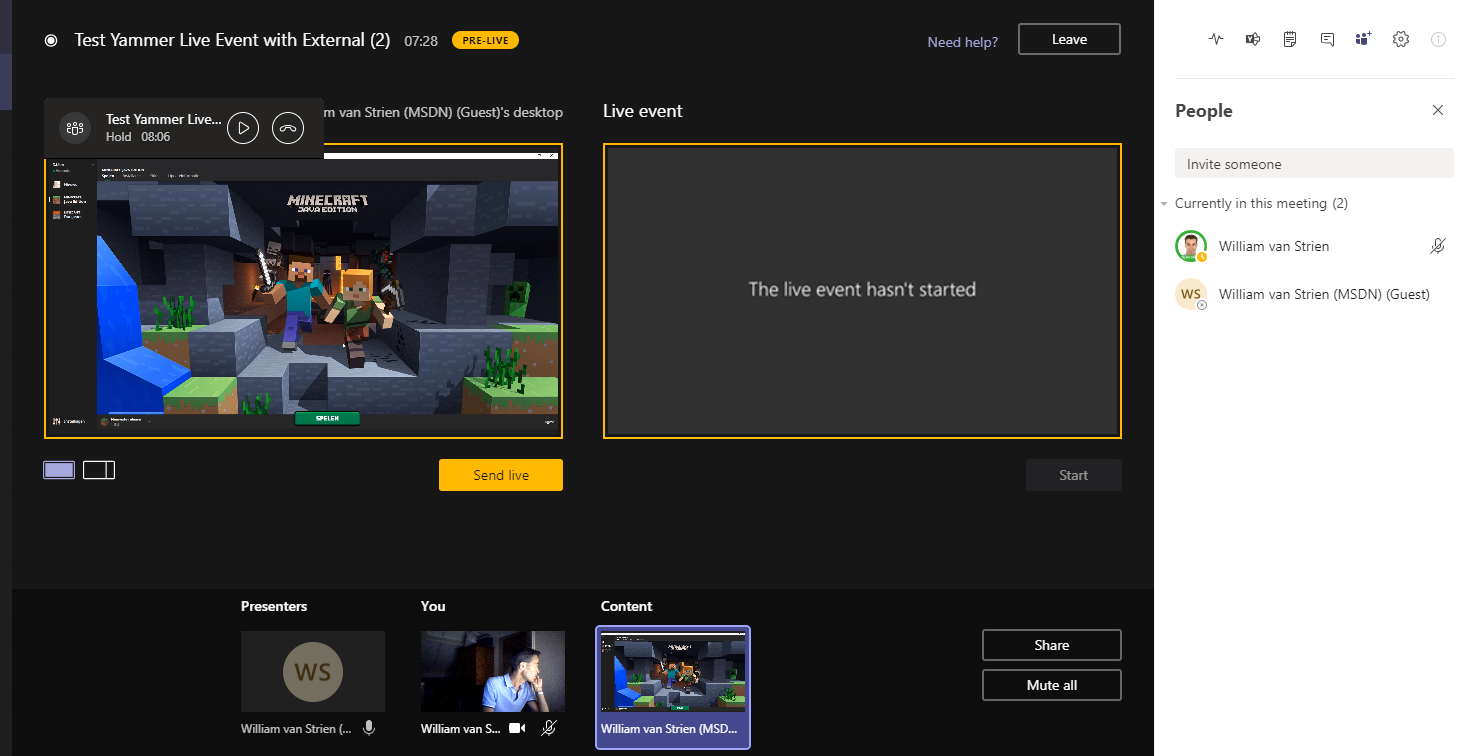
  5. The invited external accepts the invite to join this active Teams Meeting, and can then share content + video in the meeting context of the Yammer Live Event;
  6. The Yammer Live Event producer waits in the Teams Live Event production room until the external person has joined, and shares content in the internal meeting of the Live Event. When visible, the producer is in control to select content and/or video of this external presenter in the queue;
  7. The producer pushes from the queue to live, and starts the Live Event;
  8. The audience of the Yammer Live Event see the content and/or video of the external presenter;
  9. And audience on-the-go can watch the external presenter in the Yammer Mobile App;

Saturday, May 30, 2020

How-To include an external as presenter in Teams Live Event

When it comes to organizing a webcast, Microsoft 365 offers multiple options: Teams Meeting, Stream Live Event, Teams Live Event, Yammer Live Event. Each with their own differentiating characteristics, and you can select which best fits the specifics of your planned event. A significant differentiator of Teams Live Event is that you can extend beyond internal audience only. Either full public open, or still restricted audience by inviting externals as authorized via Azure AD B2B in your tenant. In the B2B guest model, the external access into the Live Event can then be secured by multi-factor authentication (MFA), to protect the company information shared for external access only in trusted context.
A pleasant discovery I did this week is that the authorized external involvement also extends to the Presenter role: you can include in the set of event presenters also identified people from outside your own organization.
The enabling conditions:
  1. The Live Event must be produced via Teams itself, not produced by External app or device. Reason is that the latter delegates to MS Stream for processing and delivery, and that Microsoft 365 service up today sadly still does not support external access;
  2. The external person must be known in your tenant, either as Azure AD B2B guest or via Teams Federation;
  3. The Live Event organizer / producer must invite the external person via his/her external guest identity in the Presenter role;
  4. The external person must be authorized as member to a Teams instance in your tenant
  5. And as first crucial: to be allowed in the Live Event as presenter, the external person must at the presentation time switch in Teams to your tenant. Without this step, the external person sees in own Teams calendar the Live Event as meeting; but when trying to join that from own tenant will be blocked with notification
    "This event is in <external-tenant>. To join, you'll need to be in that org,too."
    If the organizing tenant has enabled MFA as conditional access rule, the external person will be challenged for that before secure and governed allowed access in the organizing tenant.
  6. And second crucial: to actively join the live event the external person cannot go from Teams calendar once switched to the organizing tenant as it is not administrated there for the external person. Workaround is to join the 'external live event' via the invitation mail that the external person received in the own mail inbox when the Live Event organizer identified the external as an event presenter. Click on 'Join Live Event' seamless opens the Teams App of the external person in the internal producer/presenter meeting of the Teams Live Event within the organizing tenant. As result of the tenant-switch (previous step), the external person is now namely already authenticated and known in the organizing tenant.
After following the above steps, the external person is from perspective of the Teams Live Event organization just another presenter, who is authorized and enabled to share video and content in the event. And can communicate with the producer + other presenters in the chat of the internal Teams meeting to align on the event production.
From the perspective of the organizing producer, (s)he remains in control to determine which content of the presenters included in the Teams Live Event production to actual put live for the audience. The final control remains thus within the organization hosting the live event to its invited audience - internals, potential authorized guests, or full public-open.

Friday, April 10, 2020

Tip: How-To determine whether guest email already in-usage in your Azure AD tenant

Invitation of a new Azure AD B2B guest is blocked in case the identifying guest email is already present in the inviting Azure AD. A typical situation in which this occurs is that the intended guest is already present as regular Member account, and has to that the external email associated. To avoid the error on invoking Invite Api and instead send an informed response to the requestor, the B2B invitation automation can check first on any occurence of the external email.
The codeline for that is:
Get-AzureADUser -Filter "proxyAddresses/any(c:c eq 'smtp:external.user@externalComp.com')" | Select UserType, UserState

Needed Api Permission for Service Principal to invoke Get-AzureADUser

This week I extended our custom B2B invitation handling build as Azure Automation Runbook to check upfront whether guest account is not present yet. The way to check is by quering for potential presence of requested Guest account via the UPN:
if ($guestAccRequests.length -gt 0) {
    # Get the Service Principal connection details for the Connection name
    $servicePrincipalConnection = Get-AutomationConnection -Name $servicePrincipalConnName   

    # Logging in to Azure AD with Service Principal
    Connect-AzureAD -TenantId $servicePrincipalConnection.TenantId -ApplicationId $servicePrincipalConnection.ApplicationId -CertificateThumbprint $servicePrincipalConnection.CertificateThumbprint

    ...

            # 1. Check whether already present as guest account
            $guestUpn = ConvertExternalEmailToUpn -guestEmail $guestEmail
            $existingAccount =  Get-AzureADUser -Filter "userPrincipalName eq '$guestUpn'" | Select UserType, UserState
            if ($existingAccount) {
                ... 
            if ($continueToInvite) {
                try {
                    $inviteResult = New-AzureADMSInvitation -InvitedUserEmailAddress $guestEmail -InvitedUserDisplayName $guestDisplayNameWithOrg -InvitedUserMessageInfo $messageInfo -SendInvitationMessage $False -InviteRedirectUrl "http://www.wvstrien.com" -ErrorAction Stop
                    $inviteurl = $inviteResult.InviteRedeemUrl

The PowerShell coding part was quickly up-and-running. More time-consuming was identifying the proper Api Permission to grant to the Service Connection that connects into Azure AD. We already assigned the 'User.Invite.All' Api Permission from the Microsoft Graph Api, and one would expect that also permission for Get-AzureADUser is within the Graph Api permissions. However, granting the likely permissions 'User.Read.All', 'Directory.Read.All', 'Domain.Read.All'; none of these authorizes the Service Connection.
The information provided by Microsoft in identifying the needed Api Permission is not very good, or at least not easy to find. The StackOverflow post Graph API - Insufficient privileges to complete the operation put me on the right track. Turns out that for this cmdlet you still need to assign permission from the deprecated Azure Active Directory Api.

Sunday, February 23, 2020

Replicate B2B governance of SharePoint to Teams

In nowadays enterprises, being able to seamless collaborate with one’s ecosystem is gaining more and more importance. The Office 365 platform supports Business-2-Business collaboration in multiple of its services. However, there are significant differences in the governance supported.
In SharePoint, their is finegrained governance possible, which convinced our critical information security risk management to allow its usage. On tenant level you configure to allow sharing, however without per se enable it on each individual site collection. Plus you can white- and blacklist allowed + never allowed domains, again without this automatic propagated to the individual site collection level. On site collection level you can by default turn off sharing and only explicit enable for targetted site collections, including then white- and blacklisting of domain(s) under condition that these are configured [(dis)allowed] on tenant level. Protection effect is that invited guest is only actually authorized to access a B2B shared site collection if the external domain of guest is allowed for particular site collection. Finally, the customization / extensibility options of SharePoint allow to make visitors of the site via an across site banner aware that the information in this particular site collection is also accessible by persons outside the company.
The out-of-the-box B2B governance of Microsoft Teams is much more limited. Ok, the visual indication of guest(s) presence in the Teams membership is standard. But the guest allowed-mode is on tenant level only: if turned on, all Teams instances by default are allowed / opened for guest access. Including all the Teams instances for which not explicit requested, or even should not be allowed given the internal purpose + audience of that Teams instance. Another miss is that of the check on domain per Teams instance. The resulting risk is that a business user can per accident invite a guest of company Y while intended to invite guest with almost same name from company X.
The lack of the B2B governance with MS Teams results that it is insufficient business secure for our information / security risk management. To get approval, we need to bring the same level of controls to Teams guest access as there is with SharePoint. We do this by extending / customizing on the invite experience in MS Teams. Business users are allowed to invite guests, however not from Teams direct itself due its lack of domain check. Instead we provide via SharePoint a B2B process request page where business user can:
  1. Request whitelisting of allowed partner on tenant level; usable for all SharePoint sites and Teams instances
  2. Request sharing of individual SharePoint site or Teams instance (including the associated site underneath) for one or more domains; that must be whitelisted on tenant level
  3. Request provision of one or more guests, of companies that are allowed on tenant level; usable across entire tenant
  4. Specific for Microsoft Teams: invite guest account to a Teams instance
In the automated handling of 4 (via Azure Automation) we verify that the domain of requested guest account is within the “whitelisting” of the identified Teams. If so, the guest is automated added; if not then the request is rejected and business error is prevented.

Sunday, September 29, 2019

Be aware: join as MS Teams Live Events guest requires that one is pre-authenticated against the inviting tenant

With MS Teams Live Events produced via Teams (aka QuickStart) it is already supported to invite externals (MS Teams produced via External App will support it once the underlying Microsoft Stream Live Events capability supports guest access). Guest access in MS Teams Live Events by Teams is realized by utilizing the Azure AD B2B capability, similar as is done in the external sharing of a MS Teams instance itself with external guests, and also in external sharing SharePoint Online sites. Interesting is that the external does not need to be invited to any MS Teams instance of the inviting company. This makes sense, as a MS Teams Live Events instance itself is not tied to a particular MS Teams instance; it is scheduled from the MS Teams Calendar.
Guests can join the Live Event via the browser or via the MS Teams App. In case of the latter: In your joiner instruction to invited guests, please make sure to inform them that they first must authenticate themselves against your (the inviting) tenant, before trying to join the MS Teams Live Event via the distributed 'attendee link'.
No permission to join as guest in case not authenticated before
Authenticate as Azure AD guest to the MS Teams of the inviting tenant; first authentication is 'federated' against the invited guest identity administration, and next most likely second / multi-factor authentication against the inviting tenant
Once authenticated as AAD guest to the inviting MS Teams tenant, allowed to join the invited Live Events direct via the 'attendee link'

Saturday, September 21, 2019

In the dungeons of Azure AD B2B: properties of external Azure AD account might block creation of guest account

Collaboration between organizations in an ecosystem has become more and more essential to the value organizations create. But also in these Business-2-Business (B2B) collaboration scenarios, the authorization principle of 'need-to-known' must be adhered: employees from the partner organizations should only be granted access to the information on which they actually collaborate with the inviting organization. To be able to grant selective authorizations to the externals, requires that each of them must be known with identifying identities in the information system(s) of the inviting company.
In the Azure AD B2B model, Microsoft introduced the notion of 'guest accounts' for this, based on the concept of "bring-your-own-identity". An Azure AD B2B guest account is a lightweight account, that in fact acts as placeholder in the Azure AD context of the inviting organization to external identity managed outside the responsibility of the inviting organization. As such, Azure AD B2B collaboration supports cross-company relationships by enabling partners to selectively access your corporate applications and data using their self-managed identities
Azure AD B2B supports 2 modes to invite external guests via their corporate email addresses: a federation model from the Azure AD of the inviting organization to the external Azure AD of invited partner organization. And in the case that the invited company is itself not (yet) an user of Azure AD for their identity management, via just-in-time created accounts which are then administrated in a so-called 'viral' tenancy (see: Understand the B2B user).
Guest accounts are created in the inviting Azure AD with their own (external company) email address applied as their guest account / identity name. Azure AD requirement here is that the guest identity name is not yet in-usage as proxy-address within another account in the Azure AD tenant. The typical situation in which this could occur is when an external employee already has also a Member account in the Azure AD of the inviting organization, and has the own corporate email assigned to that Member account. When next you try to create a guest account for that external email, Azure AD refuses with error message: "The user you're inviting already exists in the directory. They can simply sign in into shared apps and resources."
The most pragmatic approach to fix this guest account provision error, is to 'free' the external corporate email address of the 'to-be AAD guest': disconnect it from assignment in the Member account in the Azure AD of inviting organization.
Another apparent feasible approach is to simple select another external corporate email as guest account name: e.g. instead of '<External>.<User>@>ExternalOrg<.com', provision a guest account via '<External>.<User>1@>ExternalOrg<.com'. This is certainly a creative alternative. But you need to be aware of some pitfalls with it. 1) Redemption in Azure AD B2B is an email-verified process. Meaning that the alternative corporate email address must actually exist and resolve to an email inbox in the domain of the invited organization. 2) In case of federated Azure AD tenants, the requirement that the proxyAddresses must be unique, is verified in the combination of the Azure AD tenants of both the inviting as the invited organizations. Resulting that in case to the alternative account in the Azure AD of the invited organization, the original corporate email of person is administrated in the proxyAddresses, then the provisioning of guest account in Azure AD of the inviting organization still blocks. See How can we improve Azure Active Directory? - Show the B2B-blocking proxy address in my tenant's logs where this is shortly described.
Code snippet to have run in the Azure AD tenant of the invited organization, to identify whether and which proxyAddress value is the cause of the blocking:
Connect-AzureAD

Get-AzureADUser -Filter "mail eq '<firstName>.<lastName>1@externalcompany.com'"
   -all $true |
Select-Object displayName, @{L = "ProxyAddresses"; E = { $_.ProxyAddresses -join ";"}} |
Export-Csv -Path C:\temp\ReportOutOnAADAccount.csv -NoTypeInformation

Saturday, August 10, 2019

Misleading Conditional Access response on trying access with expired Azure AD B2B guest invitation

In the situation that an invited Azure AD B2B guest is homed in an external instance of Azure AD, there is no need to await redemption by the invited guest before the guest account can be utilized in the inviting Office 365 tenant to grant access in a SharePoint site. Instead, on first visit of the invited + authorized external / guest account, the redemption will take place implicit. This improved B2B invitation experience is available since May 2018 (Exciting improvements to the B2B collaboration experience).
However, this scenario breaks in the situation that the invited guest lets the invite expire:
That the implicit redemption in such situation fails is on itself logical and the correct behavior. However, the error notification that the guest receives is misleading. It does not point to the cause that the guest invitation is not accepted yet (and thus guest account still in 'Invited User' state), but falls through to the conditional access for regular Member accounts:
The correct fix in this situation is to either resend the invitation in Azure Portal, or re-invite via New-AzureADMSInvitation cmdlet. The invited person is then re-enabled to accept the invite. Either redeem explicit via the URL in the invitation email, or redeem implicit on first access to a site in the inviting SharePoint Online tenant that is shared with the guest account.

Monday, August 5, 2019

Confusing SharePoint UI to add guest to Modern Group-connected Site

Once in Azure AD a guest account is created for an external, site owners can use that guest account in same way as for regular accounts to grant access in a SharePoint Site: 'Share' the site, and lookup the guest account. However, within Modern / Office 365 Group-connected site, this similarity is broken. The cause is that in the SharePoint UI of a Group-connected site, the Membership in the top-level UI is actually referring to the Office 365 Group; not that of the connected SharePoint Site. Yet external / guest accounts cannot be added via SharePoint to an Office 365 Group, this needs to be done via Outlook on Web as membership management interface (Manage guest access in Office 365 Groups).
Not possible to add guests to Office 365 Groups via SharePoint top-level UI
The proper way to add guest accounts to the B2B shared site, remains to authorize them on level of SharePoint site. Preferable utilizing SharePoint Groups, instead of direct individual assigned authorization. The path in the UI to this is via 'Settings' menu, 'Site permissions', 'Invite people'. And in this step, select 'Share site only':
How-to authorize guests to access Modern Site via SharePoint UI
The above experience is a smoothened version for the old-fashioned SharePoint membership management: making one aware on the existance and concrete membership management of the SharePoint Groups in the site. This 'old-way' is also still available, via 'Advanced permissions settings'. Or for those knowledgable SharePoint insiders...; direct via the known URL (<site-URL>/_layouts/15/user.aspx).
(old-way) How-to authorize guests to access Modern Site via SharePoint UI

Thursday, August 1, 2019

Beware: with B2B sharing enabled on SharePoint tenant level, all new provisioned Modern sites are by default open for non-constrained sharing

The governance of B2B sharing of SharePoint Online is setup on 2 levels: at first, on tenant level the SharingCapability must be configured in an enabled state (SharingCapabilities enumeration), otherwise all sharing in the full collection of sites in the tenant will be disallowed / blocked. Also on tenant level, SharePoint admin can configure allowed (whitelisted) and disallowed (blacklisted) domains of invited organizations. On the 2nd level, the SharingCapability of individual site collection must also be configured to same enabled state, to enable sharing of that particular site. Plus also on this level, SharePoint admin can specify both allowed and disallowed domains.
With this 2-step configuration, the inviting organization is enabled with explicit (IT) control on which of the site collections, their business owner(s) can invite (authorize for access) guests of targeted invited partner organizations.
Something to be aware of in this SharePoint Online B2B governance is that on site collection level of Modern / Group-enabled sites, the default setting of the SharingCapability property follows the tenant-configured value. This means that in the situation where sharing is enabled on tenant level, all new provisioned Modern sites by default are also direct configured to allow sharing.
In the 2-step B2B governance process this is not compliant; individual site collections may only be configured for sharing on explicit business request and approval, and potential for identified domain(s) only.
To get back into compliant state, each new provisioned site collection must be configured via an after-step to reset the SharingCapability into ‘Disabled’. This after-step can be executed via Site Designs, or in case a site provisioning solution is used (e.g. PnP provisioning) as post-processing provision step. Another approach is via a scheduled automation job (e.g. Azure Automation, or remote PowerShell).
Note: remarkable is the difference with classic sites: these are by default always provisioned with disabled 'SharingCapability', independent of the setting on tenant level.

Inconsistency within MS Teams External Sharing activation

A special case is with the SharePoint sites that are created underneath MS Teams instances (for the ‘Files’ capability). Also on the tenant level of MS Teams, the external / guest capability is configured. However, there is an inconsistency in the context of the MS Teams B2B configuration when external sharing is enabled on SharePoint tenant level, but not on MS Teams tenant level: the underlying SharePoint sites follow the SharePoint tenant setting, not that of their ‘owning’ MS Teams. The effect is that external guests may be authorized for access to the SharePoint site underneath a MS Teams instance, despite that on MS Teams tenant level external sharing is explicit disabled.
To correct this inconsistency, any of the above sketched set of ‘compliance’ approaches can be applied on the SharePoint sites that are created 'underneath' MS Teams instances.

Thursday, March 14, 2019

Beware: User Information List (UIL) acts as memory for PeoplePicker when need to renew Azure AD B2B guest account for changed email

In Azure AD B2B, guest accounts are provisioned and redeemed with as their unique external account identifier, the own external email address of the invited guests. In rare situation that the external email changes, the guest account situation needs to be synchronized with this external identity change. However, as the email address is the primary identifier, it is not possible to change this as attribute in the existing Azure AD guest account. One needs to create in the Azure AD of the inviting company a new guest account based on the new / modified external email address, and potentially can also delete the no longer valid old guest account. On the SharePoint Online side, in each site collection in which the guest needs access, the access must also be repeated for the new guest account. Something to be aware of in such situation is the relationship between SharePoint PeoplePicker and the hidden User Information List (UIL) in site collection. The PeoplePicker uses UIL as one of its entrances to try to resolve user information for looked-up user name. As of SharePoint 2013, whenever an account on individual basis is granted access to a SharePoint site collection, immediate an entry for that account is administrated in the UIL (in SharePoint 2010 and before, the addition in UIL was delayed until first access by the authorized account). The effect in the use case where guest account is renewed by deleting from and creating new, is that the PeoplePicker default will still resolve to the user entry in UIL that was created there when earlier the guest was authorized on the previous guest account. Resulting in an inconsistent situation: the guest is assigned a new Azure AD guest account, the former might even be deleted in Azure AD, but in SharePoint Online via UIL as memory the previous account is selected by PeoplePicker upon granting access. Effect is that the guest can successful logon with the renewed guest account against the Azure AD of inviting company, but in the next step this authenticated guest account is not granted access in the SharePoint Online site: "You need permission to access this site". The way to resolve this is to go as Site Collection Administrator (SCA) into the UIL through <site-url>/_layouts/15/people.aspx?MembershipGroupId=0 , select the entry that refers to the previous guest account, and in the 'Actions' menu select "Delete users from Site Collection". After this corrective management action, the PeoplePicker on looking up the guest (by name or email) will no longer find the stale entry in the UIL, and create a new one that corresponds correct with the renewed guest account. And the invited Azure AD guest is enabled to successful access the site via modified email address as his/her 'bring-your-own-identity'.

Wednesday, March 13, 2019

Peculiarity with Azure AD B2B and Modern / Active Authentication for guest accounts

In the authentication model of Azure AD B2B, external guests are granted access on concept of 'bring-your-own-identity'. The general applied pattern in AAD B2B usage is to invite guests on their email address as the own identity. For invited guests from an organization that itself utilizes Azure AD for their cloud identity management, in AAD B2B the authentication flow delegates to the external Azure AD (see). This can result in a peculiarity, in which the invited guests after successful first authentication that is federated against the own external Azure AD, in the 2nd step cannot successful pass the MFA challenge via the Microsoft Authenticator App against the Azure AD of the inviting company. The situation arises where in the external Azure AD (of the invited organization) the UserPrincipalName (UPN) differs from the primary Office 365 email address, and the external access is via a client application that utilizes modern / active authentication. In such situation, the inviting company should invite the guest on basis of their Azure AD UPN, and not via their different Office 365 email / SMTP address. For client applications that apply passive authentication (aka: webapplications) it works fine to explicit logon with the own email as their Office 365 identity. But clients that utilize active authentication get into a conflict situation: the automated logon in active authentication flow against the external Azure AD is done on basis of the UPN, afterwards the authenticated account in the client application runtime context is equal to the UPN value of the logged-on guest. However, as the MFA enrollment is earlier done on basis of the email as guest identity, the result is an endless loop in the Authenticator App failing due mismatch in authenticated UPN logon and MFA-enrolled email.

Sunday, February 10, 2019

'Check Permissions' displays 'Deny' for Azure AD B2B guest of domains that are not whitelisted

Individual authorized guests of non-whitelisted domains rightful denied access

SharePoint external sharing via Azure AD B2B adds an additional access-control layer. On top of the authorizations granted in the SharePoint site collection, you can explicitly control for guests whether their domain is allowed. Although I personally consider it a design flaw that business users can share their site with guests of non-whitelisted domains without warning that they are not actually allowed access, what eventually matters is that these invited guests will be blocked from accessing the site as long as it is not allowed on the higher authorisation-governance level of site collection sharing. The invited guests of non-whitelisted domains will get an Access Denied on trying to access the site for which they received a SharePoint invitation. Also when you as site owner check the permissions of such a guest, you will see both an allowed part for the authorizations granted via the site permissions, as well as a long list of 'Deny' due the lack of their guest domain within the list of whitelisted domains.
Domain of guest account not whitelisted in site collection sharing settings
Guest account can be invited to the site although its external domain not whitelisted
"Check Permissions" displays 'Deny'-permissions for guest accounts of non-whitelisted domain
"Check Permissions" displays for guest accounts of whitelisted domain only granted site-permissions
Noteworthy also is that the observed behavior is different depending on whether the guest invitation is redeemed or not. The above is for an invited Azure AD B2B guest account which has been activated already, and invited guest tries to access the SharePoint site. For non-redeemed guest account it is still possible to authorize to SharePoint site despite the domain not white-listed. But for non-redeemed, 'Check Permissions' displays "None", independent on whether the external domain is whitelisted.
Guest account can be invited to the site although its external domain not whitelisted

Tuesday, November 27, 2018

Beware: Azure AD B2B guests inconsistent resolved in PeoplePicker

When you employ Azure AD B2B for external sharing of SharePoint Online sites, you’re likely to encounter a peculiarity in the usage of the PeoplePicker: trying to resolve guests by typing in their external email as identity, typically fails if this guest identity was not resolved before in this site. The workaround to force PeoplePicker to resolve the guest is copy/paste in 1x the full external email; apparent this somehow triggers PeoplePicker control to query Azure AD for the guest identity.
As this peculiarity in PeoplePicker behavior is difficult to clarify (justify) to business users, I raised a service request: Microsoft Support to clarify the difference in PeoplePicker resolving behavior on interactive typing versus drop the same identity at once. Quickly received answer is that the behavior is by design: on interactive typing, the PeoplePicker queries the User Information List in site collection, however since the guest was not authorized yet for the site his/her account will not be administrated yet in that hidden list. A rather unsatisfying answer - arrogant even -, coming from IT perspective without any understanding for the business user; for whom this deviation in PeoplePicker behavior is absolute unlogical. Moreover as regular member accounts are successful resolved by the PeoplePicker, independent on whether such account is present already in the User Information list. So also there a deviation in regular Member versus Guest accounts.

Monday, February 12, 2018

PowerShell to assess the external access authorization per site

As clarified in previous post, Azure AD Access Reviews capability although promising qua concept, is in it's current implementation yet unfit to assess the external access per site. But luckily we have PowerShell, which enables us per site, determine the collection of guest authorizations and ask site owner to review + re-confirm the authorizations. Crucial is to provide insight and awareness; who all has access authorization to my business site, and as site / business owner I still are ok with each indivdual guest authorization? For those not / no longer; explicit revoke, for good secure housekeeping in your external shared site.
PowerShell script to assess the external authorization per site in the tenant:
<#
.SYNOPSIS

Access Review of guest users into the SharePoint tenant
#>

#Connection to SharePoint Online
$SPOAdminSiteUrl="https://<tenant>-admin.sharepoint.com/"
try {
    Connect-SPOService -Url $SPOAdminSiteUrl -ErrorAction Stop
} catch {
    exit
}

$externalUsersInfoDictionary= @{}

$externalSharedSites = Get-SPOSite | Where-Object {$_.SharingCapability -eq "ExistingExternalUserSharingOnly"}
foreach ($site in $externalSharedSites)
{
    $externalUsersInfoCollection= @()

    $position = 0
    $page = 0
    $pageSize = 50
    while ($position -eq $page * $pageSize) {
        foreach ($externalUser in Get-SPOExternalUser -Position ($page * $pageSize) -PageSize $pageSize -SiteUrl $site.Url | Select DisplayName,Email,WhenCreated) {
            if (!$externalUsersInfoDictionary.ContainsKey($externalUser.Email)) {
                $externalUsersInfoDictionary[$externalUser.Email] = @()
            }
            $externalUsersInfoDictionary[$externalUser.Email]+=$site.Url       
 
            $externalUsersInfo = new-object psobject 
            $externalUsersInfo | add-member noteproperty -name "Site Url" -value $site.Url
            $externalUsersInfo | add-member noteproperty -name "Email" -value $externalUser.Email
            $externalUsersInfo | add-member noteproperty -name "DisplayName" -value $externalUser.DisplayName
            $externalUsersInfo | add-member noteproperty -name "WhenCreated" -value $externalUser.WhenCreated
            $externalUsersInfo | add-member noteproperty -name "Preserve Access?" -value "Yes"
           
            $externalUsersInfoCollection+=$externalUsersInfo

            $position++
        }
        $page++
    }

    if ($externalUsersInfoCollection.Count -ne 0) {
        $exportFile = "External Access Review (" + $site.Url.SubString($site.Url.LastIndexOf("/")+ 1) + ")- " +  $(get-date -f yyyy-MM-dd) + ".csv"
        $externalUsersInfoCollection |  Export-Csv $exportFile -NoTypeInformation
    }
}

# Export matrix overview: per user, in which of the external sites granted access
$externalUsersInfoCollection= @()

$externalUsersInfoDictionary.Keys | ForEach-Object {
    $externalUsersInfo = new-object psobject
    $externalUsersInfo | add-member noteproperty -name "User Email" -value $_

    foreach ($site in $externalSharedSites) {
        if ($externalUsersInfoDictionary[$_].Contains($site.Url)) {
            $externalUsersInfo | add-member noteproperty -name $site.Url -value "X"           
        } else {
            $externalUsersInfo | add-member noteproperty -name $site.Url -value ""             
        }
    }

    $externalUsersInfoCollection+=$externalUsersInfo    
}

$exportFile = "External Access Review user X site - " +  $(get-date -f yyyy-MM-dd) + ".csv"
$externalUsersInfoCollection |  Export-Csv $exportFile -NoTypeInformation

Disconnect-SPOService

Friday, February 9, 2018

Azure AD Access Review yet useless for SharePoint External Sharing

In order to remain compliant with company-internal information security policies, it is essential to regular assess the authorizations of external guests to the external shared SharePoint Online Sites. At Ignite 2017 Microsoft announced the Azure AD capability Access Reviews. Initial I was rather enthusiastic about the concept of 'Manage guest access with Azure AD access reviews', but after some evaluation I make the personal conclusion that in the current implementation stage it is pretty useless to assess SharePoint external access.
In the current setup you can select between 2 modes to assess:
  1. Assess on Azure AD Group Membership
  2. Assess on access to an Office 365 application
However, both are useless for assessing the access to one or more specific SharePoint Online sites. In Azure AD B2B based external sharing, externals are invited to a SharePoint site via their Azure AD guest account. In this model, the guests access is neither via a specific Azure AD Group, nor are they on Azure AD level specific authorization to SharePoint Online as application. Their authorization to SharePoint as application is implicit, resulting from their invitation to one or more specific sites.
I played a bit with the 'access review' (note: the documentation on it is very scarce, and incomplete):
  • In the review mode on 'O365 SharePoint Online as application'; I get no results at all.

  • In the review mode on 'Group Membership' I selected the dynamic group that includes all guest accounts. With this review mode I do get results to review their access. But the value is limited to gain insight on last logon per guest account. You can then as reviewer make a decision to Approve or Deny the continued group membership. But in reality this review decision cannot be effectuated: the group membership is dynamic, based on condition; not on concrete addition to the group.

    Access Review on (dynamic) Azure AD Group membership Applied Access Review decision on (dynamic) Azure AD Group membership

My thoughts shared with product team + community

I reported my 'negative' evaluation as feedback to a contact in the Azure AD productgroup: "I question how it would be applied: removing the 'refused' accounts from the Dynamic Group does not make sense; they should be blocked or removed from Azure AD to block access. Also, as a site owner only wants to take responsibility for access to his/her site, the access decision application should be applied there. Not on tenant level."

His response: "I think you have some interesting use cases. As the product is still in preview, documentation is limited. I will discuss your use cases with my colleagues in Redmond responsible for Access Reviews."

In addition, I also submitted a SharePoint uservoice idea: Azure AD access review on level of single (shared) site collection

Nice post on the topic, including 'manual': Checking Office 365 Group Membership with Azure AD Access Reviews