Showing posts with label SharePoint. Show all posts
Sunday, August 20, 2023
Overcome JSON column formatting limitation that it does not support Rich Text Multiline
Inspired by the visualization of Microsoft 365 roadmap, I want to achieve similar for collecting and communicating the architecture vision and refined roadmap of our ART (Agile Release Train). As the purpose is mainly about communicating, I decide to just leverage a SharePoint list for it, no need to administrate in a planning tool (eg Jira Align). In the information architecture I add a column per aspect of the architectural roadmap topics: title, description, theme, year of delivery. And for the roadmap refinement a column per year in which to enumerate the steps I foresee in that year. The steps collected in a bulleted list, thus the column must be of type Multiline / Rich Text.
However, this decision results in a visualization challenge. Standard, SharePoint truncates in ListView the value of multiline columns to 4; and the roadmap does not display in entirety. List View / JSON formatting is not helpful to resolve: 1) ColumnFormatting does not support Multiline / Rich Text, and I don’t want to reduce to plain text ("It is NOT recommended to use Rich text fields in your formats"); 2) RowFormatting requires to specify the formatting for full view, while I am satisfied with the standard formatting of all other columns.
As pragmatic resolution I decided to revert to old-skool approach of DOM formatting. In Modern SharePoint you cannot directly inject a custom style, but via Modern Script Editor this is easily possible: [[Code]].
A risk of this approach is that Microsoft might change the standard formatting of list views: you cannot rely on DOM of standard SharePoint controls as “an interface contract”. But I can accept that risk: in unlikely case that Microsoft would make “breaking change”, all what would happen is that our roadmap visualization reduces to showing the multiline columns again truncated.
Labels:
Modern,
SharePoint,
VIEW
Saturday, April 9, 2022
Too compulsive cleaning up PnPSearchResults SelectedProperties can destroy some of its behaviors
I utilize PnP Modern Search v4 for a business search solution on data that is administrated in a SharePoint list. In the business solution I display multiple list columns in the search results layout (Details List), and thus need to ensure that their mapped managed properties are included in 'selectedProperties' of the PnP Search Results webpart. Default already a lot of other properties are included in the configuration, some of which are not even present in the SharePoint list, and others that I do not intend to use. So as good citizen I limit the 'selectedProperties' to only "what you need / want to display":
Well, this good citizenship resulted that some behavior was broken: it no longer worked to open a listitem from the PnP Search Results overview. Direct cause was the property 'PreviewUrl' was without a value in the mapped search results Slots, and this was result that I excluded 'Path' from the 'selectedProperties'. Lesson: although good to limit data retrieval to only what you need; you also must have understanding of 'for what purpose you may need'.
See for more details: PnP Modern Search - Slots
Labels:
PnP Modern Search,
SharePoint,
Tip
Wednesday, October 13, 2021
Beware: Issues in Hybrid Search Crawling might not be flagged
We have a mixed SharePoint setup with parts still on-prem, while for others we moved to Microsoft cloud. We try as much as possible to abstract our end-users from this complexity in the SharePoint landscape. Therefore we utilize SharePoint Hybrid Search to allow the end-users finding from one single search entrance all SharePoint stored content, whether stored on-prem or online.
From time to time we encounter issues in this setup, most significant cause being that the required trust on the on-prem search crawlers to online index is lost due change of certificate on Microsoft Online side. We are automated flagged if such issue occurs, as we have an automated health monitoring + notification on the state of the crawl logs. Too bad, due a recent Microsoft change we can no longer trustworthy rely on the automated signalling. For (design) reasons so far only known to Microsoft development team, they decided to no longer flag in the crawl log in case an error occurs on propagating crawled content to the online index. We noticed as we started missing recent content in the search results; while on inspection of the crawl log it was reported to be successful crawled: full green. Yet by doing a query on 'k=isExternalContent:1' the most recent on-prem crawled items were not included in the search result, a clear deviation from the healthy report of the on-prem to online crawling.

Note: the actual rootcause of the missed crawled items in the online index was that in the user policy of the on-prem webapplication some accounts were configured, that in online world no longer had a match. This resulted in failing to index in SharePoint Online with error "Hybrid ACL Mapping: Deny ACE with unknown/unmappable hybrid claim", but it turns out that such error is no longer notified back to the on-prem crawler context. As Office 365 customer you do not have visibility on the Online index; we only came to know of this rootcause after we involved Microsoft Support. Once cause known, the problem was easily fixed: we removed the stale accounts also from the on-prem user policy.
Labels:
Hybrid Search,
SharePoint,
SharePoint Online
Saturday, January 23, 2021
Understanding why you at least must consider to go isolated
My trigger was actually a classsic 'admin' versus 'dev' mindset: I wanted to “play” with the new Microsoft Graph Toolkit 2.0, and used Mgt-PersonCard in a custom SPFx webpart. Deployed it to a development/playground site in SharePoint production tenant, as only there is a filled User Profile store to fully experience all the capabilities delivered in the Person-Card component. Asked the Azure tenant admin to approve the API Permissions that Mgt controls typical require, and in all the Microsoft provided code examples for simplicity sake are requested org-wide. And got the door slammed back in my face: sorry, not going to grant this [are you insane for even dare to ask??]
At first surprised and disappointed on this rejection, I again looked into API Permissions for understanding. I started with questioning some Microsoft contacts on what Microsoft recommended best-pracice in this is. Not suprising, the consultancy answer is on level of “it depends” and “customers must consider and decide for themselves”. So that is what I continued with: deep-dive to understand about how org-wide can be risky, and about the balance between strict security control/mitigation, versus developer convenience.
The happy, unworried flow...
I started with reading again the Microsoft Docs on Connect to Azure AD-secured APIs in SharePoint Framework solutions. This is a typical example of Microsoft documentation in which simplicitly prevails above the more complex story. Yet some credits deserved, in the Considerations section there is some minor warning about Granted permissions apply to all solutions.Happy indeed, for malicious code...
But what does this actually mean, how can 'any solution in tenant' (mis)use the Azure AD permissions granted to the webpart you deployed in AppCatalog? For understanding of this, another Microsoft Docs gives more insight: Connect to API secured with Azure Active Directory; in the section 'Azure AD authorization flows':"Client-side web applications are implemented using JavaScript and run in the context of a browser. These applications are incapable of using a client secret without revealing it to users. Therefore these applications use an authorization flow named OAuth implicit flow to access resources secured with Azure AD. In this flow, the contract between the application and Azure AD is established based on the publicly known client ID and the URL where the application is hosted"In essence this means that all what is needed for arbitrary script code to reuse Azure AD permissions granted on org-wide level, is the public client ID or name of an approved application, and the script must be loaded in the browser on the same domain as that approved application. The clientside script code can then itself setup OAuth Implicit flow for the public client ID or name. The script does not have to be SPFx code itself, in the ultimate situation it can implement OAuth Implicit flow itself on raw OAuth protocol level. The lack of MSAL.js or even ADAL.js does not scare hackers away, they have rich toolkits to help them setup attacks. And the attack can even be simpler: in case the malicious code is included in the browser DOM where also at run and render time a SPFx control is loaded, then it can read/steal in the DOM the access token returned to that SPFx control loaded in the same domain. Awareness on this in Considerations when using OAuth implict flow in client-side webparts:
"Web parts are a part of the page and, unlike SharePoint Add-ins, share DOM and resources with other elements on the page. Access tokens that grant access to resources secured with Azure AD, are retrieved through a callback to the same page where the web part is located. That callback can be processed by any element on the page. Also, after access tokens are processed from callbacks, they're stored in the browser's local storage or session storage from where they can be retrieved by any component on the page. A malicious web part could read the token and either expose the token or the data it retrieved using that token to an external service."
Is there real risk?
A typical 'dev' response is that there is no real security risk of leaking unauthorized information. After all, the client side code can only access data and functions for which the logged-on user is allowed, thus is already entitled to access. Fair point, but the fundamental difference is in the awareness of the logged-on user that data is retrieved under his/her identity. For 'safe' code, the user is aware that data is retrieved; that is exact the business purpose why (s)he is using this trusted control. But consider malicious code that was downloaded by a business user from internet to deliver that one convenient capability (e.g. draw a nice looking graph). The business user is not aware in case that convenient library underwater misuses the OAuth accesstoken granted to e.g. invoke the Graph API for reading person data from User Profiles, and leak that data to social or even dungeon endpoints where you definitely don't want this company related data to land.Protection by isolation [social distancing]
How do SPFx isolated webparts protect against this global allowed access risk? In essence very simple: by isolating the Azure AD / API permissions approval to only the SPFx solution that requested it, and were approved / trusted by the Azure admin tenant. On browser operation level this isolation is delivered by each isolated SPFx webpart in its own unique solution-specific domain, hosted in an iframe. Other code cannot on browser nor DOM level be loaded into such iframe isolated domain, and thus cannot piggy-back on the contract of this approved SPFx solution. Loaded from different url, and the browser protects against reading the accesstoken from the iframe.And a nice additional advantage of SPFx isolated webparts is that in API Permissions administration is logged and thus visible per SPFx solution what permissions are requested. This visibility is lacking with org-wide permissions: an admin (Azure nor SharePoint) cannot tell which SPFx solutions requested the API permissions. And more dangerous: there is no indication on which code (SPFx webparts, other libraries) is using the org-wide approved permissions.
Understanding summed up in bullets
- Azure AD is used to for access-control to data (Microsoft 365) and applications (Microsoft 365 + other applications)
- Azure API permissions (‘scopes’) are used to allow Azure AD authenticated clients, specific access to Azure AD protected resources
- JavaScript code running in browser uses OAuth implicit flow to authenticate on-behalf of the logged-on user to Azure AD, and via approved Azure API permissions is permitted to do actions against the Azure AD protected resource
- Org-Wide allowed API permissions are available for any JavaScript code that is executed in the runtime context of the ASML SharePoint domain, and that applies OAuth implicit flow against Azure AD (OAuth access token is returned within https://<tenant>.sharepoint.com global context)
- There is no visibility in Azure AD of the usage-context for which org-wide API Permissions are required → identity of specific SPFx controls that request them at deployment time, is not administrated
- On Classic Sites: via script injection, whatever library can be downloaded from internet by business users themselves, without IT involvement nor awareness. Malicious code is on Azure AD level enabled to misuse API permissions that are permitted on org-wide level. Without the logged-on user being aware, the downloaded JavaScript library can access the protected resource on behalf of the logged-on user, and “do malicious / bad things’ with the data that can be retrieved. E.g. send out the data to an extern location (social channels, business competitor, ...)
- On Modern Sites: by default the business user are disallowed to insert / inject arbitrary code themselves. Code can only be uploaded as SPFx code in AppCatalog:
- Tenant AppCatalog: managed by IT
- Site AppCatalog: managed by business self (SCA). IT controls whether a Site AppCatalog is delivered on a site, only on good business motivation; and knowledgeable + trusted developers are involved
- Be considerable: PnP community (*) is delivering the Modern Script Editor SPFx webpart. A convenient webpart that enables fast delivery [rapid prototyping] of SharePoint Modern customization, without the need to immediate comply to all the 'SPFx development + deployment hashhle'. But be aware that once you allow this SPFx webpart in your tenant, you are opening also in your restricted Modern SharePoint context 'the box of pandora' that from then enables the business users to inject just any arbitrary script library for runtime execution in SharePoint pages.
- (*) Initial version of Modern Script Editor WebPart is build and delivered by Mikael Svenson, and given as a gift to the SharePoint community. He build this before joining Microsoft; and it may not in any way be regarded as a Microsoft supported + approved solution.
- Native SharePoint (Online) API is itself without Azure AD access-control, and can be invoked without need of approved API permissions. Thus also by code that is not running in context of SharePoint page; e.g. running from another webapplication platform, local running scripting, … This is an inherent security leak / issue in SharePoint Online API, IT not in control to close / improve that
- That the older SharePoint API does not provide the option to improve / control the usage, is not a reason to allow same freedom and flexibility on Azure AD protected APIs, of which Graph API is a significant one. Note: (exposure) scope of Graph API extends to much more then only SharePoint Online: also Mail, Teams, Groups, ….
Labels:
Administration,
Security,
SharePoint,
SPFx
Sunday, December 13, 2020
Simple pattern to ensure unique element ID inside SPFx React WebPart
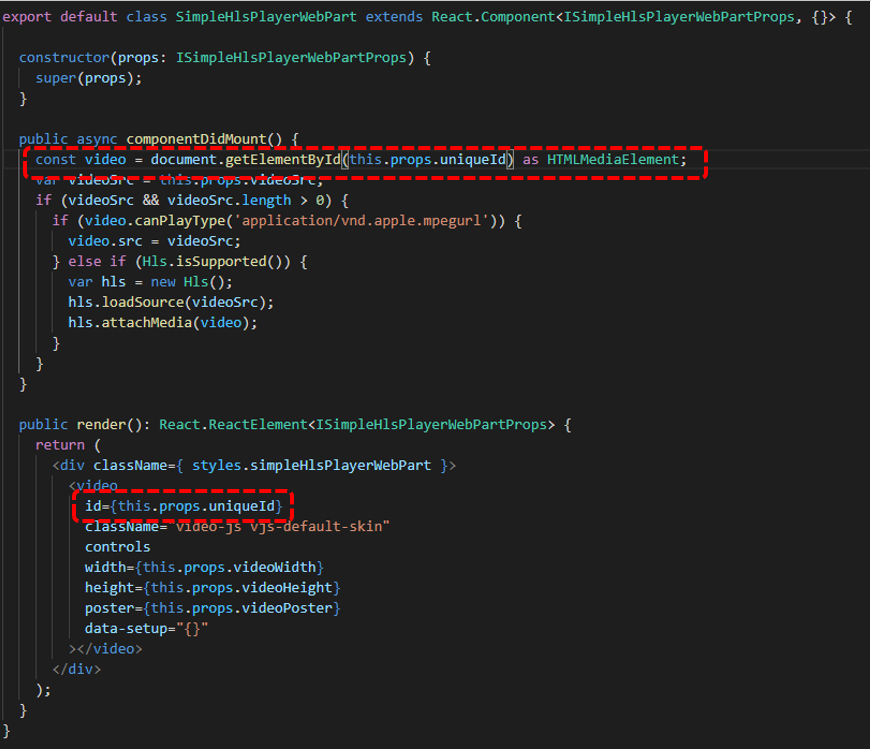
When you build a SharePoint WebPart, you must take into account that the business user can add multiple instances of that webpart on a single page. So the operational execution must be robust for that. In case your webpart relies on HTML element ID, e.g. via 'getElementbyId', then you must ensure that the element ID of each instance is unique. A simple pattern I applied is to derive the ID of the inner React Component on that of the unique ID of the parent React WebPart.
Part 1: Extend the React WebPart Properties interface with a property for unique ID
Part 2: Parent React WebPart derives unique ID from its own, and pushes to the inner React Component
Part 3: Inner React Control applies the received unique ID in its rendering + operation
Labels:
SharePoint,
SPFx,
Tip
Monday, November 25, 2019
Beware: unique library permissions breaks drag-and-drop capability (classic site)
Breaking permissions is advised against, unless... Main rationale for this generic rule of thumb is the complexity that unique permissions brings to permission management in a SharePoint site. However, in addition it can also have a limitating effect on the user experience: persons of which the authorization in a site is limited to only contribute in a specific document library, face issues on upload of documents. Quick investigation revealed that the problem occurs when the document upload is done via drag-and-drop; uploading a document via the explicit 'upload' UI flow does succeed.
On SharePoint platform level, these functional equivalent actions are executed via other flows. In the drag-and-drop scenario, SharePoint executes a CSOM call to read the site properties. But if a person is only authorized to the document library, the 'SelectAllProperties' processQuery action on SharePoint Site level returns 'Access Denied'. Solution is to grant the persons also a limited permission level on the site level, so they are allowed to read the site properties.
With this ‘Read Site Props’ permission level granted at site level, the respective persons are still correct blocked to access entities and content on site level; except for the library to which explicit granted via unique library permissions.
Noteworthy is that the issue does not occur in modern sites, even although also in that context with 'drag-and-drown' execution the site properties are retrieved via CSOM call.
Labels:
Document Library,
Permissions,
SharePoint
Thursday, August 15, 2019
Beware with Unique Permissions on PublishingPages, AddAndCustomizePages and Embed Code in a page
Interesting puzzle solved: page authors complained that some of them face an issue when they try to insert a Microsoft Stream video via embed code in the page body:
The message clearly points to missing of 'AddAndCustomizePages' permission for the logged-on page author. However, on checking the permissions, all the authors / editors do have that permission via an assigned 'Content Management' permission level. After some trial-and-error, I discovered the SharePoint internal cause. The below error message on trying to insert a ScriptEditor webpart in the page content, led me to the Eureka insight:
This site says... Aha: In the site the permission inheritance is broken, to achieve that page authors can only create and modify page (= news) items, but are restricted from modifying anything else in the site. The 'Content Management' permission level is for that purpose not assigned to them on site level, but on the Pages library. On required permission for their author task this assignment is sufficient. But a flaw in SharePoint is that it checks in the 'Insert Embed-code' handling whether the 'AddAndCustomizePages' permission is granted to the logged-on author on site level.
With this insight / understanding on SharePoint level, the fix clear: make sure that all the page authors are also granted a permission level on site level that includes the 'AddAndCustomizePages' permission. And with that fix, all page authors are enabled / authorized to user-friendly apply 'Embed Code' in page edit mode:
Labels:
Authorisation,
Content Management,
Publishing,
SharePoint,
Tip
Thursday, June 20, 2019
Redeploy your SPFx Extension to SharePoint
One of the charms of SPFx Extensions is that they apply tenant-wide: they can be configured for immediate utilization in all modern site collections in your tenant. On SharePoint foundational level this works via the concept of good-old CustomAction that is injected into the context of each modern site collection. In the SPFx Extension package the CustomAction is configured as Feature deployment. Via the parameter 'skipFeatureDeployment' in the package-solution.json (see 'Tenant-scoped solution deployment for SharePoint Framework solutions') you can configure the SPFx Extension to be immediate available across all the sites in the tenant when the solution package is installed to the tenant app catalog, without need to explicit activate the CustomAction feature in each individual site.
This works out fine on the initial deployment of your SPFx extension: the deployed SPFx header automatically is included and active on each site.
On initial deploy, SPFx Extension included once in each modern site
However, in case of need for redeployment, you must be aware of a current glitch: the SPFx Extension gets multiplied per each re-deployment. The cause of this is in how the (semi)immediate and tenant-wide application of the CustomAction is applied. The CustomAction is not injected in the scope of each individual site (Web.UserCustomActions does not include the CustomAction of the SPFx Extension); but is injected as Tenant Wide Extensions. In case of "skipFeatureDeployment": true in the package-solution.json file, on upload / install of the .sppkg file in the tenant App Catalog the administrator is asked to set the 'Make this solution available to all sites in the organization' checkbox. If set, a row is added in the list 'Tenant Wide Extensions' in the App Catalog site. And on re-upload / redeploy, the checked setting is applied again, resulting in duplicate entries for the same SPFx Extension in the Tenant Wide Extensions list. This results that the CustomAction is applied multiple times per each site, and therefore that the SPFx Extension is included multiple times in each site...
As side-effect of re-deploy, SPFx Extension is multiplied in 'Tenant Wide Extensions' list
Result is that the SPFx Extension is included multiple times per each site
Correcting this faulty situation is simple once you know how-to (thanks to Vesa Vujonen for fast response on support question raised): just remove the duplicate entries from the Tenant Wide Extensions list. Mind you, it can take some elapse time before the effect of this is structural applied accross all the WFE's involved in serving the sites of one's tenant.
Fix by removing the duplicate rows in Tenant Wide Extensions
Then the SPFx Extension again included once, and referring to latest package version
Labels:
Deployment,
SharePoint,
SPFramework,
SPFx,
Tip
Tuesday, May 7, 2019
Beware: Co-Authoring in SharePoint stored Excel sheet conflicts with column-filtering
For the scenario that multiple persons must be enabled to simultaneous maintain their records in a shared data container, at first consideration the usage of Excel file stored in SharePoint Online appears a valid option. Thanks the Co-Authoring capability available in Excel Online and Excel Client. This setup may fit the usage scenario, unless the users want to make use of filtering in the Excel sheet to easily find the records one needs to maintain. The motivation that this breaks the scenario is that column-filtering is not limited to the operational view state within the clients, but is itself part of the saved state of the Excel file. This results that the filter applied by user A in his/her client context with the Excel file, via AutoSave almost immediately is propagated into the shared saved state of the Excel file, and next influences the application view state of user B that also has the sheet opened. This non-isolated behavior of applying a column filter kills the usability of the Excel viewing and editing in co-authoring mode. In case the data to manage is flat of structure, and without need for Excel macros, a better option is administer the data records in a SharePoint list, and educate the business to maintain their own records in that list in quick edit mode combined with column-filtering. Contrary to Excel editing, the full client context of working with a SharePoint list is isolated to only the list view; and not persistent in the data.
Note: this behavior is already requested for change on uservoice: Filtering Needs to Work in Co-Authoring. But apparent a difficult capability to deliver: the idea submission originates of 2017, the response by Microsoft development team is nearly 2 years later. However, that acknowledgement and moreover its recent date does give trust that Microsoft will now fix it in foreseeable time.
Labels:
co-authoring,
excel,
SharePoint
Sunday, April 7, 2019
Options considered for extending Stream Live Events with live chat/questions capability
With the recent GA of Stream Live Events, Microsoft delivers a low-entry option to easily setup company-internal webcasts. All you need in addition are on the webcast producing side: 1) recording equipment - camera + audio, and 2) an encoder solution to transmit the recording inputs into the Live Events endpoint. The camera + audio options vary from the onboard webcam + microphone of a laptop, USB-based externals, upto high-end studio-quality equipment. For Stream Live Events handling the sophistication on the producing input side does not make a difference, the inputted RTMP(S) signal is from input endpoint processed the same. Whether an organization also needs some additionals on the consumption side depends on the audience side plus the internal network capacity. Watching a Live Event instantiates an individual / unicast stream per event viewer. Under assumption that the company network is sufficient scaled for nowaday cloud solutions usage, it is feasile to simultanuous watch a 'LIVE' Stream event per network location upto a maximum of few hundreds. In case of bigger audience, Microsoft states that it is needed to reduce the network load via a video distribution approach through a SDN/eSDN solution.
In its first released version, Stream Live Events capabilities are focussed on the core streaming + playing aspects. Business demands on a webcast typical go beyond that. The biggest additional demand is for interaction between the webcast audience and the presenter. Thus a chat window in which individual attendees can submit their questions, and that the presenter can follow + respond on. It is on the roadmap of Stream Live Events to deliver this (note: Stream recent delivered 'quizzes/ polls' capability, but this is targetted at inserting in already recorded videos for a.o. training purposes; not for dynamic interaction with live streaming), but not out-of-the-box delivered nowadays. However, with Office 365 as underlying platform you have as event developer a feature-rich toolbox at hand in which you can deliver yourself a webcast experience in which viewers have the live stream and chatbox combined, via no-code or low-code approaches. The hosting platform of such landingspage is naturally SharePoint Online....; as every created Stream Group is effectively an Office 365 Group, it has an own SharePoint Modern Team Site provisioned. The persons authorized to this site is the same audience that are permitted to join the scheduled Live Event. Create in this site a new page to function as the webcast entrance, and select the '2:1 columns' layout. In the left column embed the Stream Live Event instance - one gets this from Stream via 'Share' and then pick the 'Embed' option. With this setup, all left is to extend with chatbox / questions input control. There you have multiple options. One is to utilize the rich capabilities of Yammer, and embed a Yammer channel on the page. This gives you immediate a 'chat-like' experience, in which one can enter questions, semi-live follow the inputs / chats of others, respond on inputs of others. This immediate visibility of all the responses of ones peers may be unwanted, e.g. due potential sensitivity. In that case an alternative setup is to capture the inputs in a SharePoint list in the site, and only grant the webcast facilitators the authorization to view all received inputs. The webcast attendees submit their questions and feedback via an input form embedded on the SharePoint page. For this on sublevel again multiple alternatives are available. You can embed the out-of-the-box NewForm of the list; customize the NewForm via PowerApps; a MS Forms instance that via MS Flow sends the input to SharePoint List; or build a custom control via SPFx or even as a chatbot via Azure Bot Service. Of these options all except for the latter 2 are no/low-code 'mash-up' compositions, that deliver on the needed job. The decision-weighing between them is mostly on the user-experience and branding, see screen impressions of the various options.
Labels:
Branding,
Javascript,
Live Events,
MS Flow,
MS Forms,
No-Code,
PowerApps,
QnA,
SharePoint,
SPFx,
Stream,
User eXperience,
Yammer
Sunday, January 20, 2019
Tip: how-to resolve in SharePoint 2016, XsltListViewWebPart displaying Calculated Fields as HTML-encoded
As of June 2017, Microsoft made a change to explicit block in XlstListViewWebPart the rendering of custom HTML markup in Calculated Fields: Handling HTML markup in SharePoint calculated fields: "Some users have added HTML markup or script elements to calculated fields. This is an undocumented use of the feature, and we will block the execution of custom markup in calculated fields in SharePoint Online from June 13, 2017 onwards. The June 2017 Public Update (PU) and later PUs will make blocking a configurable option for on-premises use in SharePoint Server 2016 and SharePoint Server 2013." In the article, Microsoft states that for SharePoint on-premises (2013 version and later) one can restore to the previous behavior through a new property on webapplication level: CustomMarkupInCalculatedFieldDisabled. For SharePoint Online there is no such configuration option provided.
A bit by coincidence (and also by mere perseverance 😉), I detected an alternative - undocumented - approach that does not require an overall webapplication setting. And as bonus, likely also works in SPO context. Default the XslLink property in XsltListViewWebPart XmlDefinition is configured via the View property: SPView.XslLink. The essence of the workaround / approach is to make use of the Xsl-behavior in the superclass of XsltListViewWebPart: DataFormWebPart. If you specify Xslt transformation at that level (either via XslLink, or via Xsl property), then you can configure for single XsltListViewWebPart instance that custom HTML markup of Calculated Field is still executed.
Although undocumented, it is an own Microsoft source that helped me discovering this => the SharePoint Escalation Service Team Blog - Guidance for XslLink property with the XsltListViewWebPart: "There exist other alternatives to let the XsltListViewWebPart use your XSL Transform. "
Note also that when you used 'Design' mode in SharePoint Designer 2010 to customize the Xslt-rendering of a list column, the customized Xslt-template is also injected in the Xsl property on webpart level.
My findings clarified through pictures:
At first the issue: custom HTML markup of Calculated Field is rendered as html-encoded
Move in the XMLDefinition the location of XslLink from 'View' to 'WebPart' level
And the rendering of custom HTML markup is restored, as we know it from before
Thing to be aware of: with using the 'XslLink' property it is a prerequisite that the applied Xslt stylesheet file is located in the layouts folder (see: Guidance for XslLink property with the XsltListViewWebPart: "however you would need to place your XSL file in the default “_layouts/xsl” folder"). In the above scenario that is guaranteed as I simply refer to the standard 'main.xsl' stylesheet that is by Microsoft itself provisioned in the layouts folder, both on-premises as online. If however you need a deviation from the standard XsltListViewWebPart rendering, then you need to provision your own custom Xsl stylesheet thus also in the layouts folder. Which in SharePoint Online context is of course not possible. If the deviation is only minimal, e.g. to override the standard rendering for only one column, then I advise to make use of the 'Xsl' property instead, and only include in it the overloading 'xsl:template'.
Example applied to scenario of above
<xsl>
<xsl:stylesheet xmlns:x="http://www.w3.org/2001/XMLSchema"
xmlns:d="http://schemas.microsoft.com/sharepoint/dsp"
version="1.0"
exclude-result-prefixes="xsl msxsl ddwrt"
xmlns:ddwrt="http://schemas.microsoft.com/WebParts/v2/DataView/runtime"
xmlns:asp="http://schemas.microsoft.com/ASPNET/20"
xmlns:__designer="http://schemas.microsoft.com/WebParts/v2/DataView/designer"
xmlns:xsl="http://www.w3.org/1999/XSL/Transform"
xmlns:msxsl="urn:schemas-microsoft-com:xslt"
xmlns:SharePoint="Microsoft.SharePoint.WebControls"
xmlns:ddwrt2="urn:frontpage:internal"
xmlns:o="urn:schemas-microsoft-com:office:office">
<xsl:include href="/_layouts/15/xsl/main.xsl"/>
<xsl:include href="/_layouts/15/xsl/internal.xsl"/>
<xsl:param name="AllRows" select="/dsQueryResponse/Rows/Row[$EntityName = '' or (position() >= $FirstRow and position() <= $LastRow)]"/>
<xsl:param name="dvt_apos">'</xsl:param>
<xsl:template match="FieldRef[@Name='Folder']" mode="Number_body">
<xsl:param name="thisNode" select="."/>
<b><i>
<xsl:value-of disable-output-escaping="yes" select="$thisNode/@*[name()=current()/@Name]" />
</i></b>
</xsl:template>
</xsl:stylesheet>
</xsl>
Saturday, January 19, 2019
Tip: how-to easily expose the underlying XML datastructure retrieved in XsltListViewWebPart
If for what ever reason you want to inspect the XML structure or content of underlying data source retrieved from a SharePoint List/Library before it is rendered via Xslt-transformation, you can do that as follows:
- Open SharePoint Designer 2013 (or 2010 version in case you need it in older SharePoint 2010 context)
- Open the page on which the XsltListViewWebPart is included (list View, SitePage)
- Select to edit the page in raw HTML mode, and locate the 'XsltListViewWebPart' node in the HTML
- Inject the below Xslt-snippet as value for 'Xsl' property of the XsltListViewWebPart definition:
<xsl> <xsl:stylesheet xmlns:x="http://www.w3.org/2001/XMLSchema" xmlns:d="http://schemas.microsoft.com/sharepoint/dsp" version="1.0" exclude-result-prefixes="xsl msxsl ddwrt" xmlns:ddwrt="http://schemas.microsoft.com/WebParts/v2/DataView/runtime" xmlns:asp="http://schemas.microsoft.com/ASPNET/20" xmlns:__designer="http://schemas.microsoft.com/WebParts/v2/DataView/designer" xmlns:xsl="http://www.w3.org/1999/XSL/Transform" xmlns:msxsl="urn:schemas-microsoft-com:xslt" xmlns:SharePoint="Microsoft.SharePoint.WebControls" xmlns:ddwrt2="urn:frontpage:internal" xmlns:o="urn:schemas-microsoft-com:office:office"> <xsl:output method="xml" indent="yes" /> <xsl:template match="/"> <xmp> <xsl:copy-of select="*"/> </xmp> </xsl:template> </xsl:stylesheet> </xsl>- Make sure the 'Xsl' property is injected on level of the XsltListViewWebPart, and not as property of the 'View' node;
- Save the page in SharePoint Designer
- Open or refresh the page in browser; if the underlying XML not immediate displayed (XsltListViewWebPart applies caching in it's Xslt pipeline), reload once more
- And you are able to inspect in browser the underlying XML data island structure retrieved by the query applied in the XsltListViewWebPart instance:
Labels:
SharePoint,
Tip,
XsltListViewWebPart
Friday, November 30, 2018
Beware: using Asset library for video capability failure due missing feature activation
The out-of-the-box Asset library can be used as a (very) basic video capability. But be aware that for this to work flawless, it is required that the site collection feature “Video and Rich Media” is activated. If not active, video files can still be stored in the library, but the video functionality is broken and useless. Most important symptom is that the video files can not be played from the library context, "<asset library>/forms/videos/videoplayerpage.aspx" is not available (HTTP 404). In addition, when you inspect uploaded video files, you will observe that although their library content type is “Video”, their parent Site ContentType is “Document Collection Folder” instead of “Video”:
| Incomplete content type chain | Correct content type chain |
|
|
Activating the “Video and Rich Media” feature corrects the content type chain, but already administrated videos are not automatically fixed. Moreover, already provisioned Asset libraries typical remain behind in inconsistent state:
- The “Video” content type on library level still misses the essential site columns of “Video”
- Uploading video files even results in SharePoint throwing an error.
Labels:
SharePoint,
Video
Wednesday, October 31, 2018
Beware: governance of SharePoint site underneath MS Teams largely gone
In most organizations that employ SharePoint for collaboration and content handling, governance is (tried to be) applied to give some structure and consistency in the SharePoint usage. Some typical elements of such SharePoint governance are:
- The powerful authorizations via Site Collection Administrator (SCA) role is reserved to IT support only; and business users are authorized via SharePoint Groups + Permission Levels (see e.g. Site Owner vs Site Collection Administrator)
- Pre-defined site structures (in the old days via Site Definitions; nowadays via Site Templates, provisioning code (e.g. PnP provisioning))
- Organization consistent branding of the sites: logo, site classification, layout, ...
- Naming conventions for site titles and URLs
- Version Control + Content Approval policies
- Metadata (Managed + Folksonomy)
- Controlled availability of SharePoint Designer, enabling the business power-users to self-create workflows, customize views, create structure, ...
- Prerequisites imposed on the site requestor, checked upon by the helpdesk handling site provision process
- Lifecycle model
- ...
And then there was the new concept of MS Teams....; highly promoted by Microsoft and moreover highly appreciated and valued by the business users. A.o. the business values the concept of self-service creation of MS Teams, in particular when comparing it with in some organizations the (perceived) cumbersome governance process on SharePoint site provisioning. And some of the business users are even more pleasant surprised when they detect that as part of the MS Teams instance creation, also a.o. a SharePoint Site Collection is created 'underneath'. In the MS Teams concept, Microsoft makes pragmatic reuse of the availability of SharePoint Online as part of Office 365 suite for the Files handling capability. It is even a generic applied pattern by Microsoft to position and use SharePoint more and more as 'backend' underneath other of its products and services. Pre-online this already is done with MS Dynamics, MS Project; and now thus with MS Teams, Office 365 Groups, ...
But although Microsoft intended within MS Teams context the created SharePoint Site to deliver the Files capability, knowledgable and curious business users quickly discover that the connected SharePoint Site is, well a full-blown SharePoint site. Including all the SharePoint capabilities that they are familiar with when working with a standalone provisioned Site Collection. Plus the (default) governance on SharePoint site collections created underneath MS Teams instance is much less restrictive. One of the most significant is that all the MS Teams owners, automatically and outside IT control get assigned in the Site Collection Admin role! Other on permission handling are that the MS Teams owner(s), by deriviation thus also the SCA's of the MS Teams SharePoint site, can share access on the SharePoint level; deviating from the permission management executed on the level of the enclosing MS Teams. Yet another to configure on the SharePoint level sharing with externals, while that might not be configured (even allowed) at the MS Teams level.
How should any Office 365 customer deal with this differences in the governance and support on SharePoint sites created standalone, versus the ones created as element of other Office 365 services? I have not a conclusive view on this yet, but moreover I also have not yet identified such view brought to us by Microsoft. The impression is that Microsoft just kinda 'let it go', and have their customers themselves come to a positioning and best-practice(s). In my opinion this is a shortcoming from Microsoft in support and guidance perspectives: we know that one of the biggest hurdles with IT and Collaboration Tools is the user adoption and confusion about what tool to use when. Delivering the same SharePoint collaboration tool via different creation processes, and with different governance + support models as result, does not help bring a clear collaboration story. I understand and applaud the pragmatic decision by Microsoft to utilize the SharePoint capabilities within other products, but I fail to understand their considerations to make that same SharePoint site on itself accessible; outside the simplified interface via MS Teams.
Labels:
Authorisation,
governance,
MS Teams,
SharePoint
Wednesday, August 22, 2018
Resolve from conflict between 'Content-Approval' and SharePoint Workflow
Business usage scenario: content management capability to work on draft of data items first, and on peer approval publish copy of the data item into another list.
The business power user recognized self the richness of SharePoint building blocks to realize the scenario:
- Generic list with 'Content Approval' and 'Versioning' configured;
- SharePoint Designer Workflow on ItemChange; in which the approval status of item is checked, and on condition of 'Approved' create a copy of the item in the 'publish' location.
In theory this setup should function correct. However in (akward) SharePoint practice it does not:
- The execution of the workflow triggered on ItemChange, results itself that the reached workflow stage is administrated as 'metadata' in the item on which the workflow is triggered.
- And although the actual content of the item remains unchanged, the standard 'Content Approval' handling treats this as change towards the stage in which the data item was approved; and automatically resets the approval state to 'Pending';
- When in the workflow the 'Approval Status' field is retrieved, it is therefore already reset to 'Pending'.
The business user consulted me for help. I quickly learned that the experienced behavior is a known issue in the combination of 'Content Approval' and SharePoint Designer Workflow. A functional error which cannot be prevented, that is when utilizing the out-of-the-box building blocks 'Content Approval' plus Workflow. A possible way-out is then to 'build' a custom 'Content Approval'. But that I consider a non-desired and weak approach. The OOTB Content Approval is available to use - for business users via configuration -, so that should be respected and acknowledged.
As prevention upfront is thus not possible, I switched to an approach in which to mitigate afterwards. In the triggered workflow, retrieve the 'approval status' of the previous version of the current item, and use that for the condition evaluation. If 'approved', then publish the item; and in addition also from the workflow execution restore the approved state in the item. The beauty here is that also in this mitigation the richness of the SharePoint platform can be utilized: SharePoint REST Api to retrieve previous version of data item, and standard SPD workflow actions to call Http Web Service plus set the approval status of data item.
Labels:
REST,
SharePoint,
Workflow
Tuesday, June 12, 2018
Inject dynamic-filtering into classic-mode ListView
Earlier in my SharePoint "life", I delivered a capability in which a COTS application UI with an ASP.NET GridView, was on-the-fly augmented with dynamic filtering by utilizing list.js library: On-the-fly add client-side filtering and sorting to GridView. On occasion I refer to this as an showcase of how with simple means, a richer user experience can be delivered in SharePoint context. Last week I showed this again, and also this business user was charmed by it. But he asked to have it applied to a standard SharePoint ListView, in particular one in datasheet/quick-edit layout. I took on this challenge, and with successful result.
Screenshots to visualize the effect:
The capability itself is delivered as generic utility and deployed via private CDN. To activate on a list-view page, one merely needs to include reference to the EnrichListView.js library via a ScriptEditor webpart.
Labels:
Branding,
SharePoint,
SharePoint Online
Friday, May 11, 2018
How-to resolve peculiarity with .aspx file upload from automated client context
The capabilities (powers) of SharePoint as underlying business applications platform can be utilized in multiple ways. Example of a pragmatic one is to utilize SharePoint as authorized web-distribution platform for content created elsewhere. The added value it brings here are that the origin of the content itself does not need to be (made) accessible for the readers, no need to (web) serve content, the permission handling of SharePoint can be utilized to only make the content available for authorized persons.
This simple application usage is for instance applied to continuously publish and distribute system monitoring dashboard report on infra level from Linux servers to the monitoring people. They do not / are not allowed access to the Linux servers in the datacenter, but are granted access to SharePoint as application platform. This worked perfectly, until we recently migrated the hosting site from SharePoint on-prem to SharePoint Online.
The problem symptom is that the uploaded .aspx file on selecting it in the SharePoint Online UI, does not open in browser, but instead starts the ‘Download / Save As’ behavior. Which clearly obstructs the SharePoint role as host of the published infra dashboard. Other .aspx files in the same library that were migrated from the source site on-prem, all do open in the browser. That rules out document library settings. So it must be directly tied to the upload of the file. The particular upload is via Curl – which gave us some challenges to authenticate against SharePoint Online, but I will post on that separately -, but once uploaded nothing can be identified what clarifies why this file behaves different from the other .aspx files in the library. Inspected the document item properties, even up to detailed level via SharePoint Designer: all the same. The only noticeable difference is when trying to resolve in SharePoint Designer via file item properties the url to document: for the troublesome document this returns in ‘file not found’.

Strange, as the file is clearly present; and as such accessible both in the browser via the SharePoint listview UI, as when opening the library in Windows Explorer via ‘Open with Explorer’. Heck, even with sync via OneDrive, the file is included in the synced library content.
So this really kept us puzzled. Until business user self-remembered an action we did on restoring the upload via Curl: as good SharePoint citizen, I reduced the permission level of the automated client account from ‘Full Control’ to ‘Contributor’. This turned out to be the key to explaining and next resolving the issue. On SharePoint level, also uploaded .aspx files are treated as (content) page. And for completed upload + administration, the account uploading an .aspx file must have ”Add and Customize Pages - Add, change, or delete HTML pages or Web Part Pages, and edit the Web site using a Microsoft SharePoint Foundation-compatible editor”. And that permission is missing from “Contributor” permission level. It does have "Add items to library", and therefore the upload itself succeeds from the automated client context. But the next processing on SharePoint (Online) side after the file upload to convert it into a browsable page context is not allowed when only 'Contributor'. The needed permission is included in ‘Full Control’, but that gives away too much control to the automated client account. Applying ‘Least Privilege’security principle, I therefore configured a new Permission Level “Upload ASPX page”, included the needed permission, and assigned this permission level to the automated client account.
Labels:
Authorisation,
Interoperability,
SharePoint
Sunday, March 18, 2018
Beware: set site to readonly impacts the permission set overviews
In our execution process of migrating collaboration sites from SharePoint 2010 to SharePoint Online, on completion we apply the following go-live steps:
- Set the lock status of source site to ‘readonly' (Lock or Unlock site collections)
- Enable a redirect from the root-url of the source site to the root-url of the target migrated site (This is a real success and much appreciated by our end-users: as it is almost impossible for each to remember to update own bookmarks to the sites now migrated. Definitely a best practice I recommend to everyone doing a migration to SharePoint Online !!)
- Send out communication to the site owner that his/her site is migrated. Migration issues that were not identified during the User Acceptance Test (UAT) of the migration will be handled as after-care
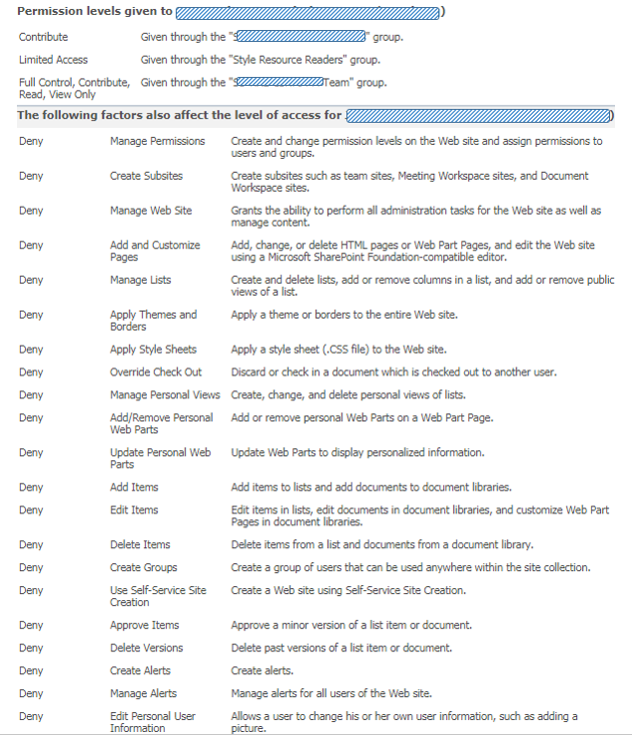
Immediate after the go-live of a migrated site, the after-care period starts. One of the issues that may arise is that a site visitor has lost authorizations compared to the old source site. We then compare the source vs the migrated site (note: in our custom IIS Redirect HttpModule we’ve incorporated the capability to bypass the automatic redirection) to investigate the complaint. Something to be aware of when comparing the permission set, is that via our go-live actions we’ve impacted also the source site: setting the site to readonly, results that in the “check permissions” display per checked user a large list of “Deny” permissions will be enlisted.
Nothing to be surprised (⇨ 'Deny' permissions are set via User Policy on webapplication level, and cannot be set on the level of individual site collections [1]
[2]) or worried about, once you understand where this overwhelming list is actually coming from. And that you can safely ignore them in understanding what the actual “productive” permission set of the checked account was on the old source site.
Labels:
Migration,
SharePoint,
SharePoint 2010,
SharePoint Online
Thursday, October 19, 2017
Tip: code-snippet to enlarge image in context of SharePoint page
Requested Web Content Management (WCM) capability: include smaller / shrinked version of an image in the body of a page, and enlarge it on user click while remaining within the context of the page.
The rich SharePoint platform enables this with a small code snippet, via re-use of the standard SP.UI.ModalDialog.showModalDialog function. Reusable code-snippet:
<div> <script type="text/javascript"> function EnlargeImageInDialog(elem) { var imgUrl = $(elem).find("img").attr("src"); imgUrl = imgUrl.replace("/_w/", "/").replace("_png.jpg", ".png”); var popupImg= "<div id='enlargeImg'><img src='" + imgUrl + "' style='margin: 5px; width:1200px;'/></div>"; $(elem).append(popupImg); SP.UI.ModalDialog.showModalDialog({ html: document.getElementById('enlargeImg'), title: "...", allowMaximize: false, showClose: true, autoSize: true }); } </script> <a onclick="EnlargeImageInDialog(this); return false;" href=""> <img src="/.../PublishingImages/_w/..._png.jpg" alt="" style="margin: 5px;"/> </a> </div>
Example of the effect:
Smaller image (reference) in the web content page
Enlarged image displayed within context of the webpage via a SharePoint UI modal dialog popup
Labels:
Javascript,
SharePoint,
Tip
Sunday, August 27, 2017
Community answerring on typical SPFx usage scenarios
Vesa Juvonen asked the community to give some typical examples of business 'applications' that are build as client-side applications, before typical by utilizing ContentEditor or ScriptEditor. And now likely candidates for SharePoint Framework (SPFx) utilization:
Tell us more about #SharePoint Dev usage! - What are the scenarios where you use Script Editor Web Part? What are you achieving? Reply, thx.
— Vesa Juvonen (@vesajuvonen) August 25, 2017
Naturally I'm a good community participant / citizen, and answerred with some example scenarios I build myself of behalf of internal business stakeholders...
Labels:
Custom development,
SharePoint,
SharePoint Online,
SPFx
Subscribe to:
Posts (Atom)