Showing posts with label jQuery. Show all posts

Saturday, February 2, 2019

Alternative to detach initial page loadtime from retrieving structural navigation

In the post 'Optimize for bad-performing navigation in SharePoint Online' I outlined an approach to release the initial pageload from the server-side execution time to retrieve the global site navigation. This approach serves its purpose to optimize the pageload time. However, it also comes with some aspects that complicate the usage. In particular in the perception of the site owner (maintainer): one thinks to configure the global navigation via "Site Settings \ Navigation", but next experience that it does not have immediate effect due the caching, nor is it complete in case one explicitly adds entries in the navigation that are not tied to the site structure itself. To address these drawbacks I designed + developed an alternative approach:
  1. Use webservice call /_api/navigation/menustate?mapprovidername='GlobalNavigationSwitchableProvider' to client-side request the navigation structure, exact as how it is configured by the site owner via "Site Settings \ Navigation'
  2. Cache the retrieved structure in the property bag available for all users
  3. Each time the Site Settings page is succesful loaded in browser, which implies it must be by someone with site maintenance authorization, redetermine via the webservice the global navigation structure, compare it with the one cached in property bag, and if changed replace the value in the property bag
Main advantage of this alternative compared to the 'search-driven' is that this restores for site owners the capability to manage the displayed global navigation via the out-of-the-box "Site Settings \ Navigation" configuration. And this includes the option to add specific entries also direct in that same configuration experience, no need to maintain a separate 'additional links' administration. Another advantage is that changes in the Navigation are now immediate applied, and for all users. No need to wait on client cache expiration. Which likely occurs on different moments for different visitors, and colleague X then can see a different menu from his/her colleague Y sitting on next desk. Also on code- and execution-level some improvements: the code is severly reduced + simplified, and there is no longer a dependency on Linq.js to runtime derive tree-model data structure from the flat web-nodes data structure determined via search.
Disadvantage is that the retrieved + cached global navigation is based on the authorizations of the person visiting the site settings page. In case some elements in the global navigation structure are restricted for other site visitors, they will now see those items in the global navigation. SharePoint authorization model prevents them from actually accessing the non-authorized content, however at the expense of a dissatisfying user experience: click on a menu item, and then get a 404 Access Denied. Therefore in case you have restrictive areas in the global navigation, then this approach might not be the one to use. A 2nd alternative is then to combine the 2: in essence, let each individual visitor request via the webservice the global navigation structure that (s)he is authorized to access, and cache this clientside for reuse on next visits. The drawback of this approach is that it suffers from risk of outdated navigation: if site owner makes changes to the navigation via "Site Settings \ Navigate", there is no trigger to enforce flush of all the individual site-visitors cached representations. But that can still be softened by putting a maximum on the cache duration, e.g. after 3 hours re-invoke the webservice to potential renew the navigation structure for you.

Sunday, March 25, 2018

Optimize for bad-performing navigation in SharePoint Online

Good navigation capability + support is essential for the user adoption of any website. And thus also for (business) sites delivered through SharePoint. The default model for this is and always has been via Structural Navigation, which is rather self-explaining for site owners to set up. However, for performance reasons, Structural Navigation is a bad-practice in SharePoint Online when it concerns site collections with a deeper nested site hierarchy. In short, the cause of this is due the dependency on Object Cache, which has value in on-prem farms with a limited number of WFEs, but is useless in Office 365 where large numbers of WFEs are involved to serve the site collections. See a.o. So, why is Structural Navigation so slow on SharePoint Online? in Caching, You Ain’t No Friend Of Mine.
Microsoft itself recommends to switch to search-driven navigation, and even has some 'working' code to set this alternative up in the context of a SharePoint Online site collection. Noteworthy is that the switch to search-driven navigation requires you to customize the masterpage; something which Microsoft otherwise warns us against. But in the classic experience there is no other option to replace the structural navigation by search-based, and it is an weighed decision to risk modifying the masterpage. Risk which to my opinion is small, as I do not foreseen that Microsoft will make big change changes to the standard 'seattle.master', if any changes at all. Reason is that Microsoft is fully focussing on the modern experience, and little innovation is to be expected anymore in the classic experience. This is underlined by the fact that 'seattle.master' has been stable for years, without any change brought by Microsoft to it.
The 'working' code-snippet that Microsoft provides as part of their advise how-to improve the performance of navigation is included in the Microsoft support article Navigation options for SharePoint Online. Although this is a good first resource, on deeper sight the code has some flaws. Some of them are disclosed in the helpful post SharePoint Search Driven Navigation Start to Finish Configuration. On top of this, in my implementation I included some additional improvements in the ViewModel code:
  1. Encapsulate all the code in it's own module + namespace, to isolate and separate from the anonymous global namespace
  2. On the fly load both jQuery and knockout.js libraries, if not yet loaded in the page context
  3. Made the script generic, so that it can directly be reused on multiple sites without need for code duplication (spread) and site-specific code changes; this also enables to distribute and load the script code from an own Content Delivery Network (CDN)
  4. Cache per site, and per user; so that the client-cache can be used on the same device for both multiple sites, as well as by different logged-on accounts (no need to switch between browsers, e.g. for testing)
  5. Display the 'selected' state in the navigation, also nested up to the root navigation node
  6. Display the actual name of of the rootweb of the sitecollection, iso the phrase 'Root'
  7. Extend the navigation with navigation nodes that are additional to the site hierarchy; and include them also in the navigation cache to avoid the need to retrieve again from SharePoint list per each page visit
  8. Hide from the navigation any navigation nodes that are identified as 'Hidden' (same as possible with the standard structural navigation)
  9. Execute the asynchronous 'get' retrievals parallel via 'Promise.all', to shorten the wait() time, and also for cleaner structured code
  10. Extend with one additional level in the navigation menu (this is accompanied with required change in the masterpage snippet)
  11. Include a capability to control via querystring to explicit refresh the navigation and bypass the browser cache; convenience in particular during development + first validation
Also made some changes to the suggested snippet for the masterpage:
  1. Extend with one additional level in the navigation menu (see above, this is accompanied by required change in the ViewModel code)
  2. Preserve the standard 'PlaceHolderTopNavBar', as some layout pages (e.g. Site Settings, SharePoint Designer Settings,...) expect that to be present, and give exception when missing from masterpage
  3. Optional: Restore the 'NavigateUp' functionality; via standard control that is still included in the standard 'seattle.master' (a source for this: Restore Navigate Up on SharePoint 2013 [and beyond])

Friday, December 9, 2016

Freeze pane on SharePoint list with responsive scroll height

Earlier I blogged on how-to 'Freeze pane on SharePoint list': augment the standard SharePoint ListView UI to fixate the list header in visible sight when the user scrolls down the list in the browser. The user was totally happy with this delivered solution..., until opening the page on smaller screen (estate)... In the original code, the browser scrollbar is explicit hidden. An non-usability effect is that the user cannot scroll to the lower part in case the configured height of the 'scrollable listview' extends beyond the physical browser height. On the first coding, I made the explicit decision to hide the browser scrollbar via CSS, to avoid double scrollbars: without the CSS "overflow:hidden" property on 's4-workspace', the browser will always render its own scrollbar for pages that initial extend the browser height, even when later via clientside coding the page height is on-the-fly reduced to fit in browser height. The presence of double scrollbars - browser + on the list - is both confusing as non-esthetic. I prevented this via the 'overflow:hidden'.
However, in the initial code I didn't accompensate sufficient for smaller physical screens. I re-evaluated the 'freeze' code, and made some adjustments to make it responsive to the physical screen height. Another fix is to duplicate eventhandling on the standard listview header to the frozen header, for filtering, and 'select/deselect all' functionalities. Yet another fix is in the positioning of the ECB menu: default this is positioned relative to the listview top, which however itself is floating due the 'freeze' handling.
Updated code:
var visibleTableHeight = -1; // Freeze the header of listview. function FreezePane() { var $table = $(".ms-listviewtable").first().data("summary", "<listview name>"); var freezedTRHeight = 25; // Determine the available height for table to render in visible screen. if (visibleTableHeight === -1) { var origWorkspaceHeight = $("#s4-workspace").height(); var origTableHeight = $table.height(); var spaceInWorkspaceWithoutTable = origWorkspaceHeight - origTableHeight; var windowHeight = window.innerHeight; if (windowHeight == undefined) { windowHeight = document.documentElement.clientHeight; } var topPos = $("#s4-workspace").offset().top; var availableHeight = windowHeight - topPos - spaceInWorkspaceWithoutTable - freezedTRHeight; // Set visible height, with minimum of 300 visibleTableHeight = Math.max(availableHeight, 300); } // WRAP TABLE IN SCROLL PANE $("#s4-workspace").css( { 'overflow-y': 'auto' } ); $table.wrap("
"); // FROZEN HEADER ROW $(".FreezedLV").wrap("<DIV class='FreezedLVContainer' style='position:relative; margin:0px; height:" + (visibleTableHeight + freezedTRHeight) + "px;'></DIV>"); $("<table id='FreezedTR' class='ms-listviewtable' cellPadding='1' cellSpacing='0'></table>").insertBefore(".FreezedLV"); $("#FreezedTR").width($table.width() + "px"); var $origHeader = $("TR.ms-viewheadertr:first", $table); var $firstRowTable = $("TR.ms-itmhover:first", $table); var $freezeHeader = $origHeader.clone(); // Propagate computed width of columns of origheader to freezeheader $origHeader.children("th").each(function() { var width = $(this).width(); var ownerIndex = $(this).index(); $($freezeHeader.children("th")[ownerIndex]).width(width + "px"); }); var $alignerRow = $firstRowTable.clone(); $alignerRow.css( { 'visibility' : 'hidden' } ); $("#FreezedTR").append($alignerRow); $("#FreezedTR").wrap("<DIV style='HEIGHT: " + freezedTRHeight + "px;'></DIV>"); // Visual "hide" the orig header, make sure it still is rendered as otherwise the alignment of 'body' rows is altered $origHeader.children("th").each(function() { $(this).css( { 'height' : '0px' , 'max-height' : '0px', 'min-height' : '0px' , 'padding-top' : '0px', 'padding-bottom' : '0px' } ); $(this).find("div").css( { 'height' : '0px' , 'max-height' : '0px', 'min-height' : '0px', 'margin-top' : '0px', 'margin-bottom' : '0px' } ); $(this).find("input").css( { 'height' : '0px' , 'max-height' : '0px', 'min-height' : '0px' } ); }); $origHeader.css( { 'max-height' : '1px', 'visibility' : 'hidden' } ); // Delegate eventhandlers from the copied+freezed header to the actual header of the listview. var $inputFH = $freezeHeader.find("input[title='Select or deselect all items']"); $inputFH[0].onclick = null; $inputFH[0].onfocus = null; $table.onmouseover = null; $inputFH.click(function() { $(this).closest(".FreezedLVContainer").find(".FreezedLV .ms-viewheadertr").find("input[title='Select or deselect all items']").trigger('click'); }); $inputFH.focus(function() { $(this).closest(".FreezedLVContainer").find(".FreezedLV .ms-viewheadertr").find("input[title='Select or deselect all items']").trigger('focus'); }); $("#FreezedTR").mouseover(function() { $(this).closest(".FreezedLVContainer").find(".FreezedLV .ms-listviewtable").trigger('mouseover'); }); ExecuteOrDelayUntilScriptLoaded(OverloadPositionCtxImg, "core.js"); Overload__doPostBack(); } // Need to update/overload positioning of 'ECB' icon as SharePoint standard it is relative positioned towards its direct parent; // and due scrolling would become invisible. function OverloadPositionCtxImg() { if ($.prototype.KI_base_PositionCtxImg === undefined) { $.prototype.KI_base_PositionCtxImg = PositionCtxImg; PositionCtxImg = function(c, b, h) { $.prototype.KI_base_PositionCtxImg(c, b, h); var a = c.style; a.top = (c.parentNode.offsetTop + b.clientTop) + "px"; }; } } // Overload MicrosoftAjax UpdatePanel function, to restore FreezePane after navigating to another page in the overview. function Overload_updatePanel() { if (Sys.WebForms.PageRequestManager.prototype.KI_base__updatePanel === undefined) { Sys.WebForms.PageRequestManager.prototype.KI_base__updatePanel = Sys.WebForms.PageRequestManager.prototype._updatePanel; Sys.WebForms.PageRequestManager.prototype._updatePanel = function(updatePanelElement, rendering) { Sys.WebForms.PageRequestManager.prototype.KI_base__updatePanel(updatePanelElement, rendering); if (updatePanelElement === $(".ms-listviewtable").first().data("summary", "<listview name>").closest("div")[0]) { if (("td.ms-addnew").length > 1) $("td.ms-addnew").last().closest("table").hide() FreezePane(); } }; } } function Overload__doPostBack() { if ($.prototype.KI_base__doPostBack === undefined) { $.prototype.KI_base__doPostBack = __doPostBack; __doPostBack = function (eventTarget, eventArgument) { // Make sure to overload the updatePanel function before postback from navigate button. if ($.prototype.KI_base__updatePanel === undefined) Overload_updatePanel(); $.prototype.KI_base__doPostBack(eventTarget, eventArgument); } } }

Thursday, April 21, 2016

Freeze pane on SharePoint list

In case of a larger SharePoint list, end-users may appreciate that the header row remains in the visible area while they scroll through the list. Out-of-the-box the SharePoint XsltListView webpart does not provide this functionality. However, it is possible to augment the standard behavior by modifying the rendered HTML through javascript. There are multiple examples published, but for some reason these did not immediate work for me. Did get me inspired though, and I coded a jQuery-snippet that when inserted in a page containing a XsltListView webpart delivers the 'freeze pane':
<script src="https://code.jquery.com/jquery-1.11.2.min.js" type="text/javascript"></script> <script type="text/javascript"> $(document).ready(function () { var $table = $(".ms-listviewtable").first().data("summary", "<listview name>"); // WRAP TABLE IN SCROLL PANE $("#s4-workspace").css( { overflow: 'hidden' } ); $table.wrap("<DIV class='FreezedLV' style='OVERFLOW: auto; HEIGHT: 550px;'></DIV>"); // FROZEN HEADER ROW $(".FreezedLV").wrap("<DIV class='FreezedLVContainer'></DIV>"); $("<table id='FreezedTR' class='ms-listviewtable' cellPadding='1' cellSpacing='0'></table>"). insertBefore(".FreezedLV"); $("#FreezedTR").width($table.width() + "px"); var $origHeader = $("TR.ms-viewheadertr:first", $table); var $firstRowTable = $("TR.ms-itmhover:first", $table); var $freezeHeader = $origHeader.clone(); // Propagate the computed width of columns of origheader to freezeheader $origHeader.children("th").each(function() { var width = $(this).width(); var ownerIndex = $(this).index(); $($freezeHeader.children("th")[ownerIndex]).width(width + "px"); }); // Propagate the implicit width of row columns as explicit widths in first row to // avoid layout-changes when hiding the original header $firstRowTable.children("td").each(function() { var width = $(this).width(); var ownerIndex = $(this).index(); $($firstRowTable.children("td")[ownerIndex]).width(width + "px"); }); $("#FreezedTR").append($freezeHeader); $origHeader.hide(); }); </script>

Friday, March 18, 2016

Extending List.js with sort on date values

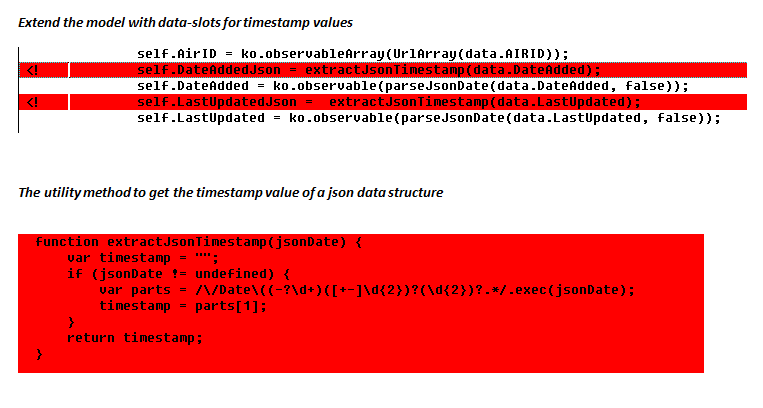
I applied List.js for user-interactive filtering and sorting in a table. However, it turns out that default the List.js sorting is limited to string based only. In this business application there are also columns with date values, so I needed to expand on the basic List.js capability. My approach consists of the following elements:
  • In the ViewModel of the Modern App, also include a data property that contains the timestamp representation of date value
  • In the View, also include an html element to render the timestamp value in the DOM. As you don't want to distract the user, this element must be invisible. An hidden 'input' would serve that purpose, where it not that List.js only retrieves values from block-elements. Alternative therefore is an hidden 'Div' element.
  • In the View, change the List.js data-sort specification to this timestamp value. Also make sure to include in the valueNames specification for instantiating the List
  • Almost there... Earlier I already extended List.js to parse the raw values from html elements. Reason for doing that is that default List.js retrieves the innerHTML. And in case your html element contains html-specification (e.g. for an hyperlink), this results in malfunctioning of List.js filtering/searching and sorting capabilities. I determine the raw values via 'innerText'. However, Chrome returns for hidden elements an innerText value of empty string... Therefore I made an additional minor addition to in such case determine the raw value via 'textContent'.
So far the written explanation. For developers it is much more understandable to explain via code:
The modifications to ViewModel (Knockout)
The modifications to View (Knockout)
The modifications to List.js library

Sunday, July 12, 2015

Tabbed view on document library

The ‘group by’ native functionality of XsltListViewWebPart is convenient to present a classified view on the contents of a SharePoint List / Library. Requirement of one of our departments is to go beyond that, and provide a tabbed view on the document library: a tab per month per year.
To achieve this, one basically has the following options:
  1. Build a custom webpart. However, this is so old-school SharePoint platform utilization; and in our company by default disallowed.
  2. Build a custom HTML / javascript UI (App), and connect via SharePoint webservices. Although this setup nicely fits in ‘modern SharePoint App-development’, for this specific scenario the drawback is that you then also need to develop yourself all of the Office integration that SharePoint standard delivers for a rendered document library (via ECB menu).
  3. Reuse XsltListViewWebPart, but specify an own Xslt-styling. This approach suffers from the same approach as the ‘modern App’ alternative: you’re then required to include in the custom Xstl all the code to render Office-integration friendly.
  4. Reuse XsltListViewWebPart, and dynamically modify the standard grouped-by layout into a tabbed view. Beyond reuse of the native Office-integration, this approach also reuses the lazy loading per group that is native in the XsltListViewWebPart group-by handling. Especially with a larger document library, this makes it much more performant as to retrieve the entire contents at once.

Client-side transfrom group-by layout into tabbed view

The transformation of the standard group-by layout into a tabbed view can be achieved as full client-side code only. To achieve the effect, I inspected the standard delivered html; and next coded the transformation logic in jQuery.

Particulars

  • The native 'group-by' functionality renders the header(s) of the groups. In a tabbed-view layout, the selected tab however already visualizes which group selected; and the group-headers are undesirable in the rendering.
  • The native 'group-by' functionality opens new group in addition to the one(s) already open. For a tab-view experience, the views must be exclusive, act as toggles. Select one tab, automatically closes the tab selected before.
  • The native 'group-by' functionality also includes a 'remember' function: by default a grouped-by layout opens with the group(s) opened as when the visitor was last on the page. For a consistent user-experience, it is then required to pre-select the associated tab-button.

The 'App' code

<style type="text/css"> .et-tab { <ommitted…> } .et-tab-active { <ommitted…> } .et-tab-inactive { <ommitted…> } .et-separator { height: 5px; background-color: rgb(134, 206, 244); } </style> <script> var TabbedListView = window.TabbedListView || {}; TabbedListView.UI = function () { function MonthToInt(month) { <ommitted…> } function getCookieValue(cookieName) { if (document.cookie.indexOf(cookieName) != -1) { var cookies = document.cookie.split("; "); for (var cookieSeq in cookies) { var cookieSpec = cookies[cookieSeq]; if (cookieSpec.indexOf(cookieName) != -1 && cookieSpec.indexOf("=") != -1 ) { return unescape(cookieSpec.split("=")[1]); } } } return undefined; } function TabbedView() { var tabrow = $("<div class='et-tabrow'></div>"); $(".ms-listviewtable") .before($(tabrow)) .before("<div class='et-separator'></div>"); $(".ms-listviewtable").children().each(function(i) { // Grouping-row: level 0 or level 1 if ($(this).attr("groupString") !== undefined) { // Month - lowest group level. if ($(this).children("[id='group1']").length > 0) { var action = $("<a></a>"); // Set the buttonlabel := '<month> <year>' by extracting // the values from the original headings. var monthValue = $(this).find("a").parent().clone() .children().remove().end().text().split(" : ")[1]; var parentId = $(this).attr('id') .substring(0, $(this).attr('id').length - 2); var group0 = $(this).parent().children("[id='" + parentId + "']"); var yearValue = $(group0).find("a").parent().clone() .children().remove().end().text().split(" : ")[1]; $(action).text(monthValue + " " + yearValue); $(action).click(function() { var parentId = $(this).parent().attr('id'); var parentTBodyId = "titl" + parentId.substring(0, parentId.length -2; var actualAA = $(".ms-listviewtable") .find("tbody[id='" + parentTBodyId + "']").find("a"); if ($(actualAA).find('img').attr('src') .endsWith("plus.gif") ) { $(actualAA).trigger('click'); } var actualA = $(".ms-listviewtable") .find("tbody[id='titl" + parentId + "']").find("a"); $(actualA).trigger('click'); if ($(this).parent().hasClass("et-tab-inactive")) { $(".ms-listviewtable").children().each(function(i) { if ($(this).attr("groupString") !== undefined) { $(this).hide(); } }); $(".et-tabrow").children().each(function(i) { if ($(this).hasClass("et-tab-active")) { $(this).find("a").click(); } }); $(this).parent().removeClass("et-tab-inactive"); $(this).parent().addClass("et-tab-active"); } else { $(this).parent().removeClass("et-tab-active"); $(this).parent().addClass("et-tab-inactive"); } }); // Add 'tab-button' to tab-row; in chronological sorted order. var button = $("<span class='et-tab'></span>"); $(button).attr('id', $(this).attr('id').substring(4, $(this).attr('id').length)); $(button).append($(action)); var totalMonths = parseInt(yearValue) * 12 + MonthToInt(monthValue); $(button).data('TotalMonths',totalMonths); var added = false; $(".et-tabrow").children().each(function(i) { if (!added && parseInt($(this).data("TotalMonths")) > totalMonths) { $(this).before($(button)); added = true; } }); if (!added) $(tabrow).append($(button)); $(button).addClass("et-tab-inactive"); } $(this).hide(); } }); ExecuteOrDelayUntilScriptLoaded(function() { var cookieValue = getCookieValue("WSS_ExpGroup_"); var group1Opened = false; if (cookieValue !== undefined) { var expGroupParts = unescape(cookieValue).split(";#"); for (var i = 1; i < expGroupParts.length - 2; i++) { if (expGroupParts[i+1] !== "&") { group1Opened = true; break; } else { i++; } } } if (group1Opened) { // XsltListViewWebPart standard behaviour includes a 'remember' // functionality: open the group(s) that was/were open before // refreshing the page with the grouped-view. Overload that behaviour // to make sure the 'tab-row' state is consistent with that. $.prototype.base_ExpColGroupScripts = ExpColGroupScripts; ExpColGroupScripts = function(c) { var result = $.prototype.base_ExpColGroupScripts(c); $(".ms-listviewtable").find("tbody[isLoaded]").each(function(i) { if ($(this).find("td").text() === 'Loading....') { var bodyId = $(this).attr('id') .substring(4, $(this).attr('id').length-1); var tabButton = $(".et-tabrow") .children("[id='" + bodyId + "']"); if ($(tabButton).hasClass("et-tab-inactive")) { $(tabButton).removeClass("et-tab-inactive"); $(tabButton).addClass("et-tab-active"); } } }); // Reset function ExpColGroupScripts = $.prototype.base_ExpColGroupScripts; return $(result); }; } else { $(".et-tabrow span:first-child").find("a").trigger('click'); } }, "inplview.js"); $(".ms-listviewtable").show(); } var ModuleInit = (function() { $(".ms-listviewtable").hide(); _spBodyOnLoadFunctionNames.push("TabbedListView.UI.TabbedView"); })(); // Public interface return { TabbedView: TabbedView } }(); </script>

Update: support for multiple XsltListViewWebParts on page

The above 'App' code works fine in case of a single XsltListViewWebPart on page. However, in our company we also have document dashboards that give entrance to 'archived' and 'active' documents. The above code requires some update to be usable for 1 or more XsltListViewWebPart instances on a single page.
<style type="text/css"> <ommitted…> </style> <script> var TabbedListView = window.TabbedListView || {}; TabbedListView.UI = function () { function MonthToInt(month) { <ommitted…> } function getCookieValue(cookieName) { var cookieNameLC = cookieName.toLowerCase(); if (document.cookie.toLowerCase().indexOf(cookieNameLC) != -1) { var cookies = document.cookie.split("; "); for (var cookieSeq in cookies) { var cookieSpec = cookies[cookieSeq]; if (cookieSpec.toLowerCase().indexOf( cookieNameLC) != -1 && cookieSpec.indexOf("=") != -1) { return unescape(cookieSpec.split("=")[1]); } } } return undefined; } var triggerCtxIsInit = false; function initTabSelection(webpartId) { var lstVw = $('div[WebPartID^="' + webpartId + '"]'); var cookieValue = getCookieValue("WSS_ExpGroup_{" + webpartId + "}"); var group1Opened = false; if (cookieValue !== undefined) { var expGroupParts = unescape(cookieValue).split(";#"); for (var i = 1; i < expGroupParts.length - 2; i++) { if (expGroupParts[i+1] !== "&") { group1Opened = true; break; } else { i++; } } } if (group1Opened) { // XsltListViewWebPart standard behaviour includes a 'remember' // functionality: open the group(s) that was/were open before // refreshing the page with the grouped-view. Overload that // behaviour to make sure the 'tab-row' state is consistent with that. if ($.prototype.base_ExpColGroupScripts === undefined) { $.prototype.base_ExpColGroupScripts = ExpColGroupScripts; ExpColGroupScripts = function(c) { var result = $.prototype.base_ExpColGroupScripts(c); $(".ms-listviewtable").find("tbody[isLoaded]").each(function(i) { if ($(this).find("td").text() === 'Loading....') { var bodyId = $(this).attr('id') .substring(4, $(this).attr('id').length-1); var tabButton = $(".et-tabrow").children("[id='" + bodyId + "']"); if ($(tabButton).hasClass("et-tab-inactive")) { $(tabButton).removeClass("et-tab-inactive"); $(tabButton).addClass("et-tab-active"); } } }); return $(result); }; } } else { triggerCtxIsInit = true; $(lstVw).parent().find(".et-tabrow span:first-child") .find("a").trigger('click'); triggerCtxIsInit = false; } } function TabbedView() { $(".ms-listviewtable").each(function(i) { ExecTabbedView($(this)); }); } function ExecTabbedView(lstVw) { var tabrow = $("<div class='et-tabrow'></div>"); $(lstVw).before($(tabrow)).before("<div class='et-separator'></div>"); $(lstVw).children().each(function(i) { // Grouping-row: level 0 or level 1 if ($(this).attr("groupString") !== undefined) { // Month - lowest group level. if ($(this).children("[id='group1']").length > 0) { var action = $("<a></a>"); // Set the buttonlabel := '<month> <year>' by extracting // the values from the original headings. var monthValue = $(this).find("a").parent().clone().children() .remove().end().text().split(" : ")[1]; var parentId = $(this).attr('id') .substring(0, $(this).attr('id').length - 2); var group0 = $(this).parent().children("[id='" + parentId + "']"); var yearValue = $(group0).find("a").parent().clone().children() .remove().end().text().split(" : ")[1]; $(action).text(monthValue + " " + yearValue); // Add clickhandler to: // - check the 'parent-group-header in the table whether already // opened; if not trigger it to open. This is required to reuse // the standard XsltListViewWebPart behaviour wrt remember // state upon refresh. // - invoke the 'original' one of the group-header A in the // table; to trigger the default behaviour // - if 'selected': // - hide the headings that are visualized by the default // clickhandler // - deselect the 'tab' that is current active // - visualize the 'tab' to display as active // - if 'deselected' // - visualize the 'tab' to display as inactive $(action).click(function() { // On first user-initiated click; reset the overload of // ExpColGroupScripts as only applicable on initialization. if (!triggerCtxIsInit && $.prototype.base_ExpColGroupScripts !== undefined ) { ExpColGroupScripts = $.prototype.base_ExpColGroupScripts; $.prototype.base_ExpColGroupScripts = undefined; } var parentId = $(this).parent().attr('id'); var tabrow = $(this).parents('div[class^="et-tabrow"]'); var lstVw = $(tabrow).parent() .find('table[class^="ms-listviewtable"]'); var actualAA = $(lstVw).find("tbody[id='titl" + parentId.substring(0, parentId.length -2) + "']") .find("a"); if ($(actualAA).find('img').attr('src') .endsWith("plus.gif") ) { $(actualAA).trigger('click'); } var actualA = $(lstVw).find("tbody[id='titl" + parentId + "']").find("a"); $(actualA).trigger('click'); if ($(this).parent().hasClass("et-tab-inactive")) { $(lstVw).children().each(function(i) { if ($(this).attr("groupString") !== undefined) { $(this).hide(); } }); $(tabrow).children().each(function(i) { if ($(this).hasClass("et-tab-active")) { $(this).find("a").click(); } }); $(this).parent().removeClass("et-tab-inactive"); $(this).parent().addClass("et-tab-active"); } else { $(this).parent().removeClass("et-tab-active"); $(this).parent().addClass("et-tab-inactive"); } }); // Add 'tab-button' to tab-row; in chronological sorted order. var button = $("<span class='et-tab'></span>"); $(button).attr('id', $(this).attr('id') .substring(4, $(this).attr('id').length)); $(button).append($(action)); var totalMonths = parseInt(yearValue) * 12 + MonthToInt(monthValue); $(button).data('TotalMonths',totalMonths); var added = false; $(tabrow).children().each(function(i) { if (!added && parseInt($(this).data("TotalMonths")) > totalMonths) { $(this).before($(button)); added = true; } }); if (!added) $(tabrow).append($(button)); $(button).addClass("et-tab-inactive"); } $(this).hide(); } }); var webpartId = $(lstVw).parents('div[WebPartID^!=""]').attr('WebPartID'); ExecuteOrDelayUntilScriptLoaded( function () { initTabSelection(webpartId) }, "inplview.js"); $(lstVw).show(); } var ModuleInit = (function() { $(".ms-listviewtable").each(function(i) { $(this).hide(); }); _spBodyOnLoadFunctionNames.push("TabbedListView.UI.TabbedView"); })(); // Public interface return { TabbedView: TabbedView } }(); </script>

Monday, November 3, 2014

On-the-fly add client-side filtering and sorting to GridView

ASP.Net GridView is a powerful UI-control to visualize an overview of (business) data entities. Also standard / COTS products (e.g. for SharePoint) make heavily usage of the GridView control and it's capabilities.
In case of using a COTS product, it can be challenging to address requests from endusers wrt the grid behavior. You do not have the option to change the server-side behaviour yourself, but are dependent on the supplier. Ok, so server-side falls off; but in these days we prefer client-side anyhow. As it gives a faster interactive ui-responsiveness and thus a better user-experience.
In our scenario, the customer requested to add filtering and sorting ui-behaviour to an overview grid. As the output of GridView in the browser is simple an HTML Table element, I searched on the internet for any javascript library to sort and filter on tables. There are several of these available. I picked the combination of List.js and jQuery.TableSorter.js.
Next step is to activate their clientside behaviour in the rendered GridView output. This requires some straightforward jQuery-coding: select the Table element, enrich it which new child elements that are needed by the sorting and filtering libraries, runtime import the javascript libraries, and activate the sorting respectively filtering clientside behaviour.
/* Add client-side filtering and sorting to the requests overview. */ $.getScript( "/.../scripts/list.js", function( data, textStatus, jqxhr ) { $("#RequestsOverview tbody").addClass("list"); var filters = '<tr > \ <td><div id="filterPH1"> </div></td> \ <td><div id="filterPH2"> </div></td> \ <td><input type="text" id="date" class="search" placeholder="Filter"</td> \ <td><input type="text" id="description" class="search" placeholder="Filter"</td> \ <td><input type="text" id="state" class="search" placeholder="Filter"</td> \ </tr>'; $("#RequestsOverview thead tr").after(filters); $("#RequestsOverview").parent().attr('id', 'RequestsOverviewDiv'); $("#RequestsOverview .wf-id-event").each(function(i) { $(this).parent().children().each(function(i) { switch(i) { case 2: $(this).addClass("date"); break; case 3: $(this).addClass("description"); break; case 4: $(this).addClass("state"); break; } }); }); var userList = new (List)('RequestsOverviewDiv', { valueNames: ['date', 'description', 'state'] } ); }); $.getScript( "/.../scripts/jquery.tablesorter.js", function( data, textStatus, jqxhr ) { $("#RequestsOverview").tablesorter( { cssHeader: "headerSort", headers: { 0: { sorter: false}, 1: {sorter: false} }, dateFormat: 'pt' }); });

Result:

Without clientside plug-in of sorting and filtering:
Grid ui-behaviour enriched with sorting and filtering:
Limitation:
As the plugged-in sorting and filtering works on the client-side available data, it cannot be used in case of server-side GridView paging. For that it is required to also sort and filter server-side, or replace the server-side paging by a clientside approach. The latter is typically not desirable, as this requires that all the data is immediately send to the client; while the user may be interested in only the first page.

Friday, March 14, 2014

Use JSOM from a plain webpage

With the richness of available javascript libraries (knockout.js, angular.js, …) combined with SharePoint JSOM, you can nowadays build some real nice functionality without need of server side code. Drawback however seemed that to be able to use JSOM, the script needs to be included on a SharePoint page. In some cases this is fine, when you utilize JSOM/Knockout/Angular to enrich a SharePoint page (sitepage, publishing page) with dynamic clientside behavior. But there are also scenarios that the clientside behavior is on its own (e.g. functionality exposed to the user via a dialog), and then it is undesired to include the SharePoint overhead: bloated HTML and an heaver page payload.
So the question is then, can you JSOM outside the context of a SharePoint page? Seems evident that it must be possible, after all it boils down to identifying the right resources to send to the browser, and that then does the work. However, it appeared to be a little less easy and logical to setup such a context. And the Microsoft provided information is insufficient and unclear.
After some trial-and-error, I now have it working. The required elements in the setup are the following:
  1. The page must be rendered by SharePoint; can be from the layouts directory (note: not as an application page), or from a SharePoint Document Library
  2. The page cannot be a plain .html; as it is required to utilize SharePoint server rendering pipeline
  3. Include a SharePoint.ScriptLink to deferred load 'sp.js'
  4. First trick: include '<SharePoint:FormDigest runat="server"></SharePoint:FormDigest>' in your page
  5. Second trick: encapsulate the javascript code that invokes JSOM, within a '<form runat="server"> -- </form>'. Especially this aspect took me some trial/discovery time.
With these 5 aspects applied, SharePoint JSOM can be used from a lean and lightweight webpage, without the SharePoint master page overhead.
Example:
<!DOCTYPE html PUBLIC "-//W3C//DTD XHTML 1.0 Strict//EN" "http://www.w3.org/TR/xhtml1/DTD/xhtml1-strict.dtd">
<%@ Page Language="C#" %>
<%@ Register Tagprefix="SharePoint" Namespace="Microsoft.SharePoint.WebControls"
  Assembly="Microsoft.SharePoint, Version=14.0.0.0, Culture=neutral, PublicKeyToken=71e9bce111e9429c" %>
<html dir="ltr" xmlns="http://www.w3.org/1999/xhtml">
<head runat="server">
  <meta name="WebPartPageExpansion" content="full" />
  <meta http-equiv="Content-Type" content="text/html; charset=utf-8" />
  <title>Plain JSOM usage</title>
  <SharePoint:ScriptLink language="javascript" name="sp.js" OnDemand="false" runat="server" Localizable="false" LoadAfterUI="true"/>
  <SharePoint:FormDigest ID="FormDigest1" runat="server"></SharePoint:FormDigest>
 </head>
<body> 
  <form id="form1" runat="server">
     <script language="ecmascript" type="text/ecmascript">                                    
         $(document).ready(function () {
             EnsureScriptFunc("sp.js", "SP.ClientContext", function () {
                 var ctx = new SP.ClientContext();
                 var site = ctx.get_site();
                 ctx.load(site, 'Url');
                 ctx.executeQueryAsync(function (s, a) {
                     ko.applyBindings(new Demo.AppViewModel.ProcessesVM(site.get_url()), document.getElementById('DemoUsage'));
                 });
              });
         });
    </script>
 </form>
</body>

Friday, June 3, 2011

Utilizing Maps services for runtime determining nearest relations

In a former SharePoint project – an external facing public website -, a required functionality was to display the nearest X insurance advisors given the submitted postal code of user. We weighed several alternatives to realize this:
  1. Re-use the distance-calculation algorithm used by the predecessor of the website (note: the essence of the project was a technical migration from a non-strategic proprietary WCM platform to the enterprise architecture target platform: SharePoint)
  2. Utilize service of postal company: a data repository of all postal code tuple combinations, with the distance between them administrated.
  3. Utilize Geo-coordinates to runtime calculate the distance between 2 locations, via the Haversine formula.
The first would have the disadvantage to still depend on the non-strategic platform and supplier. Also it had a rather complex programming API, without documentation and support.
The second would require us to host an external database besides the SharePoint content database in which to administrate the millions of postal code / distance records. This database would have to be updated each year with the management update from the postal company. Also, security constraints would not allow to directly access from the SharePoint WFE in the DMZ, the external database hosted in the internal network. The access should be regulated from DMZ to inner network via a secure webservice interface; which of course implies extra work and additional hosting costs.
So, the third alternative appeared the best fitted. Issue here is how to translate the postal code (submitted by the website user) into geo-coordinates (required for the Haversine formula). Luckily, both GoogleMaps and BingMaps provide services for this. Rough outline of the applied approach:
    Preparation
  1. Store in a SharePoint List the relations (less than 5000) data, including their geo-coordinates

  2. Runtime
  3. Invoke Maps service to derive the geo-coordinates (Latitude + Longitude) given the postal code submitted by user
  4. Calculate the distance to each applicable relation via the Haversine formula
  5. Ascending sort on calculated distance
  6. Display the X nearest advisors
An hosting constraint for step 2 is that it is not allowed to directly invoke from the SharePoint farm, external webservices. To circumvent that restriction we decided to call the Maps service in the security context of the browser, via jQuery/JSON. The returned geo-coordinated are next via a postback with arguments transmitted to the server side; where then the distance calculations are done.
Architecture sketch:

Friday, January 7, 2011

CQWP, CSS and jQuery applied to rearrange groups of overview links

A customer requirement for their SharePoint intranet is a reusable 'Overview-of-Handy-Links' capability, with the following specification:
  1. Contributors must have a means to manage the overview links. The functional mananagment must be easy, without the need to maintain HTML.
  2. The links must be grouped
  3. The display-order of the overview groups must be controllable
  4. The display-order of the links in a group must be controllable
  5. The display space must be optimable used, white-spacing must be minimized
  6. The overview backgroundcolor, links color and links hover color must be settable
  7. The number of columns must be settable
  8. Minimize the amount of custom code, favour the usage of standard SharePoint capabilities
As consequence of the first requirement, application of the ContentEditorWebPart is not an option. That would mean that the contributors are directly confronted with the html-specification of the overview. Utilization of the ContentQueryWebPart appears more promising. The rough solution design is then to 1) maintain the groupheaders in 1 SharePoint SPList; 2) maintain the overview links in another SharePoint SPList, with a Lookup to the GroupHeaders SPList; 3) Connect a ContentQueryWebPart to the OverviewLinks SPList; 4) Group on the GroupHeader Lookup field/column; 5) Codify in the CQWP Main, Group and Item xslt-files the templates to deliver the appropriate html.
The requirement to optimal use the display space can for a large extend be achieved via CSS float-functionality: automatically 'glue' the individual Group DIV's next to each other. In the horizontal direction there is then no lost white-spacing. However, in the vertical direction that cannot be achieved with CSS-float alone. Float flows in horizontal direction, not vertical.
But there is jQuery to the rescue. The basic idea is to first let the CSS-floating capability align the set of DIV's in as much as possible optimal usage of the display space. And afterwards, perform some minor rearrangement to also reduce the lost of white-spacing in vertical direction.
Via CQWPAfter jQuery

Reusability of the OverviewLinks-functionality is achieved by applying the Feature capability. The Feature provisions the required SharePoint artifacts: the SharePoint SPLists - including the Lookup relation between them, a preconfigured CQWP, the XSLt-files.

Thursday, August 26, 2010

More [functional] robustness issues with OOTB InfoPath Forms Services

Earlier I blogged about some robustness issues I encountered with the application of InfoPath Forms Services in an external facing SharePoint site. The basis of the framework developed in that project is re-used in context of the company's intranet. Hereby I ran into some new robustness issues. I'll describe them here, and also the outline of the applied solutions.

  1. Placing XmlFormView webpart on a SharePoint page conflicts with inline server codeblocks in MasterPage
    Immediately upon adding the out-of-the-box Microsoft.Office.InfoPath.Server.Controls.XmlFormView webpart on a publishing page in the company's intranet, SharePoint throwed an exception:
    Source: System.Web
    Message: The Controls collection cannot be modified because the control contains code blocks (i.e. ).
    Stacktrace:
    at System.Web.UI.ControlCollection.Add(Control child)
    at Microsoft.Office.InfoPath.Server.SolutionLifetime.ScriptIncludes.AddCssLinkToHeader(HtmlHead head, String href)
    at Microsoft.Office.InfoPath.Server.Controls.XmlFormView.TryToAddCssLinksToHeader()
    at Microsoft.Office.InfoPath.Server.Controls.XmlFormView.OnDataBindHelper()
    at Microsoft.Office.InfoPath.Server.Controls.XmlFormView.OnPreRender(EventArgs e)
    at System.Web.UI.Control.PreRenderRecursiveInternal()
    at System.Web.UI.WebControls.WebParts.WebPart.PreRenderRecursiveInternal()
    at System.Web.UI.Control.PreRenderRecursiveInternal()
    at System.Web.UI.Control.PreRenderRecursiveInternal()
    at System.Web.UI.Control.PreRenderRecursiveInternal()
    at System.Web.UI.Control.PreRenderRecursiveInternal()
    at System.Web.UI.Control.PreRenderRecursiveInternal()
    at System.Web.UI.Page.ProcessRequestMain(Boolean includeStagesBeforeAsyncPoint, Boolean includeStagesAfterAsyncPoint

    First analysis learned that the problem was related to the applied SharePoint MasterPage: it manifested itself with 2 of our custom MasterPages, but not on other custom nor the standard (Publishing) Masterpages. Inspection of the particular custom MasterPages disclosed the following server-side code:
    <% Response.Write("<script>var Collaboration_SiteRelativeUrl='" + SPContext.Current.Site.Url + "';</script>"); %> 

    The inclusion of this inline server codeblocks resulted in the conflict with the server-side operation of the XmlFormView webpart. The solution was to replace the inline server codeblocks-tags '<%' and '%>' approach by a HtmlHead (which is a webcontrol) databinding approach:

    <script>var Collaboration_SiteRelativeUrl="<%# SPContext.Current.Site.Url %>";</script> 

    And in the MasterPage codebehind:

    protected override void OnLoad (EventArgs e)
    {
        base.OnLoad(e);
        Page.Header.DataBind();


  2. IE 6 gives a runtime Javascript error in case of RichTextBox control on the form
    While demonstrating the potential of the self-service WebForms functionality to internal stakeholders, I was asked to modify an earlier published InfoPath form with the placement of a RichTextBox control. After re-publishing the InfoPath form to the SharePoint target site, the form still correctly displayed in the content page; including the added RichTextBox control. However, when positioning the mouse in the RichTextBox control, the IE6 browser (Red: still the company's standard) reported a runtime Javascript error. Also the RichTextBox toolbox was not displayed, leaving the control pretty useless wrt a plain TextBox control.

    With these problem symptons, I kinda got a 'Deja-Vu' feeling. It looked very much like the problem earlier encountered with displaying InfoPath forms in IE 6. And indeed: via Javascript debugging I detected that the client-side runtime error manifested itself in the same OOTB InfoPath Inc/Core.js method as before: ErrorVisualization.ComputeAbsoluteTop(). Was then the problem caused by the usage of relative CSS-positioning applied in the custom branding, this time it proved completely InfoPath related. I could easily reproduce the same problem within a standard SharePoint WebPart page, with a standard MasterPage. The explanation of the IE 6 Javascript problem is in the HTML that InfoPath Forms Services renders for a RichTextBox control: an embedded iframe element within the DOM document. Due to the fault behaviour of the IE 6 offsetParent method implementation in combination with the non-robust/error-prone implementation of the OOTB InfoPath method, this results in the runtime Javascript error.The solution was to runtime at browser/client-side expand that OOTB InfoPath method to make it robust for the IE 6 faulty CSS offsetParent implementation.


  3. InfoPath re-publishing adds duplicate site columns to the ContentType

    Upon re-publishing an InfoPath formtemplate during the demonstration, I noticed another issue. It looked as if all promoted fields in the ContentType were now duplicate present. A quick internet search learned that this is a known InfoPath feature/behaviour, just something I myself was not aware of upto now. And neither something I was particular happy with. I think it is pretty ridiculous to add a complete other set of fields to the InfoPath ContentType each time you re-publish the associated formtemplate. You have some control-options in the InfoPath publishing wizard to prevent the creation of another set of promoted fields, but this is manual-dependent and thus error-prone; let alone it is also very cumbersone and clumsy for the functional managers (the first-class users of the self-service WebForms functionality in the company portal). Therefore I sought for a manner to afterwards correct the modified ContentType, by removing all duplicate FieldLinks. Ideally did would be done fully automatic in the scope of the InfoPath publishing, and thus transparent and invisible to the WebForms functional managers. Sadly, SharePoint does not have an EventReceiver signalling the creation or update of a ContentType. The solution is therefore to deliver a custom SharePoint application page via which the WebForms functional manager can afterwards fix the InfoPath modified ContentType. He/she selects in the dropdown the ContentType that [potentially] needs a cleanup. The custom application page then inspects
    the FieldLinks in the ContentType for duplicate occurences, and removes each one found. The changes (deletions) in the SiteCollection ContentType are propagated to all childs. Also each duplicate detected FieldLink is removed from the Fields collection of each SPDocumentLibrary that is associated with the selected InfoPath ContentType (code snippet).

Tuesday, December 1, 2009

Cosmetic extension / modification of AdvancedSearchBox UI

A customer required several modifications wrt to the screen-behaviour of the standaard MOSS AdvancedSearchBox control:
  1. Hide the resulttype picker
  2. Initial display 3 property-filter rows, instead of the default 1
  3. Automatic pre-select in these 3 rows a specific property to filter on
  4. For properties with a limited and fixed set of allowed values, let the user select from these via a dropdown control
The changes are all cosmetic, the customer is satisfied with the query construction + evalution of the AdvancedSearchBox.
My first idea was to realize these cosmetic changes by inheriting from AdvancedSearchBox, and overload the rendering of the control. However, this approach is not possible because Microsoft made the class sealed. Effectively this prohibits to address the customer requirements via a server-side resolution. I shortly did consider to re-engineer the AdvancedSearchBox in an own dedicated webpart. However, such is non-advisable: it's no small thing to try delivering the total of the AdvancedSearchBox functionality, and make sure it's tested and robust. And moreover, why should you even build your own control when the SharePoint application platform provides you with this rich control ? Only makes you vulnerable for updates to the SharePoint platform - from service packs and patches, and next year with the upgrade to SharePoint 2010.
So I had to come up with another approach, in which still the AdvancedSearchBox is utilized, but its appearance and UI behaviour is slightly modified. Well, in essence the UI of the control runs within the browser context. Another possible approach is therefore to make the UI modifications on-the-fly clientside, applying JavaScript / JQuery to alter via the Document Object Model. The elegance of such approach is also that it preserves the out-of-the-box SharePoint platform functionality. I'm not allowed to expose the source code. But I can outline the essence:
  • attach an own method to the body.onload event
  • in this method, use client-scripting to hide the resulttype row, and initially display upto 3 property-filter rows. Pre-select in each row a specific property
  • runtime construct via the client DOM a Select object, and position it next to the standard displayed Input element used for entering the filter value
  • runtime overload the onchange callback-function of the property Select element, and extend it with logic to either display the standard property-value Input element, or the Select variant in case of fixed set of values for the active selected property
  • propagate the selection made in the property-value Select element to the standard property-value Input element
Example of the resulting modified UI + behaviour:

Thursday, July 16, 2009

Tip - jQuery setExpression and IE8

I ran today into a jQuery exception when testing a WebPart on a system with IE8 installed. In the custom WebPart I apply jQuery a.o. to round buttons and grid-headers. I'm utilizing jquery.corner.js for this. It appears that of IE8, Internet Explorer no longer supports dynamic properties. To prevent the Javascript exception, I made a small modification into 'jquery.corner.js' to check on the IE-version:


if (($.browser.msie) && ($.browser.version < 8.0))
    ds.setExpression('width', 'this.parentNode.offsetWidth');