Showing posts with label webcast. Show all posts

Sunday, March 20, 2022

How-to Join as external attendee an access-controlled Teams Live Event without explicit Teams Guest Access

MS Teams Live Event is current the only service in the Microsoft 365 landscape that enables audience outside the own organization. Teams Live Event supports both full public (anonymous) Live Events without any access control, as well as Live Events with the permission mode 'People and Groups'. In the last mode, also externals can on named base be allowed by applying the Azure AD B2B guest concept. Besides that (1) the external must be known in the identity system of the tenant in which the Teams Live Event is produced, another requirement (2) is that the external must switch in Teams first to that tenant aka 'Organization' before allowed to join the Teams Live Event.
For reference, below the prerequisites to enable external to attend a Teams Live Event in your tenant.
On Organizing part
  • For each external that needs to be granted access, provision an Azure AD B2B guest account
  • Schedule in Teams a Live Event, with permission type: People and Groups
  • Authorize all the externals via their provisioned Azure AD B2B guest account for access to that Teams Live Event
  • Share the attendee link with the invited externals
Per external
  • Redeem the provisioned Azure AD B2B guest account
  • Enroll for Azure MFA via MS Authenticator App; against the organizing tenant
  • In Teams context; first explicit switch to ‘<organizing> tenant’ ⇒ without this, Teams displays message that you are prohibited to access
  • Then click the attendee link ⇒ and the external will be allowed to access
Externals that are authorized via Teams Guest Access concept in any arbitrary team in the organizing tenant, can do this 'tenant-switch' direct in the Teams App and web application, via so-called 'tenant-switcher':
For externals that are not within any team, there is no reason for the Teams App and web application to list that tenant as organization within the 'tenant-switcher'. The easy way out is then to just add all the authorized externals to 'a' team in the organizing tenant. But for multiple reasons this is not always a preferred / good approach. For one, it doesn't "feel right" to add persons to a team with its full set of capabilities, only because they are invited to participate in a temporary digital event. Also as all members of a team instance can 'see' all the other members, and then contact each other; via teams chat, or via the discovered email addresses. For privacy and compliance reasons the event organization might not want this, or even not be allowed to do. Another reason has to do with timing aspect: in the Teams operational model it takes unpredictable yet significant time (can take up to 36 hours) after adding an external to a team instance, before the external sees the effect of this in the 'tenant-switcher' of the own local Teams App.
Luckily there is an alternative approach in which the externals can do the 'tenant-switch'. Namely by visiting in the browser the link "https://teams.microsoft.com/?tenantId=<organizing tenant-id>". The external must then sign-in via his/her Azure AD B2B guest account, and typical also answer on multi-factor authentication challenge (imposed by the organizing / inviting tenant), and if both successful the external is then allowed in the Teams context of the event organization. For the externals that are not member of any team, Teams will display the message "You’re currently not part of any teams…".
And now from this context in Teams, the external can join via the attendee link the Teams Live Event. Be aware that this approach only works from the browser via Teams web application, the external can not watch the live event in the Teams App. But on user experience that makes no difference; Teams App and Teams web application have same behavior wrt Teams Live Event.
Update:It is also possible to achieve both via one single link: making the attendee link of the Teams Live Event tenant-switch enabled. The trick is to insert "/_?tenantId=<organizing tenant-id>" immediate after "https://teams.microsoft.com" and before the "/l/meetup-join/..." part. On navigating to this link, the browser (1) first switches in Teams Web Application to the referred tenant, and (2) next from that context it joins the Teams Live Event in that same tenant.

Saturday, March 19, 2022

Best-practices for delivering webcast via Teams Meeting

Complementary to post Bad-Practice: Include 'presentation / video production' as camera input in MS Teams Meeting + Teams Live Event, here some best-practices to apply upon delivering a webcast / digital event via Teams Meeting.
Tips to practice / try-out:
  1. Ensure that the workstation on which you 'produce/present' the digital event, and are including camera, audio and likely also content, is qua CPU and memory sufficient equiped for it. And close all other applications, in particular CPU, memory and/or network intensive, on it during the period of the digital event production.
  2. Be in particular careful with using OBS Studio on that same workstation. I love OBS for its webcast / digital events capabilities, but it puts extensive strain on the workstation. Together with Teams Meeting, this might become a bottleneck; and result that the production in Teams Meeting suffers. Better to have OBS on another workstation, and cast its output to the workstation on which presenting in Teams Meeting.
  3. In the Teams Meeting where the webcast is produced, turn off 'incoming video' of the attendees aka audience.
  4. If possible, connect to wired iso wifi; prevent potential disruption of WIFI signal, hotspots, others consumers.
  5. Dedicate the 'presenter' role to only those persons that will actually present; avoid the role is assigned to everyone in the audience.
  6. In case you need 'access-control' on who is allowed as audience, apply the lobby function (Teams Meeting Options). Note: in case you apply the lobby as manual access-control, there is an additional reason to assign 'presenter' to only event organization; any 'presenter' is namely empowered to allow people in from the lobby. Even external attendees with presenter role can do this, risking the 'access-control' via lobby.
  7. Include 'production' from external device (mixer, encoder) as shared content, do not misuse the possibiliy to include it as 'attendee camera' (see Bad-Practice: Include 'presentation / video production' as camera input in MS Teams Meeting + Teams Live Event).
  8. In case producing without external device, then use PowerPoint Live to include PowerPoint presentation. And leverage Teams Meeeting 'presentation modes' (link) to turn the layout of the digital event in a more professional / (televion) reporter look.

Saturday, March 12, 2022

Bad-Practice: Include 'presentation / video production' as camera input in MS Teams Meeting + Teams Live Event

Via MS Teams Settings you have the option to configure an external camera as device. This can be used to include the video output signal from external mixer (e.g. vMix, OBS Studio) into a Teams Meeting or Teams Live Event, and then to spotlight it for all participants in the Meeting.
But be aware of a serious caveat with such setup. From Teams perspective, that video signal is regarded as the camera display of 'face of a participant'. And Teams will continuous process it for optimal contrast of 'face' against the background. As long as in the video production there is indeed only a face, there will not be a real issue. But in situations where there is not (only) a face in the video production, e.g. slides are presented, the mismatch with Teams understanding results inevitable that the slides are on occassion not sharp rendered but blurry. The correct way to include the produced video signal into a Teams Meeting or Teams Live Event is via 'Share Content'; Teams Meeting prioritizes 'screen / content sharing' above the local 'camera'.
Nice outline on this:

Friday, December 24, 2021

Things to be aware of when embedding video play in Teams Meeting

the presenter clarifies the multiple hop issue that may result for the audience in non-optimal experience when embedding a video play in the Teams meetings.

Awareness 1: Recording misses the video if embedded via PowerPoint live

In this video he also introduces the Microsoft recommendation how to resolve this; namely by uploading the video via PowerPoint already in the Microsoft cloud. With this approach the first 2 hops are avoided. This works like a charm for the people live in the meeting. But a caveat I noticed is that when you need a recording of the meeting for afterwards (re)watch, then the video play is missing.
Include the video play via PowerPoint Live in the Teams Meeting presentation
Video is playing in the Teams Meeting, audience can live watch it
Video play is missing in the recording of the Teams Meeting

Awareness 2: Embed the video as shared content - video play stops on ANY mouseclick

If you need to meetings to be recorded; then you must share the video ‘as content’. The first of the 3 hops can be avoided by storing the video first local on your workstation, and play it from there on a 2nd monitor. Select this 2nd monitor on which playing for sharing in the Teams, and don’t forget to turn on ‘Include computer sound’ ! The video playing is then both visible for the audience 'live' in the meeting, and also included in the Teams meeting recording. Caveat with this setup is that during video play, you must take care not to click your mouse at all. If you do so, it doesn't matter whether in other screen or application; the video play immediate stops, resulting in disrupted experience. If you want to rule out this risk, then the trick is to play the video on another system then the one used for sharing in Teams Meeting (or Live Event). This setup is described in detail by Chris Stegh in his excellent article Sharing Video in Microsoft Teams Meetings.
Include the video play via shared content in the Teams Meeting presentation
Video play is included in the recording of the Teams Meeting

Awareness 3: Reporter layout not propagated into recording

A nice recent addition to Teams Meeting is multiple layout-options for the presenter, contributing to more professional appearance to the audience. However, only the 'live' audience can enjoy it; in the recording the presenter mode is ignored and it always in side-by-side layout. This holds for both approaches: whether including the video via PowerPoint (but this is current a no-go if video AND need recording) and on including as shared content.
Reporter layout for the presenter in the 'live' meeting
Side-by-Side layout for the presenter in the recording of meeting

Wednesday, February 3, 2021

Leverage MS Stream eCDN investment with THEOplayer

Last year we selected Ramp eCDN as Microsoft-certified eCDN solution for Microsoft Stream, and successful applied Ramp Multicast+ in multiple internal webcasts for control on the internal video delivery. For diverse reasons on another webcast Microsoft Stream is insufficient (lack of customization options to provide a rich virtual event attendee experience, lack of guest access). Business selected a product company with their own cloud-based streaming platform. The player used in that platform is THEOplayer, consuming HLS video traffic.
An aspect that remained is that at IT / connectivity level, we must prevent network saturation on the internal network. So we explored whether possible to leverage Ramp Multicast+ also with this HLS-based THEOplayer. According to a promotional this should be possible, but it turned out that neither of the 2 involved vendors actually had it working. In a DevOps way of working with the 3 involved external parties (production company, Ramp, THEOplayer), we identified the code-pieces that are required to make the combination THEOplayer + Ramp an actual reality. With the required result: the global audience that was watching this webcast direct connected to the company LAN, all consumed the video traffic flawless as one shared multicast stream. Without negative effect of public internet connections at specific locations + countries.
Proof of Concept code in plain JavaScript: THEOPlayerAndRampPoC.js. Based on successful PoC validation, this code-snippet was reused by vendor to include the Ramp Multicast+ optimized video consumption in their THEOplayer usage, via typescript THEOplayer hooks module.

Sunday, October 4, 2020

Tip: Teams NDI® only becomes active for capture when 2nd person joins the meeting

The new NDI® capability in Teams is interesting for webcast production, as it allows that you simultaneously combine the video signals of multiple persons in the stream. An use case is for a digital (panel)conversation between 2 or more presenters, which are physical at different places. This scenario is native already possible via Teams Meeting; however then you miss the flexibility in organizing the screen layout of the webcast production. E.g. display another background, display a PowerPoint presentation, switch between picture-in-picture vs full profile; display a ticker message and so on.
As I acknowledge the usability of Teams NDI capability for productive company webcasts, I played around a bit with it: in Teams (MSDN development tenant) configured NDI capability on tenant level (Use NDI® technology in Microsoft Teams) + for own Teams account (Broadcasting audio and video from Teams with NDI® technology); webcam setup (via IVCam) on home system; OBS Studio with NDI plug-in.
While playing, I notice that the NDI signal only becomes active on the network once a second person joins in the Teams meeting. Implication of this is that as producer you cannot prepare a production setup with only you present yet in the Teams meeting. In reality this should not be an issue: the reason to use NDI for capturing is because you want to capture the video of other person or persons. Not that of yourself, that you can just as simple direct capture in OBS Studio (or other encoder) as 'video camera' input.

Screenshots of exploring Teams NDI capability

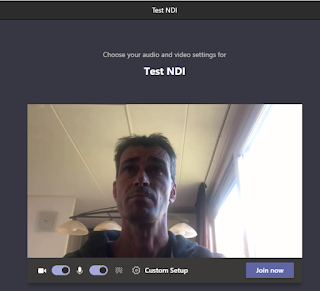
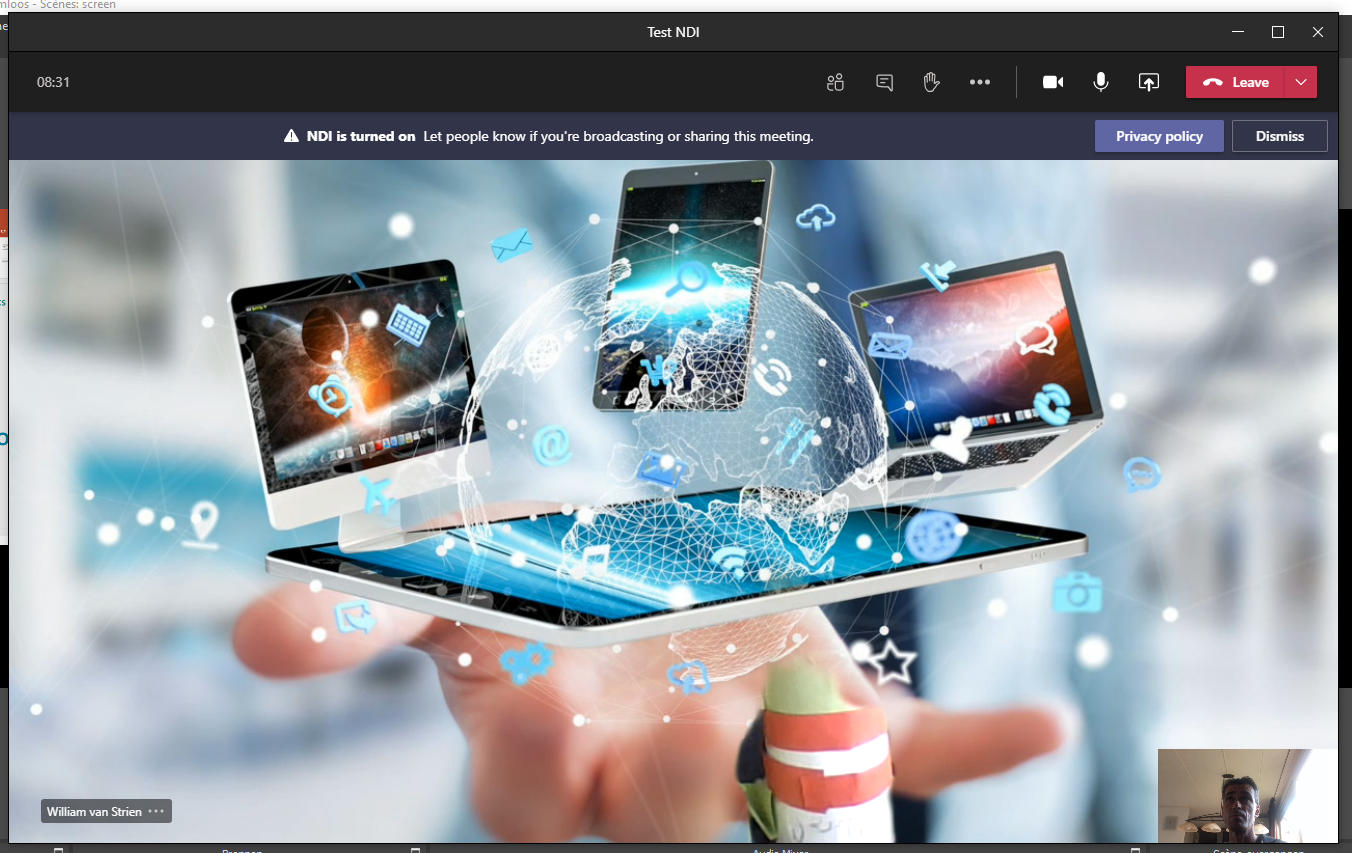
Join as webcast producer / organiser the Teams Meeting, with NDI enabled for yourself
Teams does not yet activate NDI broadcasting, while not actually a meeting of multiple persons
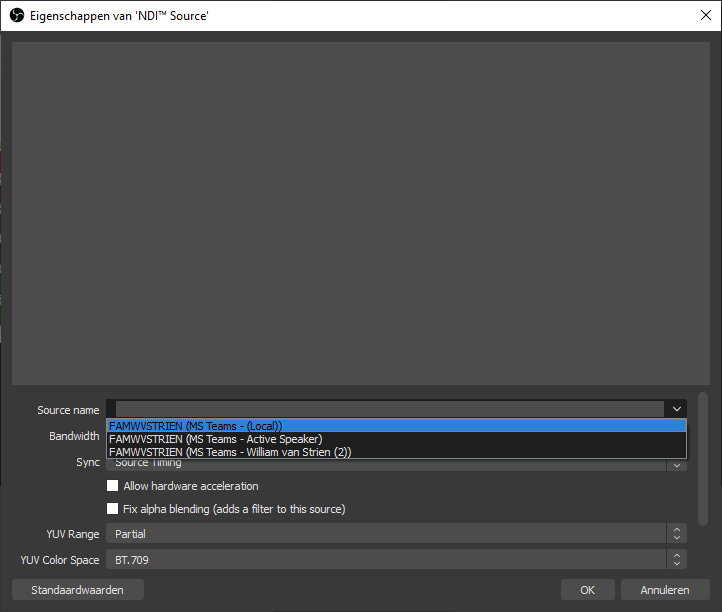
Second person joins the Teams Meeting
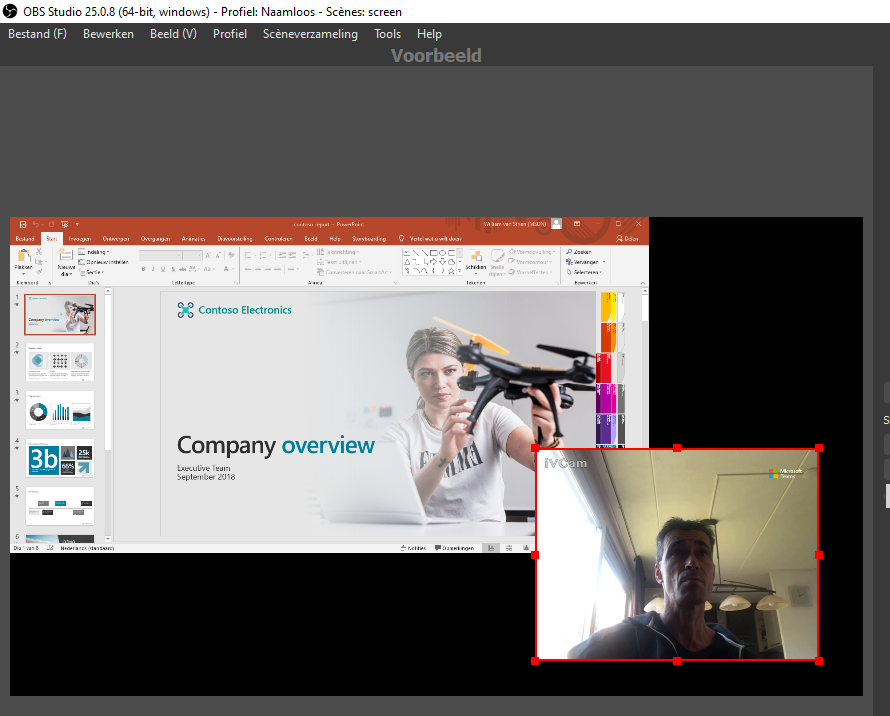
Teams now activated NDI broadcasting, and can be captured in OBS Studio
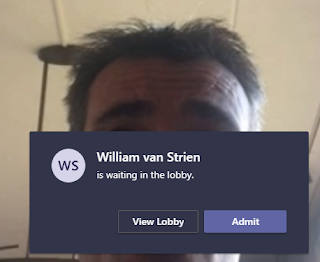
Once 2nd attendee in the meeting, Teams displays the NDI broadcasting notification

Sunday, May 31, 2020

How-To include an external as presenter in Yammer Live Event

After I earlier this week did the pleasant discovery that and how-to an external can be involved as presenter in a Teams Live Event, I decided to test whether same is possible within Yammer Live Event production. That could work, as Yammer Live Event production can be via Teams. The short report out: Yes, also this proofs possible!
The enabling preconditions (external known as Azure AD B2B guest in organizing Teams, and switched in Teams App to the organizing tenant) and steps are comparable with involving an external in Teams Live Event presentation, although few significant differences:
  1. In the organizing tenant, schedule in producer / organizer role within Yammer a new Live Event. Crucial also here is to select that the production will be done 'via Teams', not 'via External app or device'. In this step in Yammer UI, do not try to invite the external as presenter as that fails: Yammer does not allow the external to be resolved (unless you have enabled external access of the Yammer channel itself)
  2. In Yammer of the organizing tenant, navigate to the scheduled Live Event and click on "Produce (Open in Teams)". After the Yammer Live Event is opened in Teams App, click 'Join now'.
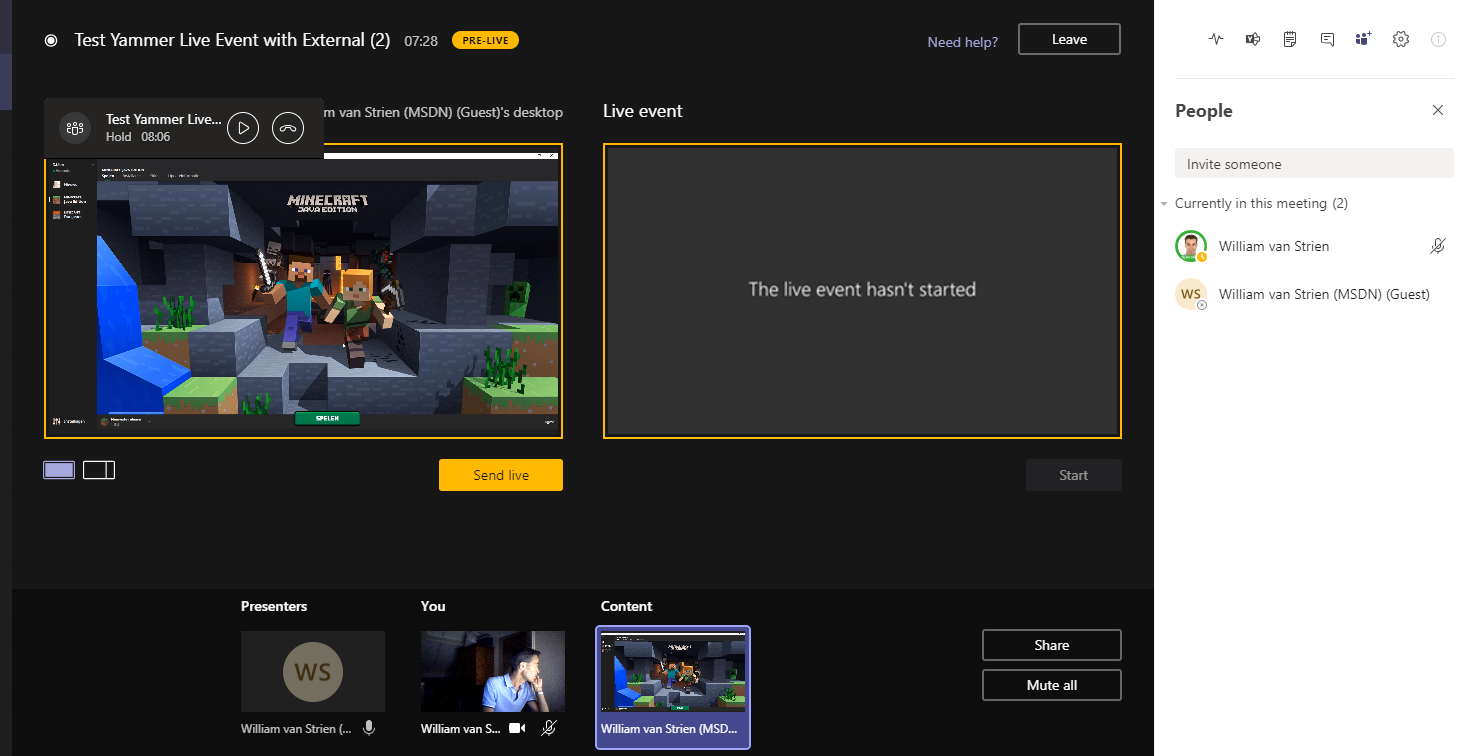
  3. Crucial step: in the internal Teams meeting of the Live Event, click on the button 'Show participants'. And in the Teams meeting context, invite the external person via his/her external guest identity;
  4. Under the preconditions that the external person is active in Teams, and switched there to the organizing tenant, (s)he receives a request notification to join in the internal Teams meeting of the Yammer Live Event
  5. The invited external accepts the invite to join this active Teams Meeting, and can then share content + video in the meeting context of the Yammer Live Event;
  6. The Yammer Live Event producer waits in the Teams Live Event production room until the external person has joined, and shares content in the internal meeting of the Live Event. When visible, the producer is in control to select content and/or video of this external presenter in the queue;
  7. The producer pushes from the queue to live, and starts the Live Event;
  8. The audience of the Yammer Live Event see the content and/or video of the external presenter;
  9. And audience on-the-go can watch the external presenter in the Yammer Mobile App;

Saturday, May 30, 2020

How-To include an external as presenter in Teams Live Event

When it comes to organizing a webcast, Microsoft 365 offers multiple options: Teams Meeting, Stream Live Event, Teams Live Event, Yammer Live Event. Each with their own differentiating characteristics, and you can select which best fits the specifics of your planned event. A significant differentiator of Teams Live Event is that you can extend beyond internal audience only. Either full public open, or still restricted audience by inviting externals as authorized via Azure AD B2B in your tenant. In the B2B guest model, the external access into the Live Event can then be secured by multi-factor authentication (MFA), to protect the company information shared for external access only in trusted context.
A pleasant discovery I did this week is that the authorized external involvement also extends to the Presenter role: you can include in the set of event presenters also identified people from outside your own organization.
The enabling conditions:
  1. The Live Event must be produced via Teams itself, not produced by External app or device. Reason is that the latter delegates to MS Stream for processing and delivery, and that Microsoft 365 service up today sadly still does not support external access;
  2. The external person must be known in your tenant, either as Azure AD B2B guest or via Teams Federation;
  3. The Live Event organizer / producer must invite the external person via his/her external guest identity in the Presenter role;
  4. The external person must be authorized as member to a Teams instance in your tenant
  5. And as first crucial: to be allowed in the Live Event as presenter, the external person must at the presentation time switch in Teams to your tenant. Without this step, the external person sees in own Teams calendar the Live Event as meeting; but when trying to join that from own tenant will be blocked with notification
    "This event is in <external-tenant>. To join, you'll need to be in that org,too."
    If the organizing tenant has enabled MFA as conditional access rule, the external person will be challenged for that before secure and governed allowed access in the organizing tenant.
  6. And second crucial: to actively join the live event the external person cannot go from Teams calendar once switched to the organizing tenant as it is not administrated there for the external person. Workaround is to join the 'external live event' via the invitation mail that the external person received in the own mail inbox when the Live Event organizer identified the external as an event presenter. Click on 'Join Live Event' seamless opens the Teams App of the external person in the internal producer/presenter meeting of the Teams Live Event within the organizing tenant. As result of the tenant-switch (previous step), the external person is now namely already authenticated and known in the organizing tenant.
After following the above steps, the external person is from perspective of the Teams Live Event organization just another presenter, who is authorized and enabled to share video and content in the event. And can communicate with the producer + other presenters in the chat of the internal Teams meeting to align on the event production.
From the perspective of the organizing producer, (s)he remains in control to determine which content of the presenters included in the Teams Live Event production to actual put live for the audience. The final control remains thus within the organization hosting the live event to its invited audience - internals, potential authorized guests, or full public-open.

Saturday, June 15, 2019

How-to remain in control of Live Events scheduling

See previous post, in the production of a Stream Live Events are 3 different roles involved:
  • Organizer
  • Producer
  • Presenter
The organizer is the person that can schedule / create new Live Events, and becomes the owner of them. Although there is no limitation stated on the amount of Live Events running in parallel, it makes perfect sense to govern this. You don't want to risk that the webcast experience of the CEO Townhall is hampered because too many other Live Events are running within same or overlapping timeslot. In order to avoid wildspread of Live Events, Stream supports via admin settings that the authorization to create Live Events is restricted to specific identified persons only / not for everyone in your organization.
The person creating / scheduling a Live Event, automatically also becomes the owner. However, in the differentiation of the webcast roles; the organizer should not need to be involved in any of the production aspects on the actual moment of the event. To achieve that, the person that will act as the producer of a specific event, must also be made the owner of the scheduled Live Event. As owner, the producer can pick up the scheduled Live Event, set it in edit mode, and then start and stop the event from the Stream webapplication.
Organizer creates / schedules (on request of Producer) a new Live Event
Organizer assigns / shares ownership of the scheduled Live Event to the Producer
On scheduled datetime of webcast, the Producer looks up the scheduled Live Event in Stream web application
On scheduled date of webcast, the Producer starts Setup of the Live Event
On scheduled date of webcast, the Producer is in-control to start the actual broadcasting once the production encoder sends the stream input signal

Friday, June 14, 2019

Plug-In outside producer in Stream Live Events

In a broadcast execution via Stream Live Events, the following roles are involved:
  • Organizer
  • Producer
  • Presenter
(source: Get started with Microsoft Teams Live Events). The person within the Organizer role schedules the live event, and requires the proper authorization in your tenant for that. But next the system design of Stream Live Events allows that for the production part you can delegate to outside your company infra. The plug-in interface for this is the unique RTMP(S) ingress endpoint address of the scheduled Live Event. This endpoint is accessible on the public internet. The producer can configure the encoder on the production / event location to stream as input of the Live Event for broadcasting within your Office 365 tenant. The ultimate production control remains with the authorized owner(s) of the Stream Live Event: to start the actual broadcasting once the received stream input is ok for sending to the audience, and stop the Live Event once the event / presenter is finished (and also when in unlikely case that the producer produces a live recording that is inappropriate or non-compliant with your business policy).