Showing posts with label SAML. Show all posts

Sunday, May 20, 2018

Authenticate from Curl into SharePoint Online with Modern Authentication

Code-snippet for interoperability from Curl context - for example, could be from a Linux or MacOS workstation / server -, to Office 365 SharePoint Online; with service-based authentication by applying Active / Modern Authentication protocol handling:
#General variables
ProxyAccount="sa-curlAccount"
ProxyPassword="******************"
ProxyProtocol="http"
ProxyServer="xxx.xxx.xxx.xxx"
ProxyPort="8080"
SharePointCurlAccount="sa-curlAccount"
SharePointOnlineTenant="<URL of SharePoint Online tenant>"
UploadFile="<file to upload>"
UploadLocation="<URL of SharePoint Document Library>"

#Fixed variables
OUTPUT=${HOME}/Interop/output
TMP=${HOME}/Interop/tmp/spo

#the following steps are required to upload data from Curl context to SharePoint Online:
#
#1. Retrieve an authentication cookie to Office 365 through invocation of webservices
#1.a. (Optional) Step 0: determine the URL of the custom Security Token Service (STS) to next
#     request a SAML:assertion for account identified by credentials
#1.b. Step 1: request SAML:assertion from the identified custom STS for account identified by
#     credentials
#1.c. Step 2: use the SAML:assertion to request binary security token from Office 365
#1.d. Step 3: use the binary security token to retrieve the authentication cookie
#2. Step 4: Use that Office 365 authentication cookie in subsequent webservice requests to
#   SharePoint Online REST API
 
#1.a. (Optional) Step 0: determine the URL of the custom Security Token Service (STS) to next
#     request a SAML:assertion for account identified by credentials (outside datacenter, with proxy)
curl -U ${ProxyAccount}:${ProxyPassword} -k -x ${ProxyProtocol}://${ProxyServer}:${ProxyPort} -X POST -H "Content-Type: application/x-www-form-urlencoded" -d "login=${SharePointCurlAccount}&xml=1" https://login.microsoftonline.com/GetUserRealm.srf -w "\n" > ${TMP}/O365_response_step_0

#Extract requested STSAuthURL from response step 1
STSURL=`sed -n 's:.*<STSAuthURL>\(.*\)</STSAuthURL>.*:\1:p' ${TMP}/O365_response_step_0`

#Create input for step 1
File: O365_request_step_1-1

<?xml version="1.0" encoding="UTF-8"?>
<s:Envelope
    xmlns:s="http://www.w3.org/2003/05/soap-envelope"
    xmlns:wsse="http://docs.oasis-open.org/wss/2004/01/oasis-200401-wss-wssecurity-secext-1.0.xsd"
    xmlns:saml="urn:oasis:names:tc:SAML:1.0:assertion"
    xmlns:wsp="http://schemas.xmlsoap.org/ws/2004/09/policy"
    xmlns:wsu="http://docs.oasis-open.org/wss/2004/01/oasis-200401-wss-wssecurity-utility-1.0.xsd"
    xmlns:wsa="http://www.w3.org/2005/08/addressing"
    xmlns:wssc="http://schemas.xmlsoap.org/ws/2005/02/sc"
    xmlns:wst="http://schemas.xmlsoap.org/ws/2005/02/trust">
    <s:Header>
        <wsa:Action s:mustUnderstand="1">http://schemas.xmlsoap.org/ws/2005/02/trust/RST/Issue</wsa:Action>
        <wsa:To s:mustUnderstand="1">https://sts.<tenant>.com/adfs/services/trust/2005/usernamemixed</wsa:To>
        <wsa:MessageID>b07da3ec-9824-46a5-a102-2329e0c5f63f</wsa:MessageID>
        <ps:AuthInfo
            xmlns:ps="http://schemas.microsoft.com/Passport/SoapServices/PPCRL" Id="PPAuthInfo">
            <ps:HostingApp>Managed IDCRL</ps:HostingApp>
            <ps:BinaryVersion>6</ps:BinaryVersion>
            <ps:UIVersion>1</ps:UIVersion>
            <ps:Cookies></ps:Cookies>
            <ps:RequestParams>AQAAAAIAAABsYwQAAAAxMDMz</ps:RequestParams>
        </ps:AuthInfo>
        <wsse:Security>
            <wsse:UsernameToken wsu:Id="user">
                <wsse:Username>sa-curlAccount@<tenant>.com</wsse:Username>
                <wsse:Password>*************</wsse:Password>
            </wsse:UsernameToken>
            <wsu:Timestamp Id="Timestamp">
File: O365_request_step_1-2

            </wsu:Timestamp>
        </wsse:Security>
    </s:Header>
    <s:Body>
        <wst:RequestSecurityToken Id="RST0">
            <wst:RequestType>http://schemas.xmlsoap.org/ws/2005/02/trust/Issue</wst:RequestType>
            <wsp:AppliesTo>
                <wsa:EndpointReference>
                    <wsa:Address>urn:federation:MicrosoftOnline</wsa:Address>
                </wsa:EndpointReference>
            </wsp:AppliesTo>
            <wst:KeyType>http://schemas.xmlsoap.org/ws/2005/05/identity/NoProofKey</wst:KeyType>
        </wst:RequestSecurityToken>
    </s:Body>
</s:Envelope>
cat ${TMP}/O365_request_step_1-1 > ${TMP}/O365_request_step_1 echo "<wsu:Created>`date -u +'%Y-%m-%dT%H:%M:%SZ'`</wsu:Created>" >> ${TMP}/O365_request_step_1 echo "<wsu:Expires>`date -u +'%Y-%m-%dT%H:%M:%SZ' --date='-15 minutes ago'`</wsu:Expires>" >> ${TMP}/O365_request_step_1 cat ${TMP}/O365_request_step_1-2 >> ${TMP}/O365_request_step_1 #1.b. Step 1: request SAML:assertion from the identified custom STS for account identified by # credentials (internal datacenter, without webproxy to outside) curl -X POST -H "Content-Type: application/soap+xml; charset=utf-8" -d "@${TMP}/O365_request_step_1" ${STSURL} -w "\n" > ${TMP}/O365_response_step_1 #Extract requested SAML:assertion from response step 1 sed 's/^.*\(<saml:Assertion.*saml:Assertion>\).*$/\1/' ${TMP}/O365_response_step_1 > ${TMP}/O365_response_step_1.tmp #Create input for step 2
File: O365_request_step_2-1

<?xml version="1.0" encoding="UTF-8"?>
<S:Envelope
    xmlns:S="http://www.w3.org/2003/05/soap-envelope"
    xmlns:wsse="http://docs.oasis-open.org/wss/2004/01/oasis-200401-wss-wssecurity-secext-1.0.xsd"
    xmlns:wsp="http://schemas.xmlsoap.org/ws/2004/09/policy"
    xmlns:wsu="http://docs.oasis-open.org/wss/2004/01/oasis-200401-wss-wssecurity-utility-1.0.xsd"
    xmlns:wsa="http://www.w3.org/2005/08/addressing"
    xmlns:wst="http://schemas.xmlsoap.org/ws/2005/02/trust">
    <S:Header>
        <wsa:Action S:mustUnderstand="1">http://schemas.xmlsoap.org/ws/2005/02/trust/RST/Issue</wsa:Action>
        <wsa:To S:mustUnderstand="1">https://login.microsoftonline.com/rst2.srf</wsa:To>
        <ps:AuthInfo
            xmlns:ps="http://schemas.microsoft.com/LiveID/SoapServices/v1" Id="PPAuthInfo">
            <ps:BinaryVersion>5</ps:BinaryVersion>
            <ps:HostingApp>Managed IDCRL</ps:HostingApp>
        </ps:AuthInfo>
        <wsse:Security>
File: O365_request_step_2-2

        </wsse:Security>
    </S:Header>
    <S:Body>
        <wst:RequestSecurityToken xmlns:wst="http://schemas.xmlsoap.org/ws/2005/02/trust" Id="RST0">
            <wst:RequestType>http://schemas.xmlsoap.org/ws/2005/02/trust/Issue</wst:RequestType>
            <wsp:AppliesTo>
                <wsa:EndpointReference>
                    <wsa:Address>sharepoint.com</wsa:Address>
                </wsa:EndpointReference>
            </wsp:AppliesTo>
            <wsp:PolicyReference URI="MBI"></wsp:PolicyReference>
        </wst:RequestSecurityToken>
    </S:Body>
</S:Envelope>
cat ${TMP}/O365_request_step_2-1 > ${TMP}/O365_request_step_2 cat ${TMP}/O365_response_step_1.tmp >> ${TMP}/O365_request_step_2 cat ${TMP}/O365_request_step_2-2 >> ${TMP}/O365_request_step_2 rm ${TMP}/O365_response_step_1.tmp #1.c. Step 2: use the SAML:assertion to request binary security token from Office 365 # (outside datacenter, with proxy) curl -U ${ProxyAccount}:${ProxyPassword} -k -x ${ProxyProtocol}://${ProxyServer}:${ProxyPort} -X POST -H "Content-Type: application/soap+xml; charset=utf-8" -d "@${TMP}/O365_request_step_2" https://login.microsoftonline.com/RST2.srf -w "\n" > ${TMP}/O365_response_step_2 #Extract requested binary security token from response step 2 sed 's/^.*\(<wsse:BinarySecurityToken.*wsse:BinarySecurityToken>\).*$/\1/' ${TMP}/O365_response_step_2 > ${TMP}/O365_response_step_2.tmp #Create input for step 3 cat ${TMP}/O365_response_step_2.tmp | cut -d'>' -f2 | cut -d'<' -f1 > ${TMP}/O365_request_step_3 BinarySecurityToken=`cat ${TMP}/O365_request_step_3` rm ${TMP}/O365_response_step_2.tmp #1.d. Step 3: use the binary security token to retrieve the authentication cookie (outside # datacenter, need to pass webproxy) curl -v -U ${ProxyAccount}:${ProxyPassword} -k -x ${ProxyProtocol}://${ProxyServer}:${ProxyPort} -X GET -H "Authorization: BPOSIDCRL ${BinarySecurityToken}" -H "X-IDCRL_ACCEPTED: t" -H "User-Agent:" ${SharePointOnlineTenant}/_vti_bin/idcrl.svc/ > ${TMP}/O365_response_step_3 2>&1 #Remove DOS ^M from response step 3 cat ${TMP}/O365_response_step_3 | sed 's/^M//' > ${TMP}/O365_response_step_3.tmp #Extract requested authentication cookie from response step 3 and create input for step 4 echo "Set-Cookie: SPOIDCRL=`cat ${TMP}/O365_response_step_3.tmp | grep Set-Cookie | awk -F'SPOIDCRL=' '{print $2}'`" > ${TMP}/O365_request_step_4 rm ${TMP}/O365_response_step_3.tmp #2. Step 4: Use that Office 365 authentication cookie in subsequent webservice requests to # SharePoint Online REST API (outside datacenter, with proxy) curl -U ${ProxyAccount}:${ProxyPassword} -k -x ${ProxyProtocol}://${ProxyServer}:${ProxyPort} -b ${TMP}/O365_request_step_4 -T "{${OUTPUT}/${UploadFile}}" ${UploadLocation} exit 0
Alternative for the upload handling; interoperation via SharePoint API / webservice:
curl -U ${ProxyAccount}:${ProxyPassword} -k -x ${ProxyProtocol}://${ProxyServer}:${ProxyPort} -X POST -H "Accept: application/json;odata=verbose" -d "" ${SharePointOnlineTenant}/_api/contextinfo > ${TMP}/O365_response_step_4_tmp

FormDigest=`sed -n 's:.*FormDigestvalue:\(.*\),.*:\1:p' ${TMP}/O365_response_step_4_tmp`
rm ${TMP}/O365_response_step_4.tmp

curl -U ${ProxyAccount}:${ProxyPassword} -k -x ${ProxyProtocol}://${ProxyServer}:${ProxyPort} -X POST -H "X-RequestDigest: @${FormDigest}; X-HTTP-Method: PUT” --data-binary  "{${OUTPUT}/${UploadFile}}"  ${SharePointOnlineTenant}/teams/siteX/_api/web/GetFileByServerRelativeUrl('Shared%20Documents/SubFolder/${UploadFile}')/Files/$value

Sunday, April 15, 2018

Peculiarity with SharePoint Online Active Authentication

To invoke SharePoint Online REST services from automated client that is running outside SharePoint context itself, you have 2 options for authentication:
  1. Via OAuth 2.0; this requires to administer an SharePoint Add-In as endpoint (see post Access SharePoint Online using Postman for an outline of this approach)
  2. Via SAML2.0; against the STS of your tenant
The steps for the SAML2.0 approach are excellent outlined in post SharePoint Online Active Authentication; no need for me to repeat that here. However, a peculiarity I observed is that the handling is not only very picky on the correct messaging formats for respectively getting the 'SAML:assertion' from your STS [step 2], and next the 'wsse:BinarySecurityToken' [step 3]; but it is also very picky on the exact url with which to request the SPOIDCRLToken cookie [step 4]. I created a code snippet in Javascript standalone 'application', and although followed all steps; I ran eventually in an HTTP 401 Unauthorized. While executing via the PowerShell from above post I did get the cookie returned; so definitely working. Comparing the code very closely I identified the troublemaker: the call to <tenant>/idcrl.svc must be with ending backslash: <tenant>/idcrl.svc/. Without that, the call returns 401; with the ending backslash, the SharePoint Online Active Authentication also successful works from a.o. external Javascript (e.g. SAPUI5) application context.

Thursday, October 30, 2014

Expose SAP data into Office 365 productivity clients

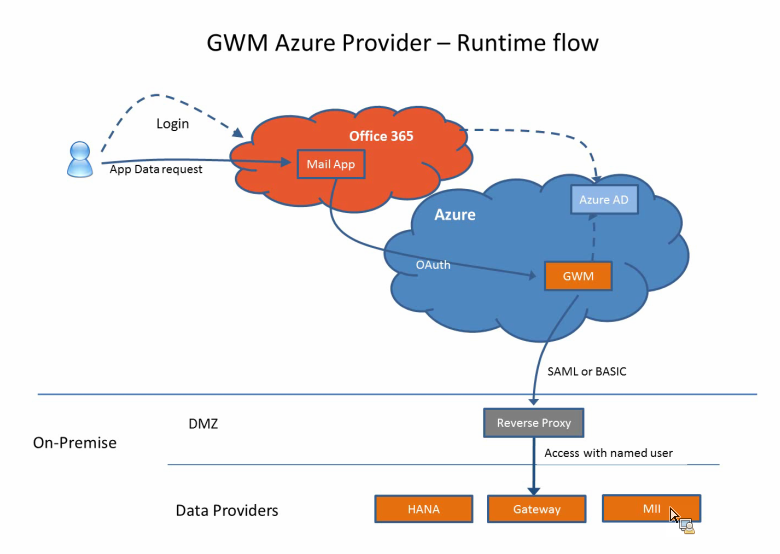
On 16 September, SAP launched an update of their product SAP Gateway for Microsoft (GWM). Code-named "GWM Azure", this update focusses on integration of SAP backend data and functionality, through SAP NetWeaver Gateway, in the Microsoft Azure cloud and Office 365 tenants.
As a member of the Customer Engagement Initiative group on SAP-Microsoft Interoperability, I was fortunate to participate in the product’s customer validation preceding the product launch. In our customer validation (CuV), I focussed on ‘enterprise-ready SSO’. With this phrase, I mean a robust, controlled and foremost enterprise-scaleable way to give employees via the Office 365 context access to the on-premise SAP data and functionality. In practice this translates for me into rely on authentication standards like SAML2, OAuth2, X.509 certificates; and not make use of username/password (weak) authentication. Mind you, the latter is fine for initially playing around and executing PoC’s. But it is not a secure and maintainable approach when addressing productive scenario’s with larger user groups.
The outcome of our CuV participation turned out very well. I could proof in ample time that the SAML2 based Single Sign-On from our Office 365 tenant via GWM Azure into our on-premise SAP landscape (Gateway + business suites), well... simple works!! The access to the SAP data in the Office 365 clients is still authorized based on the SAP authorization permissions and roles. An Office 365 user is only granted access to SAP data and functionality in compliance with his/here role in the SAP business systems.
With the release of GWM sp3 (GWM Azure), the availability of an organization’s SAP business data, can easily but still secure be extended to the Office 365 productivity clients. With Microsoft putting strong emphasis on the Office 365 proposition, and lots of organizations actually buying into this (including new customers for Microsoft, as consequence of Microsoft aggressively targetting the small and midsize business market (SMB)), this adds a powerful new business proposition; for the Office 365 ecosystem but also for individual Office 365 subscribers.

Sunday, February 9, 2014

SAML2 Protocol requires SSL-enabled Duet Enterprise 1.0 endpoints

An organization that is deploying Duet Enterprise in the landscape, default has no SSL enabled in their internal network. They questioned to neither activate SSL on the Duet Enterprise SAP Add-On / SAP NetWeaver Gateway 2.0 system.

However, this request cannot be granted. Reason is the usage of SAML2 for Duet Enterprise 1.0 Single Sign-On between SharePoint 2010 and SAP NetWeaver Gateway system.

Source 1: Duet Enterprise Security Considerations

The user accounts that are used to access SharePoint Server 2010 and Microsoft Office 2010 suites clients cannot be used to access the information in SAP directly. The Duet Enterprise security architecture solves this issue by configuring the Microsoft Business Connectivity Services Windows Communications Foundation (WCF) connector that is included in SharePoint Server 2010. This WCF connector interacts with the Security Token Service in SharePoint Server 2010 and with SAP NetWeaver in the SAP system. The goal of this implementation is to map user identities in SharePoint Server 2010 to user accounts in the SAP system so that a user who logs on to the SharePoint Server 2010 Web site can have access to the external data that is stored in the SAP system without having to log on again in the SAP system.

Duet Enterprise 1.0 applies SAML2 with Symmetric Key for Endorsing Signature.

Source 2: STS Scenario with Symmetric Key for Endorsing Signature

With this scenario, the STS and the WS consumer negotiate a symmetric key. This is used for an endorsing signature for messages between the WS consumer and the WS provider. The WS consumer uses this endorsing signature to prove that it is in possession of the key that the STS signed.

In short (a.o. source 2 contains a complete outline of the SAML2 Protocol steps): in the SAML2 Protocol with Symmetric Key,

  • the webservice consumer (in Duet Enterprise scenario: SharePoint BCS) authenticates the logged-on SharePoint user at the Identity Provider (in Duet Enterprise scenario: SharePoint STS),
  • the Identity Provider grants a SAML security token for the SharePoint account, generates a short-lived key and signs this with the public key of the X.509 certificate of the webservice provider (in Duet Enterprise scenario: SAP NetWeaver Gateway),
  • STS returns the SAML token + signed STS key as SAML assertion to SharePoint BCS as webservice consumer.
  • SharePoint BCS adds the signed token as SAML assertion (Holder-of-Key, HoK assertion) to the header of the service request and sends the request to SAP NetWeaver Gateway as webservice provider.
  • Gateway uses the private key of its own SSL certificate to decipher the token, and validate it as genuine coming from trusted asserting party.
  • If so, the SAML:NameIdentifier in the service request is relied on, and applied via SAP NetWeaver User Mapping to automatically log on the SharePoint account as its mapped SAP named user.

The SAML2 protocol effectively prevents other message recipients, which do not posses the private key, are able to decipher and misuse the security token.

Both the SharePoint 2010 and SAP Gateway participants in the Duet Enterprise SSO handling, uphold to the SAML2 Protocol. This implies that SharePoint expects requires that Gateway as webservice provider exposes https-enabled service endpoints. In case not, on each runtime Duet Enterprise service request, SharePoint STS will throw exception from method System.ServiceModel.ClientCredentialsSecurityTokenManager.CreateServerX509TokenProvider, like: "System.InvalidOperationException: The service certificate is not provided for target 'http://<hostname>/sap/bc/srt/pm/.....' ", as it is not enabled to setup a valid SAML2 Protocol handling with the invoked Gateway relying party.

For this customer organization, as the SSL is only applied in the internal network to uphold the SAML2 Protocol handling between SAP Gateway system and SharePoint 2010 farm, there is no need for a (pricy + period-bound) signed SSL certificate from a Certificate Authority. A self-signed certificate suffices. Note that the Duet Enterprise Configuration Wizard creates and configures a self-signed SSL certificate in case the Gateway system is not yet SSL-enabled.

Tuesday, December 24, 2013

SharePoint 2010 BCS SAML Assertion too coarse-grained

Results in false positives notification at service providers of message replay

Security Assertion Markup Language (SAML) is an XML standard for exchanging authentication and authorization data between security domains. SAML is an XML-based protocol that uses security tokens containing assertions to pass information about a principal (usually an end user) between a SAML authority, that is an identity provider, and a SAML consumer, that is a service provider. SAML assertions contain statements that service providers use to make access control decisions. SAML enables web-based authentication and authorization scenarios including cross-domain single sign-on (SSO).
Source: http://en.wikipedia.org/wiki/SAML_1.1
SharePoint 2010 supports SAML 1.1 to authenticate as service consumer to external systems. Involved service applications are Secure Token Service as SharePoint internal identity provider, and Business Connectivity Services as service consumer to external systems. Required part of SAML support is that the identity provider must unique assert each identity token. This uniqueness is used by service provider to verify the validity of a SAML assertion: in case already ‘used’, the identity assertion should be interpretated as ‘stolen’ and potential misused in message replays.
Message replays are applied in 2 categories of security attacks:
  • Service Availability: overflood the service provider with same requests over and over in a Denial of Service Attack.
  • Data Integrity: request same data updates multiple times (e.g. bank transfer).
To protect against message replay attacks, service providers need to verify the idempotency of each received client request. Each unique message should be handled only once, also in the case it is send + received more than once to compensate for unreliable message delivery.

SAML assertion by SharePoint BCS

SharePoint BCS in the role of service consumer supports this by unique tagging each request sent with a SAML Assertion ID added in the message header. SharePoint BCS calculates this SAML SignatureValue based on 2 values to uniquely tag the message: message issuer and message instant id. The issuer value is fixed set to “SharePoint”, the instant value is dynamic set to timestamp at moment of sending:
<saml:Assertion xmlns:saml="urn:oasis:names:tc:SAML:1.0:assertion" AssertionID="_2519fc29-9577-403c-a66d-7926b55760a2" IssueInstant="2013-11-08T08:39:07.274Z" Issuer="SharePoint" MajorVersion="1" MinorVersion="1">
As it turns out this tagging is not guaranteed unique. In case more than 1 message is send by BCS in the same millisecond, the issue instant is equal for all those messages and therefore also the calculated SAML Assertion ID. And the receiving SAML consumer, aka the service provider will thus likely regard all these messages as equal, handle only the first, and refuse to handle the supposed duplicates.

Duet Enterprise: SAP Gateway as SAML consumer of SharePoint BCS

Duet Enterprise 1.0 applies SAML 1.1 to provide Single Sign-On from SharePoint 2010 into SAP NetWeaver Gateway 2.0. In the Duet Enterprise runtime client-service flow, SharePoint BCS is the service client, and SAP NetWeaver Gateway is the service provider. So Gateway must verify requests received from SharePoint BCS on idempotency, aka detect message replays. As result of the vulnerability in the BCS SAML assertion approach, Gateway may report false positives of message replay. This is visible in the NetWeaver WS (WebServices) errorlog via presence of error: CX_WS_ST_CACHE_ERROR / Error when writing the ST to DB.
I raised this issue to Duet Enterprise team for investigation. Their rightful response is that the problem cause is not within Duet Enterprise, but lies within SharePoint. So we contacted Microsoft. Microsoft Support acknowledges the problem cause, but sadly stated that “as it is not critical” no solution will be provided on short notice. Consequence is that you either have to accept the potential occurrence of false positives of message replays, or to ask SAP BASIS to disable the message replay detection mechanism at the receiving SAP side. This boils down to first answering the question whether it is likely that multiple requests are made from SharePoint BCS to SAP within same timestamp. A typical example of this is SharePoint search crawling, which issues a batch of requests into SAP. But it also may occur in a SharePoint webpart, when it uses a composition of SAP data services to render the webpart UI (e.g. customer + order headers).
See also: Explanation + resolution for CX_WS_ST_CACHE_ERROR, on the Duet Enterprise Space on SAP Community Network (SCN).