Showing posts with label Javascript. Show all posts

Saturday, September 5, 2020

How-to prevent download of video files stored in SharePoint Online site

Context
  • Event portal with both company internal as external audience
  • Teaser videos to prepare the audience for the event
  • Due the company information in the videos, not allowed that visitors download the videos for uncontrolled distribution.
An answer on the first aspect can be a SharePoint Online communication site, via Azure AD B2B external shared with known guest accounts. For the second aspect it would be preferred to use Microsoft Stream as secure Enterprise Video Platform. However, as Stream is still lacking the capability of external access; this would result that the external audience cannot watch the videos. Pragmatic alternative is then to fallback on using SharePoint Online itself as administration plus platform for the teaser videos. Remaining question is then whether possible, and if so how, to prevent that the external audience can easily download the video files.

Prevent download on SharePoint level

First component in answerring is to prevent on SharePoint Level that site visitors can download content from the site. The standard 'Read' permission level grants the authorization to "Can view pages and list items and download documents". There required to create a restricted permission level that only allows to "View content", and assign that permission level to the 'Visitors' permission group.

Prevent download on browser level

However, this does not prevent that visitors can download on browser level the SharePoint stored .mp4 videos, whether embedded in a SharePoint page, or the .mp4 video direct visited + played in the browser. All modern browsers native understand / recognize .mp4 as a video file, and then default to allow play, download and 'save as video' on browser level of that video file.
Does this mean it is not possible to prevent download of video files? The honest answer is: you can't stop downloading of html5 videos. But you can make the action more complicate to do. Multiple options for that.

Option 1: Download as blob in video player

This suggestion is made in Prevent HTML5 video from being downloaded (right-click saved)?

Result wrt default browser behavior:
As for the video player it is not .mp4, the default menu options for 'save as video' and 'download' are not triggered. However, on network level the video file is still initial downloaded as .mp4; and a knowledgeable person has no problem to simple direct navigate on browser level to the SharePoint address of the .mp4 videofile.

Option 2: Play as 'renamed video extension' file, so that default browser behaviour is prevented

Steps:
  1. Rename the file extension to something else than .mp4; example rename 'SampleVideo.mp4' into 'SampleVideo.videofile'
  2. Upload the renamed file into SharePoint Assets library
  3. Also upload an image to use as preview
  4. Embed a videojs based videoplayer on SharePoint page, that is configured to understand how-to play '.videofile' as '.mp4'. Also customize the videoplayer to not render the standard contextmenu

Result wrt default browser behavior:
As the file-extension is not a video format; neither SharePoint, nor browser recognize this as video file. And the default browser behavior to play the video-file address as video, is not fired; and thus the option from menus to ‘download’ + ‘save video as’ is not presented.

However, when navigating in browser to the SharePoint address of the renamed videofile, it will then download as file (despite that SharePoint permission does not allow). It is downloaded with the renamed file extension, but a knowledgeable person can guess that it is actual a .mp4 file, fix the downloaded file, and then it is native playable again.

Option 3: Convert from single .mp4 into HLS; with division accross multiple files

Steps:
  1. Convert .mp4 video file into .HLS video (manifest file + video fragments). An approach for this is via 'FFmpeg'.
  2. Upload the manifest + video fragments into SharePoint Assets library
  3. Also upload an image to use as preview
  4. Embed a HLS videoplayer on SharePoint page.

Result wrt default browser behavior:
Browser default do not handle HLS video files; this is handled via a HLS video player (JavaScript). To download the video, one must navigate in browser first to manifest file, and then all individual video fragments. Doable, but manual labor for the person downloading.

Sunday, April 7, 2019

Options considered for extending Stream Live Events with live chat/questions capability

With the recent GA of Stream Live Events, Microsoft delivers a low-entry option to easily setup company-internal webcasts. All you need in addition are on the webcast producing side: 1) recording equipment - camera + audio, and 2) an encoder solution to transmit the recording inputs into the Live Events endpoint. The camera + audio options vary from the onboard webcam + microphone of a laptop, USB-based externals, upto high-end studio-quality equipment. For Stream Live Events handling the sophistication on the producing input side does not make a difference, the inputted RTMP(S) signal is from input endpoint processed the same. Whether an organization also needs some additionals on the consumption side depends on the audience side plus the internal network capacity. Watching a Live Event instantiates an individual / unicast stream per event viewer. Under assumption that the company network is sufficient scaled for nowaday cloud solutions usage, it is feasile to simultanuous watch a 'LIVE' Stream event per network location upto a maximum of few hundreds. In case of bigger audience, Microsoft states that it is needed to reduce the network load via a video distribution approach through a SDN/eSDN solution.
In its first released version, Stream Live Events capabilities are focussed on the core streaming + playing aspects. Business demands on a webcast typical go beyond that. The biggest additional demand is for interaction between the webcast audience and the presenter. Thus a chat window in which individual attendees can submit their questions, and that the presenter can follow + respond on. It is on the roadmap of Stream Live Events to deliver this (note: Stream recent delivered 'quizzes/ polls' capability, but this is targetted at inserting in already recorded videos for a.o. training purposes; not for dynamic interaction with live streaming), but not out-of-the-box delivered nowadays. However, with Office 365 as underlying platform you have as event developer a feature-rich toolbox at hand in which you can deliver yourself a webcast experience in which viewers have the live stream and chatbox combined, via no-code or low-code approaches. The hosting platform of such landingspage is naturally SharePoint Online....; as every created Stream Group is effectively an Office 365 Group, it has an own SharePoint Modern Team Site provisioned. The persons authorized to this site is the same audience that are permitted to join the scheduled Live Event. Create in this site a new page to function as the webcast entrance, and select the '2:1 columns' layout. In the left column embed the Stream Live Event instance - one gets this from Stream via 'Share' and then pick the 'Embed' option. With this setup, all left is to extend with chatbox / questions input control. There you have multiple options. One is to utilize the rich capabilities of Yammer, and embed a Yammer channel on the page. This gives you immediate a 'chat-like' experience, in which one can enter questions, semi-live follow the inputs / chats of others, respond on inputs of others. This immediate visibility of all the responses of ones peers may be unwanted, e.g. due potential sensitivity. In that case an alternative setup is to capture the inputs in a SharePoint list in the site, and only grant the webcast facilitators the authorization to view all received inputs. The webcast attendees submit their questions and feedback via an input form embedded on the SharePoint page. For this on sublevel again multiple alternatives are available. You can embed the out-of-the-box NewForm of the list; customize the NewForm via PowerApps; a MS Forms instance that via MS Flow sends the input to SharePoint List; or build a custom control via SPFx or even as a chatbot via Azure Bot Service. Of these options all except for the latter 2 are no/low-code 'mash-up' compositions, that deliver on the needed job. The decision-weighing between them is mostly on the user-experience and branding, see screen impressions of the various options.

Saturday, February 2, 2019

Alternative to detach initial page loadtime from retrieving structural navigation

In the post 'Optimize for bad-performing navigation in SharePoint Online' I outlined an approach to release the initial pageload from the server-side execution time to retrieve the global site navigation. This approach serves its purpose to optimize the pageload time. However, it also comes with some aspects that complicate the usage. In particular in the perception of the site owner (maintainer): one thinks to configure the global navigation via "Site Settings \ Navigation", but next experience that it does not have immediate effect due the caching, nor is it complete in case one explicitly adds entries in the navigation that are not tied to the site structure itself. To address these drawbacks I designed + developed an alternative approach:
  1. Use webservice call /_api/navigation/menustate?mapprovidername='GlobalNavigationSwitchableProvider' to client-side request the navigation structure, exact as how it is configured by the site owner via "Site Settings \ Navigation'
  2. Cache the retrieved structure in the property bag available for all users
  3. Each time the Site Settings page is succesful loaded in browser, which implies it must be by someone with site maintenance authorization, redetermine via the webservice the global navigation structure, compare it with the one cached in property bag, and if changed replace the value in the property bag
Main advantage of this alternative compared to the 'search-driven' is that this restores for site owners the capability to manage the displayed global navigation via the out-of-the-box "Site Settings \ Navigation" configuration. And this includes the option to add specific entries also direct in that same configuration experience, no need to maintain a separate 'additional links' administration. Another advantage is that changes in the Navigation are now immediate applied, and for all users. No need to wait on client cache expiration. Which likely occurs on different moments for different visitors, and colleague X then can see a different menu from his/her colleague Y sitting on next desk. Also on code- and execution-level some improvements: the code is severly reduced + simplified, and there is no longer a dependency on Linq.js to runtime derive tree-model data structure from the flat web-nodes data structure determined via search.
Disadvantage is that the retrieved + cached global navigation is based on the authorizations of the person visiting the site settings page. In case some elements in the global navigation structure are restricted for other site visitors, they will now see those items in the global navigation. SharePoint authorization model prevents them from actually accessing the non-authorized content, however at the expense of a dissatisfying user experience: click on a menu item, and then get a 404 Access Denied. Therefore in case you have restrictive areas in the global navigation, then this approach might not be the one to use. A 2nd alternative is then to combine the 2: in essence, let each individual visitor request via the webservice the global navigation structure that (s)he is authorized to access, and cache this clientside for reuse on next visits. The drawback of this approach is that it suffers from risk of outdated navigation: if site owner makes changes to the navigation via "Site Settings \ Navigate", there is no trigger to enforce flush of all the individual site-visitors cached representations. But that can still be softened by putting a maximum on the cache duration, e.g. after 3 hours re-invoke the webservice to potential renew the navigation structure for you.

Saturday, September 22, 2018

Utilize Azure Function to resolve lack of CORS aware within SharePoint Online active authentication flow

In earlier post I informed about facing CORS issue when interoperate from external JavaScript client via OAuth passive authentication with SharePoint Online REST API. And on how-to easily resolve this via Azure Function Proxy. That approach works for OAuth based passive authentication, with the OAuth AccessToken exchanged via HTTP header. However, in case the external client wants to apply active authentication, the situation complicates severely. The explanation is that in this authentication flow, the SharePoint Online authentication token is exchanged as HttpOnly cookie:
The SharePoint Developer Support Team Blog published an article that outlines which set of requests one needs to implement for SharePoint Online active authentication. In case of non-browser clients, this is sufficient to enable SharePoint Online interoperability from an external client. For instance, I've applied this OAuth active authentication flow within an Excel VBA client context, a colleague of mine used it from Curl script, and yet another from a Java application. In a non-browser client context, the received OAuth Active Authentication HTTP response can successfully be parsed to extract the SPOIDCRL cookie.
Modern browsers utilize Cross-Origin protection themselves to mitigate risks: HttpOnly cookie cannot be read by clientside code, and the browser only include cookie for outgoing requests pointing to same domain as from which the HttpOnly cookie is earlier received within current browser session.
Modern secure browser have inherent protection that prevents access to secure HttpOnly cookies: on the wire [Fiddler] the SPOIDCRL cookie is included in the response, yet the browser [here Chrome, via Developer Tools] does not allow access it.
Implication is that the custom CORS handling needs to be further extended to have the browser include the required SharePoint Online authentication cookie cross-domain in SharePoint Online REST API calls. Although same approach via Azure Function Proxy can successfully be utilized to cross-domain request the SharePoint Online active authentication end-point, the browser accepts the returned cross-origin response but your clientside code is not enabled to extract the SharePoint Online authentication token included as HttpOnly cookie (SPOIDCRL). And even if that would be possible, the second blocker is that the SharePoint Authentication Token must be included as cookie for successful authentication again SharePoint Online, but browsers only include the cookie for requests going to the same domain. Meaning that all SharePoint interoperability requests coming from the external JavaScript client must be proxied to the same domain as of the proxied Active Authentication endpoint; <your tenant>/_vti_bin/IDCRL.svc
On the webclient side the needed changes are minimal: include ‘withCredentials:true’ in issued XMLHttpRequest requests. But on the receiving and processing Azure Function (Proxy) side, more must be changed:
 •   Function-Apps have out-of-the-box platform support for CORS; as utilized for the CORS handling in case of OAuth passive authentication flow. However, I experienced this is limited to only return the CORS headers Allowed-Domain + Allowed-Method. Current, Function-Apps platform CORS does not include support for cross-domain authentication handling via ‘withCredentials’. I tried alternatives to set the missing 'Access-Control-Allow-Credentials' header explicitly self in the responseOverrides of the Azure Function Proxy; and learned that in case CORS is configured on the platform level, any Cross-Origin headers in the responseOverrides object are just silently ignored; not included in the resultant http response of the Azure Function Proxy call. Then I tried to instead nullify the Function-App Platform CORS setting, as described in Azure Functions Access-Control-Allow-Credentials with CORS. This works to receive the SharePoint Online authentication token cross-domain.
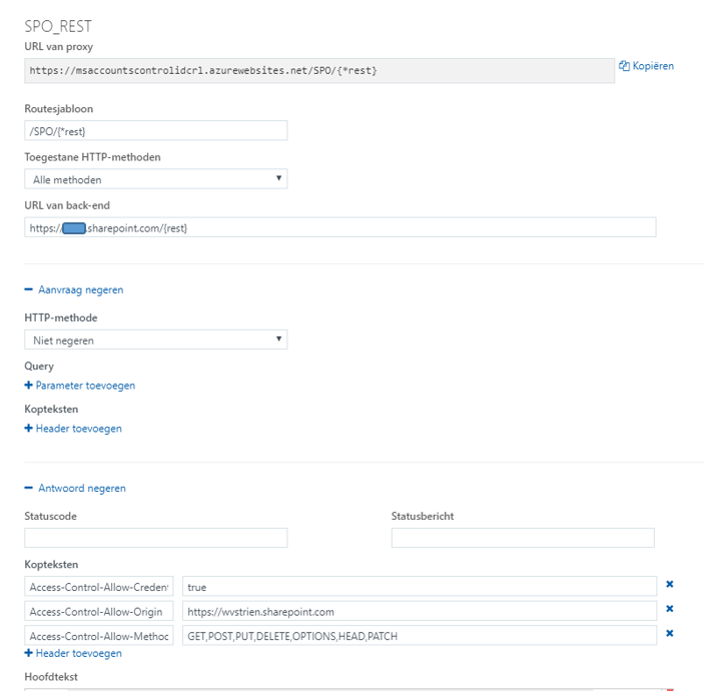
 •   But on next usage to allow the browser to send the cookie, all your SharePoint Online REST calls must go to the same domain as from which the cookie was received. This can be achieved by also proxy these calls via the Azure Function Proxy. This on itself is very simple to configure in the Azure Function Proxy via generic pattern matching in a new proxy:
However then on invoking that proxy cross-domain from the client / browser, it is refused by Azure Function Proxy with Http 405 / Not Allowed ➔ because I removed all allowed domains at the platform CORS configuration of the Azure Function, while the browser includes in the request the CORS 'Origin' header that now no longer matches on the Azure Function-App level (a typical case of 'chicken-egg' situation).
 •   I then tried with '*' as allowed domain in the platform CORS configuration. But this again results that the explicit additional CORS response headers via responseOverrides object are ignored. And in addition '*' is not allowed on browser level in conjunction with 'withCredentials': Failed to load https://msdnwvstrienspocors.azurewebsites.net/IDCRL.svc: Response to preflight request doesn't pass access control check: The value of the 'Access-Control-Allow-Origin' header in the response must not be the wildcard '*' when the request's credentials mode is 'include'. Origin 'https://wvstrien.sharepoint.com' is therefore not allowed access. The credentials mode of requests initiated by the XMLHttpRequest is controlled by the withCredentials attribute.
 •   As implication of the above enumerated various experiences, I conclude that in their current implementation, Azure Function Proxy is unfit to resolve CORS handling in context with SharePoint Online active authentication flow. Therefore I decided for alternative approach to explicit self build the CORS-aware proxy behavior in custom Azure Functions. I minimal need to implement 2 functions; the CORS aware/allowed access to default MSO endpoint https://login.microsoftonline.com/rst2.srf and https://#ADFSHOST#/adfs/services/trust/2005/usernamemixed (username/password ADFS endpoint) can still be arranged via an Azure Function Proxy, similar as earlier configured for OAuth passive authentication endpoint. But for CORS aware access to combination of IDCRL.svc and any authenticated request to your SharePoint Online tenant the Azure Function Proxy approach thus falls short. For each of these 2, a custom proxy implementation is required.
 •   I observed that also in case of explicit CORS handling coded in Azure Function, still any Function-App platform CORS configuration prevales above that. Therefore it is required to completely disable platform CORS on the Function-App. As the CORS-aware Azure Function Proxies for the other / first 2 requests in the active authentication flow do depend on the platform CORS configuration, I decided to split within 2 seperate Function-Apps with own domain. I could also have resorted to custom proxy build for the first 2 requests and include in the same App container, but whereever possible I prefer a 'configuration' and out-of-the-box approach above (maintaining) custom code. So I stick with utilization of Azure Function Proxy where possible.
Complete CORS-enabled setup for all of the 4 requests involved in SharePoint Online active authentication: the first 2 can be CORS-enabled via Azure Function Proxy, the last 2 must be CORS-enabled via custom Azure Function.
Configuration of the Azure Function Proxies to CORS-enable "<your custom STS>/ adfs/services/trust/2005/usernamemixed" and "https://login.microsoftonline.com/RST2.srf"
Impression of the custom Azure Function: CORS-enable "<your SPO tenant>/_vti_bin/idcrl.svc" is simple; proxy-ing SharePoint REST API calls is more complex and challenging. Note: the custom proxy for active authentication requests in your SharePoint tenant is also fit for non-REST requests, e.g. to browse your SharePoint Online sites
Cross-Domain / CORS prepared JavaScript browser client, interoperating with SharePoint Online REST API


This is what happens in the webclient (browser) / SharePoint Online interoperability with adjustment for CORS:
First request automatic issued by secure-aware browser: OPTIONS to start with CORS Preflight
On server / client confirmed preflight, get cross-domain the SPO authentication cookie
Utilze the retrieved SPO authentication cookie within browser-issued SPO REST calls

Sunday, September 16, 2018

Digest Authenticated API should obey to CORS

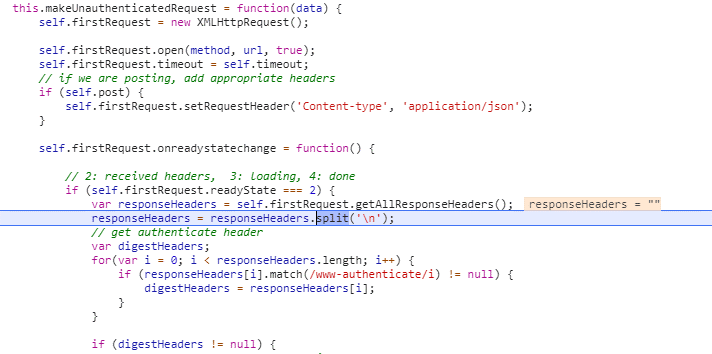
On securing access to a service API, Digest Authentication delivers stronger security as Basic Authentication. In case the service API is invoked from JavaScript code via XMLHttpRequest, that client application must explicitly self obey to the Digest Authentication handschake. A convenient library to use for that is digestAuthRequest.js (although I had to tweak it a bit to get it working, for availability of CryptoJS within the library, and to apply only the 'path' part of the URL in generating the digest token). But also the API itself must obey to standards: thus the Digest Authentication protocol, but in addition also to the CORS protocol in case of cross domain usage. Otherwise modern browsers will refuse to read the authentication challenge returned by the API in the first step of the authentication handshake:
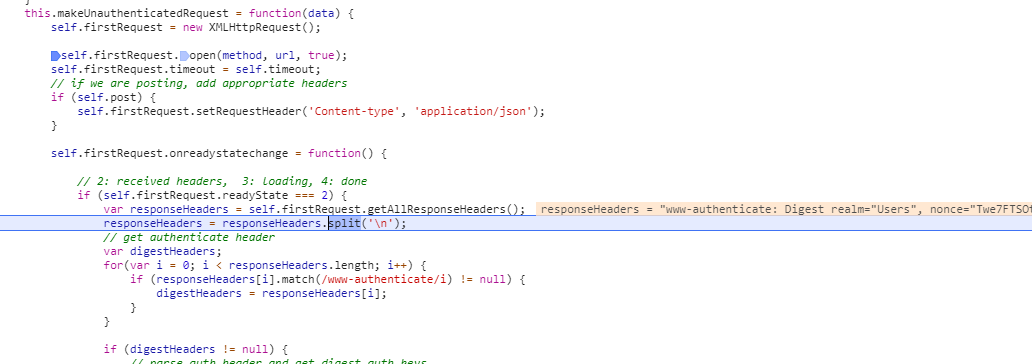
The rootcause is that XMLHttpRequest::getResponseHeader() method in its default mode can only access simple response headers, any of: Cache-Control, Content-Language, Content-Type, Expires, Last-Modified, and Pragma (see Using CORS). In this set, the WWW-Authenticate header is missing. So if you want to enable JavaScript clients of your API to successful Digest Authentication and use your API, you have to include that response header name in the value of 'Access-Control-Expose-Headers' response header.
Without properly returned 'Access-Control-Expose-Headers by API, digestAuthRequest fails to access the required WWW-Authenticate header in case invoked from cross-domain JavaScript based client:
With properly returned 'Access-Control-Expose-Headers by API, digestAuthRequest succeeds to access the required WWW-Authentication header in case invoked from cross-domain JavaScript based client:

Thursday, July 12, 2018

Utilize Azure Function Proxy to resolve lack of CORS aware within passive OAuth authentication flow

The steps to issue OAuth based authenticated SharePoint Online REST API calls from a SharePoint-external client context are well-documented elsewhere, e.g. within Access SharePoint Online using Postman. What is missing in these outlines is the notification that in case the external client is a Javascript based webapplication, the setup will fail due Cross-Origin aka Cross-Domain security protection by modern browsers; unless put in unsafe mode (not recommended!). The problem is here not within the modern browsers, as these are all CORS prepared / supporting. The real cause is that the REST call to 'https://accounts.accesscontrol.windows.net/<tenantid>/tokens/OAuth/2' does not return a CORS aware response; and a browser running in safe mode will refuse to accept the response coming from this different domain.

Browser / Cross-Domain issue

Augment the response to be CORS-aware

For browsers to accept the cross-domain OAuth authentication flow, solution is to modify the received response such that it is augmented with the needed CORS headers. In a first attempt, I tried to augment the response via overriding the (methods of the) XMLHttpRequest object in JavaScript. But not surprisingly this fails: the browser built-in Cross-Origin protection inspects the HTTP response on native level, and cannot be deceived by manipulating the received HTTP response within JavaScript runtime context. From security perspective this makes sense, otherwise the Cross-Origin protection could easily be avoided (seduced) in malicious code.
The valid approach is that the HTTP response as received on HTTP protocol level will itself include the missing CORS headers, before reaching the calling browser. Of course it is not possible to modify as Office 365 customer organization the behavior of the external hosted Microsoft SaaS service. So we need to 'proxy' the external service endpoint, and include the missing CORS headers in the proxy response. Previously this would require to either utilize the capabilities of a reverse proxy in the organization's landscape, or custom code an own endpoint that acts as proxy between the client and the invoked (external) service. But last year Microsoft released the concept of Azure Function Proxy, and this can out-of-the-box be used in a no-code / configuration-only manner to proxy the call to 'https://accounts.accesscontrol.windows.net/<tenantid>/tokens/OAuth/2'.

Configure the Azure Function Proxy

Browser / Cross-Domain allowed via Azure Function Proxy

Sunday, March 25, 2018

Optimize for bad-performing navigation in SharePoint Online

Good navigation capability + support is essential for the user adoption of any website. And thus also for (business) sites delivered through SharePoint. The default model for this is and always has been via Structural Navigation, which is rather self-explaining for site owners to set up. However, for performance reasons, Structural Navigation is a bad-practice in SharePoint Online when it concerns site collections with a deeper nested site hierarchy. In short, the cause of this is due the dependency on Object Cache, which has value in on-prem farms with a limited number of WFEs, but is useless in Office 365 where large numbers of WFEs are involved to serve the site collections. See a.o. So, why is Structural Navigation so slow on SharePoint Online? in Caching, You Ain’t No Friend Of Mine.
Microsoft itself recommends to switch to search-driven navigation, and even has some 'working' code to set this alternative up in the context of a SharePoint Online site collection. Noteworthy is that the switch to search-driven navigation requires you to customize the masterpage; something which Microsoft otherwise warns us against. But in the classic experience there is no other option to replace the structural navigation by search-based, and it is an weighed decision to risk modifying the masterpage. Risk which to my opinion is small, as I do not foreseen that Microsoft will make big change changes to the standard 'seattle.master', if any changes at all. Reason is that Microsoft is fully focussing on the modern experience, and little innovation is to be expected anymore in the classic experience. This is underlined by the fact that 'seattle.master' has been stable for years, without any change brought by Microsoft to it.
The 'working' code-snippet that Microsoft provides as part of their advise how-to improve the performance of navigation is included in the Microsoft support article Navigation options for SharePoint Online. Although this is a good first resource, on deeper sight the code has some flaws. Some of them are disclosed in the helpful post SharePoint Search Driven Navigation Start to Finish Configuration. On top of this, in my implementation I included some additional improvements in the ViewModel code:
  1. Encapsulate all the code in it's own module + namespace, to isolate and separate from the anonymous global namespace
  2. On the fly load both jQuery and knockout.js libraries, if not yet loaded in the page context
  3. Made the script generic, so that it can directly be reused on multiple sites without need for code duplication (spread) and site-specific code changes; this also enables to distribute and load the script code from an own Content Delivery Network (CDN)
  4. Cache per site, and per user; so that the client-cache can be used on the same device for both multiple sites, as well as by different logged-on accounts (no need to switch between browsers, e.g. for testing)
  5. Display the 'selected' state in the navigation, also nested up to the root navigation node
  6. Display the actual name of of the rootweb of the sitecollection, iso the phrase 'Root'
  7. Extend the navigation with navigation nodes that are additional to the site hierarchy; and include them also in the navigation cache to avoid the need to retrieve again from SharePoint list per each page visit
  8. Hide from the navigation any navigation nodes that are identified as 'Hidden' (same as possible with the standard structural navigation)
  9. Execute the asynchronous 'get' retrievals parallel via 'Promise.all', to shorten the wait() time, and also for cleaner structured code
  10. Extend with one additional level in the navigation menu (this is accompanied with required change in the masterpage snippet)
  11. Include a capability to control via querystring to explicit refresh the navigation and bypass the browser cache; convenience in particular during development + first validation
Also made some changes to the suggested snippet for the masterpage:
  1. Extend with one additional level in the navigation menu (see above, this is accompanied by required change in the ViewModel code)
  2. Preserve the standard 'PlaceHolderTopNavBar', as some layout pages (e.g. Site Settings, SharePoint Designer Settings,...) expect that to be present, and give exception when missing from masterpage
  3. Optional: Restore the 'NavigateUp' functionality; via standard control that is still included in the standard 'seattle.master' (a source for this: Restore Navigate Up on SharePoint 2013 [and beyond])

Thursday, October 19, 2017

Tip: code-snippet to enlarge image in context of SharePoint page

Requested Web Content Management (WCM) capability: include smaller / shrinked version of an image in the body of a page, and enlarge it on user click while remaining within the context of the page.

The rich SharePoint platform enables this with a small code snippet, via re-use of the standard SP.UI.ModalDialog.showModalDialog function. Reusable code-snippet:

<div>
   <script type="text/javascript">  
       function EnlargeImageInDialog(elem) {
           var imgUrl = $(elem).find("img").attr("src");
           imgUrl = imgUrl.replace("/_w/", "/").replace("_png.jpg", ".png”);
           var popupImg= 
                 "<div id='enlargeImg'><img src='" + 
                 imgUrl + 
                 "' style='margin: 5px; width:1200px;'/></div>";
           $(elem).append(popupImg);     
 
           SP.UI.ModalDialog.showModalDialog({
              html: document.getElementById('enlargeImg'),
              title: "...",
              allowMaximize: false,
              showClose: true,
              autoSize: true
           });
       }
    </script>   
    <a onclick="EnlargeImageInDialog(this); return false;" href="">
        <img src="/.../PublishingImages/_w/..._png.jpg" alt="" style="margin: 5px;"/>
    </a>
</div>
Example of the effect:
Smaller image (reference) in the web content page
Enlarged image displayed within context of the webpage via a SharePoint UI modal dialog popup

Saturday, July 15, 2017

Approach to performant display from a SPList with multiple Lookups + Person fields

Issue: business users complain that the page loading of a SharePoint listview takes a long time, up to a minute. During page loading + rendering, the browser is totally unresponsive (Chrome even pops up a dialog about page unresponsive).
In the analysis for the root cause of this structural slow performance I observe that the list contains multiple Lookup fields to other lists in the site, and also a 'Person or Group' field - which is a specific type of Lookup, to the hidden UserInformationList.
This multitude of Lookups in the list is the most significant cause for the slow performance. However, also on user experience / functional level, it is wrong designed: the usage of the page is to first load + display all the items from the list, and next the end-user must filter to select the relevant items.
I therefore first aligned with business owner on another functional approach: let the end-user start with specifying the relevant filter(s) [can be a combination of filters for multiple columns], and then select + retrieve only the items from the list that satisfy the filter-conditions. For the technical design, the Search tool must be setup future-proof, aka cloud ready. Thus interoperating with SharePoint either via CSOM or via REST services. I decided to utilize REST, so that data is returned in JSON data-format, and can be directly data-binded in client-side UI (I used Knockout.js; but same holds for other clientside UI frameworks as Angular, Ember).
In SharePoint REST one uses the $expand parameter to include referred lookup values in the result set. But similar as for XsltListView, this quickly destroys any performance:
So I needed a way to avoid the Lookup-expands, while still being able to filter on and select the values of the Lookup fields. Totally getting rid of the Lookup columns is not an option: for consistent data-management it is a Must-Have that one can select only from the values maintained in the Lookup list. And it holds even more for the Person field: selecting via the PeoplePicker ensures a user-friendly selection + validation.
The approach I decided to is to 'flatten' the lookup values in additional columns. Functional management can still manage the data-items using the lookup functionality, and on data-selection + retrieval I avoid the need to $expand.
The elements of the approach
  1. Per lookup value that is needed in the selection and/or display, add a single-line of text column to the list. Set them to hidden in the Item content type, so that their existense is invisible for functional management in the New/Edit/View list-forms;
      For the 'Person or Group' column, include 4 new fields, for
    1. Person Name,
    2. Photo,
    3. Department,
    4. and the UserId in the UserInformationList
  2. Create a SharePoint Designer Workflow on the list that activates on ItemCreated + ItemModified events. Design the workflow to propagate ('flatten') the lookup values to their respective flattened counter-field;
  3. Realize the bulk flattening of the existing list items through the same workflow, via javascript start the workflow on every item.
Impression of the solution setup + result

Friday, January 27, 2017

Pragmatic approach to display maintenance message on malfunctioning Add-In

One of the promises of the SharePoint Add-In model is that one can purchase packaged / of-the-shelf Add-Ins to install and use in your SharePoint sites. This promise is picked up by the SharePoint community - although in lesser amount as what Microsoft was expecting. One of the selling charms of using pre-packaged software Add-Ins is that your organization is not self responsible for maintenance, and this is delegated to the supplier. However, this loss of technical ownership also implies that you are dependent on the external supplier to fix their Add-In in case of issue, you cannot call in your own troops to resolve the problem. When such a faulty Add-In is prominent present in your SharePoint site, this is rather confronting: the end-users are visually notified and remembered of the malfunctioning behavior. In case the Add-In is added as a shared AppPart, you can mitigate this effect by temporary hide the AppPart from the page. But in case the Add-In is potentially added by individual users to a personalizable page, this is undoable: you don't want to traverse all the personalized instances of the page, check whether the AppPart is present in that instance, and if so hide or delete the AppPart and save + checkin the modified page instance. And then later when a fix of the Add-In is delivered + tested, redo the same to make it visible again.
So what to do then, to avoid the embarishing user experience with the faulty Add-In? As often in these 'modern Apps' days, it is javascript to the rescue. Ultimately on browser level, every Add-In is included in it's own isolated iframe on the containing SharePoint page. Through javascript the iframe containing the faulty Add-In can runtime be located in the DOM, and if found on-the-fly have it's src modified to refer to a maintenance page instead. The javascript snippet can be inserted via a ScriptEditor added in the shared part of the SharePoint page, and easily removed again once the Add-In behavior is recovered.
Code snippet:
function displayMaintenanceMessage() { var addInIframe = document.querySelector('iframe[src*="<identifying part in Add-In start url>"]'); if (addInIframe != null) { addInIframe.src = '/StyleLibrary/snippets/MaintenanceMode.aspx'; } else { setTimeout(displayMaintenanceMessage, 1000); } } displayMaintenanceMessage();

Friday, December 23, 2016

Shortcircuit launch sequence of provider-hosted Add-Ins

The launch of provider-hosted Add-Ins consists of 2 recurring steps:
  1. First, go to the SharePoint hostweb, and request AppRedirect.aspx
  2. The returned AppRedirect.aspx response contains a FORM structure, with as Action parameter the start-url of Add-In; via javascript embedded in the AppRedirect.aspx response the browser POST submits to request the Add-In start page.
See Source: Chris Johnson, Launching SharePoint Apps, launch sequence, debugging and AppRedirect.aspx
An essential role and value of AppRedirect.aspx is to pass the authenticated identity of current user as context token from SharePoint WFE to the remote web. However, this only applies for OAuth based, low-trust authentication via Azure Access Control Service (ACS). In case of Server-2-Server, High-Trust authentication, SharePoint host(web) environment does not pass a context token at all. And thus there is no concrete added value nor necessity for the AppRedirect call before the launching of the provider-hosted Add-In.
The most important FORM parameter is SPAppToken. SPAppToken is specific to low-trust configurations. If you are using a high-trust configuration the SPAppToken token is missing. Managing Identity and Context in Low-Trust Hybrid SharePoint 2013 Apps

The recurring invocation of AppRedirect.aspx per Add-In launch has some drawbacks:
  1. it involves an extra http request/response handling; in particular with longer network-distance, this costs noticable latency
  2. AppRedirect.aspx itself can take processing and elapse time. In IIS logs I observed that although not always, multiple times the server-side execution of this requests takes > 0.5 seconds to 1 second or more
  3. with higher load, I've earlier (Load testing SharePoint Add-in (former App) Model) noticed that the AppRedirect.aspx handling eventually becomes the bottleneck within the SharePoint WFEs
In the Add-In launch sequence, there is optimization possible as the AppRedirect.aspx step is avoidable in an High-Trust authentication situation. The added-value is in S2S authentication: zero. All the requested information to launch the Provider-Hosted Add-In is already included by SharePoint in the response of the host page that contains the Add-In(s): the 'src' value of provider-hosted Add-In iFrame element(s) exists of the pattern '<host>/_layouts/15/AppRedirect.aspx' and 'redirect_uri=<encoded uri of the Add-In startpage>'. Thus it is possible to shortcircuit the Add-In launch sequence by aborting the AppRedirect.aspx request, and replace it to instead immediate request as iFrame src the url-decoded 'redirect_uri' value.
Options to shortcircuit AppRedirect are:
  • Server-side: via an HTTP-module, to intercept the HTTP response before it reaches the browser, and for every iFrame element replace the value of the src parameter from AppRedirect.aspx into it's redirect_uri value. Disadvantages of this approach are that it is non-discrimating: all responses returned will be parsed, thus also all those that do not even contain an Add-In structure; it requires custom server-side deployment, something that is nowadays not always allowed as companies aim for cloud-ready / future-proof deployments
  • Client-side: on-the-fly change in browser / javascript-engine context, for every iFrame element replace the value of the src parameter from AppRedirect.aspx into it's redirect_uri querystring value. Disadvantage of this approach is that it is late, the browser typically already has requested the AppRedirect.aspx call. It still benefits to on-the-fly change the frame-src, and as such abort the waiting on AppRedirect.aspx response: in particular with longer network-distance, e.g. in case of a global company, it pays out to not wait for AppRedirect.aspx response to return, but immediate request the launch of the provider-hosted Add-In. And also it shortens in the scenario in which the processing time of AppRedirect.aspx would otherwise be [a] noticable bottleneck.
Snippet of the client-side approach:
<lSharePointWebControls:ScriptBlock runat="server"> function ShortCircuitLauchProviderHostedAppsInWPZone(webpartZone) { var frmRedirectSnippet = '<!DOCTYPE html PUBLIC "-//W3C//DTD XHTML 1.0 Strict//EN"' + '"http://www.w3.org/TR/xhtml1/DTD/xhtml1-strict.dtd">' + '<html dir="ltr" lang="en-US">' + '<head><meta http-equiv="Expires" content="0" /><meta http-equiv="X-UA-Compatible" content="IE=8"/><title>Working on it...</title>' + '<link rel="shortcut icon" href="/_layouts/15/images/favicon.ico?rev=23" type="image/vnd.microsoft.icon" />' + '</head>' + '<body>' + '<div style="text-align:center;margin-top:40px;">' + '<img src=\'data:image/gif;base64,R0lGODlh...'>' + '<span style="color:#0072c6;font-size:36px;font-family:\'Segoe UI Light\', \'Segoe UI\', Tahoma, Helvetica, Arial, sans-serif;">' + 'Working on it...' + '</span>' + '</div>' + '</body>' + '</html>'; var iframesProviderHostedApps = webpartZone.querySelectorAll('iframe[src*="appredirect.aspx"]'); var i; for (i = 0; i < iframesProviderHostedApps.length; i++) { var src= iframesProviderHostedApps[i].getAttribute("src"); var redirect_uri = src.substring(src.indexOf("redirect_uri=") + "redirect_uri=".length); var addInUrl = decodeURIComponent(redirect_uri); iframesProviderHostedApps[i].contentWindow.document.write(frmRedirectSnippet); iframesProviderHostedApps[i].setAttribute('src', addInUrl); } } ShortCircuitLauchProviderHostedAppsInWPZone(document.getElementById("app_1")); </SharePointWebControls:ScriptBlock>

The client-script approach enables yet another performance and resource usage optimization: delayed loading per Add-In until and only if it is in the visible part of the browser window. The user experiences the effect one is familair with on mobile devices: swipe the screen, and the application's content is on-the-fly retrieved + screen estate filled (Twitter, Facebook, ...).
Slightly modified snippet for lazy loading Provider-Hosted Add-Ins:
<lSharePointWebControls:ScriptBlock runat="server"> function isWithinVisibleViewport(element) { var $w = jQuery(window); var windowWidth = $w.width(), windowHeight = $w.height(), viewTop = $w.scrollTop(), viewBottom = viewTop + windowHeight, viewLeft = $w.scrollLeft(), viewRight = viewLeft + windowWidth, offset = element.offset(), _top = offset.top, _bottom = _top + element.height(), _left = offset.left, _right = _left + element.width(), compareTop = _bottom, compareBottom = _top, compareLeft = _right, compareRight = _left; return ((compareBottom <= viewBottom) && (compareTop >= viewTop)) && ((compareRight <= viewRight) && (compareLeft >= viewLeft)); } function ShortCircuitLauchProviderHostedApps() { var nonVisibleInViewport = false; var frmRedirectSnippet = '<!DOCTYPE html PUBLIC "-//W3C//DTD XHTML 1.0 Strict//EN"' + ..... '</html>'; var iframesProviderHostedApps = document.querySelectorAll('iframe[src*="appredirect.aspx"]'); var i; for (i = 0; i < iframesProviderHostedApps.length; i++) { var delayedFrame = iframesProviderHostedApps[i]; var src = jQuery(delayedFrame).attr('src'); if (src != '') { var redirect_uri = src.substring(src.indexOf("redirect_uri=") + "redirect_uri=".length); var addInUrl = decodeURIComponent(redirect_uri); } else { addInUrl = jQuery(delayedFrame).attr('DelayedSrc'); } if (isWithinVisibleViewport(jQuery(delayedFrame))) { jQuery(delayedFrame).contents().find('html').html(frmRedirectSnippet); jQuery(delayedFrame).setAttribute('src', addInUrl); } else { jQuery(delayedFrame).setAttribute('src', ''); jQuery(delayedFrame).setAttribute('DelayedSrc', addInUrl); nonVisibleInViewport = true;' } } jQuery('#s4-workspace').off('scroll', ShortCircuitLauchProviderHostedApps); if (nonVisibleInViewport) { jQuery('#s4-workspace').on('scroll', ShortCircuitLauchProviderHostedApps); } } </SharePointWebControls:ScriptBlock>

Thursday, October 13, 2016

Web-distribution of plain-old HTML/JS/CSS solution in Office 365

One of the many capabilities of SharePoint is that of webserver platform: host and distribute HTML/JavaScript/CSS based (mini)applications. With the birth of the SharePoint Framework (SPFx), I expect this role to be utilized a lot more in near future. The typical SharePoint setup for this web-distribution role is 1) a SharePoint page, 2) a ScriptEditor (or good-old ContentEditor webpart), and 3) the (mini)application itself consisting of an html-file for UI, potential javascript and/or css file(s), all stored as (SharePoint) content entities in a document library, or in a CDN.
SharePoint Online / Office 365 also supports this setup, and thus should be an equal fit for the role of web-distribution. However, you need to be aware of 3 aspects:
  1. Default, custom script is not allowed in Office 365 tenant.

    You'll notice the effect of this when you try to add custom script in a ScriptEditor, or on using PageViewer webpart which refuses to remember the url to the (mini)application html file - (Office 365 SharePoint Online - Page Viewer Web Part Not Working)

    The resolution is to set in SharePoint Online Admin settings the allowance for custom script - (Turn scripting capabilities on or off). Be aware that it can take up to 24 hours before the effect of the change is actually applied in your Office 365 tenant.

  2. ContentEditor prohibits 'FORM'tags in content:

    The resolution is to indeed use a PageViewer webpart, that is if the HTML contains a FORM tag. If not, good old CEWP accept the HTML as included content.

  3. SharePoint Online only supports download action on .htm(l) file

    The Microsoft SharePoint team made an explicit design decision to only allow download of html files, and no rendering in browser - (Office 365 - Open html document in browser in document library).

    The simple resolution is to change the extension of the .htm(l) files into .axpx, then SharePoint (Online) will no longer include the "X-Download-Options: noopen" header in the HTTP response, and the file is opened in the browser rendering the html code.

Friday, October 7, 2016

On-the-fly extend ECB-menu

Say you have business data administrated in a SharePoint list/library, and you want to enable a custom action on the items. In the "old days" one would create a Feature that deploys a CustomAction. But nowadays we intend to / or even must (Office 365 /SharePoint Online) avoid server-side (or sandbox) deployments. Clientside-development is the new mantra. SharePoint as webapplication is strongly javascript-based, from 2007 and beyond. Also the handling of the Edit-Control-Block menu is via SharePoint javascript code. This makes it possible to "break" into that execution, and inject some own handling. Via F12 DeveloperTools I identified where to 'break into'/extend:
var EnrichListView = window.EnrichListView || {}; EnrichListView.UI = function () { function MyCustomItemAction(itemId) { // do something with the item identified by 'itemId' } function OverloadMenuHtc_show() { $.prototype.base_MenuHtc_show = MenuHtc_show; MenuHtc_show = function(oMaster, oParent, fForceRefresh, fFlipTop, yOffset) { if ($(oMaster).find("SPAN[id='ID_EditItem']").length == 1) { var itemId = oParent.childNodes[0].id; var spanInsert = $("<SPAN text='Custom Action on item' onMenuClick='EnrichListView.UI.MyCustomItemAction(" + itemId + ")' type='option' iconAltText sequence='200' CUICommand='CustomActionItems' ></SPAN>"); $(oMaster).append(spanInsert); } $.prototype.base_MenuHtc_show( oMaster, oParent, fForceRefresh, fFlipTop, yOffset); return false; }; } var ModuleInit = (function() { ExecuteOrDelayUntilScriptLoaded(OverloadMenuHtc_show, "core.js"); })(); // Public interface return { MyCustomItemAction: MyCustomItemAction } }();
Result:
This client-side approach is on itself future-proof, and also works online. The only caveat is that online Microsoft may change the javascript handling/code on which this code breaks into, without you knowing. The javascript code can also change due an update to SharePoint on-premise installation, but then you're aware of a change in the SharePoint installation and can prepare for the change in advance.

Tuesday, October 4, 2016

Automatic revert-to-self for InfoPath forms

(Functional) users working with more complex InfoPath forms may be familiar with below notorious error dialog:
A typical cause is that after saving the listitem, in the SharePoint background one or more workflows are triggered that also update the listitem. And that makes the state as loaded in the form (stateless setup) outdated, and InfoPath refuses next save due optimistic locking. Pragmatic way out is to force data reload in the form, and most simple approach to that is close the form as last action in the ‘Save’ rule. Drawback is that the user must self relocate the listitem again, reopen and set into edit modus.
Via javascript injection the standard InfoPath Forms Services handling can be overruled, and instead automate the relocate/reload/edit - revertToSelf:
var InfoPathCheck; var maxNrChecks = 10; $(document).ready(function(){ InfoPathCheck = setInterval(function() { //Wait for InfoPath to finish loading HasInfoPathLoaded(); }, 200); }); function HasInfoPathLoaded() { var selectAppl = $("#<form-id>"); if (selectAppl.length > 0 || --maxNrChecks === 0) { clearInterval(InfoPathCheck); if (selectAppl.length > 0) { var saveBtns = $("input[id^='<form-id>_FormControl'][value^='Save']"); if (saveBtns.length > 0) { $(saveBtns).click(function() { // Overload IP-function to return-to-self upon 'Save'. CurrentFormData_UrlToNavigateToOnClose = function(a) { return document.location.toString(); } }); } } } }

Monday, August 1, 2016

Augment the Org Chart with additional information

The SharePoint Organization Browser (Org Chart) is a convenient out-of-the-box functionality to display the organogram on user basis. The information of this typically comes from the HR system, and is propagated to SharePoint User Profiles. In our company we work with a lot of externals. All of them are also administrated in our HR system, and thus also provisioned to the User Profiles. Which is what we want. Only thing that our managers miss, is that in the Org Chart no visual distinction is made between internal and external subordinates. We have this information available in the User Profile in a custom property. But the Org Chart only displays the full names of the colleagues visualized in the organogram chart.
In the ‘old days’ we simple would have built a custom Org Chart, using server-side code. But in the current times, this is strongly advised against. We have an architecture guiding principle that all application customizations and extensions must be future-proof. Modifying or rebuilding something that a platform delivers out-of-the-box does not qualify for us as future-proof. The platform vendor might replace the current component by a complete different setup in the future, of which we would then miss out. In this particular scenario there is another reason to not replace the out-of-the-box delivered by a custom developed. The Organization Browser webpart is standard included on user profile page Person.aspx. To change that we would need to replace the inclusion of the webpart by an own. Note that for Person.aspx publishing page (= SharePoint content) it is possible to do this, on premise and also online, e.g. via SharePoint Designer. However, what online is not possible is to deploy a server-side webpart. Implication is that the future-proof custom Org Chart must be redeveloped fully from scratch (no reuse / extension possible of the standard Org Chart webpart), either via 100% clientside script, or as (Azure deployable) provider-hosted Add-In.
As said, Person.aspx can be modified in both on prem as online. Better sustainable approach is therefore to extend on the out-of-the-box functionality with the requested customization. Inject a reference to an own JavaScript file, and in that file include a method to extend the displayed names of a colleague’s subordinates with information on whether internal or external. We have this information as user profile property, and this can in clientside context be retrieved via the UserProfile REST service.
Dynamic extend the Organisation Browser rendering with additional User Profile information
enrichOrgChartWithExternalOrg = function() { jQuery("#ReportingHierarchy").find("TR.ms-orgme").next().find("TD.ms-orgname > a").each(function(index) { var anchor = this; var href=jQuery(anchor).attr("href"); var accountName = unescape(href.substr(href.indexOf("accountname=") + "accountname=".length)); jQuery.ajax({ url: _spPageContextInfo.webAbsoluteUrl + "/_api/SP.UserProfiles.PeopleManager/GetUserProfilePropertyFor(accountName=@v,propertyName='ExternalOrganization')?@v='" + accountName + "'", contentType: "application/json;odata=verbose", headers: { "accept": "application/json;odata=verbose" }, success:function(data){ if (data.d.GetUserProfilePropertyFor.length != 0) { var extCompName = data.d.GetUserProfilePropertyFor.substr(0, data.d.GetUserProfilePropertyFor.indexOf(" - ")); var augmentedSubordinateName = jQuery(anchor).html() + " (" + extCompName + ")"; jQuery(anchor).html(augmentedSubordinateName); } } }); }); };
Standard Organisation Browser display extended with additional User Profile information
Note, the above code retrieves the extra user profile property per subordinate in a loop-control, each iteration includes a request-reply to the UserProfile REST service. To reduce the network latency impact from the client to SharePoint and back, one would want to avoid the loop and request all in one http request. The REST protocol supports this via $batch (Get UserProfile Properties with REST API Batching. And SharePoint Online and SharePoint 2016 are a good REST citizens, but SharePoint 2013 on premise is not: $batch is not supported. (Make batch requests with the REST APIs).

Wednesday, June 8, 2016

Readonly display of MultiLookup value in InfoPath Forms Services

Business question:

Have an InfoPath form that on one tab allows submitter to select zero to more impacted IT applications, and on another tab (for other business role) display this selection readonly.

InfoPath / IT answer:

  • Have multiple Views in the InfoPath form / template;
  • On the 'input' View, include a Multiple Selection List (MultiSelectList) control, and bind to the MultiLookup List Column (or ContentType Field);
  • On the 'display' View, visualize the current value of MultiLookup via a Repeating Table control. Via InfoPath configuration (control properties) remove the option for user to include new entries in the table: This part takes care of displaying [only] the selected value(s);
  • What then remains is to make the control readonly, to prevent that the MultiLookup value can be changed on this tab. InfoPath does not itself support to disable the Repeating Table control. However, you can achieve this for InfoPath Forms Services context via (the power of) javascript: include on 'editifs.aspx' page script with a method that sets the html control to disabled. A complexity here is that IFS loads the form asynchronously after the surrounding page is loaded in browser, and that no event is triggered to notify the form is loaded. To handle that, I've programmed a polling approach that recurring checks whether the resulting HTML table is now present in DOM, and then disable it:
    var InfoPathCheck; var maxNrChecks = 10; $(document).ready(function(){ InfoPathCheck = setInterval(function() { //Wait for InfoPath to finish loading HasInfoPathLoaded(); }, 200); }); function HasInfoPathLoaded() { var selectAppl = $("#ctl00_m_g_d1ea83c5_3306_41e4_8419_01cfcf73921e_FormControl0_V1_I1_R5"); if (selectAppl.length > 0 || --maxNrChecks === 0) { clearInterval(InfoPathCheck); if (selectAppl.length > 0) { $(selectAppl).prop('disabled', 'disabled'); } } }

Sunday, May 8, 2016

Critical thoughts on [yet another] new SharePoint development approach

This Wednesday May 4th, Microsoft announced GA of SharePoint Server 2016. This event is accompanied by blogposts from multiple MVP's. Waldek Mastykarz posted an interesting one "When to use the new SharePoint Framework". However, this posts holds a rather distracting message for us: Solutions built using other development models introduced in the past, such as farm solutions or SharePoint add-ins, cannot be used on modern team sites. Rather then repeating my concerns and thoughts here, I refer to the post of Waldek for full context, and the comments-thread between Waldek and myself.

Friday, March 18, 2016

Extending List.js with sort on date values

I applied List.js for user-interactive filtering and sorting in a table. However, it turns out that default the List.js sorting is limited to string based only. In this business application there are also columns with date values, so I needed to expand on the basic List.js capability. My approach consists of the following elements:
  • In the ViewModel of the Modern App, also include a data property that contains the timestamp representation of date value
  • In the View, also include an html element to render the timestamp value in the DOM. As you don't want to distract the user, this element must be invisible. An hidden 'input' would serve that purpose, where it not that List.js only retrieves values from block-elements. Alternative therefore is an hidden 'Div' element.
  • In the View, change the List.js data-sort specification to this timestamp value. Also make sure to include in the valueNames specification for instantiating the List
  • Almost there... Earlier I already extended List.js to parse the raw values from html elements. Reason for doing that is that default List.js retrieves the innerHTML. And in case your html element contains html-specification (e.g. for an hyperlink), this results in malfunctioning of List.js filtering/searching and sorting capabilities. I determine the raw values via 'innerText'. However, Chrome returns for hidden elements an innerText value of empty string... Therefore I made an additional minor addition to in such case determine the raw value via 'textContent'.
So far the written explanation. For developers it is much more understandable to explain via code:
The modifications to ViewModel (Knockout)
The modifications to View (Knockout)
The modifications to List.js library

Thursday, February 18, 2016

Directly open attachment from XsltListView UI

A business department composed a knowledge system as SharePoint-enabled Business App. The knowledge items are structured information about defects, with aspects as system, impact, fix available, owner. At a conceptual level, the correct SharePoint information architecture to administrate this is as list items. Some, not all, of the knowledge items can have associated documents. Important to realize is that the document(s) accompanying a knowledge item is/are secondary level information, it is not the main entity. So it is a valid decision to not set up as SharePoint document library.
However, on document level a library has convenient user experience. You click on the title of a document item, and it opens up: in browser or in native client, dependent on library settings and type of the document item. Our business requested the same convenient user experience for those knowledge items that have an associated document as attachment. Direct open from list, avoid the cumbersome usage path to first open the item and from the item dialog open the attachment in case present for the item.
A javascript approach can be applied to modify/extend the native XsltListViewWebPart behavior to deliver on the above. It relies on a combination of dynamic javascript overloading, SharePoint REST service, and SharePoint OWA viewers. Below the code snippet.
var EnrichKnownIssuesView = window.EnrichKnownIssuesView || {}; EnrichKnownIssuesView.UI = function () { function OverloadEditLink() { EditLink2 = function(target,nr) { var href = $(target).attr('href'); var idStart = href.substr(href.indexOf("&ID=") + 4); var id = idStart.substr(0, idStart.indexOf("&")); var siteUrl = window.location.href.substr(0, window.location.href.indexOf("/default.aspx")); if (siteUrl.length > 0) { var getAttachmentsUrl = siteUrl + "/_vti_bin/ListData.svc/KnownIssuesList(" + id + ") ?$expand=Attachments&$select=Id,Attachments"; $.getJSON(getAttachmentsUrl, function (data) { if ( data.d.Attachments != null && data.d.Attachments.results != null && data.d.Attachments.results.length > 0 ) { for (var i = 0; i < data.d.Attachments.results.length; i++) { var attachmentsUrl = siteUrl + "/Lists/Known Issues List/Attachments/" + data.d.Id + "/" + data.d.Attachments.results[i].Name; /* For some files, open in Office Web Applications results in error "Service not available". To prevent that the user then will not be able to view the document, configure the web-address of native document as source --> it will then open in native client. */ var fileName = data.d.Attachments.results[i].Name.toLowerCase(); if (fileName.endsWith(".docx") || fileName.endsWith(".doc")) { attachmentsUrl = siteUrl + "/_layouts/WordViewer.aspx?id=" + encodeURI(attachmentsUrl) + "&Source=" + encodeURI(attachmentsUrl) + "&DefaultItemOpen=1"; } else if (fileName.endsWith(".xlsx") || fileName.endsWith(".xls")) { attachmentsUrl = siteUrl + "/_layouts/xlviewer.aspx?id=" + encodeURI(attachmentsUrl) + "&Source=" + encodeURI(attachmentsUrl) + "&DefaultItemOpen=1"; } else if (fileName.endsWith(".pptx") || fileName.endsWith(".ppt")) { attachmentsUrl = siteUrl + "/_layouts/PowerPoint.aspx?PowerPointView=ReadingView&PresentationId=" + encodeURI(attachmentsUrl) + "&Source=" + encodeURI(attachmentsUrl) + "&DefaultItemOpen=1"; } window.open(attachmentsUrl, '_blank'); } } }); } }; } var ModuleInit = (function() { ExecuteOrDelayUntilScriptLoaded(OverloadEditLink, "inplview.js"); })(); }();
Special attention in the above for the usage of the 'Source' querystring parameter. During testing of the overloaded EditLink2 function, I occassional encountered an error in which OWA reports an error:
Opening the document in native Office client does succeed. I could have resorted to just always let the document open in native Office, but honestly I dislike that. With the OWA usage model, there is no need to download the document to the client system (consider Information Rights Management and Data Loss Protection), nor a need to have MS Office installed on the specific client device. To give that completely up, just for the rare occurence of a document on which OWA opening fails is a pitty. Instead I apply a 2-step approach: I let the Business App first try to open the Office document in OWA, which in most of the cases succeeds. In the rare case this fails, after the user clicks 'away' the above error message, the browser next 'returns' to the url specified in the 'Source' querystring parameter thus opening the document in the native Office client. Via this 2-steps approach, it is assured that the user can view the document: preferable in the browser, or in the rare problem situation in the native Office client. Simple and pragmatic.