Showing posts with label Stream. Show all posts

Friday, October 16, 2020

Tip: how-to self-produce without external encoder into MS Stream Live Event

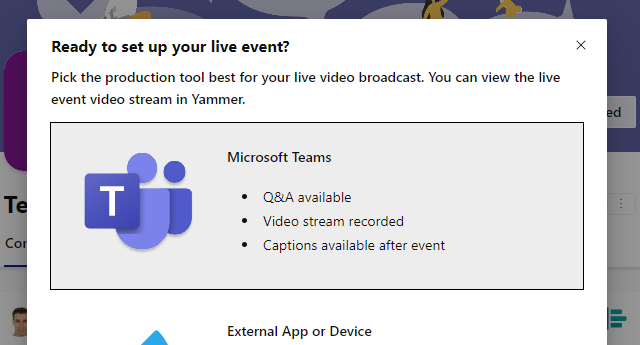
Webcast production for a Microsoft Stream Live Event is default tied to external encoder. Teams Live Event supports this also, but defaults to simple self-production via Teams App itself. In that case, the live event is not distributed via Stream; nor is the event recording stored within MS Stream. Instead Teams uses its internal Azure Media Services based streaming, and stores the recording somewhere for period of max 180 days after the event is over. Yammer Live Events takes a middle road, or the best of 2 worlds. It supports the same 2 production approaches as Teams - external encoder or via Teams. However, the difference is here within the Teams production handling. Even although produced as a simple Teams Live Event, under the hood this does use Microsoft Stream for the webcast distribution and processing, and after the live event is stopped for the storage of the recording for on-demand watch.
This opens multiple advantages
  • It allows to use the simplicity of Teams production for a webcast, and still embed the video on an event portal (typical hosted via SharePoint Online);
  • It prevent the need for and availability of external encoder (e.g. Wirecast-S, TeraDeck, OBS Studio, ...);
  • Corporations that have employed Ramp Multicast+ as eCDN solution to optimize and control the webcast traffic of Stream on the corporate network, can employ this also for webcasts produced via Teams
Way to apply this approach is by:
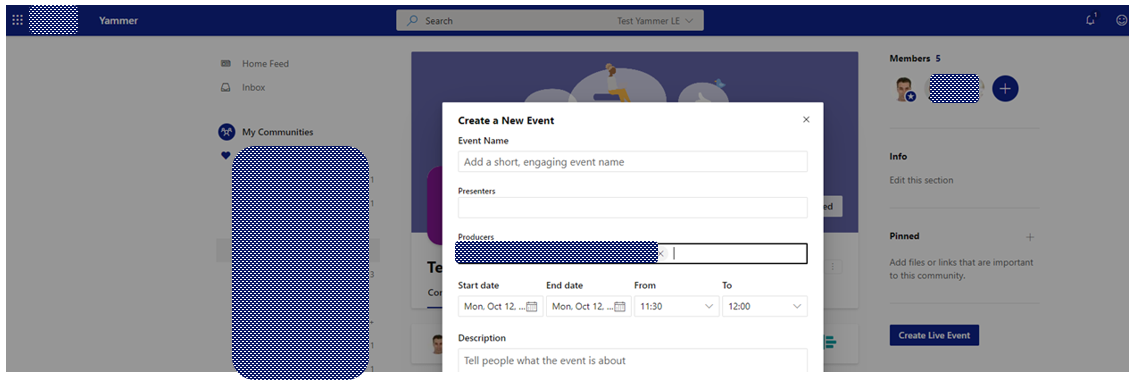
  1. Schedule your webcast as a Yammer Live Event;
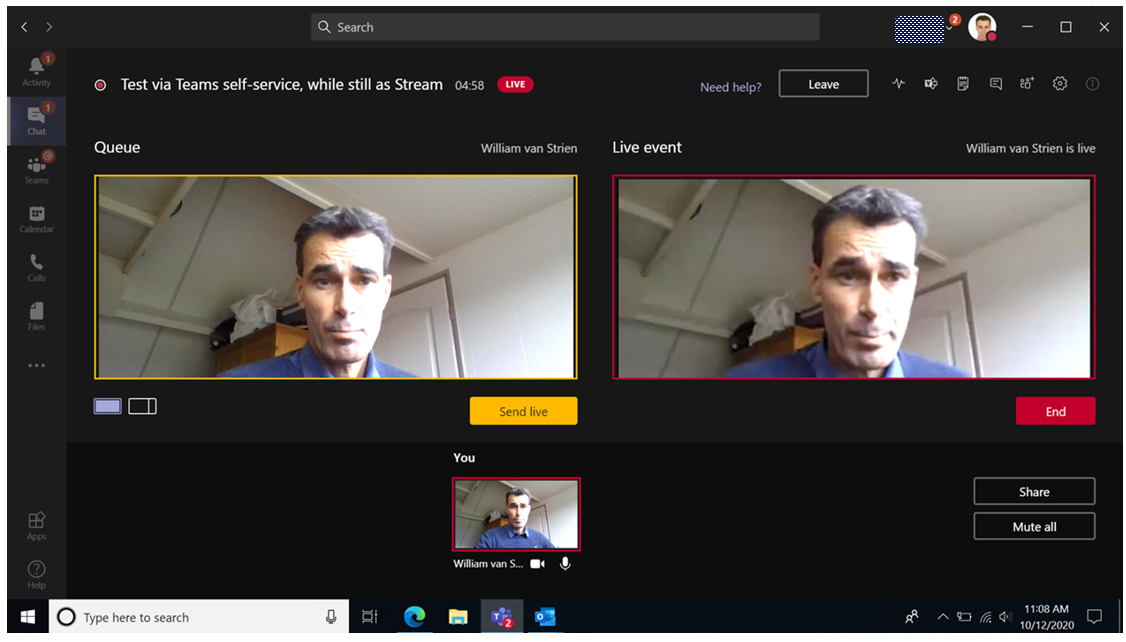
  2. Produce your webcast as a Teams Live Event;
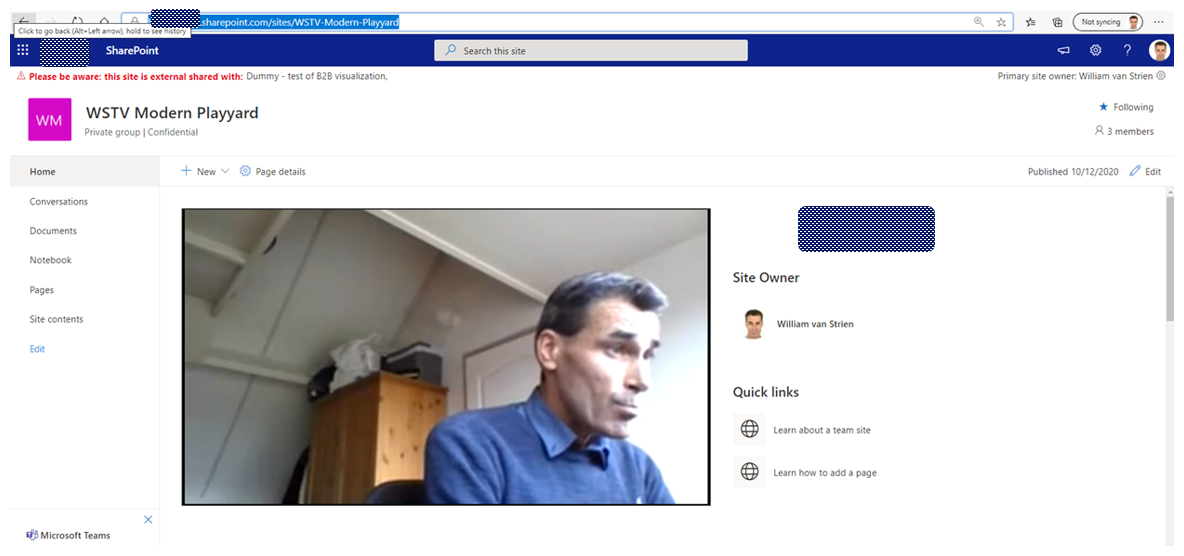
  3. Consume / watch the webcast as a Stream Live Event.
Step 1: Schedule as Yammer Live Event
Step 2: Produce as MS Teams Live Event
Step 3: Consume as MS Stream Live Event, e.g. embedded on SharePoint Online page
Yammer channel determines who is allowed to watch the live event
Something to be aware in case you would apply this approach, is that Yammer then controls who is allowed to watch the live webcast. Namely the members of the Yammer channel in which the Live Event is scheduled. So you must then make sure that all the accounts that are invited as webcast audience, are invited to the 'owning' Yammer channel. It is not possible to extend via Stream portal the permissions of the scheduled Yammer (= Stream) Live Event. After the event ended, then the video recording is 'released' for video management actions through Stream portal.

Thursday, October 15, 2020

Inconvenient authorization management in 'classic' MS Stream

In the corporate usage of Microsoft Stream as Enterprise Video Portal (EVP), authorization to watch videos is also applied on 'need-to-known' base. In current Stream, it turns out a bit inconvenient to execute effective permission management.
First issue is that it is made complex to nearly impossible to efficient configure permission management on a collection of videos. The root cause of this is in how Microsoft Stream handles the authorization and organization of the video store: "In Microsoft Stream, you can use channels and groups to organize and grant permission to your videos" [Source: https://docs.microsoft.com/en-us/stream/groups-channels-overview]. This is actually not a valid statement. Indeed Stream (aka Azure AD) groups "are both a way to organize videos and to control access to videos", but channels merely "are an organization method for videos, but not a permission method". Limiting for efficient permission management is that Stream portal does not include a capability to logical associate video(s) within either a Group or Channel, this is only supported initial on the moment of adding / uploading video(s) into Microsoft Stream. Once already stored in Microsoft Stream, the only possible way to associate video(s) with additional groups or channels it to do this per video, via the manual Add to group/channel action in the video-edit menu. When this must be done for larger collection of videos, this is a cumbersome and time-consuming effort.
Second issue is that Stream suffers from a delay before the indirect authorization assignment via Stream groups is actual applied (becomes active). In situation that authorization to watch a certain video is managed by one or more Stream groups, authorizing another person for access by adding her/his Office 365 account to an authorized group (e.g. via Azure Portal), does not immediate grant the person allowed access to the video. In reality it can take up to even an hour before the group based authorization within Stream context is updated to incorporate the new added account. Until then, the person remains confronted with Stream access denial on the video.
Even worse, similar effect occurs when revoking the access by removing from Stream group. This is neither immediate effectuated. Luckily the elapse time period is in this situation shorter, max 1 to 2 minutes; not a full hour. Still, immediate access revocation on unjustified granted video is not possible.
Perhaps within new Stream, in which the video storage moves to SharePoint Online, the authorization management improves. Not 100% confident yet, as Modern SharePoint also uses Azure AD groups for permission management. However, experiences within regular SharePoint Online usage are that any change in the Azure AD group(s) are almost immediate applied for access control, both on access assignment as revocation.

Saturday, September 5, 2020

How-to prevent download of video files stored in SharePoint Online site

Context
  • Event portal with both company internal as external audience
  • Teaser videos to prepare the audience for the event
  • Due the company information in the videos, not allowed that visitors download the videos for uncontrolled distribution.
An answer on the first aspect can be a SharePoint Online communication site, via Azure AD B2B external shared with known guest accounts. For the second aspect it would be preferred to use Microsoft Stream as secure Enterprise Video Platform. However, as Stream is still lacking the capability of external access; this would result that the external audience cannot watch the videos. Pragmatic alternative is then to fallback on using SharePoint Online itself as administration plus platform for the teaser videos. Remaining question is then whether possible, and if so how, to prevent that the external audience can easily download the video files.

Prevent download on SharePoint level

First component in answerring is to prevent on SharePoint Level that site visitors can download content from the site. The standard 'Read' permission level grants the authorization to "Can view pages and list items and download documents". There required to create a restricted permission level that only allows to "View content", and assign that permission level to the 'Visitors' permission group.

Prevent download on browser level

However, this does not prevent that visitors can download on browser level the SharePoint stored .mp4 videos, whether embedded in a SharePoint page, or the .mp4 video direct visited + played in the browser. All modern browsers native understand / recognize .mp4 as a video file, and then default to allow play, download and 'save as video' on browser level of that video file.
Does this mean it is not possible to prevent download of video files? The honest answer is: you can't stop downloading of html5 videos. But you can make the action more complicate to do. Multiple options for that.

Option 1: Download as blob in video player

This suggestion is made in Prevent HTML5 video from being downloaded (right-click saved)?

Result wrt default browser behavior:
As for the video player it is not .mp4, the default menu options for 'save as video' and 'download' are not triggered. However, on network level the video file is still initial downloaded as .mp4; and a knowledgeable person has no problem to simple direct navigate on browser level to the SharePoint address of the .mp4 videofile.

Option 2: Play as 'renamed video extension' file, so that default browser behaviour is prevented

Steps:
  1. Rename the file extension to something else than .mp4; example rename 'SampleVideo.mp4' into 'SampleVideo.videofile'
  2. Upload the renamed file into SharePoint Assets library
  3. Also upload an image to use as preview
  4. Embed a videojs based videoplayer on SharePoint page, that is configured to understand how-to play '.videofile' as '.mp4'. Also customize the videoplayer to not render the standard contextmenu

Result wrt default browser behavior:
As the file-extension is not a video format; neither SharePoint, nor browser recognize this as video file. And the default browser behavior to play the video-file address as video, is not fired; and thus the option from menus to ‘download’ + ‘save video as’ is not presented.

However, when navigating in browser to the SharePoint address of the renamed videofile, it will then download as file (despite that SharePoint permission does not allow). It is downloaded with the renamed file extension, but a knowledgeable person can guess that it is actual a .mp4 file, fix the downloaded file, and then it is native playable again.

Option 3: Convert from single .mp4 into HLS; with division accross multiple files

Steps:
  1. Convert .mp4 video file into .HLS video (manifest file + video fragments). An approach for this is via 'FFmpeg'.
  2. Upload the manifest + video fragments into SharePoint Assets library
  3. Also upload an image to use as preview
  4. Embed a HLS videoplayer on SharePoint page.

Result wrt default browser behavior:
Browser default do not handle HLS video files; this is handled via a HLS video player (JavaScript). To download the video, one must navigate in browser first to manifest file, and then all individual video fragments. Doable, but manual labor for the person downloading.

Wednesday, July 1, 2020

How-to enable for mobile device the seamless consumption of embedded Microsoft Stream on SharePoint page

SharePoint Online Modern Sites/Pages are by-design prepared for mobile / on-the-go consumption. An use case is to embed a Stream video on a page - either on-demand or live event -, and the audience then has the freedom to consume on regular workplace, or via their own mobile device.
However, be aware that in the latter case for seamless Stream behavior it is required that the mobile browser is set to 'Allow All Cookies / Block No Cookies'. Without this, typical the mobile browser fails from within the authenticated SharePoint Online context, next implicit logon the user to the embedded Stream service. The SharePoint Online Product Group confirmed this: To enable in Edge on mobile device seamless MS Stream behavior when embedded on SharePoint Online [modern] page, then infra prerequisite is that mobile Edge is configured to ‘Not block cookies’. The subject is current missing from the requirements stated on Microsoft official Knowledge Base. The Engineering Team will add this to the documentation for further clarity in the future.

Friday, October 18, 2019

Beware: immediate after upload into Stream, video is available in only 1 quality / rendition

A business user recent approached me with question why his uploaded video was only available in one, and not the highest bitrate / quality in Microsoft Stream. However, when we opened the video to inspect, he was pleasant surprised that all of a sudden the video could be played in more qualities, including with higher bitrates. This behavior is completely explainable, as on Stream side processing takes place to convert the uploaded video in multiple bitrates; and that processing simples takes its time to complete. But it is good to be aware of, and realize that you just need to be a bit patient for the different video qualities to become available.

Sunday, September 15, 2019

Caveat with MS Teams Live Events: once started, your audience is fixed

Do you recognize this? You started "the party", and while in full flux you're friendly reminded that you forgot to invite your best friend... This metaphore also holds for webcasts with selected audience: as people move accross diverse departments in an organization, it is an easy miss to not authorize/invite someone new joined. And dependent on the content and information sensitivity of the information shared, even more important can be to retract the authorization of someone that moved to another department. With Stream Live Events, the owner aka organizer of the Live Events is enabled to on-the-fly make modifications to the authorized / invited audience of the event, also when the event is already live. With Teams Live Events this is not possible: once the planned event is started, the audience is locked: you can neither add new attendees (nor presenters), or remove persons that should not be allowed. It is even not possible to modify in MS Teams the audience after the event is ended.
As the positioning of MS Teams Live Events compared with MS Stream Live Events is that the first is aimed for webcast distribution with a typical known team (of people), the lack of dynamic authorization may in reality not be a concrete issue. But good to be aware of, also to make a judged selection between webcast via MS Teams Live Events or via MS Stream Live Events.

Saturday, June 15, 2019

How-to remain in control of Live Events scheduling

See previous post, in the production of a Stream Live Events are 3 different roles involved:
  • Organizer
  • Producer
  • Presenter
The organizer is the person that can schedule / create new Live Events, and becomes the owner of them. Although there is no limitation stated on the amount of Live Events running in parallel, it makes perfect sense to govern this. You don't want to risk that the webcast experience of the CEO Townhall is hampered because too many other Live Events are running within same or overlapping timeslot. In order to avoid wildspread of Live Events, Stream supports via admin settings that the authorization to create Live Events is restricted to specific identified persons only / not for everyone in your organization.
The person creating / scheduling a Live Event, automatically also becomes the owner. However, in the differentiation of the webcast roles; the organizer should not need to be involved in any of the production aspects on the actual moment of the event. To achieve that, the person that will act as the producer of a specific event, must also be made the owner of the scheduled Live Event. As owner, the producer can pick up the scheduled Live Event, set it in edit mode, and then start and stop the event from the Stream webapplication.
Organizer creates / schedules (on request of Producer) a new Live Event
Organizer assigns / shares ownership of the scheduled Live Event to the Producer
On scheduled datetime of webcast, the Producer looks up the scheduled Live Event in Stream web application
On scheduled date of webcast, the Producer starts Setup of the Live Event
On scheduled date of webcast, the Producer is in-control to start the actual broadcasting once the production encoder sends the stream input signal

Friday, June 14, 2019

Plug-In outside producer in Stream Live Events

In a broadcast execution via Stream Live Events, the following roles are involved:
  • Organizer
  • Producer
  • Presenter
(source: Get started with Microsoft Teams Live Events). The person within the Organizer role schedules the live event, and requires the proper authorization in your tenant for that. But next the system design of Stream Live Events allows that for the production part you can delegate to outside your company infra. The plug-in interface for this is the unique RTMP(S) ingress endpoint address of the scheduled Live Event. This endpoint is accessible on the public internet. The producer can configure the encoder on the production / event location to stream as input of the Live Event for broadcasting within your Office 365 tenant. The ultimate production control remains with the authorized owner(s) of the Stream Live Event: to start the actual broadcasting once the received stream input is ok for sending to the audience, and stop the Live Event once the event / presenter is finished (and also when in unlikely case that the producer produces a live recording that is inappropriate or non-compliant with your business policy).

Friday, April 26, 2019

Weighing of customizing options for Questions & Feedback capability with Stream Live Events

In "Options considered for extending Stream Live Events with live chat/questions capability" I enumerated multiple options for enriching the Stream Live Events experience with Questions & Feedback capability. In below overview, I enlist pros and cons weighing of the diverse options.
OptionProsCons
Via Yammer
  • Existing / available IT building block within Office 365 suite;
  • Low-code solution: only a bit of JavaScript needed for correct visual embedding in the landings page;
  • Access can be limited to selected audience;
  • Live feed visible of questions, also the ones raised by others;
  • Possible to respond on questions / feedback of others;
  • Chat-like experience
  • Separated information container from the webcast;
  • Authorization to be done 2x (Stream and Yammer), with risk of inconsistency / out-sync
  • Not every webcast visitor is an active Yammer user;
  • On authorizing account to the Yammer channel, one receives a notification email; while the context is totally unclear, and the Yammer channel should not even be open for submitting questions & feedback;
  • Questions and Feedback of others are visible to all;
  • Yammer channel remains afterwards, Need to remove all access to avoid unwanted visits after the webcast;
  • Not simple to capture / archive the questions & feedback
Via MS Forms + MS Flow + SharePoint Online List;
Forms embedded on page via MS Forms webpart
  • Existing / available IT building blocks within Office 365 suite;
  • Fully No-Code solution;
  • Access limited to the webcast authorized audience;
  • Included in same data container as webcast, sufficient to authorize once;
  • Access after live event can be removed via SharePoint permission handling;
  • No need for additional Yammer accounts / affinity;
  • Possible to add classification in the questions, eg from dropdown select a topic area. In the capture list, possible to group on the topics;
  • Easy to get a dump of the feedback, eg in Excel; and then decide whether to delete the list or simple make it inaccessible;
  • Modern look, responsive behavior
  • No live feed for webcast visitors on total of submitted questions / feedback;
  • Limited styling capability;
  • Placeholder per question is always “Enter your answer” / not possible to change that;
  • The usage experience after submit input is aimed at “survey scenario” (“your response was submitted”);
Variant of above:
Forms embedded on page via iframe construct
  • Same list as above;
  • and in addition it is possible to preserve the style heading and hide the message at bottom
  • Same list as above, with exception of message at bottom;
  • After submit input, out-of-context the submitter is confronted with ‘promotional’ message that one can create your own form / survey. The user cannot relate this message.
SharePoint List + default / classic NewForm
  • Existing / available IT building block;
  • Fully No-Code solution;
  • Embedded NewForm can be embedded without LeftNavigation + Header in ‘dialog-mode’ (put “&IsDlg=1” on URL);
  • Access limited to the webcast authorized audience;
  • Included in same data container as webcast, sufficient to authorize once;
  • Access after live event can be removed via SharePoint permission handling;
  • No need for additional Yammer accounts / affinity;
  • Possible to add classification in the questions, eg from dropdown select a topic area. In the capture list, possible to group on the topics;
  • Easy to get a dump of the feedback, eg in Excel; and then decide whether to delete the list or simple make it inaccessible;
  • UI-look not optimized for user-experience of ‘Questions & Feedback’ capability;
    • Toolbar in top, including actions not relevant in this context
    • Cancel button in bottom; also irrelevant in this context
  • Width of NewForm is that large that it requires 2-column page layout ( 2:1 layout results in horizontal scrollbar); which results that the available screen estate for webcast is reduced, and that in the layout the webcast UI is not allowed more significance above the Questions & Feedback UI;
  • Customization of the default NewForm needed to only show the multiline ‘Question’ input field;
  • After submit of a new item, the iframe loads the list view iso returning to (empty) NewForm;
SharePoint List + customized NewForm via PowerApps
  • Existing / available IT building blocks within Office 365 suite;
  • Low-code solution: only a bit of JavaScript needed for correct visual embedding in the landings page;
  • Access limited to the webcast authorized audience;
  • Included in same data container as webcast, sufficient to authorize once;
  • Access after live event can be removed via SharePoint permission handling;
  • No need for additional Yammer accounts / affinity;
  • Possible to add classification in the questions, eg from dropdown select a topic area. In the capture list, possible to group on the topics;
  • Easy to get a dump of the feedback, eg in Excel; and then decide whether to delete the list or simple make it inaccessible;
  • Modern look, responsive behavior;
  • The canvas of PowerApps is positioned at the layout of Phone App, and cannot be reduced in height, even when the App itself does not need that height. Scrollbars can be avoided however by reserving the needed height in screen layout, “wasting” screen estate. In this context acceptable, as no other controls are included on the page and positioned below the Question & Feedback. However, the increased page height does result in unnecessary browser scrollbar on the right;
  • Embedded part shows toolbar in top, and not a submit button below the question/feedback input;
  • Embedded NewForm default shows the label ‘New item’;
  • After submit of a new item, the iframe loads the list view iso returning to (empty) NewForm
All of above drawbacks can be prevented, via a bit of custom code
Custom UI / control + SharePoint List
  • Access limited to the webcast authorized audience;
  • Included in same data container as webcast, sufficient to authorize once;
  • Access after live event can be removed via SharePoint permission handling;
  • No need for additional Yammer accounts / affinity;
  • Possible to add classification in the questions, eg from dropdown select a topic area. In the capture list, possible to group on the topics;
  • Easy to get a dump of the feedback, eg in Excel; and then decide whether to delete the list or simple make it inaccessible;
  • Modern look, responsive behavior;
  • Custom coded solution: Requires custom development, testing and deployment;
  • Deployment as control requires some additional preparation on SharePoint site (Site Collection App Catalog)
Standalone PowerApps + SharePoint List
  • Existing / available IT building blocks within Office 365 suite;
  • Low-code solution: PowerApps itself + embedding in SharePoint page;
  • No need for additional Yammer accounts / affinity;
  • Possible to add classification in the questions, eg from dropdown select a topic area. In the capture list, possible to group on the topics;
  • Easy to get a dump of the feedback, eg in Excel; and then decide whether to delete the list or simple make it inaccessible;
  • Modern look, responsive behavior;
  • PowerApp also available for Mobile
  • Separated information container from the webcast;
  • Authorization to be done 2x (Stream and PowerApps);
  • Webcast Questions & Feedback App is available on tenant level, not limited within the boundary / scope of the associated webcast event;
  • Webcast Questions & Feedback App on Mobile is separate from Stream Mobile App, user would have to switch between Apps to submit question/feedback;
Azure Bot
  • Proactive + automated responses on recurring questions and reported issues;
  • Self-learning knowledge base
  • Considerable design + development effort
  • Bots experience no natural fit for submitting questions and feedback

Sunday, April 7, 2019

Options considered for extending Stream Live Events with live chat/questions capability

With the recent GA of Stream Live Events, Microsoft delivers a low-entry option to easily setup company-internal webcasts. All you need in addition are on the webcast producing side: 1) recording equipment - camera + audio, and 2) an encoder solution to transmit the recording inputs into the Live Events endpoint. The camera + audio options vary from the onboard webcam + microphone of a laptop, USB-based externals, upto high-end studio-quality equipment. For Stream Live Events handling the sophistication on the producing input side does not make a difference, the inputted RTMP(S) signal is from input endpoint processed the same. Whether an organization also needs some additionals on the consumption side depends on the audience side plus the internal network capacity. Watching a Live Event instantiates an individual / unicast stream per event viewer. Under assumption that the company network is sufficient scaled for nowaday cloud solutions usage, it is feasile to simultanuous watch a 'LIVE' Stream event per network location upto a maximum of few hundreds. In case of bigger audience, Microsoft states that it is needed to reduce the network load via a video distribution approach through a SDN/eSDN solution.
In its first released version, Stream Live Events capabilities are focussed on the core streaming + playing aspects. Business demands on a webcast typical go beyond that. The biggest additional demand is for interaction between the webcast audience and the presenter. Thus a chat window in which individual attendees can submit their questions, and that the presenter can follow + respond on. It is on the roadmap of Stream Live Events to deliver this (note: Stream recent delivered 'quizzes/ polls' capability, but this is targetted at inserting in already recorded videos for a.o. training purposes; not for dynamic interaction with live streaming), but not out-of-the-box delivered nowadays. However, with Office 365 as underlying platform you have as event developer a feature-rich toolbox at hand in which you can deliver yourself a webcast experience in which viewers have the live stream and chatbox combined, via no-code or low-code approaches. The hosting platform of such landingspage is naturally SharePoint Online....; as every created Stream Group is effectively an Office 365 Group, it has an own SharePoint Modern Team Site provisioned. The persons authorized to this site is the same audience that are permitted to join the scheduled Live Event. Create in this site a new page to function as the webcast entrance, and select the '2:1 columns' layout. In the left column embed the Stream Live Event instance - one gets this from Stream via 'Share' and then pick the 'Embed' option. With this setup, all left is to extend with chatbox / questions input control. There you have multiple options. One is to utilize the rich capabilities of Yammer, and embed a Yammer channel on the page. This gives you immediate a 'chat-like' experience, in which one can enter questions, semi-live follow the inputs / chats of others, respond on inputs of others. This immediate visibility of all the responses of ones peers may be unwanted, e.g. due potential sensitivity. In that case an alternative setup is to capture the inputs in a SharePoint list in the site, and only grant the webcast facilitators the authorization to view all received inputs. The webcast attendees submit their questions and feedback via an input form embedded on the SharePoint page. For this on sublevel again multiple alternatives are available. You can embed the out-of-the-box NewForm of the list; customize the NewForm via PowerApps; a MS Forms instance that via MS Flow sends the input to SharePoint List; or build a custom control via SPFx or even as a chatbot via Azure Bot Service. Of these options all except for the latter 2 are no/low-code 'mash-up' compositions, that deliver on the needed job. The decision-weighing between them is mostly on the user-experience and branding, see screen impressions of the various options.