Showing posts with label SharePoint Online. Show all posts

Friday, March 11, 2022

Tip: Reuse authentication of MFA secured account over multiple Connect-PnPOnline calls

A best security practice to connect into SharePoint Online is configure MultiFactor Authentication (MFA). When connecting from PowerShell to SharePoint Online this can give some challenges, as the default 'Credentials' based logon is not MFA aware. Resolution for this is to use either '-Interactive' or '-PnPO365ManagementShell' flag: both result that you are enabled to interactive address the MFA challenge.
Need to address the MFA challenge is acceptable to do one-time. But in an administration context, it might be that you need to execute settings over a set of sitecollections. Then it is not a pleasant experience to everytime need to (re)logon including MFA challenge. Common way to address this is by piping the authenticated SPO connection into the subsequent PnP calls. But Connect-PnPOnline does not support the '-Connection' flag (other PnP cmdlets do support it; PnP is not consistent across all its cmdlets). But I found an alternative that works:
  • $connection = Connect-PnPOnline -Url $spoAdminUrl -PnPO365ManagementShell -ReturnCollection
  • Connect-PnPOnline -Url <Url to other site collection> -Interactive -ClientId $connection.ClientId

Wednesday, December 29, 2021

Beware: on site renaming, initial Url preserved as ReadOnly site collection

Last year Microsoft delivered the long-requested capability to change the address of a SharePoint Online site collection. One of the features is that any request to the original / initial site address, is seamless mapped to the renamed site address. An unexpected side-effect is that on SharePoint tenant level a placeholder site collection is created to deliver this site mapping / redirection.
Visualization of the effect: before + after
Before RenamingAfter Renaming

Wednesday, October 13, 2021

Beware: Issues in Hybrid Search Crawling might not be flagged

We have a mixed SharePoint setup with parts still on-prem, while for others we moved to Microsoft cloud. We try as much as possible to abstract our end-users from this complexity in the SharePoint landscape. Therefore we utilize SharePoint Hybrid Search to allow the end-users finding from one single search entrance all SharePoint stored content, whether stored on-prem or online.
From time to time we encounter issues in this setup, most significant cause being that the required trust on the on-prem search crawlers to online index is lost due change of certificate on Microsoft Online side. We are automated flagged if such issue occurs, as we have an automated health monitoring + notification on the state of the crawl logs. Too bad, due a recent Microsoft change we can no longer trustworthy rely on the automated signalling. For (design) reasons so far only known to Microsoft development team, they decided to no longer flag in the crawl log in case an error occurs on propagating crawled content to the online index. We noticed as we started missing recent content in the search results; while on inspection of the crawl log it was reported to be successful crawled: full green. Yet by doing a query on 'k=isExternalContent:1' the most recent on-prem crawled items were not included in the search result, a clear deviation from the healthy report of the on-prem to online crawling.
Note: the actual rootcause of the missed crawled items in the online index was that in the user policy of the on-prem webapplication some accounts were configured, that in online world no longer had a match. This resulted in failing to index in SharePoint Online with error "Hybrid ACL Mapping: Deny ACE with unknown/unmappable hybrid claim", but it turns out that such error is no longer notified back to the on-prem crawler context. As Office 365 customer you do not have visibility on the Online index; we only came to know of this rootcause after we involved Microsoft Support. Once cause known, the problem was easily fixed: we removed the stale accounts also from the on-prem user policy.

Friday, April 30, 2021

Be aware: ''Check Permissions" does not report M365 Group authorizations until first access

The new and default permission model for Modern Team Sites is via the 'owning' Office 365 Group. I discovered a functional flaw in that: on accounts authorized for site access via the Office 365 group, the SharePoint 'Check Permissions' capability reports "None" until first site visit of an authorized account (which on SharePoint level results that the account is administrated in the (hidden) site users list). I reported this to Microsoft Support, and they reproduced + confirmed the behavior in an arbitrair tenant. Their first response was "this is expected behavior", but I strongly disagree. We use and rely on 'Check Permission' to assess whether a person has access or not to a SharePoint site. And the reliability of this access-check should not be dependent that the assessed person has actually already once visited the site.
Update: in call with Microsoft Support they motivated the "this is expected behavior": it is expected from how it is technically build within SharePoint.... When I re-stated that on functional view this is not expected behavior, they agreed and asked me to submit as UserVoice suggestion; so that the development team can triage it for product fix.

Saturday, September 5, 2020

How-to prevent download of video files stored in SharePoint Online site

Context
  • Event portal with both company internal as external audience
  • Teaser videos to prepare the audience for the event
  • Due the company information in the videos, not allowed that visitors download the videos for uncontrolled distribution.
An answer on the first aspect can be a SharePoint Online communication site, via Azure AD B2B external shared with known guest accounts. For the second aspect it would be preferred to use Microsoft Stream as secure Enterprise Video Platform. However, as Stream is still lacking the capability of external access; this would result that the external audience cannot watch the videos. Pragmatic alternative is then to fallback on using SharePoint Online itself as administration plus platform for the teaser videos. Remaining question is then whether possible, and if so how, to prevent that the external audience can easily download the video files.

Prevent download on SharePoint level

First component in answerring is to prevent on SharePoint Level that site visitors can download content from the site. The standard 'Read' permission level grants the authorization to "Can view pages and list items and download documents". There required to create a restricted permission level that only allows to "View content", and assign that permission level to the 'Visitors' permission group.

Prevent download on browser level

However, this does not prevent that visitors can download on browser level the SharePoint stored .mp4 videos, whether embedded in a SharePoint page, or the .mp4 video direct visited + played in the browser. All modern browsers native understand / recognize .mp4 as a video file, and then default to allow play, download and 'save as video' on browser level of that video file.
Does this mean it is not possible to prevent download of video files? The honest answer is: you can't stop downloading of html5 videos. But you can make the action more complicate to do. Multiple options for that.

Option 1: Download as blob in video player

This suggestion is made in Prevent HTML5 video from being downloaded (right-click saved)?

Result wrt default browser behavior:
As for the video player it is not .mp4, the default menu options for 'save as video' and 'download' are not triggered. However, on network level the video file is still initial downloaded as .mp4; and a knowledgeable person has no problem to simple direct navigate on browser level to the SharePoint address of the .mp4 videofile.

Option 2: Play as 'renamed video extension' file, so that default browser behaviour is prevented

Steps:
  1. Rename the file extension to something else than .mp4; example rename 'SampleVideo.mp4' into 'SampleVideo.videofile'
  2. Upload the renamed file into SharePoint Assets library
  3. Also upload an image to use as preview
  4. Embed a videojs based videoplayer on SharePoint page, that is configured to understand how-to play '.videofile' as '.mp4'. Also customize the videoplayer to not render the standard contextmenu

Result wrt default browser behavior:
As the file-extension is not a video format; neither SharePoint, nor browser recognize this as video file. And the default browser behavior to play the video-file address as video, is not fired; and thus the option from menus to ‘download’ + ‘save video as’ is not presented.

However, when navigating in browser to the SharePoint address of the renamed videofile, it will then download as file (despite that SharePoint permission does not allow). It is downloaded with the renamed file extension, but a knowledgeable person can guess that it is actual a .mp4 file, fix the downloaded file, and then it is native playable again.

Option 3: Convert from single .mp4 into HLS; with division accross multiple files

Steps:
  1. Convert .mp4 video file into .HLS video (manifest file + video fragments). An approach for this is via 'FFmpeg'.
  2. Upload the manifest + video fragments into SharePoint Assets library
  3. Also upload an image to use as preview
  4. Embed a HLS videoplayer on SharePoint page.

Result wrt default browser behavior:
Browser default do not handle HLS video files; this is handled via a HLS video player (JavaScript). To download the video, one must navigate in browser first to manifest file, and then all individual video fragments. Doable, but manual labor for the person downloading.

Wednesday, July 1, 2020

How-to enable for mobile device the seamless consumption of embedded Microsoft Stream on SharePoint page

SharePoint Online Modern Sites/Pages are by-design prepared for mobile / on-the-go consumption. An use case is to embed a Stream video on a page - either on-demand or live event -, and the audience then has the freedom to consume on regular workplace, or via their own mobile device.
However, be aware that in the latter case for seamless Stream behavior it is required that the mobile browser is set to 'Allow All Cookies / Block No Cookies'. Without this, typical the mobile browser fails from within the authenticated SharePoint Online context, next implicit logon the user to the embedded Stream service. The SharePoint Online Product Group confirmed this: To enable in Edge on mobile device seamless MS Stream behavior when embedded on SharePoint Online [modern] page, then infra prerequisite is that mobile Edge is configured to ‘Not block cookies’. The subject is current missing from the requirements stated on Microsoft official Knowledge Base. The Engineering Team will add this to the documentation for further clarity in the future.

Sunday, June 7, 2020

Tip: for customizing on Modern Site shared with B2B guests, use SPFx and not PowerApps

In Modern SharePoint, the citizen-developer way for page customization is through PowerApps (instead of the dreaded InfoPath approach). This works out fine..., unless your site is shared with external Azure AD B2B guests. A condition for PowerApps usage is namely that the logged-on user is licensed for a PowerApps Plan. For regular member accounts this license is typical provisioned on onboarding time. For guest accounts you cannot trust that each of them has a PowerApps license already themselves, and then access to use the PowerApps customization requires that a license is assigned in the inviting tenant. But probably you do not want to assign licenses in the inviting tenant to Azure AD B2B guests. After all, one of the charms of the Azure AD B2B model is that for each paid Azure AD license the organization is entitled to invite up to 5 guest accounts without additional costs.
The result for guests that do not have a PowerApps license themselves, is a broken user experience. Instead of a working custom control / form in the SharePoint page, the guest site visitors are confronted with a notification about need for PowerApps Plan license:
A minimal approach to at least avoid the broken UI experience would be to hide the PowerApps control for guest accounts. But also this is not possible: audience targeting on arbitrary webparts is not supported in Modern Pages, see Overview of audience targeting in modern SharePoint sites.
In a SPFx control you can utilize an alternative for audience check, by check on permission group, or check on account type (member or guest). A code example of this approach: Show and hide SPFx Webpart Content based on user permission.
However, when using SPFx for page customization then you’re not subject to additional licensing on top of SharePoint license. So it would not even be needed to hide the control in case logged-on user is a guest account....
Conclusion: if you plan to share a Modern SharePoint site with external guests, then better not use PowerApps for customizing a page that is accessible for guest accounts. Better approach is via SPFx, and accepts this requires coding skills iso no/low-code.

Sunday, May 24, 2020

MS Teams Channels - Yet Another Inconsistency on SharePoint Permission handling

Microsoft introduced Office 365 Groups as overarching concept to bring consistency in Office 365 permission management. Each single Office 365 Group manages authorization to a multitude of diverse Office 365 services (MS Teams, SharePoint Online, Planner, Exchange Online), in theory simplifying on the model in which each tool individual applies its own permission management.
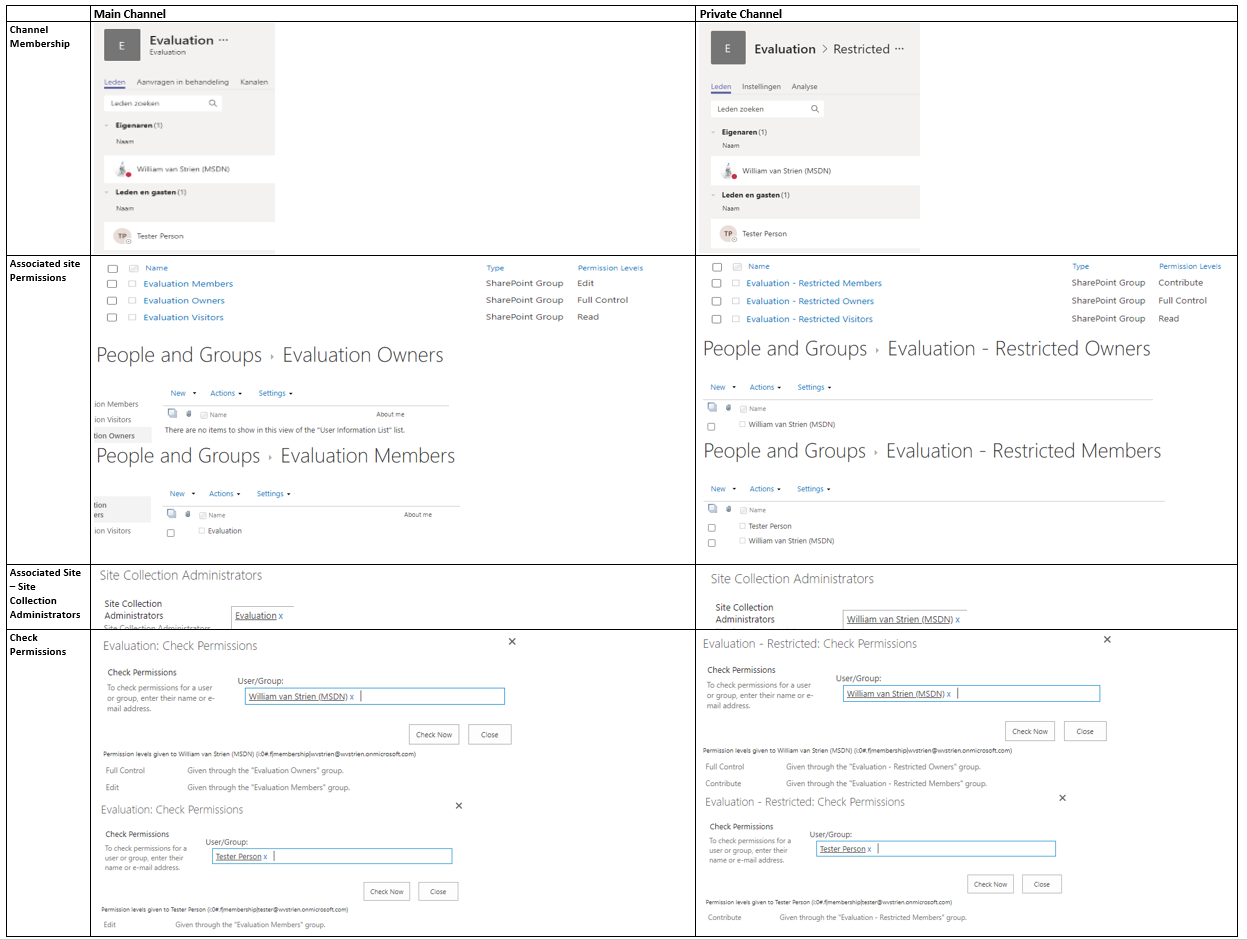
In practice, Microsoft itself struggles with the consistent application of this new permission management model. In previous post I visualized the differences in permission management of Communications Site versus Modern Teams Site. Yet another difference is visible on the level of SharePoint site collection that is associated with a MS Teams channel. In the associated site of the main channel, Microsoft utilizes the concept of Office 365 Groups as overarching permission management. However, in the associated site of any private channel, the notion of Office 365 Group is missing.
Comparision Permission Handling + Management within associated site of Main vs Private Teams channel
Observations:
  1. In the associated site of the Teams main channel, site authorization is delegated done via Office 365 Group.
    1. The SharePoint Members permission Group has as single member the Office 365 Group ‘Members’
    2. The SharePoint Members permission Group has as permission level 'Edit'
    3. The SharePoint Owners and Visitors permission Groups are both EMPTY
    4. Instead, the ‘Owners’ responsibility is assigned by having the full O365 Group 'Owners' as SCA
  2. In the associated site of a private channel, site authorization is still on named accounts level
    1. The SharePoint Members permission Group has as members the named accounts of everyone authorized in membership in the private channel, both the owners and members of the channel
    2. The SharePoint Members permission Group has as permission level 'Contribute'
    3. The SharePoint Owners permission Group has as members the named accounts of the persons that are owners of the Teams private channel
    4. And these same named persons that are owner of the Teams private channel, are assigned SCA
I think this deviation is driven both by the current situation that Office 365 Groups itself does not support hierachy and subsets, plus the restricted usage scope of a private channel. A private channel is meant to restrict access to certain content in the Teams instance, but it is not meant itself as a container hub consisting of multiple tools. As example, you cannot associate a Planner Plan with a private channel. There is thus in the context of private channels less need for the overarching permission management concept via Office 365 Groups.
A concern with this effectively broken permission management in private channel compared to Teams instance itself, is what happens when on the Teams instance level a membership is revoked. Turns out that on Teams level itself the effect of this cascades to any of its potential private channels: whenever an account is removed as member in Teams instance, the same account is also automatic revoked as authorized member in any of the private Teams channels.

Thursday, April 30, 2020

SharePoint Governance complicated, due deviation in permission handling within modern site templates

With the introduction of Modern Sites, Microsoft added an additional layer in the permission handling for SharePoint Online sites: via Office 365 Group (soon to be renamed/branded as 'Microsoft 365 Groups'). Below that new level, one can still authorize within the SharePoint site itself via SharePoint Permission Groups. And to make the story even more confusing: not all 'Modern' sites are equal wrt this new Permission model. In a Modern Communication Site there is no notion / connection to an Office 365 Group.
Comparision Permission Handling + Management within Modern Communication Site vs Modern Team Site
Observations:
  1. In a Modern Teams Site, site authorization is delegated done via Office 365 Group.
    1. The SharePoint Member permission Group has as single member the Office 365 Group ‘Members’
    2. The SharePoint Owners and Visitors permission Groups are both EMPTY
    3. Instead, the ‘Owners’ responsibility is assigned by having the full O365 Group Owners as SCA
  2. In a Modern Communications Site, site authorization is still on named accounts level
    1. The SharePoint Group has as members the named accounts of persons in the role
    2. And only the person that on site provision/create time was identified as ‘Site Owner’ (in SharePoint Admin portal), is assigned SCA
This deviation is intentional / by design from Microsoft, with justification: "Most often, a communication site has a small number of people with permission to author content and many people who only have permission to read content. Team sites use Office 365 Groups for permissions. Communication sites use SharePoint groups." (source: Teams Site vs. Communication Site: Which one should I choose?).
However, in concrete business usage more and more business users prefer the Communications Site for internal collaboration usage above that of Team Site. Most significant motivation being the page layout options, that make better usage of the available screen estate. And this practical usage results in a governance flaw, as the permission handling on a "team collaboration site" created via Communications Site deviates from that within a Teams site; and the typical business user has no understanding for this.
I'm not alone in my misunderstanding, a good post on this topic is How broken are Office 365 SharePoint permissions?.

Sunday, February 23, 2020

Replicate B2B governance of SharePoint to Teams

In nowadays enterprises, being able to seamless collaborate with one’s ecosystem is gaining more and more importance. The Office 365 platform supports Business-2-Business collaboration in multiple of its services. However, there are significant differences in the governance supported.
In SharePoint, their is finegrained governance possible, which convinced our critical information security risk management to allow its usage. On tenant level you configure to allow sharing, however without per se enable it on each individual site collection. Plus you can white- and blacklist allowed + never allowed domains, again without this automatic propagated to the individual site collection level. On site collection level you can by default turn off sharing and only explicit enable for targetted site collections, including then white- and blacklisting of domain(s) under condition that these are configured [(dis)allowed] on tenant level. Protection effect is that invited guest is only actually authorized to access a B2B shared site collection if the external domain of guest is allowed for particular site collection. Finally, the customization / extensibility options of SharePoint allow to make visitors of the site via an across site banner aware that the information in this particular site collection is also accessible by persons outside the company.
The out-of-the-box B2B governance of Microsoft Teams is much more limited. Ok, the visual indication of guest(s) presence in the Teams membership is standard. But the guest allowed-mode is on tenant level only: if turned on, all Teams instances by default are allowed / opened for guest access. Including all the Teams instances for which not explicit requested, or even should not be allowed given the internal purpose + audience of that Teams instance. Another miss is that of the check on domain per Teams instance. The resulting risk is that a business user can per accident invite a guest of company Y while intended to invite guest with almost same name from company X.
The lack of the B2B governance with MS Teams results that it is insufficient business secure for our information / security risk management. To get approval, we need to bring the same level of controls to Teams guest access as there is with SharePoint. We do this by extending / customizing on the invite experience in MS Teams. Business users are allowed to invite guests, however not from Teams direct itself due its lack of domain check. Instead we provide via SharePoint a B2B process request page where business user can:
  1. Request whitelisting of allowed partner on tenant level; usable for all SharePoint sites and Teams instances
  2. Request sharing of individual SharePoint site or Teams instance (including the associated site underneath) for one or more domains; that must be whitelisted on tenant level
  3. Request provision of one or more guests, of companies that are allowed on tenant level; usable across entire tenant
  4. Specific for Microsoft Teams: invite guest account to a Teams instance
In the automated handling of 4 (via Azure Automation) we verify that the domain of requested guest account is within the “whitelisting” of the identified Teams. If so, the guest is automated added; if not then the request is rejected and business error is prevented.

Saturday, September 21, 2019

In the dungeons of Azure AD B2B: properties of external Azure AD account might block creation of guest account

Collaboration between organizations in an ecosystem has become more and more essential to the value organizations create. But also in these Business-2-Business (B2B) collaboration scenarios, the authorization principle of 'need-to-known' must be adhered: employees from the partner organizations should only be granted access to the information on which they actually collaborate with the inviting organization. To be able to grant selective authorizations to the externals, requires that each of them must be known with identifying identities in the information system(s) of the inviting company.
In the Azure AD B2B model, Microsoft introduced the notion of 'guest accounts' for this, based on the concept of "bring-your-own-identity". An Azure AD B2B guest account is a lightweight account, that in fact acts as placeholder in the Azure AD context of the inviting organization to external identity managed outside the responsibility of the inviting organization. As such, Azure AD B2B collaboration supports cross-company relationships by enabling partners to selectively access your corporate applications and data using their self-managed identities
Azure AD B2B supports 2 modes to invite external guests via their corporate email addresses: a federation model from the Azure AD of the inviting organization to the external Azure AD of invited partner organization. And in the case that the invited company is itself not (yet) an user of Azure AD for their identity management, via just-in-time created accounts which are then administrated in a so-called 'viral' tenancy (see: Understand the B2B user).
Guest accounts are created in the inviting Azure AD with their own (external company) email address applied as their guest account / identity name. Azure AD requirement here is that the guest identity name is not yet in-usage as proxy-address within another account in the Azure AD tenant. The typical situation in which this could occur is when an external employee already has also a Member account in the Azure AD of the inviting organization, and has the own corporate email assigned to that Member account. When next you try to create a guest account for that external email, Azure AD refuses with error message: "The user you're inviting already exists in the directory. They can simply sign in into shared apps and resources."
The most pragmatic approach to fix this guest account provision error, is to 'free' the external corporate email address of the 'to-be AAD guest': disconnect it from assignment in the Member account in the Azure AD of inviting organization.
Another apparent feasible approach is to simple select another external corporate email as guest account name: e.g. instead of '<External>.<User>@>ExternalOrg<.com', provision a guest account via '<External>.<User>1@>ExternalOrg<.com'. This is certainly a creative alternative. But you need to be aware of some pitfalls with it. 1) Redemption in Azure AD B2B is an email-verified process. Meaning that the alternative corporate email address must actually exist and resolve to an email inbox in the domain of the invited organization. 2) In case of federated Azure AD tenants, the requirement that the proxyAddresses must be unique, is verified in the combination of the Azure AD tenants of both the inviting as the invited organizations. Resulting that in case to the alternative account in the Azure AD of the invited organization, the original corporate email of person is administrated in the proxyAddresses, then the provisioning of guest account in Azure AD of the inviting organization still blocks. See How can we improve Azure Active Directory? - Show the B2B-blocking proxy address in my tenant's logs where this is shortly described.
Code snippet to have run in the Azure AD tenant of the invited organization, to identify whether and which proxyAddress value is the cause of the blocking:
Connect-AzureAD

Get-AzureADUser -Filter "mail eq '<firstName>.<lastName>1@externalcompany.com'"
   -all $true |
Select-Object displayName, @{L = "ProxyAddresses"; E = { $_.ProxyAddresses -join ";"}} |
Export-Csv -Path C:\temp\ReportOutOnAADAccount.csv -NoTypeInformation

Saturday, August 10, 2019

Misleading Conditional Access response on trying access with expired Azure AD B2B guest invitation

In the situation that an invited Azure AD B2B guest is homed in an external instance of Azure AD, there is no need to await redemption by the invited guest before the guest account can be utilized in the inviting Office 365 tenant to grant access in a SharePoint site. Instead, on first visit of the invited + authorized external / guest account, the redemption will take place implicit. This improved B2B invitation experience is available since May 2018 (Exciting improvements to the B2B collaboration experience).
However, this scenario breaks in the situation that the invited guest lets the invite expire:
That the implicit redemption in such situation fails is on itself logical and the correct behavior. However, the error notification that the guest receives is misleading. It does not point to the cause that the guest invitation is not accepted yet (and thus guest account still in 'Invited User' state), but falls through to the conditional access for regular Member accounts:
The correct fix in this situation is to either resend the invitation in Azure Portal, or re-invite via New-AzureADMSInvitation cmdlet. The invited person is then re-enabled to accept the invite. Either redeem explicit via the URL in the invitation email, or redeem implicit on first access to a site in the inviting SharePoint Online tenant that is shared with the guest account.

Monday, August 5, 2019

Confusing SharePoint UI to add guest to Modern Group-connected Site

Once in Azure AD a guest account is created for an external, site owners can use that guest account in same way as for regular accounts to grant access in a SharePoint Site: 'Share' the site, and lookup the guest account. However, within Modern / Office 365 Group-connected site, this similarity is broken. The cause is that in the SharePoint UI of a Group-connected site, the Membership in the top-level UI is actually referring to the Office 365 Group; not that of the connected SharePoint Site. Yet external / guest accounts cannot be added via SharePoint to an Office 365 Group, this needs to be done via Outlook on Web as membership management interface (Manage guest access in Office 365 Groups).
Not possible to add guests to Office 365 Groups via SharePoint top-level UI
The proper way to add guest accounts to the B2B shared site, remains to authorize them on level of SharePoint site. Preferable utilizing SharePoint Groups, instead of direct individual assigned authorization. The path in the UI to this is via 'Settings' menu, 'Site permissions', 'Invite people'. And in this step, select 'Share site only':
How-to authorize guests to access Modern Site via SharePoint UI
The above experience is a smoothened version for the old-fashioned SharePoint membership management: making one aware on the existance and concrete membership management of the SharePoint Groups in the site. This 'old-way' is also still available, via 'Advanced permissions settings'. Or for those knowledgable SharePoint insiders...; direct via the known URL (<site-URL>/_layouts/15/user.aspx).
(old-way) How-to authorize guests to access Modern Site via SharePoint UI

Thursday, August 1, 2019

Beware: with B2B sharing enabled on SharePoint tenant level, all new provisioned Modern sites are by default open for non-constrained sharing

The governance of B2B sharing of SharePoint Online is setup on 2 levels: at first, on tenant level the SharingCapability must be configured in an enabled state (SharingCapabilities enumeration), otherwise all sharing in the full collection of sites in the tenant will be disallowed / blocked. Also on tenant level, SharePoint admin can configure allowed (whitelisted) and disallowed (blacklisted) domains of invited organizations. On the 2nd level, the SharingCapability of individual site collection must also be configured to same enabled state, to enable sharing of that particular site. Plus also on this level, SharePoint admin can specify both allowed and disallowed domains.
With this 2-step configuration, the inviting organization is enabled with explicit (IT) control on which of the site collections, their business owner(s) can invite (authorize for access) guests of targeted invited partner organizations.
Something to be aware of in this SharePoint Online B2B governance is that on site collection level of Modern / Group-enabled sites, the default setting of the SharingCapability property follows the tenant-configured value. This means that in the situation where sharing is enabled on tenant level, all new provisioned Modern sites by default are also direct configured to allow sharing.
In the 2-step B2B governance process this is not compliant; individual site collections may only be configured for sharing on explicit business request and approval, and potential for identified domain(s) only.
To get back into compliant state, each new provisioned site collection must be configured via an after-step to reset the SharingCapability into ‘Disabled’. This after-step can be executed via Site Designs, or in case a site provisioning solution is used (e.g. PnP provisioning) as post-processing provision step. Another approach is via a scheduled automation job (e.g. Azure Automation, or remote PowerShell).
Note: remarkable is the difference with classic sites: these are by default always provisioned with disabled 'SharingCapability', independent of the setting on tenant level.

Inconsistency within MS Teams External Sharing activation

A special case is with the SharePoint sites that are created underneath MS Teams instances (for the ‘Files’ capability). Also on the tenant level of MS Teams, the external / guest capability is configured. However, there is an inconsistency in the context of the MS Teams B2B configuration when external sharing is enabled on SharePoint tenant level, but not on MS Teams tenant level: the underlying SharePoint sites follow the SharePoint tenant setting, not that of their ‘owning’ MS Teams. The effect is that external guests may be authorized for access to the SharePoint site underneath a MS Teams instance, despite that on MS Teams tenant level external sharing is explicit disabled.
To correct this inconsistency, any of the above sketched set of ‘compliance’ approaches can be applied on the SharePoint sites that are created 'underneath' MS Teams instances.

Wednesday, May 8, 2019

Opt-In Modern List Experience on Communication Site obstructs upgrade SPFx app via UI

An approach to upgrade a deployed 'App for SharePoint' is to open the site that contains the AppCatalog (either tenant, or site collection with own app catalog) in a browser, go to 'Site Contents', and double click the App. In the 'About' dialog it will then present the option to upgrade. When the site is in Modern List experience, this approach is hampered: also the 'Site Contents' view is then within Modern View; and the available options there for any App are limited to 'Monitor' and 'Remove'. Microsoft is aware of the issue, and for now advises to apply a workaround: in the Modern 'Site Contents' view, click in the lower-left corner on 'Return to classic SharePoint'. This results that on the fly the 'Site Contents' view is rendered in classic mode, and the approach to upgrade App are available for usage. However, it turns out this workaround is only available for Modern Team sites, but not for Modern Communication Sites. Direct cause is that Communication Sites by Microsoft Design do not have the 'Left Navigation' (see Modern SharePoint Sites navigation options). And by Microsoft Design flaw this lack of left navigation is propagated into application and listview pages, including 'Site Contents' (Communication Site - Left Navigation Missing in Lists / Libraries). This leaves as only workaround for Communication Site to support upgrade of (SPFx) Apps interactive through the SharePoint UI, is “Opt out of the Modern list and library experience” for that site; at least for the moment when you need to upgrade any of the (SPFx) Apps in the (site) app catalog.
Note that the non-UI approach of upgrade via PowerShell (Update-SPAppInstance)is not hampered by the Modern List Experience.

Saturday, March 23, 2019

Beware: the omnipresent of Office 365 Groups complicates Information Architecture

Pre Office 365, setting up your information architecture was so much simpler (to understand)...

So your organization has implemented Office 365 as office productivity suite, which provides to you the richness in its various services / tools to employ. Say as a business department I need:
  • A place to store documents ➔ create in SharePoint Online a Modern Site
  • A place to work and chat together ➔ create a MS Teams instance
  • A place to plan work ➔ create a plan in MS Planner
  • A place to store and expose department videos ➔ create in MS Stream a Stream Group
  • A shared mailbox ➔ create via Outlook an Office 365 Group
However, one of the result of these 5 create actions in different Office 365 Services is that you do not have one (1) SharePoint site to your exposure, but actually five (5)!
And all of these 5 Modern Sites are created alike: same structure in the site, layout; all a standard provisioned Modern Site
And also in Azure AD the same multiplication effect is visible, noticable as an Azure AD Group (actually: Office 365 Groups):
Lesson: you need to think upfront on your Information Architecture, and then setup your utilization of the Office 365 services that it matches. Beware that this governance is hard to achieve, as all the creation in Office 365 is via self-service made so easy...

Thursday, March 14, 2019

Beware: User Information List (UIL) acts as memory for PeoplePicker when need to renew Azure AD B2B guest account for changed email

In Azure AD B2B, guest accounts are provisioned and redeemed with as their unique external account identifier, the own external email address of the invited guests. In rare situation that the external email changes, the guest account situation needs to be synchronized with this external identity change. However, as the email address is the primary identifier, it is not possible to change this as attribute in the existing Azure AD guest account. One needs to create in the Azure AD of the inviting company a new guest account based on the new / modified external email address, and potentially can also delete the no longer valid old guest account. On the SharePoint Online side, in each site collection in which the guest needs access, the access must also be repeated for the new guest account. Something to be aware of in such situation is the relationship between SharePoint PeoplePicker and the hidden User Information List (UIL) in site collection. The PeoplePicker uses UIL as one of its entrances to try to resolve user information for looked-up user name. As of SharePoint 2013, whenever an account on individual basis is granted access to a SharePoint site collection, immediate an entry for that account is administrated in the UIL (in SharePoint 2010 and before, the addition in UIL was delayed until first access by the authorized account). The effect in the use case where guest account is renewed by deleting from and creating new, is that the PeoplePicker default will still resolve to the user entry in UIL that was created there when earlier the guest was authorized on the previous guest account. Resulting in an inconsistent situation: the guest is assigned a new Azure AD guest account, the former might even be deleted in Azure AD, but in SharePoint Online via UIL as memory the previous account is selected by PeoplePicker upon granting access. Effect is that the guest can successful logon with the renewed guest account against the Azure AD of inviting company, but in the next step this authenticated guest account is not granted access in the SharePoint Online site: "You need permission to access this site". The way to resolve this is to go as Site Collection Administrator (SCA) into the UIL through <site-url>/_layouts/15/people.aspx?MembershipGroupId=0 , select the entry that refers to the previous guest account, and in the 'Actions' menu select "Delete users from Site Collection". After this corrective management action, the PeoplePicker on looking up the guest (by name or email) will no longer find the stale entry in the UIL, and create a new one that corresponds correct with the renewed guest account. And the invited Azure AD guest is enabled to successful access the site via modified email address as his/her 'bring-your-own-identity'.

Wednesday, March 13, 2019

Peculiarity with Azure AD B2B and Modern / Active Authentication for guest accounts

In the authentication model of Azure AD B2B, external guests are granted access on concept of 'bring-your-own-identity'. The general applied pattern in AAD B2B usage is to invite guests on their email address as the own identity. For invited guests from an organization that itself utilizes Azure AD for their cloud identity management, in AAD B2B the authentication flow delegates to the external Azure AD (see). This can result in a peculiarity, in which the invited guests after successful first authentication that is federated against the own external Azure AD, in the 2nd step cannot successful pass the MFA challenge via the Microsoft Authenticator App against the Azure AD of the inviting company. The situation arises where in the external Azure AD (of the invited organization) the UserPrincipalName (UPN) differs from the primary Office 365 email address, and the external access is via a client application that utilizes modern / active authentication. In such situation, the inviting company should invite the guest on basis of their Azure AD UPN, and not via their different Office 365 email / SMTP address. For client applications that apply passive authentication (aka: webapplications) it works fine to explicit logon with the own email as their Office 365 identity. But clients that utilize active authentication get into a conflict situation: the automated logon in active authentication flow against the external Azure AD is done on basis of the UPN, afterwards the authenticated account in the client application runtime context is equal to the UPN value of the logged-on guest. However, as the MFA enrollment is earlier done on basis of the email as guest identity, the result is an endless loop in the Authenticator App failing due mismatch in authenticated UPN logon and MFA-enrolled email.

Saturday, March 2, 2019

Execute 'Site information' (logo, privacy settings) on "Modern" team site requires to be Office 365 Group owner

Site information option in Modern team sites is the way to change the site logo and/or the privacy settings. This menu option + application popup dialog is available for accounts that are Site Collection Administrator (SCA). However, this is not enough. As "only" SCA I get the error "Problem uploading your picture. Please try again later." (see also uservoice on this: "Bug? Uploading team logo does not always work"). It appears that one needs to be an owner of the Office 365 Group that is connected to the Modern team site, then one can successfully change e.g. the site logo. Cause of this behavior is that "SharePoint Online team sites that are connected to an Office 365 group use the same logo as the Office 365 group to which they are connected. When you change the logo for your SharePoint group-connected team site, the logo for the corresponding Office 365 group will change also." (Manage your SharePoint site settings)

Sunday, February 10, 2019

'Check Permissions' displays 'Deny' for Azure AD B2B guest of domains that are not whitelisted

Individual authorized guests of non-whitelisted domains rightful denied access

SharePoint external sharing via Azure AD B2B adds an additional access-control layer. On top of the authorizations granted in the SharePoint site collection, you can explicitly control for guests whether their domain is allowed. Although I personally consider it a design flaw that business users can share their site with guests of non-whitelisted domains without warning that they are not actually allowed access, what eventually matters is that these invited guests will be blocked from accessing the site as long as it is not allowed on the higher authorisation-governance level of site collection sharing. The invited guests of non-whitelisted domains will get an Access Denied on trying to access the site for which they received a SharePoint invitation. Also when you as site owner check the permissions of such a guest, you will see both an allowed part for the authorizations granted via the site permissions, as well as a long list of 'Deny' due the lack of their guest domain within the list of whitelisted domains.
Domain of guest account not whitelisted in site collection sharing settings
Guest account can be invited to the site although its external domain not whitelisted
"Check Permissions" displays 'Deny'-permissions for guest accounts of non-whitelisted domain
"Check Permissions" displays for guest accounts of whitelisted domain only granted site-permissions
Noteworthy also is that the observed behavior is different depending on whether the guest invitation is redeemed or not. The above is for an invited Azure AD B2B guest account which has been activated already, and invited guest tries to access the SharePoint site. For non-redeemed guest account it is still possible to authorize to SharePoint site despite the domain not white-listed. But for non-redeemed, 'Check Permissions' displays "None", independent on whether the external domain is whitelisted.
Guest account can be invited to the site although its external domain not whitelisted