Saturday, July 15, 2017

Approach to performant display from a SPList with multiple Lookups + Person fields

Issue: business users complain that the page loading of a SharePoint listview takes a long time, up to a minute. During page loading + rendering, the browser is totally unresponsive (Chrome even pops up a dialog about page unresponsive).
In the analysis for the root cause of this structural slow performance I observe that the list contains multiple Lookup fields to other lists in the site, and also a 'Person or Group' field - which is a specific type of Lookup, to the hidden UserInformationList.
This multitude of Lookups in the list is the most significant cause for the slow performance. However, also on user experience / functional level, it is wrong designed: the usage of the page is to first load + display all the items from the list, and next the end-user must filter to select the relevant items.
I therefore first aligned with business owner on another functional approach: let the end-user start with specifying the relevant filter(s) [can be a combination of filters for multiple columns], and then select + retrieve only the items from the list that satisfy the filter-conditions. For the technical design, the Search tool must be setup future-proof, aka cloud ready. Thus interoperating with SharePoint either via CSOM or via REST services. I decided to utilize REST, so that data is returned in JSON data-format, and can be directly data-binded in client-side UI (I used Knockout.js; but same holds for other clientside UI frameworks as Angular, Ember).
In SharePoint REST one uses the $expand parameter to include referred lookup values in the result set. But similar as for XsltListView, this quickly destroys any performance:
So I needed a way to avoid the Lookup-expands, while still being able to filter on and select the values of the Lookup fields. Totally getting rid of the Lookup columns is not an option: for consistent data-management it is a Must-Have that one can select only from the values maintained in the Lookup list. And it holds even more for the Person field: selecting via the PeoplePicker ensures a user-friendly selection + validation.
The approach I decided to is to 'flatten' the lookup values in additional columns. Functional management can still manage the data-items using the lookup functionality, and on data-selection + retrieval I avoid the need to $expand.
The elements of the approach
  1. Per lookup value that is needed in the selection and/or display, add a single-line of text column to the list. Set them to hidden in the Item content type, so that their existense is invisible for functional management in the New/Edit/View list-forms;
      For the 'Person or Group' column, include 4 new fields, for
    1. Person Name,
    2. Photo,
    3. Department,
    4. and the UserId in the UserInformationList
  2. Create a SharePoint Designer Workflow on the list that activates on ItemCreated + ItemModified events. Design the workflow to propagate ('flatten') the lookup values to their respective flattened counter-field;
  3. Realize the bulk flattening of the existing list items through the same workflow, via javascript start the workflow on every item.
Impression of the solution setup + result

Wednesday, June 21, 2017

Visualization of analysis process from business demand to requirements

An IT project typically starts with a business demand for a new or modified functional capability. IT answers on the demand by selecting a most fit solution addressing the core of the business demand. Central element is to identify the requirements - functional + non-functional. In below figures, visualization of the requirements analysis process I apply:

Sunday, June 4, 2017

So much to share about...

Since ages, missed publishing a monthly blog (this one, and also on Thoughts on SAP Gateway Development). Not due lack of content, on contrary, but due lack of time. Topics ao our experiences with Office 365 implementation, SharePoint Online performance validation, upcoming go-live of our renewed supplier + customer portal in SAP Fiori Launchpad, architectural investigation into topic of Enterprise Video Platform, my thoughts on attending Azure Red Shirt Development Tour (watching full day of The Scott Guthrie on stage), how-to help business improve a business scenario involving a multi-lookup column, our experiences on custom build mobile App that will consume a.o. from on-prem People Search and also from Office Graph, conditional access, Intune Authentication Scenarios, Customer Portal / webshop in SAP Hybris. Just to name a few...Will share on some of the above in near time.

Saturday, April 22, 2017

Adding tenant-url to trusted sites improves performance + user experience

We employ Application Performance Management to structural monitor the performance of company applications, including SharePoint Online. Via APM we observed a severe effect of initial login to Office 365: it structural adds up to 8 seconds to the actual SPO activity, for all of our worldwide locations:
And via the same structural APM measuring this week we noticed that the effect of initial login was largely improved, to a mere 2 seconds. We analyzed what changes were done on our side that caused this performance improvement. Turns out that a general policy update was applied in which multiple Office 365 URLs, including that of our SharePoint tenant, were added to IE trusted sites. This workplace change has a significant positive effect on the Office 365 network access times, and it also results in situation with federated login that IE automatically logs the user in.

Friday, April 7, 2017

System architecture of Skype presence in SharePoint

Business end-users really appreciate the SharePoint capability that displays presence information of your colleagues, e.g. in a people results overview. They take this capability for granted, and request the same in other (web)applications, and even on other devices - mobile in particular. However, that is not that trivial to accomplish. The SharePoint presence capability current really shines in the combinations of Microsoft specific clients - IE browser, Outlook mailclient -, and the Skype client process on the local device. That local Skype client process functions actually as interface gateway to access Skype functionalities: retrieve presence information, start chatting.
Windows OS
Presence indication in SharePoint pages works via Microsoft proprietary combination: IE plug-in, that communicates via a proprietary protocol on Windows OS level against the local Skype client (process). The local Skype client on its turn connects to the central Lync / Skype server.
With this IE plug-in enabled, and local Skype client active + logged in; the presence information of colleagues can be retrieved and visualized in IE
Mobile OS
On Mobile OS, the system architecture is in essence the same: the local Skype Client operates as ‘gateway’/interface to the central Skype server. Element of the local Skype client deployment is an API via which custom applications can invoke Skype (client) functionaliteit: Skype for Business App SDK. Current this API includes capabilities to start a chat, start a video playing. There is yet no endpoint in the Skype client API to retrieve presence information.

Sunday, March 26, 2017

SharePoint integration endpoints for a SAPUI5-based PeopleFinder

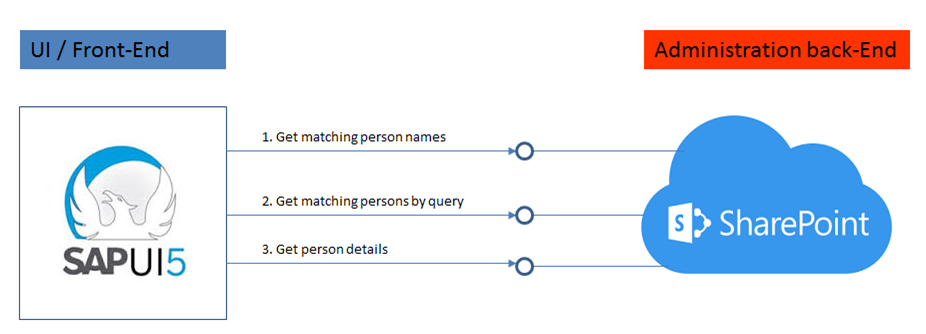
SAPUI5 is a suitable framework to build responsive-design UIs that renders to the available screen estate of diverse device types: smartphone, tablet, and desktop. It is therefore a fit to deliver an alternative UI to SharePoint's PeopleFinder functionality, in case the out-of-the-box SharePoint UI (that is, with potentially the rendering still made company specific via customized Search Display Templates) for whatever reason does not qualify as sufficient fit. The basic requirement of a SAPUI5 mobile application is that it can consume data and functionality via OData REST services. The SharePoint platform supports such an architecture via the standard SharePoint REST services:
The integration surface for a peoplefinder functionality comprises 3 main elements:
  1. To interactive present people suggestions to user while typing in characters of the people name ==> Get names list of matched users on search input
  2. Get detailed list of matched users on search input
  3. Get details for selected user
1. Get names list of matched users on search input

Best:
SharePoint end-point 
https://<SharePoint root-url>/_api/search/query?querytext='preferredname:Jones*'''&selectproperties='PreferredName'&sourceid='B09A7990-05EA-4AF9-81EF-EDFAB16C4E31'&rowlimit=10

Alternative is to search in User Information List:
SharePoint end-point 
https://<SharePoint root-url>/_vti_bin/listdata.svc/UserInformationList?$filter=((ContentType eq 'Person') and (substringof('Jones',LastName)))&$orderby=Name

but this has some disadvantages:
  • Incomplete qua users: user is only added to UserInformationList on first visit to SharePoint site; users not visited yet, are not included
  • Overcomplete: UserInformationList is never cleaned up, former colleagues remain in the list
  • Incomplete qua search: UserInformation does not contain a full name field
2. Get detailed list of matched users on search input

Search in full content / all crawled people data fields:
SharePoint end-point https://
<SharePoint root-url>/_api/search/query?querytext='Mobile*'&selectproperties='FirstName,LastName'&sourceid='B09A7990-05EA-4AF9-81EF-EDFAB16C4E31'&rowlimit=10

Search in identified property-field(s) only:
SharePoint end-point https://
<SharePoint root-url>/_api/search/query?querytext='department:Mobile*'&selectproperties='FirstName,LastName'&sourceid='B09A7990-05EA-4AF9-81EF-EDFAB16C4E31'&rowlimit=10
3. Get details for selected user

Get all public properties:
SharePoint end-point https://
<SharePoint root-url>/_api/SP.UserProfiles.PeopleManager/GetPropertiesFor(accountName=@v)?@v='<uname of user>'

Get one single identified user profile property only:
SharePoint end-point 
https://<SharePoint root-url>/_api/SP.UserProfiles.PeopleManager/GetUserProfilePropertyFor(accountName=@v,propertyName='AboutMe')?@v='<uname of user>'

Wednesday, February 22, 2017

Beware: SharePoint App usage depends on OneDrive

I recent played around with the SharePoint App on multiple mobile platforms: iOS, Windows Phone 10 (yes, I still have that...). I connected to our SharePoint Online environment (the App also supports to connect to SharePoint 2016 on premises). Although the (navigation in the) UI needs some time to get acquainted, the SharePoint App definite has potential to become a low-barrier anytime/anyplace entrance into SharePoint. Access through the hamburger-menu the content of the SharePoint site collection, pages, list items. And document libraries? Well, yes and no: trying to navigate and open any document library from the menu resulted in an error message about 'missing SharePoint license'; which I'm pretty sure that I possess... However, navigating via 'Site Contents' to the document libraries does work, presents the library view, and allows to open the administrated documents in/via the App.
From user experience perspective this is undesired and also inconsistent behavior. On the one hand, trying to open it from the end-user logical approach via the menu results in an error that you cannot relate; and on the other hand when you navigate via alternative path in the App the document library contents can be accessed.
The question is then foremost why it does not work via the hamburger menu? I derived the answer to this when I tested the SharePoint App on an iPad, as then in the screen I observed a message about trying to start OneDrive to operate the document library from within the App. And current we have not yet enabled OneDrive in our Office 365 tenant. So it not that I do not have a SharePoint (online) license in our tenant, but the OneDrive license.
Bottom-line: productive and user-friendly usage of the new SharePoint App, requires that OneDrive is enabled for you as Office 365 end-user.