Friday, September 11, 2015

SharePoint: platform, services API, or both?

Recent, SharePoint MVP Andrew Connell posed an argument to regard SharePoint from now on as a services API: Developers: SharePoint isn’t a Platform, SharePoint is a Service. His suggestion received multiple comments, mostly affirmative, some a bit cautious. A week later, Doug Ware published on his blog a reaction in which he warns against not utilizing SharePoint as a platform: Architects: SharePoint is a platform, treating it as only a service is a mistake.
My opinion in this verbal 'battle' with seemingly opposite perspectives is that both raise valid points. This is my addition to the discussion / position-taking (also posted as comment on Doug's post):
My view in these opposite perspectives is somewhere in the middle. In the past, the SharePoint community regarded and applied SharePoint as a 1) functional, 2) development and 3) deployment platform. The first still holds, for me it is ridiculous to eg not utilize the OOTB DMS features if you have SharePoint at hand in your company. The latter 2 however have changed: we can still use SharePoint to “build upon”, but we must not do that anymore by deploying to SharePoint infra. So for development, less to even no more regard / utilize SharePoint as platform in favor of services model; and as deployment model the SharePoint farm is in future-proof sense an absolute no-go. Note that also on functional level, Microsoft can unpleasant surprise with functions before strongely advocated, have disappeared in the next version. This is ao the result of the long design and development timespans for SharePoint as product itself. The bare essence of SharePoint 2010 was designed even before the year 2007, 2013 before 2010? In the IT world that is an eternity, the world is completely different. That is one of the charmes and benefits of online products, it enables SaaS providers (Salesforce.com, Microsoft, SAP, …) to respond in much shorter timeframe to new IT possibilities and changed market requests.

Monday, August 17, 2015

Project-level Best Practices for delivering a performant Add-in based application

Indeed, all of the below are open doors!!
But yet in practice often either overlooked, or on purpose but due wrong reasoning (e.g. save time now in the project) bypassed in development project(s) to deliver a SharePoint Add-in based application:
  1. Performance and Capacity Management must be applied as an integral subject during the application development project
  2. In the requirements, agree with the application owner on the performance aspects: page download times considered acceptable, applicaton parallel usage
  3. Include performance Best Practices in the development guidelines. And make sure that all involved developers know of the guidelines, and that they apply them in their individual developed Add-Ins
  4. Do not only develop + test SharePoint Add-ins ('Apps') in isolement; also conduct integration test with multiple Add-ins on a page as the user is likely to use them, and monitor the page payload
  5. Thorough intake of any external Add-ins before before purchase; intake on architecture, functionality, capacity management and maintenance aspects
  6. Structural monitor and proof the application performance during the project, to detect in early stage when something is introduced with a severe performance decrease impact. Load testing is a good means to implement this in the project, for performance quality assurance

Some architectural and technical tips

  • Cache where appropriate (but be aware that caching costs resources itself)
  • Reduce the number of network roundtrips from client to application server - batch requests
  • Retrieve resources that are used in multiple Add-ins from a shared location - e.g. root site of the HostWeb, or a CDN (external or internal)
  • Reduce the impact of (NTLM) Authentication by retrieving non-authorized resources from anonymous accessible location
  • Utilize the sprites-concept for images
  • And the same for custom javascripts; for maintenance it is good to separate responsibilities in different libraries, but for performance it is better to collapse in a single resource file
  • Apply minimalization in resource files: javascript and CSS resource files
  • Apply lazy loading where appropriate (e.g. avoid processing and retrieval impact for Add-in functionality that is initial non-visible, and/or only rare used; in favor of delayed execution if and only if the user intends to use the Add-in)

Thursday, August 6, 2015

Load testing SharePoint Add-in (former App) Model

Validate healthy application performance behaviour

Essential for any Enterprise Application is that it can performant and scalable handle the varying usage load by the users. Nothing as embarrasing as a new application that soon after Go-Live, breaks by the enthiousastic usage of the users. To prevent such, you must build trust in the scalability of the application, and establish before Go-Live that the application – application software + system infra - can handle the expected load. Introduce load testing.
This also holds for modern SharePoint application that is composed with the Add-in model, former SharePoint App-model. But loadtesting of AddIn model does bring some extra peculiarities to loadtesting. I enumerated below the ones I encountered.
And note: our loadtesting proofed both valuable and successful: initial the loadtest revealed some performance and scalability problems. We then made some essential changes in the application code (in particular in the applied custom Add-ins / Apps), until we achieved our usage load target goal. And at the crucial moment of Go-Live, the application did not give a blinch, and perfectly handled the usage load of > 14.000 users.

Application Performance health factors

2 health factors monitored:
  1. Responsiveness of the application for the user, measured as Page Download Time
  2. Scalability of the SharePoint infra, measured as CPU, Memory and I/O utilization on the servers

Application Performance validation approach

  1. Identify target goals for application utilization
  2. "Green zone"
  3. Proof the health factors at the target-utilization goals via load testing, to simulate the real usage
  4. Identify the ‘breaking’ point via increased load/stress testing
  5. "Red zone" - performance issues monitored
  6. Determine the rootcause of the issue; this can be non-optimal code, insufficient infra parts (CPU, memory, network throughput, database IOPS)
  7. Fix the issue(s)
  8. Repeat the validation, at step 2

Loadtest execution

loadtest preparation

  1. Identify the usage/application scenarios you will use to build trust. You should select scenarios for which you expect these will be used during typical usage. An heavy transaction that in the normal operation will only be rare executed, will have a neglectable effect on the application load.
  2. Establish the target load. This is the application load for average usage. For web applications, this is typically stated in ‘Page Visits per Second’. Note that this is different from Requests per Second / RPS. In nowadays modern apps, a single page visit encompasses multiple http requests: for the page itself, dependent resources as javascript and css, and javascript calls to execute service calls for data retrieval and application functions.
    The determination/specification of the concrete target value is a challenge on itself. One easily is tempted to overstress the target value - we have 'X' users, so the parallel application usage will be 'X * Y'... However, in reality those 'X' users do not continuously all hit the application: they log on at different times, stay on pages, use other applications, go to the coffee machine, ... In our setup we identified the target value twofold:
    1. Fact: as we were introducing a renewed intranet, we could reuse the application usage statistics of the current intranet;
    2. Prediction: determine the target value via Microsoft (Bill Baer) Capacity Management Formula, an unofficial best practice recommendation
    And in our situation, the 2 values determined via the different paths delivered about the same target value, which confirmed us that we determined a realistic value.
  3. Establish the heavy load: this is abnormal but still foreseenable application usage, in special circumstances.
  4. Determine how-to build trust: manual load testing, custom test software, or utilize a load test tool – e.g. HP LoadRunner, Visual Studio LoadTest.
  5. Get sufficient test accounts to simulate different users. This is also required to prevent cache effect during load test execution. E.g. continuous retrieving user profile values of the same user.
  6. Prepare the test context for the test accounts. E.g. if the application makes use of SharePoint user profile, then the user profile must be provisioned for the test accounts to ensure reasonable load behavior.

Specialities with setting up testscripts for Add-ins / Apps

  1. The load test scenario must join in App authentication flow. In essence, this means that SPAppToken value must be set as FORM POST parameter in submit request to appredirect.aspx. The value is runtime determined in the App launcher, and returned in the initial AppRedirect.aspx response.
    In the Visual Studio webtest recording, the reference is made to this hidden field in the response.
    We encountered that the SPAppToken value is not successful runtime retrieved. This can in some circumstances be corrected by monitoring the traffic via Fiddler, and set SPAppToken to a fixed value that you get from the Fiddler trace.
  2. FormDigest value returned in JSON response from contextinfo call instead of hidden FORM parameter in response body.
    Resolution is augment the Visual Studio loadtest: Add a Text Extraction Rule to extract the value from the /_api/contextinfo JSON response.
  3. Default, Visual Studio LoadTest execution does not mimic browser-cache, resulting that each dependent resource is requested over and over. You can change/fix this by configuring the loadtest script to ‘parseDependentRequests = false’.
  4. Visual Studio LoadTest does not include the execution of javascript in the browser. If required, the activity of the javascript code must be simulated in the test scripts.
  5. With multiple provider-hosted Apps in the load test scenario, the Visual Studio loadtest scenario can make error in the runtime construction of the load test recording and assign a wrong {app_?} value. In such case, you must manually add a '<ContextParameter Name="AppId_1" Value="<APP domain value>" />', and correct the relevant Requests in the script to send request to the correct app-domain:
  6. Visual Studio LoadTest recording misses to set header variable ‘Origin’, which hinders CORS protocol handling.
  7. You can easily overwhelm the usage load by setting the ‘concurrent user’ configuration value. The use of this configuration parameter is misleading: it does not really simulate actual users. It merely sets the threads in the loadtest execution from which to continuously execute the webtest(s) in the loadtest scenario. Per thread, after finishing the webtest, the execution halts for the thinktime value; and then repeats. If you set the thinktime to zero – which is what Microsoft advices on Technet, "Don't use think times…" -, the effect is that continuously requests are fired against your application. The load on the application is then much higher as the value configured in ‘concurrent users’.
  8. Visual Studio loadagent itself can become the limiting factor. If you want to simulate a larger concurrent usage, this results in equal large set of threads in the Visual Studio execution, all of which busy to execute and monitor a webtest instance. The cpu on the load agent grows to 100%, and the load does not linear increase with the number of ‘concurrent users’ aka threads.

Load test monitoring

  • CPU, memory and disk IO per server: WFE, SharePoint backend, AppHost
  • State of the IIS queue on WFE and AppHost
  • Page download times
  • Slowest pages

Interpretation of load test output

  1. The (average) Page Response Time is the summation of the download time for that request, AND augmented with including the download times of all dependent requests beneath that main request.
  2. The RPS / Requests per Seconds output is not fit to determine whether the application + infrastructure can handle the foreseen application usage. The application usage translates in Page Visits per Second, in which each page visit typically encompasses multiple (http) requests: the .aspx request, requests for javascript and css resources. In the App execution model, each App launch on the page is in effect an own page visit. As result, the RPS factor is of little use. You must measure the ‘Page Visits per Second’ factor. Pragmatic way to monitor this is to set the thinktime for webtest on 1 minute; so that each minute the webtest is executed. The ‘Page Visits per Second’ factor then equals the Visual Studio reported 'Test per Second'.

Wednesday, July 29, 2015

Handy resource for Excel Services external data troubleshooting

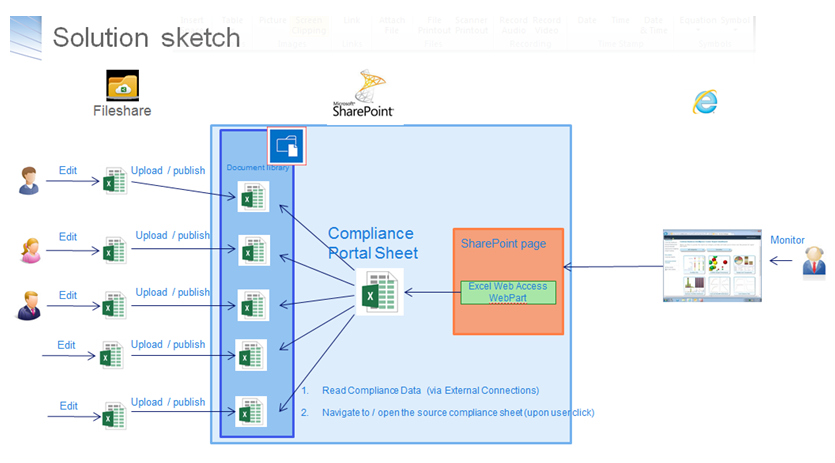
I have a 2-steps setup for a dashboard-solution provisioned via Excel-services:
  1. Functional data managers / compliance officers: maintain the data offline in Excel worksheets, and when the data maintenance effort is finished publish the worksheet as datasource to SharePoint document libary
  2. A separate 'View' dashboard connects via Excel Services to the 'datasource' Excel worksheets, and renders the dashboard - charts, KPIs and so on; This 'view' dashboard worksheet is via Excel Web Access rendered on the SharePoint dashboard page
Opening the dashboard page results in error message Unable to refresh data for a data connection in the workbook..... In the ULS log, only minimal relevant information was logged: "Refresh failed for <data connection> in the workbook....". Via internet search I found a very valuable resource, Excel Services data refresh flowchart (codename: Excel Services Troubleshooting). This helped me find and fix the problem.

Excel Services - 400 Bad Request due large cookie

Playing with Excel Services to compose a dashboard page, I suddenly encountered HTTP 400's on requesting the dashboard page. I monitored the request handling in Fiddler, it showed HTTP Error 400. The size of the request headers is too long. So I inspected the request, and noticed that the Cookie somehow had grown to a very large (string)value:
Pragmatic resolution to fix from the issue is to close all IE instances, and start a fresh IE session. That resolves the issue.

Friday, July 24, 2015

Excel SaveAs to SharePoint failing due required document library properties

In a business process we publish a snapshot from Excel workbook to SharePoint. The VBA code for this is simple: ActiveWorkbook.SaveAs "<url of document library>' & ActiveWorkbook.Name, FileFormat:=xlOpenXMLWorkbookMacroEnabled.
However, execution of this code results in error Run time error '1004': Index refers beyond end of list. The direct cause is that the document library includes a mandatory metadata field, and as this is not set in the Excel workbook, SharePoint refuses the upload. Sadly it appears not possible to pre-set Office 'Document Properties - Server' from VBA code.
2 pragmatic alternatives to workaround the issue:
  1. make the field / document library property non-required,
  2. or modify the field / document library property to have a default value
.

Wednesday, July 22, 2015

Convert Excel file into Excel Services compliant variant

Excel Services does not support the entire Excel feature set. A.o following aspects are not supported:
  • VBA code,
  • Macros,
  • Comments,
  • Shapes,
  • External Links, to external workbooks
  • (Formula) Names that refer to external workbooks,
  • Data validations,
  • space(s) in name of worksheet connected as Range Name
(see Differences between using a workbook in Excel and Excel Services)
If your 'source' Excel workbook contains any of the above, trying to use it in Excel Services - e.g. via Chart WebPart - results in the generic error 'Exception has been thrown by the target of an invocation'. Required step before using a 'source' Excel workbook in Excel Services is to convert it to a compliant variant. Excel itself does not include such a functionality. But you can facilitate the user (typical functional data management) via a VBA macro in the excel sheet.

VBA Code

Sub SaveWorkbookAsNewFile() Dim ActSheet As Worksheet Dim ActBook As Workbook Dim CurrentFile As String Dim NewFileName As String Dim NewFileType As String Dim NewFile As String Dim ws As Worksheet Application.ScreenUpdating = False CurrentFile = ThisWorkbook.FullName ThisWorkbook.Save RemoveDataValidations ActBook:=ActiveWorkbook RemoveComments ActBook:=ActiveWorkbook RemoveShapes ActBook:=ActiveWorkbook BreakLinks ActBook:=ActiveWorkbook RemoveNamesToExternalReferences ActBook:=ActiveWorkbook RemoveConditionalFormatting ActBook:=ActiveWorkbook RemoveSpacesFromWorksheets ActBook:=ActiveWorkbook RemoveVBA ActBook:=ActiveWorkbook NewFileType = "Excel Workbook (*.xlsx), *.xlsx," & _ "All files (*.*), *.*" NewFile = Application.GetSaveAsFilename( _ InitialFileName:=NewFileName, _ fileFilter:=NewFileType) If NewFile <> "" And NewFile <> "False" Then ActiveWorkbook.SaveAs Filename:=NewFile, _ FileFormat:=xlOpenXMLWorkbook, _ Password:="", _ WriteResPassword:="", _ ReadOnlyRecommended:=False, _ CreateBackup:=False End If ThisWorkbook.Close False Workbooks.Open CurrentFile, False Application.ScreenUpdating = True End Sub Sub RemoveVBA(ActBook As Workbook) On Error Resume Next Dim Element As Object With ActBook.VBProject For Each Element In .VBComponents .VBComponents.Remove Element Next For x = .VBComponents.Count To 1 Step -1 .VBComponents(x).CodeModule.DeleteLines 1, .VBComponents(x).CodeModule.CountOfLines Next x End With End Sub Sub RemoveDataValidations(ActBook As Workbook) Dim ws As Worksheet For Each ws In ActBook.Worksheets ws.Cells.Validation.Delete Next ws End Sub Sub RemoveComments(ActBook As Workbook) Dim ws As Worksheet Dim xComment As Comment For Each ws In ActBook.Worksheets For Each xComment In ws.Comments xComment.Delete Next Next ws End Sub Sub RemoveShapes(ActBook As Workbook) Dim ws As Worksheet Dim sh As Shape For Each ws In ActBook.Worksheets For Each sh In ws.Shapes sh.Delete Next sh Next ws End Sub Sub BreakLinks(ActBook As Workbook) Dim Links As Variant Links = ActBook.LinkSources(Type:=xlLinkTypeExcelLinks) For i = 1 To UBound(Links) ActBook.BreakLink _ Name:=Links(i), _ Type:=xlLinkTypeExcelLinks Next i End Sub Sub RemoveNamesToExternalReferences(ActBook As Workbook) Dim nm As Name For Each nm In ActBook.Names If InStr(nm.RefersTo, "[") <> 0 Then nm.Delete End If Next End Sub Sub RemoveConditionalFormatting(ActBook As Workbook) Dim ws As Worksheet For Each ws In ActBook.Worksheets ws.Cells.FormatConditions.Delete Next ws End Sub Sub RemoveSpacesFromWorksheets(ActBook As Workbook) Dim ws As Worksheet For Each ws In ActBook.Worksheets ws.Name = Replace(ws.Name, " ", "_") Next ws End Sub