Friday, March 18, 2016

Extending List.js with sort on date values

I applied List.js for user-interactive filtering and sorting in a table. However, it turns out that default the List.js sorting is limited to string based only. In this business application there are also columns with date values, so I needed to expand on the basic List.js capability. My approach consists of the following elements:
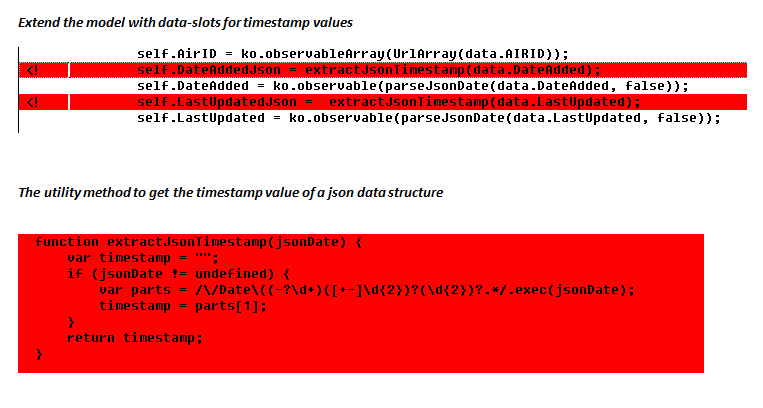
  • In the ViewModel of the Modern App, also include a data property that contains the timestamp representation of date value
  • In the View, also include an html element to render the timestamp value in the DOM. As you don't want to distract the user, this element must be invisible. An hidden 'input' would serve that purpose, where it not that List.js only retrieves values from block-elements. Alternative therefore is an hidden 'Div' element.
  • In the View, change the List.js data-sort specification to this timestamp value. Also make sure to include in the valueNames specification for instantiating the List
  • Almost there... Earlier I already extended List.js to parse the raw values from html elements. Reason for doing that is that default List.js retrieves the innerHTML. And in case your html element contains html-specification (e.g. for an hyperlink), this results in malfunctioning of List.js filtering/searching and sorting capabilities. I determine the raw values via 'innerText'. However, Chrome returns for hidden elements an innerText value of empty string... Therefore I made an additional minor addition to in such case determine the raw value via 'textContent'.
So far the written explanation. For developers it is much more understandable to explain via code:
The modifications to ViewModel (Knockout)
The modifications to View (Knockout)
The modifications to List.js library

Thursday, February 18, 2016

Directly open attachment from XsltListView UI

A business department composed a knowledge system as SharePoint-enabled Business App. The knowledge items are structured information about defects, with aspects as system, impact, fix available, owner. At a conceptual level, the correct SharePoint information architecture to administrate this is as list items. Some, not all, of the knowledge items can have associated documents. Important to realize is that the document(s) accompanying a knowledge item is/are secondary level information, it is not the main entity. So it is a valid decision to not set up as SharePoint document library.
However, on document level a library has convenient user experience. You click on the title of a document item, and it opens up: in browser or in native client, dependent on library settings and type of the document item. Our business requested the same convenient user experience for those knowledge items that have an associated document as attachment. Direct open from list, avoid the cumbersome usage path to first open the item and from the item dialog open the attachment in case present for the item.
A javascript approach can be applied to modify/extend the native XsltListViewWebPart behavior to deliver on the above. It relies on a combination of dynamic javascript overloading, SharePoint REST service, and SharePoint OWA viewers. Below the code snippet.
var EnrichKnownIssuesView = window.EnrichKnownIssuesView || {}; EnrichKnownIssuesView.UI = function () { function OverloadEditLink() { EditLink2 = function(target,nr) { var href = $(target).attr('href'); var idStart = href.substr(href.indexOf("&ID=") + 4); var id = idStart.substr(0, idStart.indexOf("&")); var siteUrl = window.location.href.substr(0, window.location.href.indexOf("/default.aspx")); if (siteUrl.length > 0) { var getAttachmentsUrl = siteUrl + "/_vti_bin/ListData.svc/KnownIssuesList(" + id + ") ?$expand=Attachments&$select=Id,Attachments"; $.getJSON(getAttachmentsUrl, function (data) { if ( data.d.Attachments != null && data.d.Attachments.results != null && data.d.Attachments.results.length > 0 ) { for (var i = 0; i < data.d.Attachments.results.length; i++) { var attachmentsUrl = siteUrl + "/Lists/Known Issues List/Attachments/" + data.d.Id + "/" + data.d.Attachments.results[i].Name; /* For some files, open in Office Web Applications results in error "Service not available". To prevent that the user then will not be able to view the document, configure the web-address of native document as source --> it will then open in native client. */ var fileName = data.d.Attachments.results[i].Name.toLowerCase(); if (fileName.endsWith(".docx") || fileName.endsWith(".doc")) { attachmentsUrl = siteUrl + "/_layouts/WordViewer.aspx?id=" + encodeURI(attachmentsUrl) + "&Source=" + encodeURI(attachmentsUrl) + "&DefaultItemOpen=1"; } else if (fileName.endsWith(".xlsx") || fileName.endsWith(".xls")) { attachmentsUrl = siteUrl + "/_layouts/xlviewer.aspx?id=" + encodeURI(attachmentsUrl) + "&Source=" + encodeURI(attachmentsUrl) + "&DefaultItemOpen=1"; } else if (fileName.endsWith(".pptx") || fileName.endsWith(".ppt")) { attachmentsUrl = siteUrl + "/_layouts/PowerPoint.aspx?PowerPointView=ReadingView&PresentationId=" + encodeURI(attachmentsUrl) + "&Source=" + encodeURI(attachmentsUrl) + "&DefaultItemOpen=1"; } window.open(attachmentsUrl, '_blank'); } } }); } }; } var ModuleInit = (function() { ExecuteOrDelayUntilScriptLoaded(OverloadEditLink, "inplview.js"); })(); }();
Special attention in the above for the usage of the 'Source' querystring parameter. During testing of the overloaded EditLink2 function, I occassional encountered an error in which OWA reports an error:
Opening the document in native Office client does succeed. I could have resorted to just always let the document open in native Office, but honestly I dislike that. With the OWA usage model, there is no need to download the document to the client system (consider Information Rights Management and Data Loss Protection), nor a need to have MS Office installed on the specific client device. To give that completely up, just for the rare occurence of a document on which OWA opening fails is a pitty. Instead I apply a 2-step approach: I let the Business App first try to open the Office document in OWA, which in most of the cases succeeds. In the rare case this fails, after the user clicks 'away' the above error message, the browser next 'returns' to the url specified in the 'Source' querystring parameter thus opening the document in the native Office client. Via this 2-steps approach, it is assured that the user can view the document: preferable in the browser, or in the rare problem situation in the native Office client. Simple and pragmatic.

Monday, February 15, 2016

Overload Library behavior to open Pdf in browser

A business request is to deliver via SharePoint an "e-books" functionality in which the site visitors can read documents, without need to download them. For Microsoft Office file formats, SharePoint supports this via Office Web Apps (OWA). But the majority of publication documents is in Acrobat PDF format. Even when a document library is configured to open documents in browser, SharePoint defaults to open PDF documents in the native PDF client. However, with the power of JavaScript at hand this default behavior can simple be overloaded:
var EnrichEBooksView = window.EnrichEBooksView || {}; EnrichEBooksView.UI = function () { function OverloadDispEx() { var baseDispEx = DispEx; DispEx = function(o,n,e,a,d,i,g,m,k,b,h,j,f,c,l) { if (m == 'PdfFile.OpenDocuments') { m = 'SharePoint.OpenDocuments'; } return baseDispEx(o,n,e,a,d,i,g,m,k,b,h,j,f,c,l); }; } var ModuleInit = (function() { ExecuteOrDelayUntilScriptLoaded(OverloadDispEx, "core.js"); })(); }();

Friday, January 29, 2016

Error on Open document from Office 365 in local Office 2010 client

We are preparing for a transition to Office 365. Current we’re conducting analysis steps to identify steps and potential issues. We use a trial Office 365 tenant subscription. Today I encountered an issue that when trying to open in native Office 2010 client (current still the Office standard in our company, installed on all client machines) a document administrated in SharePoint Online, the Office application structural aborts. E.g. in Word 2010:
In EventViewer, the following information is logged
Google (your friend, certainly that of myself...) referred to me a potential related information source: Set up Office 2010 desktop programs to work with Office 365 for business. However, the installation of that Office 365 Desktop setup itself fails on my laptop. So for now I'm stuck with this. Checked with some colleagues, they also experience the issue. Will contact Microsoft to inquire whether this is a known-issue / problem.

Tuesday, January 19, 2016

Approach for inability to rollback an AddIn update

Our SharePoint governance prescribes to include in the runbook of any change to our SharePoint environment, the steps to roll back the change in case of unexpected issues. However, as we experienced, technical rollback to previous state is not possible for AddIn (former: SharePoint Apps) update. The AddIn framework does not support to remove/downgrade the AddIn update, and return to the previous version of installed AddIn as active version. The only option is to re-deploy the version previous to the update; but for this to succeed that previous version must be changed to receive a version number later than that of the failed AddIn update. This approach is only possible for company-build AddIns, but not feasible for purchased AddIns. And from purist perspective it is undesired, as it is not a removal but a compensating rollback to return to previous state of working AddIn. While technical still a change is executed in the environment: the updated AddIn remains deployed, and the previous AddIn version is installed twice, last time with increased version number to force the AddIn update to be executed.

Mitigation approach

To cope with the unavailability of a pure rollback for AddIn update, we instead apply a procedural approach to minimize the likelihood of failed AddIn update. In an isolated subsite, that is non-accessible for regular end-users, we prepare the same installation status of the AddIn we intend to upgrade. In the change runbook, we start with upgrading the AddIn in the isolated subsite, and validate the functionality there for the production environment. Only in case the validation succeeds, we continue with deployment of the AddIn upgrade in the production hostweb(s) to which end-users have access. And in the undesired situation that the validation fails, we stop the deployment, and only need to cleanup by removal of the isolated validation subsite.

Tuesday, December 29, 2015

The long quest to reinstate SharePoint Explorer View performance

In our company, business end-users like SharePoint Explorer View for its usage familiarity with shared folders access. Our business end-users reported non-performance of the SharePoint Explorer View. It used to perform satisfactory, but since a while the responsiveness structural degraded. Taking 30 seconds or even minutes to open the Explorer View initial. On immediate retry, it typically opens direct. Wait a while, and the problem repeats itself.
It proofed problematic to establish the root cause of this performance degradation. SharePoint Explorer View functionality depends on a stack of IT components, local, network and SharePoint server side.
We identified – based on literature study (internet search), and own common sense – the following list of potential causes:
  1. Slow SharePoint processing (IIS, SharePoint code)
  2. Slow SharePoint content retrieval (SQL, storage)
  3. Slow or blocking network
  4. Slow authentication handling (NT Explorer as web client to SharePoint server, e.g. see Prompt for Credentials When Accessing FQDN Sites From a Windows system)
  5. Slow Web Proxy Auto Detection (see Explorer View very poor performance, Slow response working with WebDAV resources on Windows systems)
  6. SMB protocol blocked (Source: Microsoft Whitepaper "Understanding and Troubleshooting SharePoint Explorer View")
  7. Interference with IIS WebDAV Publication Service at SharePoint server (SharePoint – Open with Windows Explorer – problems, 5. WebDAV Publishing, and Explorer view does not work in some scenarios when the SharePoint farm is on Windows Server 2008 R2)
  8. Conquer with network requests from other local running programs
  9. Network requests blocked or delayed by anti-virus processing
  10. Slowness in local WebDAV client processing (Windows Explorer as WebDAV client)
  11. Outdated local Windows binaries (Explorer binaries (Shell32.dll), WebDAV binaries (Webclnt.dll, Davclnt.dll, Mrxdav.sys) & SMB binaries (Mrxsmb.sys, Mrxsmb20.sys, Rdbss.sys))
  12. Interference with Internet Explorer AddOn's
It was hard to identify whether any of the above really had the negative impact. This is in particular due that it is difficult to get the overall view on the processing of all the involved IT components: local, virus scanner, network, firewall, load-balancer, server side, SQL, storage, … In reality it boils down on inspecting the behaviour of each single component, and then try to correlate it with the behaviour of the other components to gain insight in the overall picture. We inspected IIS logs to detect whether the long times originated on SharePoint processing of the WebDAV protocol, but this did not result in rootcause identification. Then I applied Fiddler to detect what is going on over the wire. And as Fiddler is limited to http protocol, I also used Wireshark to dig deeper in on the wire level, and also including other protocols. None of these exercises did result in cause identification. If any investigation outcome, my cautious conclusion was that the delay is not on the wire nor SharePoint processing, but rather originates on the local client. To investigate that, I used ProcessMonitor; benchmarking scenarios with and without opening Explorer View. I did see some noticeable differences and thus suspects for the delay: AntiVirus processing, extensive additional operation of svchost.exe; but could not make either a final confirmation or refute of this as symptom or cause.
As the progress in problem investigation was stalled, we involved Microsoft Premier Support. The engineers started with investigating our captures on problem occurrences – Wireshark, Fiddler, Process Monitor, Netsh. Their initial analysis confirmed my own finding that it was not due network delay. Next suspect on the Microsoft list was local interference with AntiVirus filters. To conform or exclude this as cause, we uninstalled the AntiVirus on a test client. Afterwards, the problem still manifested on that test client. Via a renewed scan of the network captures, Microsoft identified a 3rd suspect: delay caused on local Webclient due provider priority handling with SMB protocol above WebDAV. I actually though of this myself a few weeks before, inspired by an old (2006!) whitepaper of Microsoft Services Support. The symptoms of our issue namely matched with what is described in that whitepaper. However, for unclear reason – lack of understanding the complexity of the WebClient handling, no trust in whitepaper given its age? – my suggestion on this as problem area was not in-depth investigated by our operations service provider. As now Microsoft suggested basically the same, I convinced our operations to conduct a pragmatic validation to determine or exclude it as the problem cause. The simple first test is to block ICMP traffic on the SharePoint farm, and then re-test the performance of SharePoint Explorer View. But also for this the results were negative: no performance improvement in Explorer View observed after blocking ICMP traffic.
We finally had a breakthrough when we noticed that the Explorer View slowness did not occur in infra scenario in which the laptop via VPN connects to our SharePoint farm. It was then a matter of identifying the differences in the IT stack of components of on-premisse access versus VPN. Also I made Wireshark captures of the 2 different infra scenarios. In the Wireshark captures we noticed that in the on-premisse scenario, the retrieval of the browser Proxy Auto Configuration (PAC) file repeatedly timed-out. In the VPN scenario, this effect did not occur. The explanation of this is the different network path to retrieve the PAC file, and that of the on-premisse situation included a blocking IT node (which actually is a cloud-hosted solution).
As it turned out, this was indeed the root cause. We resolved the blocking of the PAC file through caching it on the network perimeter, and immediate we regained the performance of SharePoint Explorer View.
Bonus: the last mile for accelerating Explorer View performance ...
With this infra correction, performance of using ‘SharePoint Explorer View’ is greatly improved: opens up almost immediately, < 1 second. That is, except for the very 1st time: that takes 4-6 seconds.
The cause of this is on Windows OS level: Windows Explorer utilizes WebClient component to connect via WebDav protocol. And the very 1st time this WebClient component must be instantiated / brought to live, what takes the additional 3-4 seconds.
If you also want to get rid of those seconds, you can set the startup mode of WebClient to ‘automatic’:

Monday, December 21, 2015

Our approach to deliver aligned business solutions

In my role as Collaboration Solution Architect I align with our business stakeholders to deliver company internal collaboration solutions. In these solution alignments, the technology is of secondary nature. Its impact is both as enabler as well constraining. Our technology options are in line with the generic enterprise IT architecture: SAP and Microsoft unless. So we apply SAP platform for some dedicated collaboration scenarios, and Microsoft for almost all the rest. As most SharePoint customers came to realize, we also impose governance in the collaboration solution setups we are allowed to deliver to our business. The overarching principle is to deliver only future-proof solutions. This translates to apply standard / out-of-the-box platform capabilities where feasible, and restrain from building custom solutions just for the sake of building custom solutions. And in case custom solution is needed to deliver on the requested functionality, then comply with the Microsoft guideline to stay away from farm-based solutions and instead rely on the Add-In model.
So, how does this work in practice? Let me clarify by a true example. Few months ago I was invited for an alignment meeting with our internal finance department. The title of the meeting was ‘BI portal’. In the meeting, the business stakeholders told about their functional intent. And extended on all of their requirements. Being aware of the technology strategy, they upfront realized that the target platform would be SharePoint. And they already themselves build an image on how the solution should look like.
Next step was to map their functional vision, and detailed requirements to feasibility. Initial focus here is to discuss and challenge on the functional vision. Not that I’m the subject expert, they are, but still it makes sense to ‘walk through’ the functional vision to evaluate it on true added business value. Next is to map the vision, and the detailed requirements, to the technology. How will the generic setup be, what can be delivered out-of-the-box via SharePoint features, what can be delivered through customization, what would require custom solutions, and what is not allowed due our governance constraints? Helpful in both alignments – the functional and the technical – is to use examples of solutions delivered for others, to trigger and inspire. These example solutions can be your own’s, but also of course from anywhere. The SharePoint community is very generous in sharing knowledge and experiences.
As follow-up of the alignment meeting, I sketched a potential solution direction on high level. I deliberately use PowerPoint as format for this, as that by its nature limits you for over-extensive writings. Outline of the solution architecture is: a) Sketch of the context, b) Main requirements, c) UI impressions (mockups), d) Global Design utilizing SharePoint platform capabilities, e) the information architecture. a) and b) serve to verify whether my understanding of the request is valid, and c) is to agree on the user experience.
After fine-tuning on business aspects with the stakeholders, next step is to get technical consent: d) and e). At minimal, communicate the setup of the solution direction with technical peers and our SharePoint operations. In our company we have formalized this via ‘Templace Control Teams’ per technology platform.
If and after both functional and technical alignment, next is to ‘build’ it in agile manner. Deliver a first version, not feature-complete yet, but it must already have functional meaning and value. Demonstrate in a ‘sprint-demo’ to business, discuss on behaviour and new insights, and deliver these in next ‘sprint’.
If the solution setup is restricted to SharePoint standard only, and potential customization as 'SharePoint content' (html, CSS, javascript), it is possible to build up the application direct in the production collaboration space. Although I then typically choose to first build it in my own 'development/playground' site, and after business agreement deploy it to the target location by repeating the 'content-based' provisioning.