Sunday, March 26, 2017

SharePoint integration endpoints for a SAPUI5-based PeopleFinder

SAPUI5 is a suitable framework to build responsive-design UIs that renders to the available screen estate of diverse device types: smartphone, tablet, and desktop. It is therefore a fit to deliver an alternative UI to SharePoint's PeopleFinder functionality, in case the out-of-the-box SharePoint UI (that is, with potentially the rendering still made company specific via customized Search Display Templates) for whatever reason does not qualify as sufficient fit. The basic requirement of a SAPUI5 mobile application is that it can consume data and functionality via OData REST services. The SharePoint platform supports such an architecture via the standard SharePoint REST services:
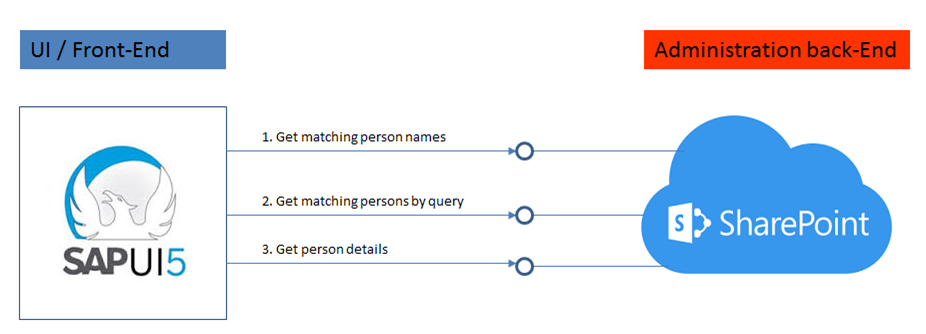
The integration surface for a peoplefinder functionality comprises 3 main elements:
  1. To interactive present people suggestions to user while typing in characters of the people name ==> Get names list of matched users on search input
  2. Get detailed list of matched users on search input
  3. Get details for selected user
1. Get names list of matched users on search input

Best:
SharePoint end-point 
https://<SharePoint root-url>/_api/search/query?querytext='preferredname:Jones*'''&selectproperties='PreferredName'&sourceid='B09A7990-05EA-4AF9-81EF-EDFAB16C4E31'&rowlimit=10

Alternative is to search in User Information List:
SharePoint end-point 
https://<SharePoint root-url>/_vti_bin/listdata.svc/UserInformationList?$filter=((ContentType eq 'Person') and (substringof('Jones',LastName)))&$orderby=Name

but this has some disadvantages:
  • Incomplete qua users: user is only added to UserInformationList on first visit to SharePoint site; users not visited yet, are not included
  • Overcomplete: UserInformationList is never cleaned up, former colleagues remain in the list
  • Incomplete qua search: UserInformation does not contain a full name field
2. Get detailed list of matched users on search input

Search in full content / all crawled people data fields:
SharePoint end-point https://
<SharePoint root-url>/_api/search/query?querytext='Mobile*'&selectproperties='FirstName,LastName'&sourceid='B09A7990-05EA-4AF9-81EF-EDFAB16C4E31'&rowlimit=10

Search in identified property-field(s) only:
SharePoint end-point https://
<SharePoint root-url>/_api/search/query?querytext='department:Mobile*'&selectproperties='FirstName,LastName'&sourceid='B09A7990-05EA-4AF9-81EF-EDFAB16C4E31'&rowlimit=10
3. Get details for selected user

Get all public properties:
SharePoint end-point https://
<SharePoint root-url>/_api/SP.UserProfiles.PeopleManager/GetPropertiesFor(accountName=@v)?@v='<uname of user>'

Get one single identified user profile property only:
SharePoint end-point 
https://<SharePoint root-url>/_api/SP.UserProfiles.PeopleManager/GetUserProfilePropertyFor(accountName=@v,propertyName='AboutMe')?@v='<uname of user>'

Wednesday, February 22, 2017

Beware: SharePoint App usage depends on OneDrive

I recent played around with the SharePoint App on multiple mobile platforms: iOS, Windows Phone 10 (yes, I still have that...). I connected to our SharePoint Online environment (the App also supports to connect to SharePoint 2016 on premises). Although the (navigation in the) UI needs some time to get acquainted, the SharePoint App definite has potential to become a low-barrier anytime/anyplace entrance into SharePoint. Access through the hamburger-menu the content of the SharePoint site collection, pages, list items. And document libraries? Well, yes and no: trying to navigate and open any document library from the menu resulted in an error message about 'missing SharePoint license'; which I'm pretty sure that I possess... However, navigating via 'Site Contents' to the document libraries does work, presents the library view, and allows to open the administrated documents in/via the App.
From user experience perspective this is undesired and also inconsistent behavior. On the one hand, trying to open it from the end-user logical approach via the menu results in an error that you cannot relate; and on the other hand when you navigate via alternative path in the App the document library contents can be accessed.
The question is then foremost why it does not work via the hamburger menu? I derived the answer to this when I tested the SharePoint App on an iPad, as then in the screen I observed a message about trying to start OneDrive to operate the document library from within the App. And current we have not yet enabled OneDrive in our Office 365 tenant. So it not that I do not have a SharePoint (online) license in our tenant, but the OneDrive license.
Bottom-line: productive and user-friendly usage of the new SharePoint App, requires that OneDrive is enabled for you as Office 365 end-user.

Saturday, January 28, 2017

Pragmatic approach to push update of Add-In when via SharePoint UI fails

In previous blogpost, I recalled on a malforming COTS Add-In. Once the supplier delivered a fix, our SharePoint IT Operations team executed a change to update the Add-In version in the SharePoint environment. First upload the new version to the SharePoint AppCatalog, and next update the installed Add-In in the using SharePoint site(s). Both steps can be done via the SharePoint GUI, the second via the 'Get It' capability. The operations teams verified the deployment approach first in the acceptance environment, and validated that the problem with Add-In was resolved. All well. However, during the change execution in the productive environment, a problem was raised on the 'Get It' step to update the Add-In installation in the using site: Sorry apps are turned off. if you know who runs the server tell them to enable apps. I first told them to verify that both App Management Service and Subscription Settings Services were (still) enabled on the SharePoint webapplication. On the positive answer, I then concluded the problem to be likely as a glitch in the SharePoint site. The Add-In itself namely was unlikely to have a deployment problem, as we earlier successful updated the deployed installation in the acceptance farm. Thinking out-of-the-box, I next advised the IT Operations team to retry the Add-In update through PowerShell iso via the SharePoint GUI. Either it would work, or otherwise a bigger chance of getting meaningful error information. In our case, the former was true: via PowerShell the Add-In update was successful pushed in the using SharePoint site.
PowerShell snippet:
$web = Get-SPWeb ‘https://<site-url>’ $appPackage = Import-SPAppPackage -Path ‘<Add-In deployment package>.app’ -Site $web.Site -Source ‘CorporateCatalog’ -Confirm:$false $curAppInstall = Get-SPAppInstance -Web $web | where Title -eq ‘<Add-In title>’ Update-SPAppInstance -Identity $curAppInstall -App $appPackage -ErrorAction SilentlyContinue -ErrorVariable err if($err) { $err[0].Exception }

Friday, January 27, 2017

Pragmatic approach to display maintenance message on malfunctioning Add-In

One of the promises of the SharePoint Add-In model is that one can purchase packaged / of-the-shelf Add-Ins to install and use in your SharePoint sites. This promise is picked up by the SharePoint community - although in lesser amount as what Microsoft was expecting. One of the selling charms of using pre-packaged software Add-Ins is that your organization is not self responsible for maintenance, and this is delegated to the supplier. However, this loss of technical ownership also implies that you are dependent on the external supplier to fix their Add-In in case of issue, you cannot call in your own troops to resolve the problem. When such a faulty Add-In is prominent present in your SharePoint site, this is rather confronting: the end-users are visually notified and remembered of the malfunctioning behavior. In case the Add-In is added as a shared AppPart, you can mitigate this effect by temporary hide the AppPart from the page. But in case the Add-In is potentially added by individual users to a personalizable page, this is undoable: you don't want to traverse all the personalized instances of the page, check whether the AppPart is present in that instance, and if so hide or delete the AppPart and save + checkin the modified page instance. And then later when a fix of the Add-In is delivered + tested, redo the same to make it visible again.
So what to do then, to avoid the embarishing user experience with the faulty Add-In? As often in these 'modern Apps' days, it is javascript to the rescue. Ultimately on browser level, every Add-In is included in it's own isolated iframe on the containing SharePoint page. Through javascript the iframe containing the faulty Add-In can runtime be located in the DOM, and if found on-the-fly have it's src modified to refer to a maintenance page instead. The javascript snippet can be inserted via a ScriptEditor added in the shared part of the SharePoint page, and easily removed again once the Add-In behavior is recovered.
Code snippet:
function displayMaintenanceMessage() { var addInIframe = document.querySelector('iframe[src*="<identifying part in Add-In start url>"]'); if (addInIframe != null) { addInIframe.src = '/StyleLibrary/snippets/MaintenanceMode.aspx'; } else { setTimeout(displayMaintenanceMessage, 1000); } } displayMaintenanceMessage();

Friday, December 23, 2016

Shortcircuit launch sequence of provider-hosted Add-Ins

The launch of provider-hosted Add-Ins consists of 2 recurring steps:
  1. First, go to the SharePoint hostweb, and request AppRedirect.aspx
  2. The returned AppRedirect.aspx response contains a FORM structure, with as Action parameter the start-url of Add-In; via javascript embedded in the AppRedirect.aspx response the browser POST submits to request the Add-In start page.
See Source: Chris Johnson, Launching SharePoint Apps, launch sequence, debugging and AppRedirect.aspx
An essential role and value of AppRedirect.aspx is to pass the authenticated identity of current user as context token from SharePoint WFE to the remote web. However, this only applies for OAuth based, low-trust authentication via Azure Access Control Service (ACS). In case of Server-2-Server, High-Trust authentication, SharePoint host(web) environment does not pass a context token at all. And thus there is no concrete added value nor necessity for the AppRedirect call before the launching of the provider-hosted Add-In.
The most important FORM parameter is SPAppToken. SPAppToken is specific to low-trust configurations. If you are using a high-trust configuration the SPAppToken token is missing. Managing Identity and Context in Low-Trust Hybrid SharePoint 2013 Apps

The recurring invocation of AppRedirect.aspx per Add-In launch has some drawbacks:
  1. it involves an extra http request/response handling; in particular with longer network-distance, this costs noticable latency
  2. AppRedirect.aspx itself can take processing and elapse time. In IIS logs I observed that although not always, multiple times the server-side execution of this requests takes > 0.5 seconds to 1 second or more
  3. with higher load, I've earlier (Load testing SharePoint Add-in (former App) Model) noticed that the AppRedirect.aspx handling eventually becomes the bottleneck within the SharePoint WFEs
In the Add-In launch sequence, there is optimization possible as the AppRedirect.aspx step is avoidable in an High-Trust authentication situation. The added-value is in S2S authentication: zero. All the requested information to launch the Provider-Hosted Add-In is already included by SharePoint in the response of the host page that contains the Add-In(s): the 'src' value of provider-hosted Add-In iFrame element(s) exists of the pattern '<host>/_layouts/15/AppRedirect.aspx' and 'redirect_uri=<encoded uri of the Add-In startpage>'. Thus it is possible to shortcircuit the Add-In launch sequence by aborting the AppRedirect.aspx request, and replace it to instead immediate request as iFrame src the url-decoded 'redirect_uri' value.
Options to shortcircuit AppRedirect are:
  • Server-side: via an HTTP-module, to intercept the HTTP response before it reaches the browser, and for every iFrame element replace the value of the src parameter from AppRedirect.aspx into it's redirect_uri value. Disadvantages of this approach are that it is non-discrimating: all responses returned will be parsed, thus also all those that do not even contain an Add-In structure; it requires custom server-side deployment, something that is nowadays not always allowed as companies aim for cloud-ready / future-proof deployments
  • Client-side: on-the-fly change in browser / javascript-engine context, for every iFrame element replace the value of the src parameter from AppRedirect.aspx into it's redirect_uri querystring value. Disadvantage of this approach is that it is late, the browser typically already has requested the AppRedirect.aspx call. It still benefits to on-the-fly change the frame-src, and as such abort the waiting on AppRedirect.aspx response: in particular with longer network-distance, e.g. in case of a global company, it pays out to not wait for AppRedirect.aspx response to return, but immediate request the launch of the provider-hosted Add-In. And also it shortens in the scenario in which the processing time of AppRedirect.aspx would otherwise be [a] noticable bottleneck.
Snippet of the client-side approach:
<lSharePointWebControls:ScriptBlock runat="server"> function ShortCircuitLauchProviderHostedAppsInWPZone(webpartZone) { var frmRedirectSnippet = '<!DOCTYPE html PUBLIC "-//W3C//DTD XHTML 1.0 Strict//EN"' + '"http://www.w3.org/TR/xhtml1/DTD/xhtml1-strict.dtd">' + '<html dir="ltr" lang="en-US">' + '<head><meta http-equiv="Expires" content="0" /><meta http-equiv="X-UA-Compatible" content="IE=8"/><title>Working on it...</title>' + '<link rel="shortcut icon" href="/_layouts/15/images/favicon.ico?rev=23" type="image/vnd.microsoft.icon" />' + '</head>' + '<body>' + '<div style="text-align:center;margin-top:40px;">' + '<img src=\'data:image/gif;base64,R0lGODlh...'>' + '<span style="color:#0072c6;font-size:36px;font-family:\'Segoe UI Light\', \'Segoe UI\', Tahoma, Helvetica, Arial, sans-serif;">' + 'Working on it...' + '</span>' + '</div>' + '</body>' + '</html>'; var iframesProviderHostedApps = webpartZone.querySelectorAll('iframe[src*="appredirect.aspx"]'); var i; for (i = 0; i < iframesProviderHostedApps.length; i++) { var src= iframesProviderHostedApps[i].getAttribute("src"); var redirect_uri = src.substring(src.indexOf("redirect_uri=") + "redirect_uri=".length); var addInUrl = decodeURIComponent(redirect_uri); iframesProviderHostedApps[i].contentWindow.document.write(frmRedirectSnippet); iframesProviderHostedApps[i].setAttribute('src', addInUrl); } } ShortCircuitLauchProviderHostedAppsInWPZone(document.getElementById("app_1")); </SharePointWebControls:ScriptBlock>

The client-script approach enables yet another performance and resource usage optimization: delayed loading per Add-In until and only if it is in the visible part of the browser window. The user experiences the effect one is familair with on mobile devices: swipe the screen, and the application's content is on-the-fly retrieved + screen estate filled (Twitter, Facebook, ...).
Slightly modified snippet for lazy loading Provider-Hosted Add-Ins:
<lSharePointWebControls:ScriptBlock runat="server"> function isWithinVisibleViewport(element) { var $w = jQuery(window); var windowWidth = $w.width(), windowHeight = $w.height(), viewTop = $w.scrollTop(), viewBottom = viewTop + windowHeight, viewLeft = $w.scrollLeft(), viewRight = viewLeft + windowWidth, offset = element.offset(), _top = offset.top, _bottom = _top + element.height(), _left = offset.left, _right = _left + element.width(), compareTop = _bottom, compareBottom = _top, compareLeft = _right, compareRight = _left; return ((compareBottom <= viewBottom) && (compareTop >= viewTop)) && ((compareRight <= viewRight) && (compareLeft >= viewLeft)); } function ShortCircuitLauchProviderHostedApps() { var nonVisibleInViewport = false; var frmRedirectSnippet = '<!DOCTYPE html PUBLIC "-//W3C//DTD XHTML 1.0 Strict//EN"' + ..... '</html>'; var iframesProviderHostedApps = document.querySelectorAll('iframe[src*="appredirect.aspx"]'); var i; for (i = 0; i < iframesProviderHostedApps.length; i++) { var delayedFrame = iframesProviderHostedApps[i]; var src = jQuery(delayedFrame).attr('src'); if (src != '') { var redirect_uri = src.substring(src.indexOf("redirect_uri=") + "redirect_uri=".length); var addInUrl = decodeURIComponent(redirect_uri); } else { addInUrl = jQuery(delayedFrame).attr('DelayedSrc'); } if (isWithinVisibleViewport(jQuery(delayedFrame))) { jQuery(delayedFrame).contents().find('html').html(frmRedirectSnippet); jQuery(delayedFrame).setAttribute('src', addInUrl); } else { jQuery(delayedFrame).setAttribute('src', ''); jQuery(delayedFrame).setAttribute('DelayedSrc', addInUrl); nonVisibleInViewport = true;' } } jQuery('#s4-workspace').off('scroll', ShortCircuitLauchProviderHostedApps); if (nonVisibleInViewport) { jQuery('#s4-workspace').on('scroll', ShortCircuitLauchProviderHostedApps); } } </SharePointWebControls:ScriptBlock>

Sunday, December 11, 2016

Prerequisites for Office 365 implementation experts

When an organization starts with the implementation of Office 365, there is a need for different roles. Each of them puts its own requirements on people to add value for the Office 365 onboarding plus implementation.
Below an enumeration of expertise that I - on personal notice - consider as relevant to help in making Office 365 introduction succesful.
Office 365 / SharePoint Online project lead
  • Project lead at minimal 1 medium to large organization that successful transitioned to Office 365 / SharePoint Online
  • Familiar with the different stakeholders and their respective stakes/interests in Office 365 implementation project:
    • Business users
    • Security
    • SharePoint Operations
    • Identity Management team
    • Network team
  • Office 365 / SharePoint Governance knowledge + practical experience
  • Able to setup project planning, monitor the team/project progress, and adjust appropriate in case of issues
  • Structured work approach / attitude; yet also goal-oriented / pragmatic
  • Clear communication to different audiences on plans, progress and status of the project
Office 365 security expert
  • Familiar with the full range of Office 365 Security Controls
    • Access Control
    • Information Rights Management: concepts + implementation
    • Incident Response & Recovery
  • Experienced with Office 365 Identity Management + Provisioning aspects
  • Familiar with different possible authentication models (username/password, multi-factor authentication via hard- and soft-tokens), and how-to setup conditional access
Office 365 / SharePoint Online implementation + functional consultant
Understand the service on functional level: how to use the functional building blocks, their positioning, their limitations
  • At minimal 1 year, demonstrable working experience with setting up Office 365 / SharePoint Online sites + functional solutions
  • Familiar with configuration aspects in SharePoint Online
  • Familiar with global changes and deviations of SharePoint features / functions on-prem (preferable 2010) versus Online ‘Branding’
    • Lists and Libraries
    • Workflows
  • Communicate with business to analyze functional needs, and translate how to deliver on these within Office 365 landscape
  • Preferred: hands-on experience within migration from SharePoint on-prem to Online
Office 365 / SharePoint Online technical consultant
  • At minimal 1 year, demonstrable working experience with developing custom business solutions in Office 365 / SharePoint Online
    • Client-side and/or Server-side
  • Working experience with developing SharePoint Add-Ins (on-prem and/or online)
    • Client-side and Server-side
  • Experienced with Office 365 development model
    • Office 365 API
    • Azure Authentication handling (adal.js + OAuth)
    • Azure configuration + deployment
    • PowerShell scripting
  • Preferred: practical experience with the new SharePoint Framework (SPFx)

Friday, December 9, 2016

Freeze pane on SharePoint list with responsive scroll height

Earlier I blogged on how-to 'Freeze pane on SharePoint list': augment the standard SharePoint ListView UI to fixate the list header in visible sight when the user scrolls down the list in the browser. The user was totally happy with this delivered solution..., until opening the page on smaller screen (estate)... In the original code, the browser scrollbar is explicit hidden. An non-usability effect is that the user cannot scroll to the lower part in case the configured height of the 'scrollable listview' extends beyond the physical browser height. On the first coding, I made the explicit decision to hide the browser scrollbar via CSS, to avoid double scrollbars: without the CSS "overflow:hidden" property on 's4-workspace', the browser will always render its own scrollbar for pages that initial extend the browser height, even when later via clientside coding the page height is on-the-fly reduced to fit in browser height. The presence of double scrollbars - browser + on the list - is both confusing as non-esthetic. I prevented this via the 'overflow:hidden'.
However, in the initial code I didn't accompensate sufficient for smaller physical screens. I re-evaluated the 'freeze' code, and made some adjustments to make it responsive to the physical screen height. Another fix is to duplicate eventhandling on the standard listview header to the frozen header, for filtering, and 'select/deselect all' functionalities. Yet another fix is in the positioning of the ECB menu: default this is positioned relative to the listview top, which however itself is floating due the 'freeze' handling.
Updated code:
var visibleTableHeight = -1; // Freeze the header of listview. function FreezePane() { var $table = $(".ms-listviewtable").first().data("summary", "<listview name>"); var freezedTRHeight = 25; // Determine the available height for table to render in visible screen. if (visibleTableHeight === -1) { var origWorkspaceHeight = $("#s4-workspace").height(); var origTableHeight = $table.height(); var spaceInWorkspaceWithoutTable = origWorkspaceHeight - origTableHeight; var windowHeight = window.innerHeight; if (windowHeight == undefined) { windowHeight = document.documentElement.clientHeight; } var topPos = $("#s4-workspace").offset().top; var availableHeight = windowHeight - topPos - spaceInWorkspaceWithoutTable - freezedTRHeight; // Set visible height, with minimum of 300 visibleTableHeight = Math.max(availableHeight, 300); } // WRAP TABLE IN SCROLL PANE $("#s4-workspace").css( { 'overflow-y': 'auto' } ); $table.wrap("
"); // FROZEN HEADER ROW $(".FreezedLV").wrap("<DIV class='FreezedLVContainer' style='position:relative; margin:0px; height:" + (visibleTableHeight + freezedTRHeight) + "px;'></DIV>"); $("<table id='FreezedTR' class='ms-listviewtable' cellPadding='1' cellSpacing='0'></table>").insertBefore(".FreezedLV"); $("#FreezedTR").width($table.width() + "px"); var $origHeader = $("TR.ms-viewheadertr:first", $table); var $firstRowTable = $("TR.ms-itmhover:first", $table); var $freezeHeader = $origHeader.clone(); // Propagate computed width of columns of origheader to freezeheader $origHeader.children("th").each(function() { var width = $(this).width(); var ownerIndex = $(this).index(); $($freezeHeader.children("th")[ownerIndex]).width(width + "px"); }); var $alignerRow = $firstRowTable.clone(); $alignerRow.css( { 'visibility' : 'hidden' } ); $("#FreezedTR").append($alignerRow); $("#FreezedTR").wrap("<DIV style='HEIGHT: " + freezedTRHeight + "px;'></DIV>"); // Visual "hide" the orig header, make sure it still is rendered as otherwise the alignment of 'body' rows is altered $origHeader.children("th").each(function() { $(this).css( { 'height' : '0px' , 'max-height' : '0px', 'min-height' : '0px' , 'padding-top' : '0px', 'padding-bottom' : '0px' } ); $(this).find("div").css( { 'height' : '0px' , 'max-height' : '0px', 'min-height' : '0px', 'margin-top' : '0px', 'margin-bottom' : '0px' } ); $(this).find("input").css( { 'height' : '0px' , 'max-height' : '0px', 'min-height' : '0px' } ); }); $origHeader.css( { 'max-height' : '1px', 'visibility' : 'hidden' } ); // Delegate eventhandlers from the copied+freezed header to the actual header of the listview. var $inputFH = $freezeHeader.find("input[title='Select or deselect all items']"); $inputFH[0].onclick = null; $inputFH[0].onfocus = null; $table.onmouseover = null; $inputFH.click(function() { $(this).closest(".FreezedLVContainer").find(".FreezedLV .ms-viewheadertr").find("input[title='Select or deselect all items']").trigger('click'); }); $inputFH.focus(function() { $(this).closest(".FreezedLVContainer").find(".FreezedLV .ms-viewheadertr").find("input[title='Select or deselect all items']").trigger('focus'); }); $("#FreezedTR").mouseover(function() { $(this).closest(".FreezedLVContainer").find(".FreezedLV .ms-listviewtable").trigger('mouseover'); }); ExecuteOrDelayUntilScriptLoaded(OverloadPositionCtxImg, "core.js"); Overload__doPostBack(); } // Need to update/overload positioning of 'ECB' icon as SharePoint standard it is relative positioned towards its direct parent; // and due scrolling would become invisible. function OverloadPositionCtxImg() { if ($.prototype.KI_base_PositionCtxImg === undefined) { $.prototype.KI_base_PositionCtxImg = PositionCtxImg; PositionCtxImg = function(c, b, h) { $.prototype.KI_base_PositionCtxImg(c, b, h); var a = c.style; a.top = (c.parentNode.offsetTop + b.clientTop) + "px"; }; } } // Overload MicrosoftAjax UpdatePanel function, to restore FreezePane after navigating to another page in the overview. function Overload_updatePanel() { if (Sys.WebForms.PageRequestManager.prototype.KI_base__updatePanel === undefined) { Sys.WebForms.PageRequestManager.prototype.KI_base__updatePanel = Sys.WebForms.PageRequestManager.prototype._updatePanel; Sys.WebForms.PageRequestManager.prototype._updatePanel = function(updatePanelElement, rendering) { Sys.WebForms.PageRequestManager.prototype.KI_base__updatePanel(updatePanelElement, rendering); if (updatePanelElement === $(".ms-listviewtable").first().data("summary", "<listview name>").closest("div")[0]) { if (("td.ms-addnew").length > 1) $("td.ms-addnew").last().closest("table").hide() FreezePane(); } }; } } function Overload__doPostBack() { if ($.prototype.KI_base__doPostBack === undefined) { $.prototype.KI_base__doPostBack = __doPostBack; __doPostBack = function (eventTarget, eventArgument) { // Make sure to overload the updatePanel function before postback from navigate button. if ($.prototype.KI_base__updatePanel === undefined) Overload_updatePanel(); $.prototype.KI_base__doPostBack(eventTarget, eventArgument); } } }