Sunday, October 4, 2020

Tip: Teams NDI® only becomes active for capture when 2nd person joins the meeting

The new NDI® capability in Teams is interesting for webcast production, as it allows that you simultaneously combine the video signals of multiple persons in the stream. An use case is for a digital (panel)conversation between 2 or more presenters, which are physical at different places. This scenario is native already possible via Teams Meeting; however then you miss the flexibility in organizing the screen layout of the webcast production. E.g. display another background, display a PowerPoint presentation, switch between picture-in-picture vs full profile; display a ticker message and so on.
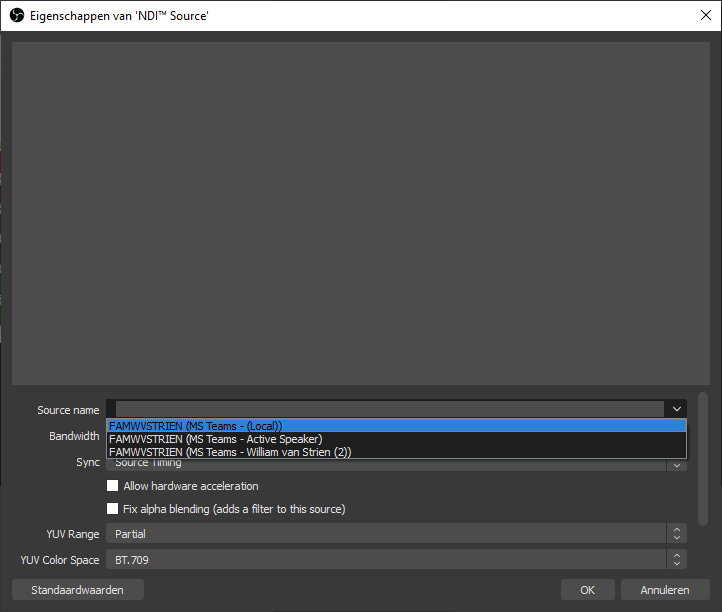
As I acknowledge the usability of Teams NDI capability for productive company webcasts, I played around a bit with it: in Teams (MSDN development tenant) configured NDI capability on tenant level (Use NDI® technology in Microsoft Teams) + for own Teams account (Broadcasting audio and video from Teams with NDI® technology); webcam setup (via IVCam) on home system; OBS Studio with NDI plug-in.
While playing, I notice that the NDI signal only becomes active on the network once a second person joins in the Teams meeting. Implication of this is that as producer you cannot prepare a production setup with only you present yet in the Teams meeting. In reality this should not be an issue: the reason to use NDI for capturing is because you want to capture the video of other person or persons. Not that of yourself, that you can just as simple direct capture in OBS Studio (or other encoder) as 'video camera' input.

Screenshots of exploring Teams NDI capability

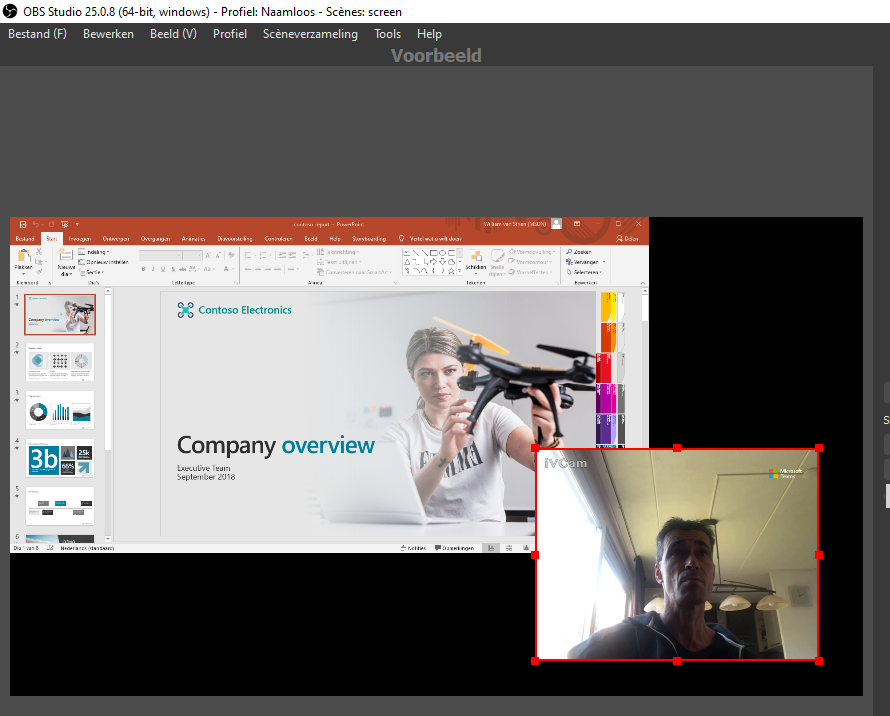
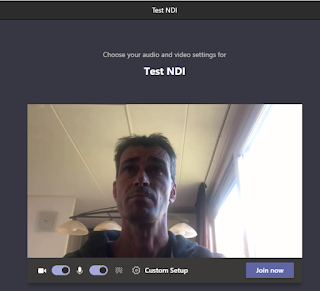
Join as webcast producer / organiser the Teams Meeting, with NDI enabled for yourself
Teams does not yet activate NDI broadcasting, while not actually a meeting of multiple persons
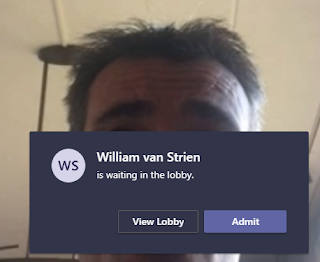
Second person joins the Teams Meeting
Teams now activated NDI broadcasting, and can be captured in OBS Studio
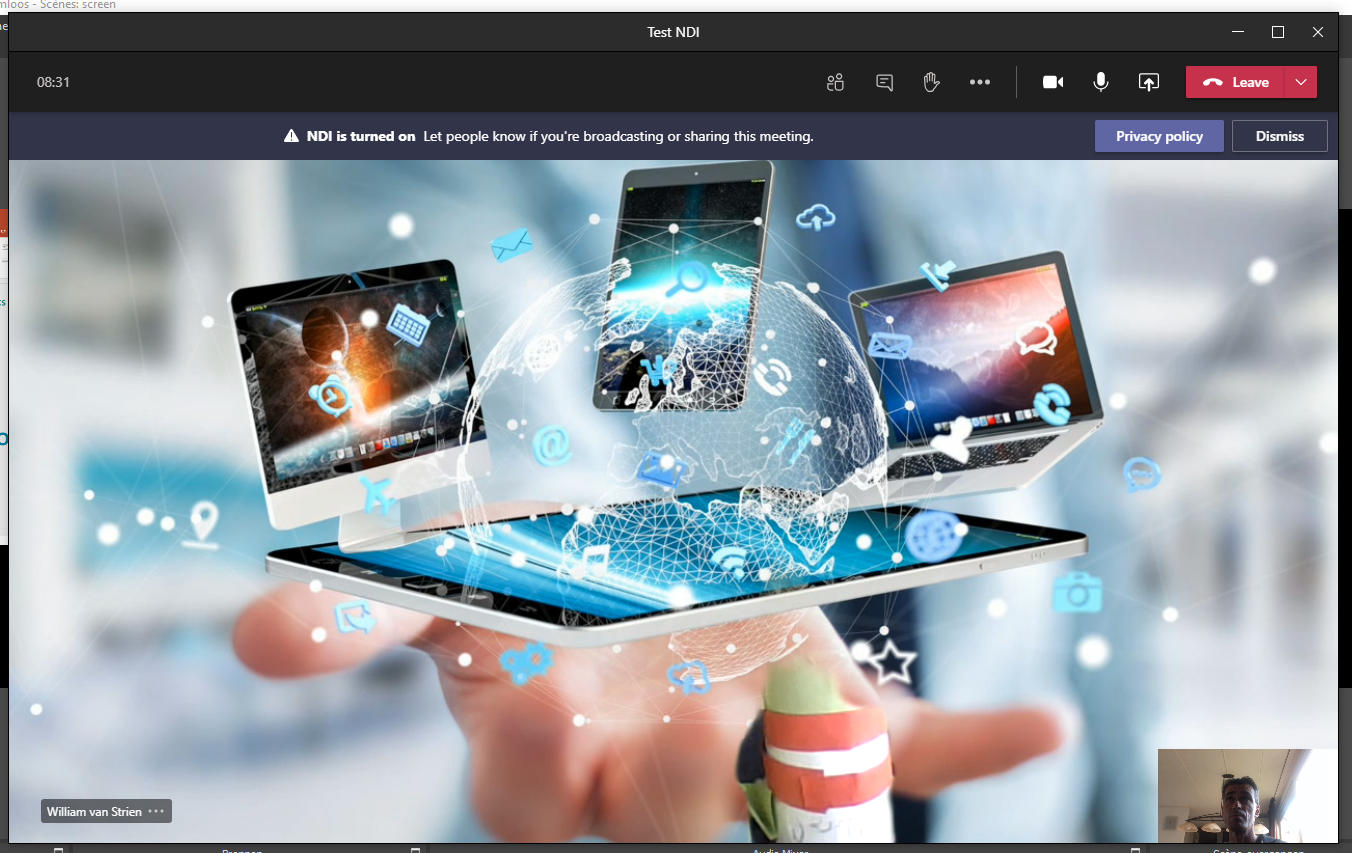
Once 2nd attendee in the meeting, Teams displays the NDI broadcasting notification

Saturday, September 5, 2020

How-to prevent download of video files stored in SharePoint Online site

Context
  • Event portal with both company internal as external audience
  • Teaser videos to prepare the audience for the event
  • Due the company information in the videos, not allowed that visitors download the videos for uncontrolled distribution.
An answer on the first aspect can be a SharePoint Online communication site, via Azure AD B2B external shared with known guest accounts. For the second aspect it would be preferred to use Microsoft Stream as secure Enterprise Video Platform. However, as Stream is still lacking the capability of external access; this would result that the external audience cannot watch the videos. Pragmatic alternative is then to fallback on using SharePoint Online itself as administration plus platform for the teaser videos. Remaining question is then whether possible, and if so how, to prevent that the external audience can easily download the video files.

Prevent download on SharePoint level

First component in answerring is to prevent on SharePoint Level that site visitors can download content from the site. The standard 'Read' permission level grants the authorization to "Can view pages and list items and download documents". There required to create a restricted permission level that only allows to "View content", and assign that permission level to the 'Visitors' permission group.

Prevent download on browser level

However, this does not prevent that visitors can download on browser level the SharePoint stored .mp4 videos, whether embedded in a SharePoint page, or the .mp4 video direct visited + played in the browser. All modern browsers native understand / recognize .mp4 as a video file, and then default to allow play, download and 'save as video' on browser level of that video file.
Does this mean it is not possible to prevent download of video files? The honest answer is: you can't stop downloading of html5 videos. But you can make the action more complicate to do. Multiple options for that.

Option 1: Download as blob in video player

This suggestion is made in Prevent HTML5 video from being downloaded (right-click saved)?

Result wrt default browser behavior:
As for the video player it is not .mp4, the default menu options for 'save as video' and 'download' are not triggered. However, on network level the video file is still initial downloaded as .mp4; and a knowledgeable person has no problem to simple direct navigate on browser level to the SharePoint address of the .mp4 videofile.

Option 2: Play as 'renamed video extension' file, so that default browser behaviour is prevented

Steps:
  1. Rename the file extension to something else than .mp4; example rename 'SampleVideo.mp4' into 'SampleVideo.videofile'
  2. Upload the renamed file into SharePoint Assets library
  3. Also upload an image to use as preview
  4. Embed a videojs based videoplayer on SharePoint page, that is configured to understand how-to play '.videofile' as '.mp4'. Also customize the videoplayer to not render the standard contextmenu

Result wrt default browser behavior:
As the file-extension is not a video format; neither SharePoint, nor browser recognize this as video file. And the default browser behavior to play the video-file address as video, is not fired; and thus the option from menus to ‘download’ + ‘save video as’ is not presented.

However, when navigating in browser to the SharePoint address of the renamed videofile, it will then download as file (despite that SharePoint permission does not allow). It is downloaded with the renamed file extension, but a knowledgeable person can guess that it is actual a .mp4 file, fix the downloaded file, and then it is native playable again.

Option 3: Convert from single .mp4 into HLS; with division accross multiple files

Steps:
  1. Convert .mp4 video file into .HLS video (manifest file + video fragments). An approach for this is via 'FFmpeg'.
  2. Upload the manifest + video fragments into SharePoint Assets library
  3. Also upload an image to use as preview
  4. Embed a HLS videoplayer on SharePoint page.

Result wrt default browser behavior:
Browser default do not handle HLS video files; this is handled via a HLS video player (JavaScript). To download the video, one must navigate in browser first to manifest file, and then all individual video fragments. Doable, but manual labor for the person downloading.
Saturday, July 25, 2020

Beware: Request SharePoint Root Certificate as administrator

On trying the Microsoft advised workaround 1 in situation in which in the SharePoint 2016 central admin server every hour a 'Critical Error' is logged on 'A certificate validation operation took milliseconds and has exceeded the execution time threshold', I initial failed as Get-SPCertificateAuthority returned Null for RootCertificate. The trick / requirement here is to invoke the cmdlet from PowerShell runas administrator:

Friday, July 10, 2020

MS Teams capabilities and external access

MS Teams as collaboration hub exhibits in its total set of capabilities differences wrt external access; some minor, some significant. Overview of my current understanding:
Teams capabilityExternal access options
Chat and Calls
Meeting
  • Anyone can be invited on own email
  • Lobby function for controlled entrance in the meeting
Live Event; audience
  • Teams Federation
  • Teams Guest Access
  • Full anonymous
Live Event; presenter
Teams instance
  • Teams Guest Access

Wednesday, July 1, 2020

How-to enable for mobile device the seamless consumption of embedded Microsoft Stream on SharePoint page

SharePoint Online Modern Sites/Pages are by-design prepared for mobile / on-the-go consumption. An use case is to embed a Stream video on a page - either on-demand or live event -, and the audience then has the freedom to consume on regular workplace, or via their own mobile device.
However, be aware that in the latter case for seamless Stream behavior it is required that the mobile browser is set to 'Allow All Cookies / Block No Cookies'. Without this, typical the mobile browser fails from within the authenticated SharePoint Online context, next implicit logon the user to the embedded Stream service. The SharePoint Online Product Group confirmed this: To enable in Edge on mobile device seamless MS Stream behavior when embedded on SharePoint Online [modern] page, then infra prerequisite is that mobile Edge is configured to ‘Not block cookies’. The subject is current missing from the requirements stated on Microsoft official Knowledge Base. The Engineering Team will add this to the documentation for further clarity in the future.

Sunday, June 7, 2020

Tip: for customizing on Modern Site shared with B2B guests, use SPFx and not PowerApps

In Modern SharePoint, the citizen-developer way for page customization is through PowerApps (instead of the dreaded InfoPath approach). This works out fine..., unless your site is shared with external Azure AD B2B guests. A condition for PowerApps usage is namely that the logged-on user is licensed for a PowerApps Plan. For regular member accounts this license is typical provisioned on onboarding time. For guest accounts you cannot trust that each of them has a PowerApps license already themselves, and then access to use the PowerApps customization requires that a license is assigned in the inviting tenant. But probably you do not want to assign licenses in the inviting tenant to Azure AD B2B guests. After all, one of the charms of the Azure AD B2B model is that for each paid Azure AD license the organization is entitled to invite up to 5 guest accounts without additional costs.
The result for guests that do not have a PowerApps license themselves, is a broken user experience. Instead of a working custom control / form in the SharePoint page, the guest site visitors are confronted with a notification about need for PowerApps Plan license:
A minimal approach to at least avoid the broken UI experience would be to hide the PowerApps control for guest accounts. But also this is not possible: audience targeting on arbitrary webparts is not supported in Modern Pages, see Overview of audience targeting in modern SharePoint sites.
In a SPFx control you can utilize an alternative for audience check, by check on permission group, or check on account type (member or guest). A code example of this approach: Show and hide SPFx Webpart Content based on user permission.
However, when using SPFx for page customization then you’re not subject to additional licensing on top of SharePoint license. So it would not even be needed to hide the control in case logged-on user is a guest account....
Conclusion: if you plan to share a Modern SharePoint site with external guests, then better not use PowerApps for customizing a page that is accessible for guest accounts. Better approach is via SPFx, and accepts this requires coding skills iso no/low-code.

Saturday, June 6, 2020

Be aware: Azure AD Hybrid-Join requires Chromium Edge sign-in

Microsoft is loudly promoting and actively pushing upgrade from classic Edge browser to the new Chromium Edge. One thing to be aware of for organizations that utilize Azure AD Hybrid Join for conditional access to enterprise applications, is that Chromium Edge requires user sign-in with Azure AD account. Without the Azure AD sign-in, Chromium Edge does not enroll in hybrid join, and the remote user is denied access to the company enterprise resources (such as Office 365 services, but also any other enterprise application that have Single Sign-On with Azure AD).