Sunday, January 20, 2019

Tip: how-to resolve in SharePoint 2016, XsltListViewWebPart displaying Calculated Fields as HTML-encoded

As of June 2017, Microsoft made a change to explicit block in XlstListViewWebPart the rendering of custom HTML markup in Calculated Fields: Handling HTML markup in SharePoint calculated fields: "Some users have added HTML markup or script elements to calculated fields. This is an undocumented use of the feature, and we will block the execution of custom markup in calculated fields in SharePoint Online from June 13, 2017 onwards. The June 2017 Public Update (PU) and later PUs will make blocking a configurable option for on-premises use in SharePoint Server 2016 and SharePoint Server 2013." In the article, Microsoft states that for SharePoint on-premises (2013 version and later) one can restore to the previous behavior through a new property on webapplication level: CustomMarkupInCalculatedFieldDisabled. For SharePoint Online there is no such configuration option provided.
A bit by coincidence (and also by mere perseverance 😉), I detected an alternative - undocumented - approach that does not require an overall webapplication setting. And as bonus, likely also works in SPO context. Default the XslLink property in XsltListViewWebPart XmlDefinition is configured via the View property: SPView.XslLink. The essence of the workaround / approach is to make use of the Xsl-behavior in the superclass of XsltListViewWebPart: DataFormWebPart. If you specify Xslt transformation at that level (either via XslLink, or via Xsl property), then you can configure for single XsltListViewWebPart instance that custom HTML markup of Calculated Field is still executed.
Although undocumented, it is an own Microsoft source that helped me discovering this => the SharePoint Escalation Service Team Blog - Guidance for XslLink property with the XsltListViewWebPart: "There exist other alternatives to let the XsltListViewWebPart use your XSL Transform. "
Note also that when you used 'Design' mode in SharePoint Designer 2010 to customize the Xslt-rendering of a list column, the customized Xslt-template is also injected in the Xsl property on webpart level.
My findings clarified through pictures:

At first the issue: custom HTML markup of Calculated Field is rendered as html-encoded

Move in the XMLDefinition the location of XslLink from 'View' to 'WebPart' level

And the rendering of custom HTML markup is restored, as we know it from before

Thing to be aware of: with using the 'XslLink' property it is a prerequisite that the applied Xslt stylesheet file is located in the layouts folder (see: Guidance for XslLink property with the XsltListViewWebPart: "however you would need to place your XSL file in the default “_layouts/xsl” folder"). In the above scenario that is guaranteed as I simply refer to the standard 'main.xsl' stylesheet that is by Microsoft itself provisioned in the layouts folder, both on-premises as online. If however you need a deviation from the standard XsltListViewWebPart rendering, then you need to provision your own custom Xsl stylesheet thus also in the layouts folder. Which in SharePoint Online context is of course not possible. If the deviation is only minimal, e.g. to override the standard rendering for only one column, then I advise to make use of the 'Xsl' property instead, and only include in it the overloading 'xsl:template'.
Example applied to scenario of above
<xsl>
   <xsl:stylesheet xmlns:x="http://www.w3.org/2001/XMLSchema" 
      xmlns:d="http://schemas.microsoft.com/sharepoint/dsp" 
      version="1.0" 
      exclude-result-prefixes="xsl msxsl ddwrt" 
      xmlns:ddwrt="http://schemas.microsoft.com/WebParts/v2/DataView/runtime" 
      xmlns:asp="http://schemas.microsoft.com/ASPNET/20" 
      xmlns:__designer="http://schemas.microsoft.com/WebParts/v2/DataView/designer" 
      xmlns:xsl="http://www.w3.org/1999/XSL/Transform" 
      xmlns:msxsl="urn:schemas-microsoft-com:xslt" 
      xmlns:SharePoint="Microsoft.SharePoint.WebControls" 
      xmlns:ddwrt2="urn:frontpage:internal" 
      xmlns:o="urn:schemas-microsoft-com:office:office">
         <xsl:include href="/_layouts/15/xsl/main.xsl"/>
         <xsl:include href="/_layouts/15/xsl/internal.xsl"/>
         <xsl:param name="AllRows" select="/dsQueryResponse/Rows/Row[$EntityName = '' or (position() >= $FirstRow and position() <= $LastRow)]"/>
         <xsl:param name="dvt_apos">'</xsl:param>                                                      
         <xsl:template match="FieldRef[@Name='Folder']" mode="Number_body">
            <xsl:param name="thisNode" select="."/>
            <b><i>
            <xsl:value-of disable-output-escaping="yes" select="$thisNode/@*[name()=current()/@Name]" />
            </i></b>
         </xsl:template>
   </xsl:stylesheet>
</xsl>

Saturday, January 19, 2019

Tip: how-to easily expose the underlying XML datastructure retrieved in XsltListViewWebPart

If for what ever reason you want to inspect the XML structure or content of underlying data source retrieved from a SharePoint List/Library before it is rendered via Xslt-transformation, you can do that as follows:
  • Open SharePoint Designer 2013 (or 2010 version in case you need it in older SharePoint 2010 context)
  • Open the page on which the XsltListViewWebPart is included (list View, SitePage)
  • Select to edit the page in raw HTML mode, and locate the 'XsltListViewWebPart' node in the HTML
  • Inject the below Xslt-snippet as value for 'Xsl' property of the XsltListViewWebPart definition:
    <xsl>
       <xsl:stylesheet xmlns:x="http://www.w3.org/2001/XMLSchema" 
          xmlns:d="http://schemas.microsoft.com/sharepoint/dsp" 
          version="1.0" 
          exclude-result-prefixes="xsl msxsl ddwrt" 
          xmlns:ddwrt="http://schemas.microsoft.com/WebParts/v2/DataView/runtime" 
          xmlns:asp="http://schemas.microsoft.com/ASPNET/20" 
          xmlns:__designer="http://schemas.microsoft.com/WebParts/v2/DataView/designer" 
          xmlns:xsl="http://www.w3.org/1999/XSL/Transform" 
          xmlns:msxsl="urn:schemas-microsoft-com:xslt" 
          xmlns:SharePoint="Microsoft.SharePoint.WebControls" 
          xmlns:ddwrt2="urn:frontpage:internal" 
          xmlns:o="urn:schemas-microsoft-com:office:office">
             <xsl:output method="xml" indent="yes" />
             <xsl:template match="/">
                <xmp>
                  <xsl:copy-of select="*"/>
                </xmp>
             </xsl:template>
       </xsl:stylesheet>
    </xsl>
    
  • Save the page in SharePoint Designer
  • Open or refresh the page in browser; if the underlying XML not immediate displayed (XsltListViewWebPart applies caching in it's Xslt pipeline), reload once more
  • And you are able to inspect in browser the underlying XML data island structure retrieved by the query applied in the XsltListViewWebPart instance:

Wednesday, December 12, 2018

Unpredictable and therefore unreliable crawling of User Profiles in SharePoint Online

In many organizations that utilize SharePoint, the Human Resources (HR) administration is an (one of the) origin from which data is propagated into the User Profiles. The presence of HR data in SharePoint User Profiles then allows to retrieve that data for usage in SharePoint API based applications, e.g. JavaScript (vanilla upto SPFx), InfoPath, SharePoint Workflows, Microsoft Flow, ... An issue here is that in case of custom User Profile properties, the User Profile REST service does not support to return their value: Query SharePoint user profile by custom property. Approach to deal with that lack is to retrieve/query the custom User Profile properties via User Profile Search: Query and filter user profiles based on the value of customer property using REST.
Consequence of retrieving via Search is that the returned data may not be the actual value, but is as fresh as the latest crawling of User Profiles as search source. In case of an on-premise deployment, an organization has self-control over the crawling rate; default setting is a full crawl per 15 minutes. Implication is that typically the data cached in the SharePoint Search Index is not older / outdated than maximum of 15 minutes. This is for the most business usages acceptable, as HR data is not updated continuously. However, in case of SharePoint Online usage, matters are different. Microsoft makes no concrete statement / promise on the period it takes to have changed User Profile values become visible in SharePoint Search. On experimentation, I observed that for one User Profile instance a change in custom property was visible + retrievable via Managed Property within 30 minutes, while for another User Profile instance a change in the same custom property was not picked up yet after a period of 3 days! This unpredictability makes the utilization of User Profile Search to retrieve User Profile property values less reliable.
I've consulted Microsoft Support on this topic. In a nutshell the response is that my observations is the current way of working, and that Microsoft cannot give an hard statement on the maximum duration in which User Profile property changes will be visible in SharePoint Search. And current in SharePoint Online context, one does not have the option to explicit request for reindex of User Profiles via full crawl. Microsoft themselves refers to a SharePoint UserVoice request to give your vote: Reindex User Profiles option.
Mikael Svenson posted a workaround that allows you to get "kinda explicit" control: How to trigger re-indexing of updated user profiles in SharePoint Online. Although for multiple reasons certainly not the preferred way, until Microsoft delivers on the UserVoice raised request, this approach is likely the best available to get changes in User Profile instances at least within a delineated elapse time visible through SharePoint search.

Friday, November 30, 2018

Beware: using Asset library for video capability failure due missing feature activation

The out-of-the-box Asset library can be used as a (very) basic video capability. But be aware that for this to work flawless, it is required that the site collection feature “Video and Rich Media” is activated. If not active, video files can still be stored in the library, but the video functionality is broken and useless. Most important symptom is that the video files can not be played from the library context, "<asset library>/forms/videos/videoplayerpage.aspx" is not available (HTTP 404). In addition, when you inspect uploaded video files, you will observe that although their library content type is “Video”, their parent Site ContentType is “Document Collection Folder” instead of “Video”:
Incomplete content type chainCorrect content type chain
Activating the “Video and Rich Media” feature corrects the content type chain, but already administrated videos are not automatically fixed. Moreover, already provisioned Asset libraries typical remain behind in inconsistent state:
  1. The “Video” content type on library level still misses the essential site columns of “Video”
    Video file in Asset library with incomplete Video content type
    Video file in Asset library with complete Video content type
  2. Uploading video files even results in SharePoint throwing an error.
Best is therefore to upfront of creating an Asset library in which you aim to (potential) administer videos, check whether the site collection feature is active. And in case you find out that the feature was not active after creation of an Asset library, take the pain / effort and provision a new Asset library, and redo the videos upload in that new library.

Tuesday, November 27, 2018

Beware: Azure AD B2B guests inconsistent resolved in PeoplePicker

When you employ Azure AD B2B for external sharing of SharePoint Online sites, you’re likely to encounter a peculiarity in the usage of the PeoplePicker: trying to resolve guests by typing in their external email as identity, typically fails if this guest identity was not resolved before in this site. The workaround to force PeoplePicker to resolve the guest is copy/paste in 1x the full external email; apparent this somehow triggers PeoplePicker control to query Azure AD for the guest identity.
As this peculiarity in PeoplePicker behavior is difficult to clarify (justify) to business users, I raised a service request: Microsoft Support to clarify the difference in PeoplePicker resolving behavior on interactive typing versus drop the same identity at once. Quickly received answer is that the behavior is by design: on interactive typing, the PeoplePicker queries the User Information List in site collection, however since the guest was not authorized yet for the site his/her account will not be administrated yet in that hidden list. A rather unsatisfying answer - arrogant even -, coming from IT perspective without any understanding for the business user; for whom this deviation in PeoplePicker behavior is absolute unlogical. Moreover as regular member accounts are successful resolved by the PeoplePicker, independent on whether such account is present already in the User Information list. So also there a deviation in regular Member versus Guest accounts.

Wednesday, October 31, 2018

Beware: governance of SharePoint site underneath MS Teams largely gone

In most organizations that employ SharePoint for collaboration and content handling, governance is (tried to be) applied to give some structure and consistency in the SharePoint usage. Some typical elements of such SharePoint governance are:
  • The powerful authorizations via Site Collection Administrator (SCA) role is reserved to IT support only; and business users are authorized via SharePoint Groups + Permission Levels (see e.g. Site Owner vs Site Collection Administrator)
  • Pre-defined site structures (in the old days via Site Definitions; nowadays via Site Templates, provisioning code (e.g. PnP provisioning))
  • Organization consistent branding of the sites: logo, site classification, layout, ...
  • Naming conventions for site titles and URLs
  • Version Control + Content Approval policies
  • Metadata (Managed + Folksonomy)
  • Controlled availability of SharePoint Designer, enabling the business power-users to self-create workflows, customize views, create structure, ...
  • Prerequisites imposed on the site requestor, checked upon by the helpdesk handling site provision process
  • Lifecycle model
  • ...
Microsoft itself acknowledges the importance of SharePoint Governance, and delivers support to its customers on this topic via guidance, trainings and templates (e.g. Overview: best practices for managing how people use your team site).
And then there was the new concept of MS Teams....; highly promoted by Microsoft and moreover highly appreciated and valued by the business users. A.o. the business values the concept of self-service creation of MS Teams, in particular when comparing it with in some organizations the (perceived) cumbersome governance process on SharePoint site provisioning. And some of the business users are even more pleasant surprised when they detect that as part of the MS Teams instance creation, also a.o. a SharePoint Site Collection is created 'underneath'. In the MS Teams concept, Microsoft makes pragmatic reuse of the availability of SharePoint Online as part of Office 365 suite for the Files handling capability. It is even a generic applied pattern by Microsoft to position and use SharePoint more and more as 'backend' underneath other of its products and services. Pre-online this already is done with MS Dynamics, MS Project; and now thus with MS Teams, Office 365 Groups, ...
But although Microsoft intended within MS Teams context the created SharePoint Site to deliver the Files capability, knowledgable and curious business users quickly discover that the connected SharePoint Site is, well a full-blown SharePoint site. Including all the SharePoint capabilities that they are familiar with when working with a standalone provisioned Site Collection. Plus the (default) governance on SharePoint site collections created underneath MS Teams instance is much less restrictive. One of the most significant is that all the MS Teams owners, automatically and outside IT control get assigned in the Site Collection Admin role! Other on permission handling are that the MS Teams owner(s), by deriviation thus also the SCA's of the MS Teams SharePoint site, can share access on the SharePoint level; deviating from the permission management executed on the level of the enclosing MS Teams. Yet another to configure on the SharePoint level sharing with externals, while that might not be configured (even allowed) at the MS Teams level.
How should any Office 365 customer deal with this differences in the governance and support on SharePoint sites created standalone, versus the ones created as element of other Office 365 services? I have not a conclusive view on this yet, but moreover I also have not yet identified such view brought to us by Microsoft. The impression is that Microsoft just kinda 'let it go', and have their customers themselves come to a positioning and best-practice(s). In my opinion this is a shortcoming from Microsoft in support and guidance perspectives: we know that one of the biggest hurdles with IT and Collaboration Tools is the user adoption and confusion about what tool to use when. Delivering the same SharePoint collaboration tool via different creation processes, and with different governance + support models as result, does not help bring a clear collaboration story. I understand and applaud the pragmatic decision by Microsoft to utilize the SharePoint capabilities within other products, but I fail to understand their considerations to make that same SharePoint site on itself accessible; outside the simplified interface via MS Teams.

Saturday, September 22, 2018

Utilize Azure Function to resolve lack of CORS aware within SharePoint Online active authentication flow

In earlier post I informed about facing CORS issue when interoperate from external JavaScript client via OAuth passive authentication with SharePoint Online REST API. And on how-to easily resolve this via Azure Function Proxy. That approach works for OAuth based passive authentication, with the OAuth AccessToken exchanged via HTTP header. However, in case the external client wants to apply active authentication, the situation complicates severely. The explanation is that in this authentication flow, the SharePoint Online authentication token is exchanged as HttpOnly cookie:
The SharePoint Developer Support Team Blog published an article that outlines which set of requests one needs to implement for SharePoint Online active authentication. In case of non-browser clients, this is sufficient to enable SharePoint Online interoperability from an external client. For instance, I've applied this OAuth active authentication flow within an Excel VBA client context, a colleague of mine used it from Curl script, and yet another from a Java application. In a non-browser client context, the received OAuth Active Authentication HTTP response can successfully be parsed to extract the SPOIDCRL cookie.
Modern browsers utilize Cross-Origin protection themselves to mitigate risks: HttpOnly cookie cannot be read by clientside code, and the browser only include cookie for outgoing requests pointing to same domain as from which the HttpOnly cookie is earlier received within current browser session.
Modern secure browser have inherent protection that prevents access to secure HttpOnly cookies: on the wire [Fiddler] the SPOIDCRL cookie is included in the response, yet the browser [here Chrome, via Developer Tools] does not allow access it.
Implication is that the custom CORS handling needs to be further extended to have the browser include the required SharePoint Online authentication cookie cross-domain in SharePoint Online REST API calls. Although same approach via Azure Function Proxy can successfully be utilized to cross-domain request the SharePoint Online active authentication end-point, the browser accepts the returned cross-origin response but your clientside code is not enabled to extract the SharePoint Online authentication token included as HttpOnly cookie (SPOIDCRL). And even if that would be possible, the second blocker is that the SharePoint Authentication Token must be included as cookie for successful authentication again SharePoint Online, but browsers only include the cookie for requests going to the same domain. Meaning that all SharePoint interoperability requests coming from the external JavaScript client must be proxied to the same domain as of the proxied Active Authentication endpoint; <your tenant>/_vti_bin/IDCRL.svc
On the webclient side the needed changes are minimal: include ‘withCredentials:true’ in issued XMLHttpRequest requests. But on the receiving and processing Azure Function (Proxy) side, more must be changed:
 •   Function-Apps have out-of-the-box platform support for CORS; as utilized for the CORS handling in case of OAuth passive authentication flow. However, I experienced this is limited to only return the CORS headers Allowed-Domain + Allowed-Method. Current, Function-Apps platform CORS does not include support for cross-domain authentication handling via ‘withCredentials’. I tried alternatives to set the missing 'Access-Control-Allow-Credentials' header explicitly self in the responseOverrides of the Azure Function Proxy; and learned that in case CORS is configured on the platform level, any Cross-Origin headers in the responseOverrides object are just silently ignored; not included in the resultant http response of the Azure Function Proxy call. Then I tried to instead nullify the Function-App Platform CORS setting, as described in Azure Functions Access-Control-Allow-Credentials with CORS. This works to receive the SharePoint Online authentication token cross-domain.
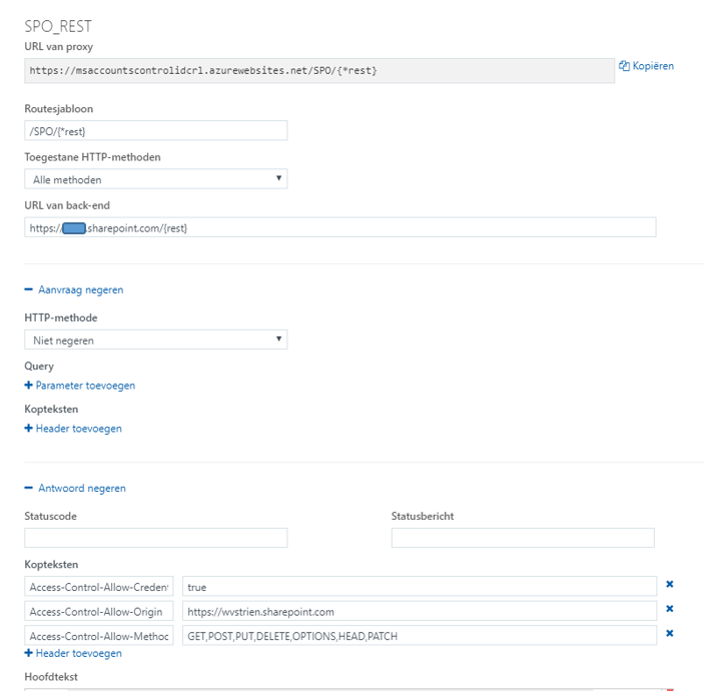
 •   But on next usage to allow the browser to send the cookie, all your SharePoint Online REST calls must go to the same domain as from which the cookie was received. This can be achieved by also proxy these calls via the Azure Function Proxy. This on itself is very simple to configure in the Azure Function Proxy via generic pattern matching in a new proxy:
However then on invoking that proxy cross-domain from the client / browser, it is refused by Azure Function Proxy with Http 405 / Not Allowed ➔ because I removed all allowed domains at the platform CORS configuration of the Azure Function, while the browser includes in the request the CORS 'Origin' header that now no longer matches on the Azure Function-App level (a typical case of 'chicken-egg' situation).
 •   I then tried with '*' as allowed domain in the platform CORS configuration. But this again results that the explicit additional CORS response headers via responseOverrides object are ignored. And in addition '*' is not allowed on browser level in conjunction with 'withCredentials': Failed to load https://msdnwvstrienspocors.azurewebsites.net/IDCRL.svc: Response to preflight request doesn't pass access control check: The value of the 'Access-Control-Allow-Origin' header in the response must not be the wildcard '*' when the request's credentials mode is 'include'. Origin 'https://wvstrien.sharepoint.com' is therefore not allowed access. The credentials mode of requests initiated by the XMLHttpRequest is controlled by the withCredentials attribute.
 •   As implication of the above enumerated various experiences, I conclude that in their current implementation, Azure Function Proxy is unfit to resolve CORS handling in context with SharePoint Online active authentication flow. Therefore I decided for alternative approach to explicit self build the CORS-aware proxy behavior in custom Azure Functions. I minimal need to implement 2 functions; the CORS aware/allowed access to default MSO endpoint https://login.microsoftonline.com/rst2.srf and https://#ADFSHOST#/adfs/services/trust/2005/usernamemixed (username/password ADFS endpoint) can still be arranged via an Azure Function Proxy, similar as earlier configured for OAuth passive authentication endpoint. But for CORS aware access to combination of IDCRL.svc and any authenticated request to your SharePoint Online tenant the Azure Function Proxy approach thus falls short. For each of these 2, a custom proxy implementation is required.
 •   I observed that also in case of explicit CORS handling coded in Azure Function, still any Function-App platform CORS configuration prevales above that. Therefore it is required to completely disable platform CORS on the Function-App. As the CORS-aware Azure Function Proxies for the other / first 2 requests in the active authentication flow do depend on the platform CORS configuration, I decided to split within 2 seperate Function-Apps with own domain. I could also have resorted to custom proxy build for the first 2 requests and include in the same App container, but whereever possible I prefer a 'configuration' and out-of-the-box approach above (maintaining) custom code. So I stick with utilization of Azure Function Proxy where possible.
Complete CORS-enabled setup for all of the 4 requests involved in SharePoint Online active authentication: the first 2 can be CORS-enabled via Azure Function Proxy, the last 2 must be CORS-enabled via custom Azure Function.
Configuration of the Azure Function Proxies to CORS-enable "<your custom STS>/ adfs/services/trust/2005/usernamemixed" and "https://login.microsoftonline.com/RST2.srf"
Impression of the custom Azure Function: CORS-enable "<your SPO tenant>/_vti_bin/idcrl.svc" is simple; proxy-ing SharePoint REST API calls is more complex and challenging. Note: the custom proxy for active authentication requests in your SharePoint tenant is also fit for non-REST requests, e.g. to browse your SharePoint Online sites
Cross-Domain / CORS prepared JavaScript browser client, interoperating with SharePoint Online REST API


This is what happens in the webclient (browser) / SharePoint Online interoperability with adjustment for CORS:
First request automatic issued by secure-aware browser: OPTIONS to start with CORS Preflight
On server / client confirmed preflight, get cross-domain the SPO authentication cookie
Utilze the retrieved SPO authentication cookie within browser-issued SPO REST calls