Thursday, December 17, 2015

Beware: List Validation Settings also effective in Workflow execution

I’m provisioning a ‘BPM-light’ process in our SharePoint ‘business platform’. Utilized SharePoint building blocks are Document Sets, Content Types and SharePoint Designer Workflow. The ‘light’ solution worked correct when demonstrating on first evaluation-time ('sprint') to the designated end-users. Of course they had some additional fine-tuning requests, which is just the way to deliver and align on business functionality in agile manner. After I implemented some of the minor additional changes, the workflow no longer functioned and reported an error.
The workflow error message exposed a problem with setting a value in the current item, of type Choice field:
This worked before, what changed that made it fail now?
Well, the explanation was found in my recent changes: To ensure correct user input when creating a new Document Set, I added a Validation rule. The validation rule is simple, on creation the State value must always be ‘Draft’ (*)
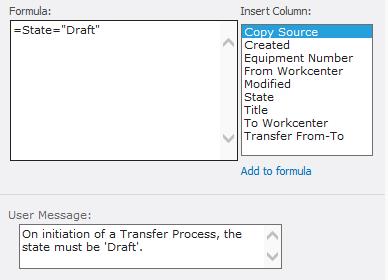
The explanation of the introduced error when trying to set ‘State’ field-value from workflow execution, is that the validations are not limited to UI/form handling. The validation settings are applied on SharePoint level whenever a change to item is made. And thus also applied for the item change initiated from workflow.
I tried to build in a differentiator in the validation to only require ‘State=Draft’ upon Document Set creation. But I could not get a working validation rule for that. I tried:
  • =OR([Created]<[Modified],[State]="Draft")
  • =OR((INT(Modified-Created) > 0),(State="Draft"))
  • =OR((DATEDIFF(Modified,Created,"s")>0),(State="Draft"))
But all 3 formules return False, when on a modification time the state is set to value different then ‘Draft’. The explanation is that I noticed the values of ‘Created’ and ‘Modified’ are always both zero (0) on validation time. Likely a sequencing issue.
(*) Note: For optimal User Experience I would have preferred to modify the form itself, and hide or disable the ‘State’ field to avoid the user changing it to non-allowed value. However SharePoint does not support to customize the NewForm in case of Document Sets. The only option you have is to replace the standard DocumentSet page (_layouts/NewDocSet.aspx) for another server-side based version [How to: Create a New Document Set Form in SharePoint Server 2010 (ECM)], but our SharePoint governance rules (‘future proof solutions’) do not allow to do that.

Wednesday, December 9, 2015

Lessons learned with Add-In update execution

In our intranet we have Add-In instances installed throughout the site hierarchy. The content owners of subsites are enabled to utilize any of the provided set to their own will. In a release, IT takes care of automatic update of all the installed instances of Add-In(s) included in the release. This is done in a 2-fold approach:
  • Add the updated Add-In(s) to the SharePoint Add-In catalog;
  • Then first manual update ('Get It') the installed Add-In on the rootweb, for immediate result visible to end-users;
  • Next, via powershell script, update all the Add-In instances in the site hierarchy: traverse through the hierarchy, and on each hostweb that has the Add-In installed, execute 'Update-SPAppInstance'. Under the SharePoint hood, this delegates the Add-In update(s) to execution via a timerjob.
We've learned 3 important lessons with this Add-In update approach:
  1. The completion of the Add-In update throughout the site hierarchy is very time-consuming. In our intranet we've experienced elapse time of over 10 hours.
  2. Until the full completion of the Add-In update, it is not possible to manual update the same Add-In. Situation in which you want / need to do that - and we encountered one - is when in the release it is observed that after the Add-In update, the updated Add-In has an issue. As Add-In rollback is then not longer possible (once a Add-In update is executed), the remedy is to deploy a fix (on the update/fix).
  3. Most surprising: until the full completion of update of Add-In 'X', also the manual update of any other Add-In 'Y' is blocked for completion.
Lessons we took from these observations is that in intranet releases, we first complete all manual Add-In updates. This includes the potential additional installation of required 'fix' on 'updated Add-In'. And only once all manual Add-In updates are completed, and we have ascertained the effect of each is as expected; then execute the long-running Add-In update(s) via powershell maintenance script throughout the entire site hierarchy.

Wednesday, December 2, 2015

Peculiar but Explained: Access Denied on page in search result preview

This morning I noticed that a page present in search result, displayed 'Sorry, you don't have access to this page' in the preview pane. Peculiar as an authorization principle of SharePoint Enteprise Search is that the search result is security trimmed, and only returns results for which the logged-on user has authorization to see. Brainstorming with a colleague we came up with the explanation. The search result actually included the url of a SharePoint subweb, for which I do have read-access. The page configured as 'Welcome Page' (landing page) in this subweb is not [yet] checked in, and therefore not available for me. And as SharePoint Search previewing applies the SharePoint publishing 'Welcome Page' redirection when hovering over (sub)web url, this explains the 'Access Denied' experience in the preview pane. Above is confirmed: after that landing page has been checked in, now in preview I see that page impression instead of the 'Access Denied'.

Friday, November 20, 2015

Chrome the better performant browser for App/AddIn-model based applications

In the SharePoint App/AddIn model, each AddIn operates in it's own isolated runtime security context. The separation is achieved by app-individual DNS domains. Beyond security isolation, the individual DNS domains also has performance ramifications. Good and bad (see SharePoint App-Model + NTLM results in more 401’s). A positive effect on performance is that the individual DNS app-domains, enables the utilization of more parallel http connections by browsers. Modern browsers support parallel http connections, but limit this on host level (maximum http connections per host). In SharePoint App/AddIn context, the browser maximizes the number of http connections multiplied for the separate DNS domains.
The Chrome browser has an additional performance advantage. As only browser, it predicts the DNS destinations that will be requested in the handling of a request - DNS Prefetching & TCP Preconnect:
A unique and important optimization in Chrome is the ability to remember the set of domains used by all subresources referenced by a page. Upon the next visit to the page, Chrome can preemptively perform DNS resolution and even establish a TCP connection to these domains.
This prediction is based on previous visit(s). Upon subsequent visit, Chrome initializes http connections per dnshost, and up to the maximum of 6 per dnshost. For a SharePoint page with one or more AddIns on it, Chrome immediate sets up 1 to maximum 6 http connections for the SharePoint hostweb domain, and per AddIn app-domain also up to maximum of 6 http connections. Upon receiving and processing the SharePoint page, for the dependent urls for the contained AddIn(s), Chrome can immediate send the request(s) over the already instantiated http connections. IE, Firefox, Safari, Edge (?) all apply a more 'just-in-time' approach. Delay with opening (new) http connection only when and until needed.

Thursday, November 12, 2015

Tip: how-to pragmatic and quickly mitigate from malfunctioning Add-In in production

Earlier this year we brought our new SharePoint 2013 based intranet ('digital workplace') into production. Crucial functional element of the workplace-concept is that employees can customize their own homepage with 'Apps' that are relevant for them given their own role and personal interests. The majority of these functional Apps are technical provided as SharePoint Add-Ins - SharePoint-Hosted plus Provider-Hosted. In the project to deliver the new intranet, we put a lot of effort validating the correct operation of the diverse workplace Apps, in particular focus on their performance. But despite that, soon after 'Go-Live' we experienced a performance problem with one, which effectively 'killed' our intranet experience. As such is destructive for user-acceptance, we needed an approach to quickly, on-spot, mitigate the non-performance App; so that next with less pressure the rootcause could be investigated.
Since the "App" (aka, as Add-In instance) is installed on the personalized pages of the homepage, it was not really an option to remove and deinstall it: it would require automated modification of all the personalized pages to remove the App, that is if the particular employee has the App added to his/her own page. Such automoted modification of what in functional essence is under personal control of end-users, was and is unsellable. We needed an alternative approach, in which transparent to the end-users temporarily the App-execution is overruled.
Here it is important to understand how SharePoint deals with SharePoint Add-Ins. In technical sense, in the SharePoint page response an Add-In is nothing more than an 'iframe++'. The frame-src refers to the 'AppRedirect.aspx' launchpage, including information about the Add-In to launch (see Launching SharePoint Apps, launch sequence, AppRedirect.aspx for a good explanation of this). The browser first receives and renders the html-response for the SharePoint page, and next per included Add-In, resolves the resulting iframe.
<iframe src="https://.../_layouts/15/appredirect.aspx?redirect_uri=....&client_id=..." id="..." height="250px" frameborder="0" width="720px"></iframe>
The mitigation approach for non-functioning Add-In is now to on-the-fly in the browser-context, replace the 'AddRedirect.aspx' launchpage with an url to alternative 'application'. This can be as simple as an .htm content page. The direct effect is that users are abstracted from issues in the actual Add-In, and instead for now receive alternative html-snippet to replace the malfunctioning App. This approach does not require automated modification per each of the personalized pages, it is sufficient to include a ScriptEditor in shared webpartzone. It is an approach that can be executed from the SharePoint GUI, without code changes. And thus can be applied for SharePoint on-premisse as in Office 365 / SharePoint Online.
<script type="text/javascript"> var iframes = document.getElementsByTagName('iframe'); var i; for (i = 0; i < iframes .length; i++) { var src= iframes[i].src; if (src.indexOf('<AppRederict.aspx url with reference to mailfunctioning Add-In>') != -1) { iframes[i].src = 'https://.../Style%20Library/ Mitigation/CodeSnippetAsAlternativeForMalfunctioningAddIn.aspx' } } </script>

Tuesday, October 27, 2015

Don't: Publishing + 'Anyone who can read items'

I got a Lync ('Skype for Business') call from a colleague informing me that the layout of our SharePoint 2013 based 'Digital Workplace' appears broken. I checked, and indeed it looked awful. So I asked in our team whether anyone was doing something to our intranet in production. After first denial (natural behaviour??), the perpetrator was identified. A developer had made a change to the masterpage, saved but intentionally did not publish to avoid that regular readers would already see it. Strangely however, as soon as saved, all intranet visitors saw his work - which was evidently still 'works in progress'. The explanation that all saw the unpublished version was quickly found: the Masterpage Gallery was incorrect set that 'Draft' items can be seen by "Anyone who can read items"... Corrected this to "Anyone who can edit items".

Thursday, October 8, 2015

Inconvenient ‘Shared Column’ in Document Set

Have the following design for a light-weight business process:
  1. a Document Set to collapse all documentation involving a review process – the document to review, and accompanying documentation, review sheets, explanatory documentation, and so;
  2. the Document Set preset with a document template for document to be reviewed;
  3. a SharePoint Designer workflow associated with the content type of the document template to steer the review process;
  4. and a workflow on the docset library to "archive" the docset once the review on contained document is completed.
The 2nd / outer workflow is required in addition to the inner workflow on the contained document, as a SharePoint Designer workflow does not give you access to the logical container Document Set.
Challenge is how to communicate from the inner to the outer workflow. I thought about doing this via a shared property between docset and contained document. However, here SharePoint exposes one of its peculiarities: although on level of the contained document it appears as if you can set the shared field (it is editable in editform for the contained document); in reality the edit is ignored. Whether done explicit manually in the editform, or automated set in the workflow on document. The 'Shared Column' is strictly owned on the containing DocSet level, and it's values plus changes in that pushed to all the contained items.
Note:This Sharegate post describes how-to hide the Shared Columns in the Edit Dialog as they are actually not editable on Document Set contained level; so that at least your end-users will not get confused.
As it turns out, the concept of 'Shared Columns' can still be used to trigger from the 'inner' workflow on "contained" document, a waiting condition in the 'outer' workflow on DocSet. The key is to use 'Update item in Current List' in the inner workflow, and set the 'Shared Column' direct on the DocSet by selecting it via a matching value between 'contained' document and the DocSet. Inspiration coming from post SharePoint 2010: How to update Parent Folders Timestamps when Child contents have been modified'.