Thursday, April 30, 2020

SharePoint Governance complicated, due deviation in permission handling within modern site templates

With the introduction of Modern Sites, Microsoft added an additional layer in the permission handling for SharePoint Online sites: via Office 365 Group (soon to be renamed/branded as 'Microsoft 365 Groups'). Below that new level, one can still authorize within the SharePoint site itself via SharePoint Permission Groups. And to make the story even more confusing: not all 'Modern' sites are equal wrt this new Permission model. In a Modern Communication Site there is no notion / connection to an Office 365 Group.
Comparision Permission Handling + Management within Modern Communication Site vs Modern Team Site
Observations:
  1. In a Modern Teams Site, site authorization is delegated done via Office 365 Group.
    1. The SharePoint Member permission Group has as single member the Office 365 Group ‘Members’
    2. The SharePoint Owners and Visitors permission Groups are both EMPTY
    3. Instead, the ‘Owners’ responsibility is assigned by having the full O365 Group Owners as SCA
  2. In a Modern Communications Site, site authorization is still on named accounts level
    1. The SharePoint Group has as members the named accounts of persons in the role
    2. And only the person that on site provision/create time was identified as ‘Site Owner’ (in SharePoint Admin portal), is assigned SCA
This deviation is intentional / by design from Microsoft, with justification: "Most often, a communication site has a small number of people with permission to author content and many people who only have permission to read content. Team sites use Office 365 Groups for permissions. Communication sites use SharePoint groups." (source: Teams Site vs. Communication Site: Which one should I choose?).
However, in concrete business usage more and more business users prefer the Communications Site for internal collaboration usage above that of Team Site. Most significant motivation being the page layout options, that make better usage of the available screen estate. And this practical usage results in a governance flaw, as the permission handling on a "team collaboration site" created via Communications Site deviates from that within a Teams site; and the typical business user has no understanding for this.
I'm not alone in my misunderstanding, a good post on this topic is How broken are Office 365 SharePoint permissions?.

Friday, April 10, 2020

Tip: How-To determine whether guest email already in-usage in your Azure AD tenant

Invitation of a new Azure AD B2B guest is blocked in case the identifying guest email is already present in the inviting Azure AD. A typical situation in which this occurs is that the intended guest is already present as regular Member account, and has to that the external email associated. To avoid the error on invoking Invite Api and instead send an informed response to the requestor, the B2B invitation automation can check first on any occurence of the external email.
The codeline for that is:
Get-AzureADUser -Filter "proxyAddresses/any(c:c eq 'smtp:external.user@externalComp.com')" | Select UserType, UserState

Needed Api Permission for Service Principal to invoke Get-AzureADUser

This week I extended our custom B2B invitation handling build as Azure Automation Runbook to check upfront whether guest account is not present yet. The way to check is by quering for potential presence of requested Guest account via the UPN:
if ($guestAccRequests.length -gt 0) {
    # Get the Service Principal connection details for the Connection name
    $servicePrincipalConnection = Get-AutomationConnection -Name $servicePrincipalConnName   

    # Logging in to Azure AD with Service Principal
    Connect-AzureAD -TenantId $servicePrincipalConnection.TenantId -ApplicationId $servicePrincipalConnection.ApplicationId -CertificateThumbprint $servicePrincipalConnection.CertificateThumbprint

    ...

            # 1. Check whether already present as guest account
            $guestUpn = ConvertExternalEmailToUpn -guestEmail $guestEmail
            $existingAccount =  Get-AzureADUser -Filter "userPrincipalName eq '$guestUpn'" | Select UserType, UserState
            if ($existingAccount) {
                ... 
            if ($continueToInvite) {
                try {
                    $inviteResult = New-AzureADMSInvitation -InvitedUserEmailAddress $guestEmail -InvitedUserDisplayName $guestDisplayNameWithOrg -InvitedUserMessageInfo $messageInfo -SendInvitationMessage $False -InviteRedirectUrl "http://www.wvstrien.com" -ErrorAction Stop
                    $inviteurl = $inviteResult.InviteRedeemUrl

The PowerShell coding part was quickly up-and-running. More time-consuming was identifying the proper Api Permission to grant to the Service Connection that connects into Azure AD. We already assigned the 'User.Invite.All' Api Permission from the Microsoft Graph Api, and one would expect that also permission for Get-AzureADUser is within the Graph Api permissions. However, granting the likely permissions 'User.Read.All', 'Directory.Read.All', 'Domain.Read.All'; none of these authorizes the Service Connection.
The information provided by Microsoft in identifying the needed Api Permission is not very good, or at least not easy to find. The StackOverflow post Graph API - Insufficient privileges to complete the operation put me on the right track. Turns out that for this cmdlet you still need to assign permission from the deprecated Azure Active Directory Api.

Sunday, February 23, 2020

Replicate B2B governance of SharePoint to Teams

In nowadays enterprises, being able to seamless collaborate with one’s ecosystem is gaining more and more importance. The Office 365 platform supports Business-2-Business collaboration in multiple of its services. However, there are significant differences in the governance supported.
In SharePoint, their is finegrained governance possible, which convinced our critical information security risk management to allow its usage. On tenant level you configure to allow sharing, however without per se enable it on each individual site collection. Plus you can white- and blacklist allowed + never allowed domains, again without this automatic propagated to the individual site collection level. On site collection level you can by default turn off sharing and only explicit enable for targetted site collections, including then white- and blacklisting of domain(s) under condition that these are configured [(dis)allowed] on tenant level. Protection effect is that invited guest is only actually authorized to access a B2B shared site collection if the external domain of guest is allowed for particular site collection. Finally, the customization / extensibility options of SharePoint allow to make visitors of the site via an across site banner aware that the information in this particular site collection is also accessible by persons outside the company.
The out-of-the-box B2B governance of Microsoft Teams is much more limited. Ok, the visual indication of guest(s) presence in the Teams membership is standard. But the guest allowed-mode is on tenant level only: if turned on, all Teams instances by default are allowed / opened for guest access. Including all the Teams instances for which not explicit requested, or even should not be allowed given the internal purpose + audience of that Teams instance. Another miss is that of the check on domain per Teams instance. The resulting risk is that a business user can per accident invite a guest of company Y while intended to invite guest with almost same name from company X.
The lack of the B2B governance with MS Teams results that it is insufficient business secure for our information / security risk management. To get approval, we need to bring the same level of controls to Teams guest access as there is with SharePoint. We do this by extending / customizing on the invite experience in MS Teams. Business users are allowed to invite guests, however not from Teams direct itself due its lack of domain check. Instead we provide via SharePoint a B2B process request page where business user can:
  1. Request whitelisting of allowed partner on tenant level; usable for all SharePoint sites and Teams instances
  2. Request sharing of individual SharePoint site or Teams instance (including the associated site underneath) for one or more domains; that must be whitelisted on tenant level
  3. Request provision of one or more guests, of companies that are allowed on tenant level; usable across entire tenant
  4. Specific for Microsoft Teams: invite guest account to a Teams instance
In the automated handling of 4 (via Azure Automation) we verify that the domain of requested guest account is within the “whitelisting” of the identified Teams. If so, the guest is automated added; if not then the request is rejected and business error is prevented.

Tuesday, January 28, 2020

Peculiarity with Hub sites - SPFx Header displayed state of associated site is initial preserved

Following information architecture situation:
  1. A communication site registered as hub site
  2. Another site (can be communications or modern teams site) associated with the hub site
  3. The associated site has some site info tagging; which is visualized to site visitors through a SPFx Header extension
  4. The hub site either does not have site info, or the values that it has are different from that in the associated site
Effect of this situation is that when one navigates within the hub association from associated site to hub and vice versa, it can in its (cached / preserved) header display false / incorrect information...

Site associated with Hub; in this site via SPFx Header extension, some ‘site identification’ is visualized in the site’s header

From this hub-associated site, navigate to the hub site. The header info remains visible, even though the info does not hold for the hub site

Refresh / explicit (first)visit the hub site; then the ‘false-positive’ site info is gone

From first visit of hub, navigate to the associated site. The header info remains invisible, even though this site holds identifying site information

Cause: in an hub, only on 'first-visit' the SPFx Header(s) are executed Inspecting the network traffic, it is evident that the displayed header info is not refreshed on navigating 'within hub context': the SPFx Header is not re-executed. Apparent only on explicit 'first-visit' to an Hub assocation - hub or associated site; then SPFxHeader components are executed. And on any navigation 'within' the hub; the (visual) state of the SPFxHeader is preserved; on same notice as the 'hub navigation.
For performance perspective, makes sense. But in situation where via SPFx Header extension essential site information is displayed, -- which is not per se similar throughout the entire hub association; the result in browser is functional / governance-wise incorrect.
UPDATE - problem resolved thanks to community

On friendly suggestion of Vesa Vujonen, I submitted our finding as SharePoint dev issue: Hub site on navigation preserves SPFx header display state of associated site. And the combined power of the community delivered; Andrew Connell suggested that it's related to the navigatedEvent & the page routers partial page loading, and referred to post of Elio Struijf in which similar behavior is described and solution provided: Handling navigation in a SharePoint Framework application customizer.

Tuesday, December 24, 2019

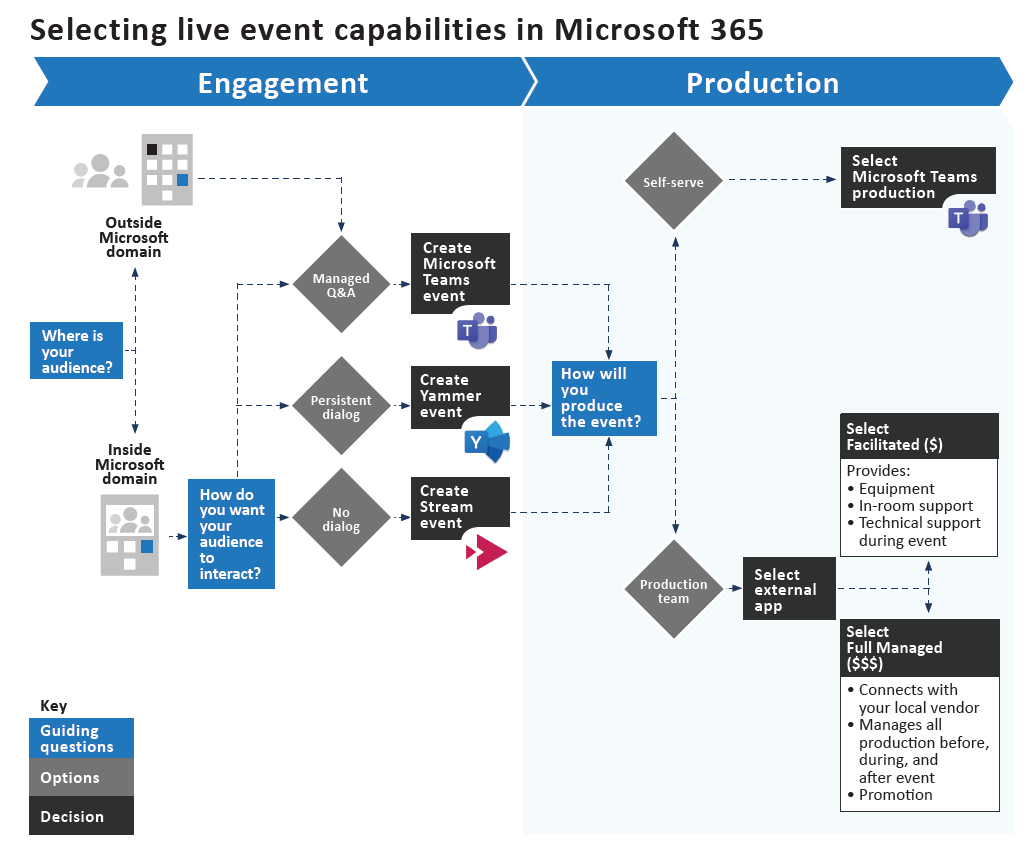
Select the right Microsoft 365 Live Events type best fitting your needs

Microsoft 365 includes 3 different options to execute Live Events: via Microsoft Stream, Microsoft Teams and Yammer. The 3 have their similarities, and also their differentiatiors. How-to select the Live Event type aka webcast solution that best fits your needs on a specific event? Microsoft itself does not really provide direction on this question, although they published how their own Core Services Engineering and Operations (CSEO) team deals with it:
A different angle you can utilize is to address it from the product side...
Use MS Teams Live Event, if:
  • Your event audience is for public anonymous access;
  • Your event audience includes external guests known in your Office 365 directory (via Azure B2B);
  • Your event audience is for internal-only access AND you want to provide an inline conversation;
  • It is allowed that the video recording is not stored in your own Office 365 tenant; (see)
  • Your audience is guaranteed known before the live event starts; (see)
  • There is no need to capture the conversation (Q&A) beyond the scope of the live event
Produce your MS Teams Live Event by:
  • 'Self-production' / embedded encoder via MS Teams, if
    • You want to quickly setup the event, and have no requirements for advanced production quality (as animations, fade-in/fade-out; agumented reality, ....);
    • You as event organizer are confident to do the event production (camera, audio, PowerPoints, ...) yourself;
  • Use 'External App production' via MS Teams, if:
    • You need advanced production quality to bring the message;
    • You're not confident to do the production yourself in MS Teams App;
Use MS Stream Live Event, if:
  • Your event audience is for internal-only access, AND
    • you want to broadcast / send a communication message
    • your online audience size is larger, and you must protect your network from saturation via an eCDN solution
  • You want a branded landings-page for the audience to join the live event;
  • It is not allowed to store on-demand recording of the live event outside your own Office 365 tenant; (see)
  • You need to be able to on-the-fly while live event already in progress, authorize + revoke authorization of persons to watch the live event;
  • You want to easily capture the conversation (Q&A) beyond the scope of the live event; e.g. for trends analysis;
A variation on decision-tree to select proper live events type
Check / Differentiator Questions
  1. What is the audience of your event: internal-only, or also outside your company? (with MS Stream not possible current>)
  2. What is the size of your online audience? (as with larger, network optimization needed)
  3. How sophisticated do you need the production quality of your event to be? (is the simplicity of MS Teams Live Event 'self-production' good-enough)
  4. Do you have dedicated production equipment, or even a production company to produce the event via external encoder?
  5. Do you need to provide a company-branded experience to join the live event?

Monday, November 25, 2019

Beware: unique library permissions breaks drag-and-drop capability (classic site)

Breaking permissions is advised against, unless... Main rationale for this generic rule of thumb is the complexity that unique permissions brings to permission management in a SharePoint site. However, in addition it can also have a limitating effect on the user experience: persons of which the authorization in a site is limited to only contribute in a specific document library, face issues on upload of documents. Quick investigation revealed that the problem occurs when the document upload is done via drag-and-drop; uploading a document via the explicit 'upload' UI flow does succeed.
On SharePoint platform level, these functional equivalent actions are executed via other flows. In the drag-and-drop scenario, SharePoint executes a CSOM call to read the site properties. But if a person is only authorized to the document library, the 'SelectAllProperties' processQuery action on SharePoint Site level returns 'Access Denied'. Solution is to grant the persons also a limited permission level on the site level, so they are allowed to read the site properties.
With this ‘Read Site Props’ permission level granted at site level, the respective persons are still correct blocked to access entities and content on site level; except for the library to which explicit granted via unique library permissions.
Noteworthy is that the issue does not occur in modern sites, even although also in that context with 'drag-and-drown' execution the site properties are retrieved via CSOM call.