Tuesday, December 22, 2020

Developer inconvenience: Deploy Isolated WebPart with webApiPermissionRequests fails unless permission to create new Azure AD App Registration

In real-life enterprise context, it is advised to tag any SPFx webparts that will invoke an Azure AD protected API as isolated. This to prevent that other script running in same page, can abuse the OAuth access token assigned to the SPFx webpart and invoke any tenant-wide API permissions on behalf of current user.
However, you need to be aware of some deployment implications with Isolated WebParts. The first one is that in the Microsoft design, you can only deploy Isolated WebParts via the tenant AppCatalog. It is not possible to deploy an Isolated WebPart (only) to the site App Catalog where it will actualy be used. I suspect this is due that each Isolated SPFx WebPart creates a new Azure AD App Registration on tenant level, and for consistency the SPFx WebPart must therefore also be installed on tenant level. Negative result is that every site-specific customization is visible on all others sites where it likely is unusable. Luckily this visibility is initial limited to only the site owners in "Add an App". Only after a site owner explicit adds the Isolated WebPart to the site, then it will be visible in page editing mode in the available WebParts.
An even more significant inconvenience is that to successful deploy an Isolated WebPart, you need to have the authorization to create a new Azure AD App Registration. Without that permission, the deployment in tenant AppCatalog will fail with the generic error 'Deployment failed. Correlation Id ....'. Implication is that in effect the dependency on Ops is unnecessarily increased: a developer must reach out to a Global Admin for the deployment of SPFx solution containing Isolated WebPart. But the better option is that you request that Global Admin to assign your account the Application Developer role, then you are empowered to do this 'Ops' part yourself.

Sunday, December 13, 2020

Simple pattern to ensure unique element ID inside SPFx React WebPart

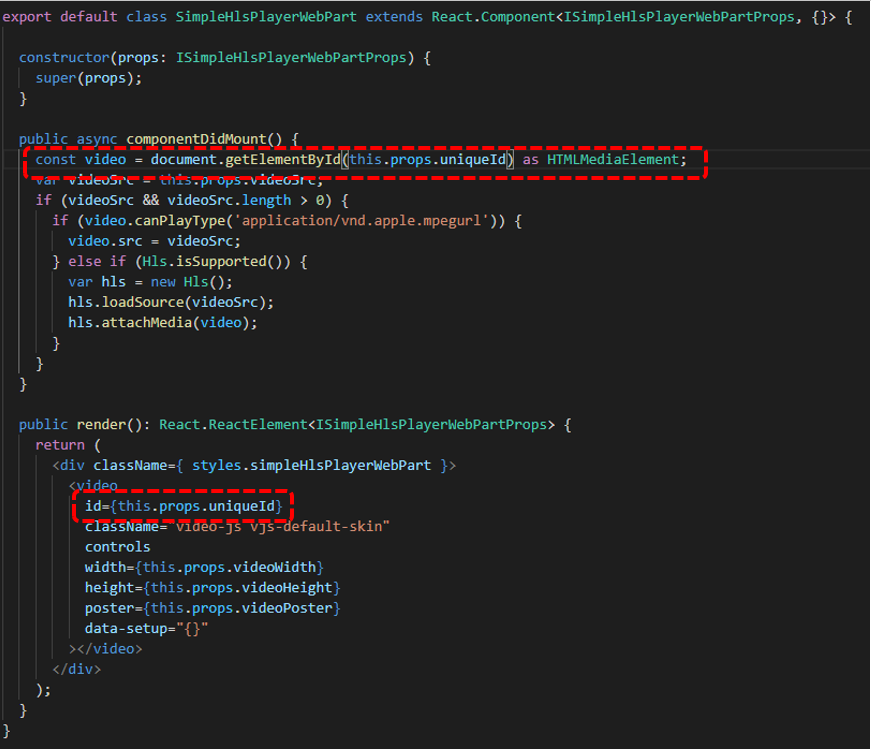
When you build a SharePoint WebPart, you must take into account that the business user can add multiple instances of that webpart on a single page. So the operational execution must be robust for that. In case your webpart relies on HTML element ID, e.g. via 'getElementbyId', then you must ensure that the element ID of each instance is unique. A simple pattern I applied is to derive the ID of the inner React Component on that of the unique ID of the parent React WebPart.
Part 1: Extend the React WebPart Properties interface with a property for unique ID
Part 2: Parent React WebPart derives unique ID from its own, and pushes to the inner React Component
Part 3: Inner React Control applies the received unique ID in its rendering + operation

Sunday, November 8, 2020

Office Graph and Microsoft Graph

Clear and consistent product naming remains a challenge, certain also in the Microsoft domain. An example is the reuse of phrase 'Graph' in Office Graph and Microsoft Graph aka Graph API. What do these names entail, and what if any is the relation?

Office Graph

Office Graph is the oldest name, and originates in 2014 as the foundation underlying Delve. "The brains behind Delve is the Office Graph. The Office Graph continuously collects and analyses signals that you and your colleagues send when you work in Microsoft 365. For example, when you and a colleague modify or view the same document, it’s a signal that you’re likely to be working together. Other signals are who you communicate with through e-mail, and who you’ve shared documents with, who your manager is, and who has the same manager as you."

Microsoft Graph aka Graph API

Microsoft Graph is a giant proxy, it takes requests in, validates authentication token, optional does validation and transformation, and then passes / forwards to the specific inner layer in Microsoft 365 landscape; and returns the inner responses, optional after transformation to the Graph API caller. Graph API provides consistency over all the different inner services, on level of authentication, property naming and casing, exception handling, singular shared object types (eg consolidate on one definition of ErrorDetails object type). Important to understand is that Microsoft Graph itself does not provide services, it simple delegates to the actual services in the Microsoft 365 landscape.

Actual the same?

Microsoft: "The Microsoft Graph models activity in Microsoft 365 services, including Exchange Online, SharePoint Online, Yammer, Skype for Business, Azure Active Directory, and more, and in external services, such as other Microsoft services or third-party services. Microsoft Graph components are used throughout Microsoft 365. The Microsoft Graph represents a collection of content and activity, and the relationships between them that happen across the entire Office suite. It uses sophisticated machine learning techniques to connect people to the relevant content, conversations and people around them. The Microsoft Graph contains information about enterprise objects, such as people and documents, as well as the relationships and interactions among these objects. The relationships and interactions are represented as edges."

Office Graph renamed into Microsoft Graph

The Office Graph has evolved to become exposible via the Microsoft Graph. Thus they have conceptual morphed into same offering, Office Graph as backend collects and analyses signals that you and your colleagues send when you work in Microsoft 365; and the Graph Api provides central gateway access to this collected information. And also to all other services within Microsoft 365 landscape.
Graph API on top of Microsoft Graph administration of collected signals in Microsoft 365 landscape and services
The Microsoft Graph Insight APIs expose relationships generated by Office Graph services (source: Microsoft Search 101 - What’s the relationship between the Microsoft Graph and Office Graph?, Bill Baer)

Friday, October 16, 2020

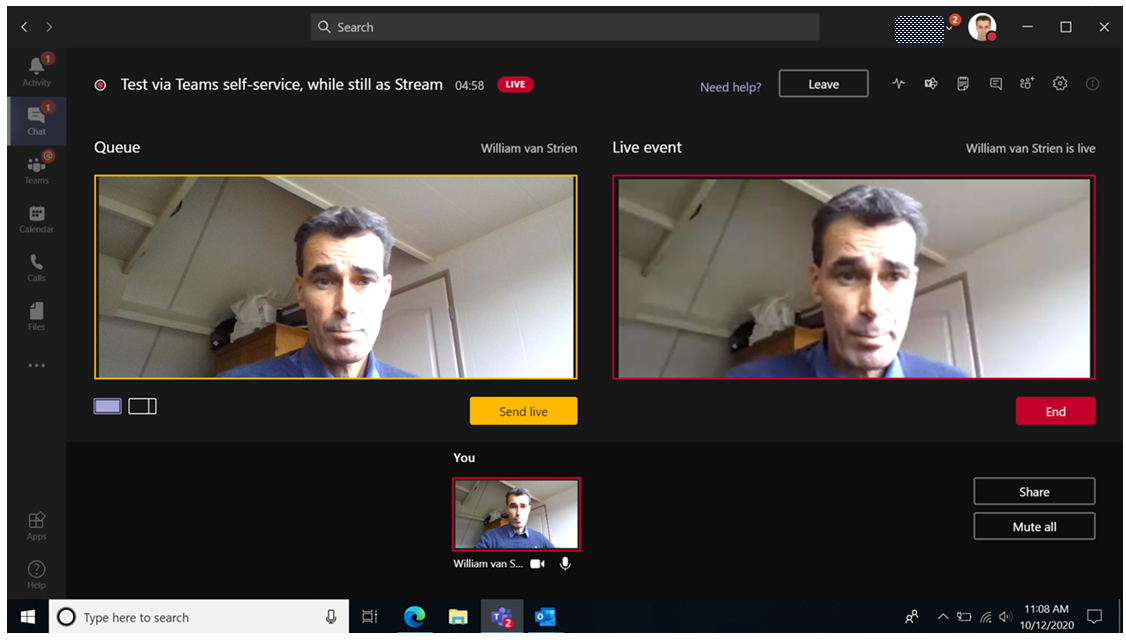
Tip: how-to self-produce without external encoder into MS Stream Live Event

Webcast production for a Microsoft Stream Live Event is default tied to external encoder. Teams Live Event supports this also, but defaults to simple self-production via Teams App itself. In that case, the live event is not distributed via Stream; nor is the event recording stored within MS Stream. Instead Teams uses its internal Azure Media Services based streaming, and stores the recording somewhere for period of max 180 days after the event is over. Yammer Live Events takes a middle road, or the best of 2 worlds. It supports the same 2 production approaches as Teams - external encoder or via Teams. However, the difference is here within the Teams production handling. Even although produced as a simple Teams Live Event, under the hood this does use Microsoft Stream for the webcast distribution and processing, and after the live event is stopped for the storage of the recording for on-demand watch.
This opens multiple advantages
  • It allows to use the simplicity of Teams production for a webcast, and still embed the video on an event portal (typical hosted via SharePoint Online);
  • It prevent the need for and availability of external encoder (e.g. Wirecast-S, TeraDeck, OBS Studio, ...);
  • Corporations that have employed Ramp Multicast+ as eCDN solution to optimize and control the webcast traffic of Stream on the corporate network, can employ this also for webcasts produced via Teams
Way to apply this approach is by:
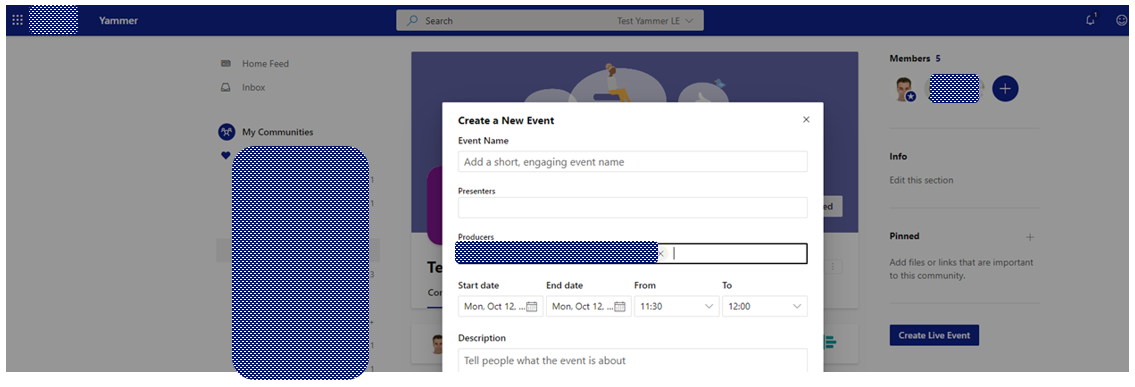
  1. Schedule your webcast as a Yammer Live Event;
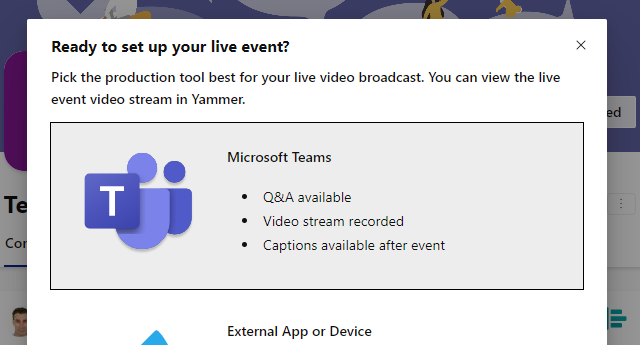
  2. Produce your webcast as a Teams Live Event;
  3. Consume / watch the webcast as a Stream Live Event.
Step 1: Schedule as Yammer Live Event
Step 2: Produce as MS Teams Live Event
Step 3: Consume as MS Stream Live Event, e.g. embedded on SharePoint Online page
Yammer channel determines who is allowed to watch the live event
Something to be aware in case you would apply this approach, is that Yammer then controls who is allowed to watch the live webcast. Namely the members of the Yammer channel in which the Live Event is scheduled. So you must then make sure that all the accounts that are invited as webcast audience, are invited to the 'owning' Yammer channel. It is not possible to extend via Stream portal the permissions of the scheduled Yammer (= Stream) Live Event. After the event ended, then the video recording is 'released' for video management actions through Stream portal.

Thursday, October 15, 2020

Inconvenient authorization management in 'classic' MS Stream

In the corporate usage of Microsoft Stream as Enterprise Video Portal (EVP), authorization to watch videos is also applied on 'need-to-known' base. In current Stream, it turns out a bit inconvenient to execute effective permission management.
First issue is that it is made complex to nearly impossible to efficient configure permission management on a collection of videos. The root cause of this is in how Microsoft Stream handles the authorization and organization of the video store: "In Microsoft Stream, you can use channels and groups to organize and grant permission to your videos" [Source: https://docs.microsoft.com/en-us/stream/groups-channels-overview]. This is actually not a valid statement. Indeed Stream (aka Azure AD) groups "are both a way to organize videos and to control access to videos", but channels merely "are an organization method for videos, but not a permission method". Limiting for efficient permission management is that Stream portal does not include a capability to logical associate video(s) within either a Group or Channel, this is only supported initial on the moment of adding / uploading video(s) into Microsoft Stream. Once already stored in Microsoft Stream, the only possible way to associate video(s) with additional groups or channels it to do this per video, via the manual Add to group/channel action in the video-edit menu. When this must be done for larger collection of videos, this is a cumbersome and time-consuming effort.
Second issue is that Stream suffers from a delay before the indirect authorization assignment via Stream groups is actual applied (becomes active). In situation that authorization to watch a certain video is managed by one or more Stream groups, authorizing another person for access by adding her/his Office 365 account to an authorized group (e.g. via Azure Portal), does not immediate grant the person allowed access to the video. In reality it can take up to even an hour before the group based authorization within Stream context is updated to incorporate the new added account. Until then, the person remains confronted with Stream access denial on the video.
Even worse, similar effect occurs when revoking the access by removing from Stream group. This is neither immediate effectuated. Luckily the elapse time period is in this situation shorter, max 1 to 2 minutes; not a full hour. Still, immediate access revocation on unjustified granted video is not possible.
Perhaps within new Stream, in which the video storage moves to SharePoint Online, the authorization management improves. Not 100% confident yet, as Modern SharePoint also uses Azure AD groups for permission management. However, experiences within regular SharePoint Online usage are that any change in the Azure AD group(s) are almost immediate applied for access control, both on access assignment as revocation.

Sunday, October 4, 2020

Tip: Teams NDI® only becomes active for capture when 2nd person joins the meeting

The new NDI® capability in Teams is interesting for webcast production, as it allows that you simultaneously combine the video signals of multiple persons in the stream. An use case is for a digital (panel)conversation between 2 or more presenters, which are physical at different places. This scenario is native already possible via Teams Meeting; however then you miss the flexibility in organizing the screen layout of the webcast production. E.g. display another background, display a PowerPoint presentation, switch between picture-in-picture vs full profile; display a ticker message and so on.
As I acknowledge the usability of Teams NDI capability for productive company webcasts, I played around a bit with it: in Teams (MSDN development tenant) configured NDI capability on tenant level (Use NDI® technology in Microsoft Teams) + for own Teams account (Broadcasting audio and video from Teams with NDI® technology); webcam setup (via IVCam) on home system; OBS Studio with NDI plug-in.
While playing, I notice that the NDI signal only becomes active on the network once a second person joins in the Teams meeting. Implication of this is that as producer you cannot prepare a production setup with only you present yet in the Teams meeting. In reality this should not be an issue: the reason to use NDI for capturing is because you want to capture the video of other person or persons. Not that of yourself, that you can just as simple direct capture in OBS Studio (or other encoder) as 'video camera' input.

Screenshots of exploring Teams NDI capability

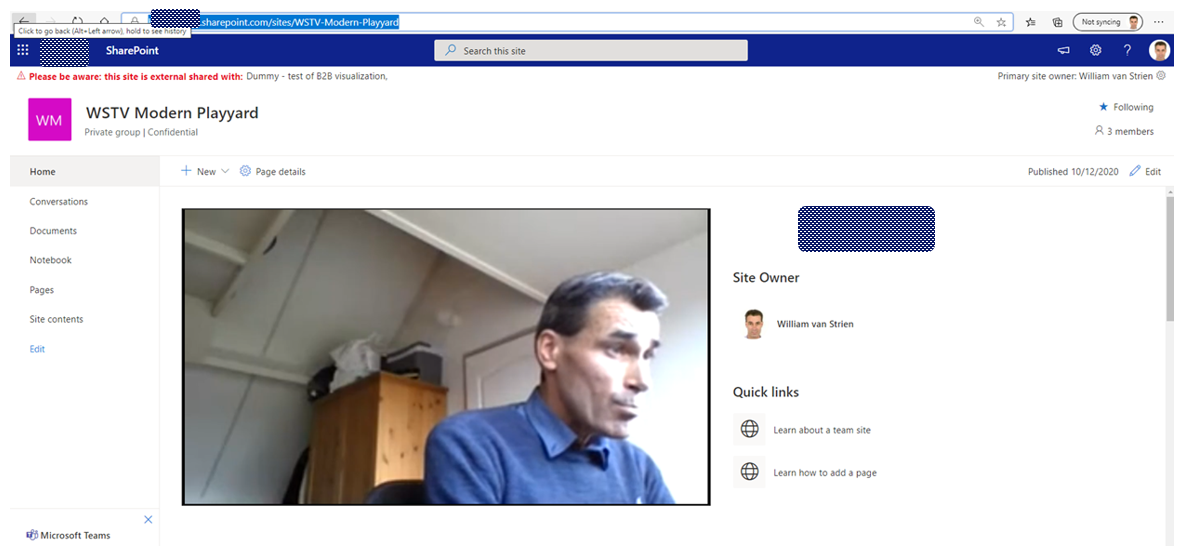
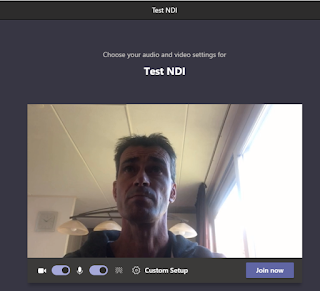
Join as webcast producer / organiser the Teams Meeting, with NDI enabled for yourself
Teams does not yet activate NDI broadcasting, while not actually a meeting of multiple persons
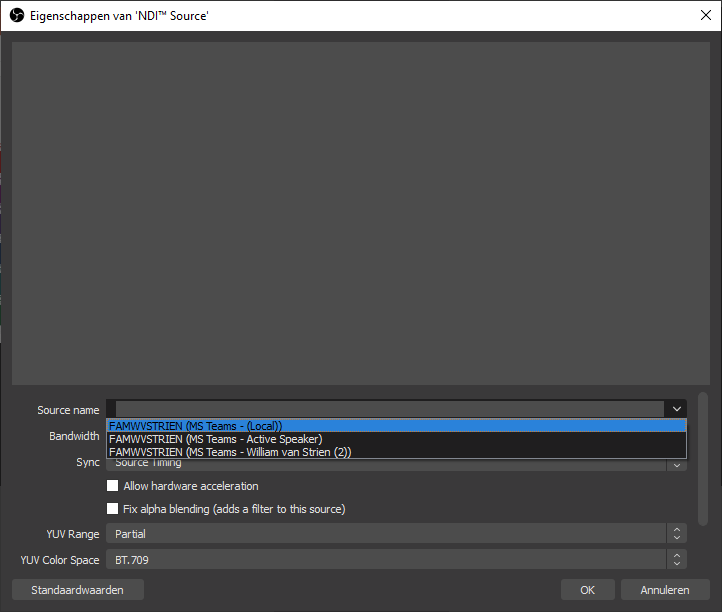
Second person joins the Teams Meeting
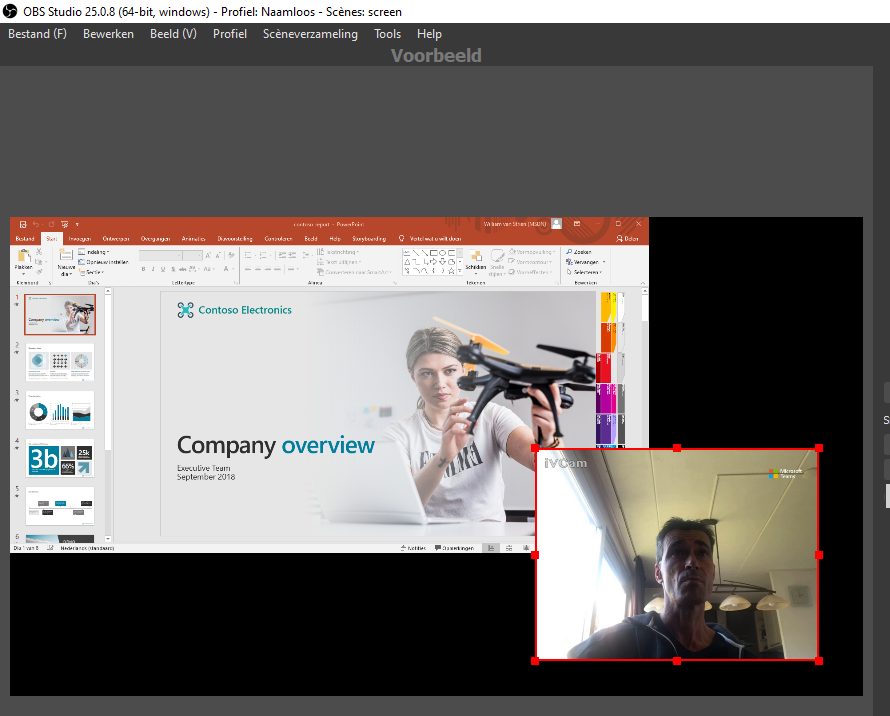
Teams now activated NDI broadcasting, and can be captured in OBS Studio
Once 2nd attendee in the meeting, Teams displays the NDI broadcasting notification

Saturday, September 5, 2020

How-to prevent download of video files stored in SharePoint Online site

Context
  • Event portal with both company internal as external audience
  • Teaser videos to prepare the audience for the event
  • Due the company information in the videos, not allowed that visitors download the videos for uncontrolled distribution.
An answer on the first aspect can be a SharePoint Online communication site, via Azure AD B2B external shared with known guest accounts. For the second aspect it would be preferred to use Microsoft Stream as secure Enterprise Video Platform. However, as Stream is still lacking the capability of external access; this would result that the external audience cannot watch the videos. Pragmatic alternative is then to fallback on using SharePoint Online itself as administration plus platform for the teaser videos. Remaining question is then whether possible, and if so how, to prevent that the external audience can easily download the video files.

Prevent download on SharePoint level

First component in answerring is to prevent on SharePoint Level that site visitors can download content from the site. The standard 'Read' permission level grants the authorization to "Can view pages and list items and download documents". There required to create a restricted permission level that only allows to "View content", and assign that permission level to the 'Visitors' permission group.

Prevent download on browser level

However, this does not prevent that visitors can download on browser level the SharePoint stored .mp4 videos, whether embedded in a SharePoint page, or the .mp4 video direct visited + played in the browser. All modern browsers native understand / recognize .mp4 as a video file, and then default to allow play, download and 'save as video' on browser level of that video file.
Does this mean it is not possible to prevent download of video files? The honest answer is: you can't stop downloading of html5 videos. But you can make the action more complicate to do. Multiple options for that.

Option 1: Download as blob in video player

This suggestion is made in Prevent HTML5 video from being downloaded (right-click saved)?

Result wrt default browser behavior:
As for the video player it is not .mp4, the default menu options for 'save as video' and 'download' are not triggered. However, on network level the video file is still initial downloaded as .mp4; and a knowledgeable person has no problem to simple direct navigate on browser level to the SharePoint address of the .mp4 videofile.

Option 2: Play as 'renamed video extension' file, so that default browser behaviour is prevented

Steps:
  1. Rename the file extension to something else than .mp4; example rename 'SampleVideo.mp4' into 'SampleVideo.videofile'
  2. Upload the renamed file into SharePoint Assets library
  3. Also upload an image to use as preview
  4. Embed a videojs based videoplayer on SharePoint page, that is configured to understand how-to play '.videofile' as '.mp4'. Also customize the videoplayer to not render the standard contextmenu

Result wrt default browser behavior:
As the file-extension is not a video format; neither SharePoint, nor browser recognize this as video file. And the default browser behavior to play the video-file address as video, is not fired; and thus the option from menus to ‘download’ + ‘save video as’ is not presented.

However, when navigating in browser to the SharePoint address of the renamed videofile, it will then download as file (despite that SharePoint permission does not allow). It is downloaded with the renamed file extension, but a knowledgeable person can guess that it is actual a .mp4 file, fix the downloaded file, and then it is native playable again.

Option 3: Convert from single .mp4 into HLS; with division accross multiple files

Steps:
  1. Convert .mp4 video file into .HLS video (manifest file + video fragments). An approach for this is via 'FFmpeg'.
  2. Upload the manifest + video fragments into SharePoint Assets library
  3. Also upload an image to use as preview
  4. Embed a HLS videoplayer on SharePoint page.

Result wrt default browser behavior:
Browser default do not handle HLS video files; this is handled via a HLS video player (JavaScript). To download the video, one must navigate in browser first to manifest file, and then all individual video fragments. Doable, but manual labor for the person downloading.