Monday, December 23, 2024

How-to join as B2B guest a Teams meeting with ‘bypass lobby’

The lobby function in Teams gives some control over who joins a meeting, and when to allow entrance. This capability is convenient to prevent unknown people join your meeting. For known persons, it can be preferred to have ‘an open door’ policy. This can be configured via Teams policies, including for Entra ID B2B guests as known + trusted identities. However, to actual bypass the lobby, does require some ‘trickery’ on the guest side. The trick is to make sure you are indeed in a ‘known’ state in the inviting tenant; as “Unverified” you will still need to wait and enter via the lobby.
Teams Policy to allow B2B guests to bypass lobby
Join meeting in external organizing tenat still routes to lobby
Inspecting the situation from the inviting side gives indication on why the B2B guest is not automatic allowed in: the identity is not 'verified' as known:
2 ways to direct join as Entra ID B2B guest, bypassing lobby
Approach 1 is to explicit self change to the organizing tenant, before joining the meeting:
The 2nd approach is the most simple and seamless, direct join the meeting from the notification popup that the meeting is started in external tenant:
Both approaches result that on moment of joining the Teams Meeting, in the context of organizing tenant the joiner is verified as a known B2B guest, and therefore allowed to direct enter - bypassing the lobby:

Sunday, August 20, 2023

Overcome JSON column formatting limitation that it does not support Rich Text Multiline

Inspired by the visualization of Microsoft 365 roadmap, I want to achieve similar for collecting and communicating the architecture vision and refined roadmap of our ART (Agile Release Train). As the purpose is mainly about communicating, I decide to just leverage a SharePoint list for it, no need to administrate in a planning tool (eg Jira Align). In the information architecture I add a column per aspect of the architectural roadmap topics: title, description, theme, year of delivery. And for the roadmap refinement a column per year in which to enumerate the steps I foresee in that year. The steps collected in a bulleted list, thus the column must be of type Multiline / Rich Text.
However, this decision results in a visualization challenge. Standard, SharePoint truncates in ListView the value of multiline columns to 4; and the roadmap does not display in entirety. List View / JSON formatting is not helpful to resolve: 1) ColumnFormatting does not support Multiline / Rich Text, and I don’t want to reduce to plain text ("It is NOT recommended to use Rich text fields in your formats"); 2) RowFormatting requires to specify the formatting for full view, while I am satisfied with the standard formatting of all other columns.
As pragmatic resolution I decided to revert to old-skool approach of DOM formatting. In Modern SharePoint you cannot directly inject a custom style, but via Modern Script Editor this is easily possible: [[Code]].

Saturday, April 9, 2022

Too compulsive cleaning up PnPSearchResults SelectedProperties can destroy some of its behaviors

I utilize PnP Modern Search v4 for a business search solution on data that is administrated in a SharePoint list. In the business solution I display multiple list columns in the search results layout (Details List), and thus need to ensure that their mapped managed properties are included in 'selectedProperties' of the PnP Search Results webpart. Default already a lot of other properties are included in the configuration, some of which are not even present in the SharePoint list, and others that I do not intend to use. So as good citizen I limit the 'selectedProperties' to only "what you need / want to display":
Well, this good citizenship resulted that some behavior was broken: it no longer worked to open a listitem from the PnP Search Results overview. Direct cause was the property 'PreviewUrl' was without a value in the mapped search results Slots, and this was result that I excluded 'Path' from the 'selectedProperties'. Lesson: although good to limit data retrieval to only what you need; you also must have understanding of 'for what purpose you may need'.
See for more details: PnP Modern Search - Slots

Sunday, March 20, 2022

How-to Join as external attendee an access-controlled Teams Live Event without explicit Teams Guest Access

MS Teams Live Event is current the only service in the Microsoft 365 landscape that enables audience outside the own organization. Teams Live Event supports both full public (anonymous) Live Events without any access control, as well as Live Events with the permission mode 'People and Groups'. In the last mode, also externals can on named base be allowed by applying the Azure AD B2B guest concept. Besides that (1) the external must be known in the identity system of the tenant in which the Teams Live Event is produced, another requirement (2) is that the external must switch in Teams first to that tenant aka 'Organization' before allowed to join the Teams Live Event.
For reference, below the prerequisites to enable external to attend a Teams Live Event in your tenant.
On Organizing part
  • For each external that needs to be granted access, provision an Azure AD B2B guest account
  • Schedule in Teams a Live Event, with permission type: People and Groups
  • Authorize all the externals via their provisioned Azure AD B2B guest account for access to that Teams Live Event
  • Share the attendee link with the invited externals
Per external
  • Redeem the provisioned Azure AD B2B guest account
  • Enroll for Azure MFA via MS Authenticator App; against the organizing tenant
  • In Teams context; first explicit switch to ‘<organizing> tenant’ ⇒ without this, Teams displays message that you are prohibited to access
  • Then click the attendee link ⇒ and the external will be allowed to access
Externals that are authorized via Teams Guest Access concept in any arbitrary team in the organizing tenant, can do this 'tenant-switch' direct in the Teams App and web application, via so-called 'tenant-switcher':
For externals that are not within any team, there is no reason for the Teams App and web application to list that tenant as organization within the 'tenant-switcher'. The easy way out is then to just add all the authorized externals to 'a' team in the organizing tenant. But for multiple reasons this is not always a preferred / good approach. For one, it doesn't "feel right" to add persons to a team with its full set of capabilities, only because they are invited to participate in a temporary digital event. Also as all members of a team instance can 'see' all the other members, and then contact each other; via teams chat, or via the discovered email addresses. For privacy and compliance reasons the event organization might not want this, or even not be allowed to do. Another reason has to do with timing aspect: in the Teams operational model it takes unpredictable yet significant time (can take up to 36 hours) after adding an external to a team instance, before the external sees the effect of this in the 'tenant-switcher' of the own local Teams App.
Luckily there is an alternative approach in which the externals can do the 'tenant-switch'. Namely by visiting in the browser the link "https://teams.microsoft.com/?tenantId=<organizing tenant-id>". The external must then sign-in via his/her Azure AD B2B guest account, and typical also answer on multi-factor authentication challenge (imposed by the organizing / inviting tenant), and if both successful the external is then allowed in the Teams context of the event organization. For the externals that are not member of any team, Teams will display the message "You’re currently not part of any teams…".
And now from this context in Teams, the external can join via the attendee link the Teams Live Event. Be aware that this approach only works from the browser via Teams web application, the external can not watch the live event in the Teams App. But on user experience that makes no difference; Teams App and Teams web application have same behavior wrt Teams Live Event.
Update:It is also possible to achieve both via one single link: making the attendee link of the Teams Live Event tenant-switch enabled. The trick is to insert "/_?tenantId=<organizing tenant-id>" immediate after "https://teams.microsoft.com" and before the "/l/meetup-join/..." part. On navigating to this link, the browser (1) first switches in Teams Web Application to the referred tenant, and (2) next from that context it joins the Teams Live Event in that same tenant.

Saturday, March 19, 2022

Best-practices for delivering webcast via Teams Meeting

Complementary to post Bad-Practice: Include 'presentation / video production' as camera input in MS Teams Meeting + Teams Live Event, here some best-practices to apply upon delivering a webcast / digital event via Teams Meeting.
Tips to practice / try-out:
  1. Ensure that the workstation on which you 'produce/present' the digital event, and are including camera, audio and likely also content, is qua CPU and memory sufficient equiped for it. And close all other applications, in particular CPU, memory and/or network intensive, on it during the period of the digital event production.
  2. Be in particular careful with using OBS Studio on that same workstation. I love OBS for its webcast / digital events capabilities, but it puts extensive strain on the workstation. Together with Teams Meeting, this might become a bottleneck; and result that the production in Teams Meeting suffers. Better to have OBS on another workstation, and cast its output to the workstation on which presenting in Teams Meeting.
  3. In the Teams Meeting where the webcast is produced, turn off 'incoming video' of the attendees aka audience.
  4. If possible, connect to wired iso wifi; prevent potential disruption of WIFI signal, hotspots, others consumers.
  5. Dedicate the 'presenter' role to only those persons that will actually present; avoid the role is assigned to everyone in the audience.
  6. In case you need 'access-control' on who is allowed as audience, apply the lobby function (Teams Meeting Options). Note: in case you apply the lobby as manual access-control, there is an additional reason to assign 'presenter' to only event organization; any 'presenter' is namely empowered to allow people in from the lobby. Even external attendees with presenter role can do this, risking the 'access-control' via lobby.
  7. Include 'production' from external device (mixer, encoder) as shared content, do not misuse the possibiliy to include it as 'attendee camera' (see Bad-Practice: Include 'presentation / video production' as camera input in MS Teams Meeting + Teams Live Event).
  8. In case producing without external device, then use PowerPoint Live to include PowerPoint presentation. And leverage Teams Meeeting 'presentation modes' (link) to turn the layout of the digital event in a more professional / (televion) reporter look.

Saturday, March 12, 2022

Bad-Practice: Include 'presentation / video production' as camera input in MS Teams Meeting + Teams Live Event

Via MS Teams Settings you have the option to configure an external camera as device. This can be used to include the video output signal from external mixer (e.g. vMix, OBS Studio) into a Teams Meeting or Teams Live Event, and then to spotlight it for all participants in the Meeting.
But be aware of a serious caveat with such setup. From Teams perspective, that video signal is regarded as the camera display of 'face of a participant'. And Teams will continuous process it for optimal contrast of 'face' against the background. As long as in the video production there is indeed only a face, there will not be a real issue. But in situations where there is not (only) a face in the video production, e.g. slides are presented, the mismatch with Teams understanding results inevitable that the slides are on occassion not sharp rendered but blurry. The correct way to include the produced video signal into a Teams Meeting or Teams Live Event is via 'Share Content'; Teams Meeting prioritizes 'screen / content sharing' above the local 'camera'.
Nice outline on this:

Friday, March 11, 2022

Tip: Reuse authentication of MFA secured account over multiple Connect-PnPOnline calls

A best security practice to connect into SharePoint Online is configure MultiFactor Authentication (MFA). When connecting from PowerShell to SharePoint Online this can give some challenges, as the default 'Credentials' based logon is not MFA aware. Resolution for this is to use either '-Interactive' or '-PnPO365ManagementShell' flag: both result that you are enabled to interactive address the MFA challenge.
Need to address the MFA challenge is acceptable to do one-time. But in an administration context, it might be that you need to execute settings over a set of sitecollections. Then it is not a pleasant experience to everytime need to (re)logon including MFA challenge. Common way to address this is by piping the authenticated SPO connection into the subsequent PnP calls. But Connect-PnPOnline does not support the '-Connection' flag (other PnP cmdlets do support it; PnP is not consistent across all its cmdlets). But I found an alternative that works:
  • $connection = Connect-PnPOnline -Url $spoAdminUrl -PnPO365ManagementShell -ReturnCollection
  • Connect-PnPOnline -Url <Url to other site collection> -Interactive -ClientId $connection.ClientId

Saturday, January 8, 2022

Validate UDP communication in datacenter

When application setup is using UDP connection, and it is experiencing an issue on the UDP communication, as a first check you want to verify whether the UDP traffic is allowed over the network including the firewall(s). For TCP traffic you can use telnet as simple OS command tool, but telnet is not appropriate for UDP.
On a client station one would then typically use a network sniffer as Wireshark to monitor that the UDP traffic can be delivered and received. On a server in the data center this is typical not allowed. And the Windows Server does not include itself a command to verify UDP communication. But you can easily create a validation setup yourself via Windows PowerShell.
A good example/inspiration is post Test UDP connection with PowerShell.
PowerShell cmdlet running on both VMs / nodes in the datacenter
Result of the UDP communication test: both VMs can communicate to each other over UDP <port>

Wednesday, December 29, 2021

Beware: on site renaming, initial Url preserved as ReadOnly site collection

Last year Microsoft delivered the long-requested capability to change the address of a SharePoint Online site collection. One of the features is that any request to the original / initial site address, is seamless mapped to the renamed site address. An unexpected side-effect is that on SharePoint tenant level a placeholder site collection is created to deliver this site mapping / redirection.
Visualization of the effect: before + after
Before RenamingAfter Renaming

Friday, December 24, 2021

Things to be aware of when embedding video play in Teams Meeting

the presenter clarifies the multiple hop issue that may result for the audience in non-optimal experience when embedding a video play in the Teams meetings.

Awareness 1: Recording misses the video if embedded via PowerPoint live

In this video he also introduces the Microsoft recommendation how to resolve this; namely by uploading the video via PowerPoint already in the Microsoft cloud. With this approach the first 2 hops are avoided. This works like a charm for the people live in the meeting. But a caveat I noticed is that when you need a recording of the meeting for afterwards (re)watch, then the video play is missing.
Include the video play via PowerPoint Live in the Teams Meeting presentation
Video is playing in the Teams Meeting, audience can live watch it
Video play is missing in the recording of the Teams Meeting

Awareness 2: Embed the video as shared content - video play stops on ANY mouseclick

If you need to meetings to be recorded; then you must share the video ‘as content’. The first of the 3 hops can be avoided by storing the video first local on your workstation, and play it from there on a 2nd monitor. Select this 2nd monitor on which playing for sharing in the Teams, and don’t forget to turn on ‘Include computer sound’ ! The video playing is then both visible for the audience 'live' in the meeting, and also included in the Teams meeting recording. Caveat with this setup is that during video play, you must take care not to click your mouse at all. If you do so, it doesn't matter whether in other screen or application; the video play immediate stops, resulting in disrupted experience. If you want to rule out this risk, then the trick is to play the video on another system then the one used for sharing in Teams Meeting (or Live Event). This setup is described in detail by Chris Stegh in his excellent article Sharing Video in Microsoft Teams Meetings.
Include the video play via shared content in the Teams Meeting presentation
Video play is included in the recording of the Teams Meeting

Awareness 3: Reporter layout not propagated into recording

A nice recent addition to Teams Meeting is multiple layout-options for the presenter, contributing to more professional appearance to the audience. However, only the 'live' audience can enjoy it; in the recording the presenter mode is ignored and it always in side-by-side layout. This holds for both approaches: whether including the video via PowerPoint (but this is current a no-go if video AND need recording) and on including as shared content.
Reporter layout for the presenter in the 'live' meeting
Side-by-Side layout for the presenter in the recording of meeting

Wednesday, October 13, 2021

Beware: Issues in Hybrid Search Crawling might not be flagged

We have a mixed SharePoint setup with parts still on-prem, while for others we moved to Microsoft cloud. We try as much as possible to abstract our end-users from this complexity in the SharePoint landscape. Therefore we utilize SharePoint Hybrid Search to allow the end-users finding from one single search entrance all SharePoint stored content, whether stored on-prem or online.
From time to time we encounter issues in this setup, most significant cause being that the required trust on the on-prem search crawlers to online index is lost due change of certificate on Microsoft Online side. We are automated flagged if such issue occurs, as we have an automated health monitoring + notification on the state of the crawl logs. Too bad, due a recent Microsoft change we can no longer trustworthy rely on the automated signalling. For (design) reasons so far only known to Microsoft development team, they decided to no longer flag in the crawl log in case an error occurs on propagating crawled content to the online index. We noticed as we started missing recent content in the search results; while on inspection of the crawl log it was reported to be successful crawled: full green. Yet by doing a query on 'k=isExternalContent:1' the most recent on-prem crawled items were not included in the search result, a clear deviation from the healthy report of the on-prem to online crawling.
Note: the actual rootcause of the missed crawled items in the online index was that in the user policy of the on-prem webapplication some accounts were configured, that in online world no longer had a match. This resulted in failing to index in SharePoint Online with error "Hybrid ACL Mapping: Deny ACE with unknown/unmappable hybrid claim", but it turns out that such error is no longer notified back to the on-prem crawler context. As Office 365 customer you do not have visibility on the Online index; we only came to know of this rootcause after we involved Microsoft Support. Once cause known, the problem was easily fixed: we removed the stale accounts also from the on-prem user policy.

Sunday, May 30, 2021

Prevent that Azure AD B2B guests are blocked due expired MFA

Azure AD B2B can also be used to authorized identified externals to digital events that your organization hosts, via Teams Live Event or via any streaming platform that is access-control protected via Azure AD. To increase security, enterprise organizations typical employ Multi-Factor Authentication via MS Authenticator App. A problem can be that re-visiting guests have their MFA status expired, but are unaware of that. And then face issue at the moment they want to join the digital event.
To prevent this, better to explicit reset the MFA status before the event. But you should not do this blind for all invited guests, as there are likely also guests that still have and use an active MFA status; e.g. for regular external collaboration with your organization. The trick here is to inspect the latest logon of the guest, and in case this was longer ago then you can safely assume the person is not an heavy guest-user, and for safety sake reset the MFA.
Azure AD does not direct reveal 'last logon' information, but you can utilize that access is granted via OAuth2.0 tokens: Azure AD stores per account 'RefreshTokensValidFromDateTime'; and this value can be interpreted as the datetime of 'last logon' (source: How to find Stale(ish) Azure B2B Guest Accounts)

Saturday, May 22, 2021

Tip: How-To get non-persistent cookie (e.g ASP.NET_SessionId) within PowerShell

Context of my need: a COTS application deployed as Azure WebApp that is also used as REST Api by this webapplication, and the need to automate some of the provision capabilities in this application. The user-based authentication and access control on the Azure WebApp as Api is implemented by leveraging the SharePoint Add-In model, with the remote Azure App launched via AppRedirect.aspx. And next the Api endpoints check the 'SPAppToken' cookie included in Api request, plus the "ASP.NET_SessionId".
The first is rather simple to get hands on in PowerShell code, by 'Invoke_WebRequest' to AppRedirect.aspx with the proper launch parameters; and from the WebResponse object parse the SPAppToken value that is returned in body of the response.
However, the 2nd is more tricky: it is returned as non-persistent cookie in the response, and default not available within PowerShell automation context to read from the WebResponse object. I tried the approach described in Cannot get authentication cookie from web server with Invoke-WebRequest. Without success, but it did inspire me to an alternative approach; and that does work:

  function GetAzureAppASPNetSessionId() {
     $appLaunchCookies = "SPAppToken=$global:AzureSPAppToken&SPSiteUrl=$([System.Web.HttpUtility]::UrlEncode($global:targetSite))"
     $url = "$azureAppLaunchUrl/?SPHostUrl=$([System.Web.HttpUtility]::UrlEncode($global:targetSite))";

     $WebSession = New-Object Microsoft.PowerShell.Commands.WebRequestSession;
     $wr1 = Invoke-WebRequest -Uri $url -Method Post -Body $akuminaCookie -WebSession $WebSession;

     $cookieCont = $WebSession.Cookies.GetCookies($appLaunchCookies);
     $aspNetSessionIdCookie =  $cookieCont | Where {$_.Name -eq "ASP.NET_SessionId" };
     if ($aspNetSessionIdCookie) {
        return $aspNetSessionIdCookie.Value;
    }
}

Friday, April 30, 2021

Be aware: ''Check Permissions" does not report M365 Group authorizations until first access

The new and default permission model for Modern Team Sites is via the 'owning' Office 365 Group. I discovered a functional flaw in that: on accounts authorized for site access via the Office 365 group, the SharePoint 'Check Permissions' capability reports "None" until first site visit of an authorized account (which on SharePoint level results that the account is administrated in the (hidden) site users list). I reported this to Microsoft Support, and they reproduced + confirmed the behavior in an arbitrair tenant. Their first response was "this is expected behavior", but I strongly disagree. We use and rely on 'Check Permission' to assess whether a person has access or not to a SharePoint site. And the reliability of this access-check should not be dependent that the assessed person has actually already once visited the site.
Update: in call with Microsoft Support they motivated the "this is expected behavior": it is expected from how it is technically build within SharePoint.... When I re-stated that on functional view this is not expected behavior, they agreed and asked me to submit as UserVoice suggestion; so that the development team can triage it for product fix.

Sunday, February 7, 2021

Migrating away from SPD workflows: Power Automate is NOT the right direction for system processing

Like more O365 customers, we were in begin Q3 2020 unpleasant surprised by the Microsoft announcement that runtime execution of SharePoint Designer 2010 workflows would in few months time come to its end. In our tenant, business users are self-empowered for automation customizations, and in a significant number of site collections they have designed custom workflows. But as it quickly became clear that the stop-message of Microsoft this time was a final one (note: on concrete stop-moment of InfoPath, the other 'old/classic' power-user customization tool is no Microsoft statement yet on), we knew we had to act. We bought ourselves some time with Microsoft, as the initial message of stop in few months was both unrealistics as ridiculous / not consumer-friendly from Microsoft. And then together with business, as in our model they own their self-build customizations, started up a migration plan away from SharePoint 2010 workflows (and later on to include SPD 2013). The destination to be Power Automate, as that is what Microsoft itself is advising:

If you’re using SharePoint 2010 workflows, we recommend migrating to Power Automate or other supported solutions.

Source: SharePoint 2010 workflow retirement

While ongoing, this generic Microsoft advise turns out viable for the majority of the custom-build processing, as these are mostly on level of 'user-productivity'. But the Power Automate approach gets in a squeeze to migrate unattended system processing, with a bulk of actions. Power Automate on itself can handle that, but the license model restricts the flow owner from using it for bulk / large automated operation. You either are forced to buy a more extensive Power Automate license, but mind you: this buys additional capacity, but still with a defined limit. Or you must migrate to another 'supported solution'. In the Microsoft 365 domain this means to migrate to Logic Apps iso Power Automate. The design model of the both are similar, the operation model however very different: Power Automate runs under identity and license of Power Automate owner with a licensed capacity on level of flow actions; Logic Apps runs under system identity and with pricing model of 'pay what you use'. If you need more capacity, you will pay more; but Microsoft will not stop the system processing because you passed a capacity thresshold.
Business users dislike the Logic Apps approach, as this reduces their self-empowerment. They are not capable to define + deploy Logic Apps flows themselves into the productive landscape, but must involve IT / administrators. But one must question on whether this loss of flexibility / business-agility is really a recurring problem: you do not expect critical system automation /processing to require the capability for business to continuously be able to change on the spot. A bit of control on such business critical processing is not per se a bad thing, neither for the owner business themselves...
Pointers:
  1. Power Automate pricing
  2. Power Platform: Requests limits and allocations
    For personal-productivity automation, licensed capacity of max 5000 actions per day is well beyond expected usage. But this does not apply ico automated system processing: max of only 5000 is not enough when bulkprocessing eg an HR process for all employees of a > 20.000 FTE organization.
  3. Why you should use Logic Apps instead of Power Automate
    Power Automate is meant to automate certain workflows for productivity, Logic Apps are meant to automate certain tasks within your organization.
  4. Why you need Power Automate and Azure Logic App for your enterprise
    If you create a custom workflow on Power Automate, it can be exported to a JSON file which can then be imported into Azure Logic App. This is a great way to migrate a custom workflow created by a Business user; for example, to be evolved into a more elaborate process and then shared with the team.
    Power Automate workflow is suitable for individual users who need their own custom processes. Azure Logic App is for workflow shared by multiple users or complex processes maintained by IT. This decision is also driven by their specific pricing model.
    Power Automate license by user: $15 USD per user per month. Azure Logic App is charged by execution: $0.000025 USD per action, and $0.000125 USD per Standard Connector.
  5. Azure logic apps vs Power automate – A detailed comparison

Wednesday, February 3, 2021

Leverage MS Stream eCDN investment with THEOplayer

Last year we selected Ramp eCDN as Microsoft-certified eCDN solution for Microsoft Stream, and successful applied Ramp Multicast+ in multiple internal webcasts for control on the internal video delivery. For diverse reasons on another webcast Microsoft Stream is insufficient (lack of customization options to provide a rich virtual event attendee experience, lack of guest access). Business selected a product company with their own cloud-based streaming platform. The player used in that platform is THEOplayer, consuming HLS video traffic.
An aspect that remained is that at IT / connectivity level, we must prevent network saturation on the internal network. So we explored whether possible to leverage Ramp Multicast+ also with this HLS-based THEOplayer. According to a promotional this should be possible, but it turned out that neither of the 2 involved vendors actually had it working. In a DevOps way of working with the 3 involved external parties (production company, Ramp, THEOplayer), we identified the code-pieces that are required to make the combination THEOplayer + Ramp an actual reality. With the required result: the global audience that was watching this webcast direct connected to the company LAN, all consumed the video traffic flawless as one shared multicast stream. Without negative effect of public internet connections at specific locations + countries.
Proof of Concept code in plain JavaScript: THEOPlayerAndRampPoC.js. Based on successful PoC validation, this code-snippet was reused by vendor to include the Ramp Multicast+ optimized video consumption in their THEOplayer usage, via typescript THEOplayer hooks module.

Saturday, January 23, 2021

Understanding why you at least must consider to go isolated

My trigger was actually a classsic 'admin' versus 'dev' mindset: I wanted to “play” with the new Microsoft Graph Toolkit 2.0, and used Mgt-PersonCard in a custom SPFx webpart. Deployed it to a development/playground site in SharePoint production tenant, as only there is a filled User Profile store to fully experience all the capabilities delivered in the Person-Card component. Asked the Azure tenant admin to approve the API Permissions that Mgt controls typical require, and in all the Microsoft provided code examples for simplicity sake are requested org-wide. And got the door slammed back in my face: sorry, not going to grant this [are you insane for even dare to ask??]
At first surprised and disappointed on this rejection, I again looked into API Permissions for understanding. I started with questioning some Microsoft contacts on what Microsoft recommended best-pracice in this is. Not suprising, the consultancy answer is on level of “it depends” and “customers must consider and decide for themselves”. So that is what I continued with: deep-dive to understand about how org-wide can be risky, and about the balance between strict security control/mitigation, versus developer convenience.

The happy, unworried flow...

I started with reading again the Microsoft Docs on Connect to Azure AD-secured APIs in SharePoint Framework solutions. This is a typical example of Microsoft documentation in which simplicitly prevails above the more complex story. Yet some credits deserved, in the Considerations section there is some minor warning about Granted permissions apply to all solutions.

Happy indeed, for malicious code...

But what does this actually mean, how can 'any solution in tenant' (mis)use the Azure AD permissions granted to the webpart you deployed in AppCatalog? For understanding of this, another Microsoft Docs gives more insight: Connect to API secured with Azure Active Directory; in the section 'Azure AD authorization flows':
"Client-side web applications are implemented using JavaScript and run in the context of a browser. These applications are incapable of using a client secret without revealing it to users. Therefore these applications use an authorization flow named OAuth implicit flow to access resources secured with Azure AD. In this flow, the contract between the application and Azure AD is established based on the publicly known client ID and the URL where the application is hosted"
In essence this means that all what is needed for arbitrary script code to reuse Azure AD permissions granted on org-wide level, is the public client ID or name of an approved application, and the script must be loaded in the browser on the same domain as that approved application. The clientside script code can then itself setup OAuth Implicit flow for the public client ID or name. The script does not have to be SPFx code itself, in the ultimate situation it can implement OAuth Implicit flow itself on raw OAuth protocol level. The lack of MSAL.js or even ADAL.js does not scare hackers away, they have rich toolkits to help them setup attacks. And the attack can even be simpler: in case the malicious code is included in the browser DOM where also at run and render time a SPFx control is loaded, then it can read/steal in the DOM the access token returned to that SPFx control loaded in the same domain. Awareness on this in Considerations when using OAuth implict flow in client-side webparts:
"Web parts are a part of the page and, unlike SharePoint Add-ins, share DOM and resources with other elements on the page. Access tokens that grant access to resources secured with Azure AD, are retrieved through a callback to the same page where the web part is located. That callback can be processed by any element on the page. Also, after access tokens are processed from callbacks, they're stored in the browser's local storage or session storage from where they can be retrieved by any component on the page. A malicious web part could read the token and either expose the token or the data it retrieved using that token to an external service."

Is there real risk?

A typical 'dev' response is that there is no real security risk of leaking unauthorized information. After all, the client side code can only access data and functions for which the logged-on user is allowed, thus is already entitled to access. Fair point, but the fundamental difference is in the awareness of the logged-on user that data is retrieved under his/her identity. For 'safe' code, the user is aware that data is retrieved; that is exact the business purpose why (s)he is using this trusted control. But consider malicious code that was downloaded by a business user from internet to deliver that one convenient capability (e.g. draw a nice looking graph). The business user is not aware in case that convenient library underwater misuses the OAuth accesstoken granted to e.g. invoke the Graph API for reading person data from User Profiles, and leak that data to social or even dungeon endpoints where you definitely don't want this company related data to land.

Protection by isolation [social distancing]

How do SPFx isolated webparts protect against this global allowed access risk? In essence very simple: by isolating the Azure AD / API permissions approval to only the SPFx solution that requested it, and were approved / trusted by the Azure admin tenant. On browser operation level this isolation is delivered by each isolated SPFx webpart in its own unique solution-specific domain, hosted in an iframe. Other code cannot on browser nor DOM level be loaded into such iframe isolated domain, and thus cannot piggy-back on the contract of this approved SPFx solution. Loaded from different url, and the browser protects against reading the accesstoken from the iframe.
And a nice additional advantage of SPFx isolated webparts is that in API Permissions administration is logged and thus visible per SPFx solution what permissions are requested. This visibility is lacking with org-wide permissions: an admin (Azure nor SharePoint) cannot tell which SPFx solutions requested the API permissions. And more dangerous: there is no indication on which code (SPFx webparts, other libraries) is using the org-wide approved permissions.

Understanding summed up in bullets

  • Azure AD is used to for access-control to data (Microsoft 365) and applications (Microsoft 365 + other applications)
  • Azure API permissions (‘scopes’) are used to allow Azure AD authenticated clients, specific access to Azure AD protected resources
  • JavaScript code running in browser uses OAuth implicit flow to authenticate on-behalf of the logged-on user to Azure AD, and via approved Azure API permissions is permitted to do actions against the Azure AD protected resource
  • Org-Wide allowed API permissions are available for any JavaScript code that is executed in the runtime context of the ASML SharePoint domain, and that applies OAuth implicit flow against Azure AD (OAuth access token is returned within https://<tenant>.sharepoint.com global context)
  • There is no visibility in Azure AD of the usage-context for which org-wide API Permissions are required → identity of specific SPFx controls that request them at deployment time, is not administrated
  • On Classic Sites: via script injection, whatever library can be downloaded from internet by business users themselves, without IT involvement nor awareness. Malicious code is on Azure AD level enabled to misuse API permissions that are permitted on org-wide level. Without the logged-on user being aware, the downloaded JavaScript library can access the protected resource on behalf of the logged-on user, and “do malicious / bad things’ with the data that can be retrieved. E.g. send out the data to an extern location (social channels, business competitor, ...)
  • On Modern Sites: by default the business user are disallowed to insert / inject arbitrary code themselves. Code can only be uploaded as SPFx code in AppCatalog:
    • Tenant AppCatalog: managed by IT
    • Site AppCatalog: managed by business self (SCA). IT controls whether a Site AppCatalog is delivered on a site, only on good business motivation; and knowledgeable + trusted developers are involved
    • Be considerable: PnP community (*) is delivering the Modern Script Editor SPFx webpart. A convenient webpart that enables fast delivery [rapid prototyping] of SharePoint Modern customization, without the need to immediate comply to all the 'SPFx development + deployment hashhle'. But be aware that once you allow this SPFx webpart in your tenant, you are opening also in your restricted Modern SharePoint context 'the box of pandora' that from then enables the business users to inject just any arbitrary script library for runtime execution in SharePoint pages.
      • (*) Initial version of Modern Script Editor WebPart is build and delivered by Mikael Svenson, and given as a gift to the SharePoint community. He build this before joining Microsoft; and it may not in any way be regarded as a Microsoft supported + approved solution.
    • Native SharePoint (Online) API is itself without Azure AD access-control, and can be invoked without need of approved API permissions. Thus also by code that is not running in context of SharePoint page; e.g. running from another webapplication platform, local running scripting, … This is an inherent security leak / issue in SharePoint Online API, IT not in control to close / improve that
    • That the older SharePoint API does not provide the option to improve / control the usage, is not a reason to allow same freedom and flexibility on Azure AD protected APIs, of which Graph API is a significant one. Note: (exposure) scope of Graph API extends to much more then only SharePoint Online: also Mail, Teams, Groups, ….

Monday, December 28, 2020

In the dungeons of Azure AD B2B: prevented that external can have multiple active guest accounts on alternative email addresses

A charm of Azure AD B2B is that the responsibility for guests account management is federated to the external context of invited person. But with this charm inevitable also comes lesser direct control, as within the inviting tenant you have no insight on the federated account in the external Azure Active Directory. I wrote already on a negative effect that can result from this: properties of external Azure AD account might block creation of guest account.
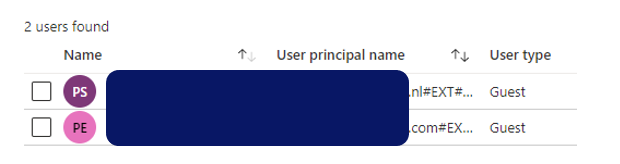
Recent I experienced a peculiar variant of this issue. An external was successful invited, and able to redeem the provisioned guest account and use that to access resources in the inviting tenant. At a later moment, the same external was reinvited via New-AzureADMSInvitation cmdlet on an alternative email address as identity. This was also successful and resulted in a second guest account provisioned in the inviting tenant. But when trying to resend the redeem invitation from Azure Portal, this failed as the new guest account on deeper level is referring to the same federated external identity as the original provisioned guest account. Thus although it looked in the inviting tenant that the 2 guest accounts were isolated from each other, in the reality of the actual identity source of the invited external the 2 alternative emails are administrated as proxy addresses within the same external Azure AD account.
I consider it as correct behavior by Azure AD B2B to recognize this, and prevent that multiple guest accounts can federate to the same single external Azure AD account.
Same external invited with 2 separate guest accounts in inviting tenant
Initial guest account successful accepted and activated
Later provisioned guest account cannot be accepted
Reinvite via Azure Portal blocked as guest account is referring to same external Azure AD account

Tuesday, December 22, 2020

Developer inconvenience: Deploy Isolated WebPart with webApiPermissionRequests fails unless permission to create new Azure AD App Registration

In real-life enterprise context, it is advised to tag any SPFx webparts that will invoke an Azure AD protected API as isolated. This to prevent that other script running in same page, can abuse the OAuth access token assigned to the SPFx webpart and invoke any tenant-wide API permissions on behalf of current user.
However, you need to be aware of some deployment implications with Isolated WebParts. The first one is that in the Microsoft design, you can only deploy Isolated WebParts via the tenant AppCatalog. It is not possible to deploy an Isolated WebPart (only) to the site App Catalog where it will actualy be used. I suspect this is due that each Isolated SPFx WebPart creates a new Azure AD App Registration on tenant level, and for consistency the SPFx WebPart must therefore also be installed on tenant level. Negative result is that every site-specific customization is visible on all others sites where it likely is unusable. Luckily this visibility is initial limited to only the site owners in "Add an App". Only after a site owner explicit adds the Isolated WebPart to the site, then it will be visible in page editing mode in the available WebParts.
An even more significant inconvenience is that to successful deploy an Isolated WebPart, you need to have the authorization to create a new Azure AD App Registration. Without that permission, the deployment in tenant AppCatalog will fail with the generic error 'Deployment failed. Correlation Id ....'. Implication is that in effect the dependency on Ops is unnecessarily increased: a developer must reach out to a Global Admin for the deployment of SPFx solution containing Isolated WebPart. But the better option is that you request that Global Admin to assign your account the Application Developer role, then you are empowered to do this 'Ops' part yourself.

Sunday, December 13, 2020

Simple pattern to ensure unique element ID inside SPFx React WebPart

When you build a SharePoint WebPart, you must take into account that the business user can add multiple instances of that webpart on a single page. So the operational execution must be robust for that. In case your webpart relies on HTML element ID, e.g. via 'getElementbyId', then you must ensure that the element ID of each instance is unique. A simple pattern I applied is to derive the ID of the inner React Component on that of the unique ID of the parent React WebPart.
Part 1: Extend the React WebPart Properties interface with a property for unique ID
Part 2: Parent React WebPart derives unique ID from its own, and pushes to the inner React Component
Part 3: Inner React Control applies the received unique ID in its rendering + operation